
You tap the menu in the ChatGPT app looking for Print. It isn’t there. You check the share sheet. Still nothing.
That’s not you missing a button. As of writing, the ChatGPT iPhone app has no Print or Export to PDF option for conversations, and OpenAI’s help center doesn’t document one. Users keep asking: OpenAI’s community forum closed yet another “Save as PDF” feature request on September 7, 2026, noting it had been raised before.
So you need a workaround. The right one depends on what you’re printing: one answer, a whole chat, a deep research report, or an image. Here’s how to handle each.
Before You Print: Pick the Method That Fits
| What you want on paper | Best method | Watch out for |
|---|---|---|
| One answer or a few paragraphs | Copy into Notes | Tables and math can break |
| An entire conversation | Shared link in Safari | Anyone with the link can view it |
| A deep research report | Built-in PDF download | Covers the report only, not the chat |
| A generated image | Save to Photos | Looks soft above 5×7 inches |
| A clean, edited document | Ask ChatGPT for a PDF file | It may rework your content |
Your iPhone and printer must be on the same Wi-Fi network, and the printer should support AirPrint. Every method below ends at the same iOS print screen.
Method 1: Copy One Answer Into Notes and Print It
This is the fastest route when you need a single response, like a recipe, a cover letter draft, or a set of instructions.
- In the ChatGPT app, press and hold the response you want.
- Tap Copy.
- Open Notes, create a new note, and paste.
- Tap the Share button, then choose Print.
- Select your printer, set the copies and page range, then tap Print.
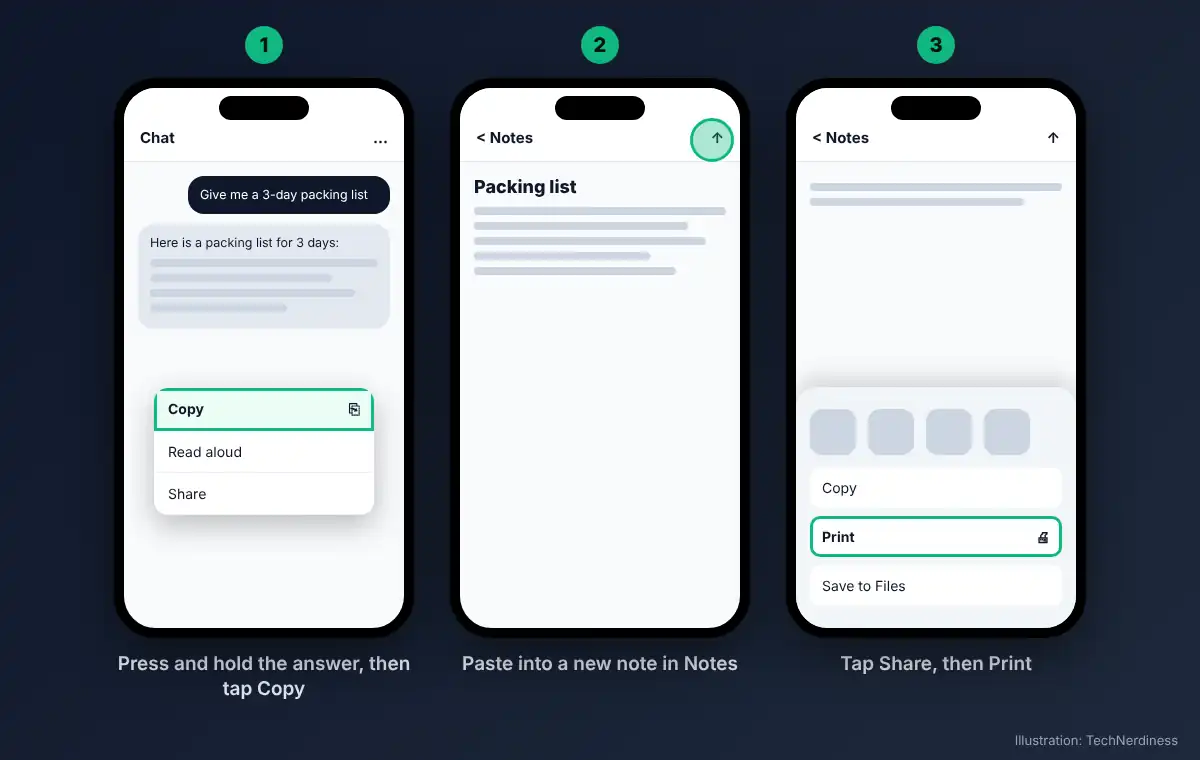
Notes strips most of ChatGPT’s formatting noise, which is why it prints cleaner than a screenshot. Tables are the exception. If the answer has one, paste it into Google Sheets or Excel instead and fit it to the page width. If you’d rather edit in Word first, ChatGPT for Microsoft Word lets you skip the copy-paste step entirely.
Method 2: Print a Full Conversation With a Shared Link
Copying a 40-message thread one bubble at a time is miserable. A shared link fixes that, and OpenAI confirms shared links work for all users in the iOS app.
- Open the conversation in the ChatGPT app.
- Tap the share option at the top right (it may sit inside the … menu, depending on your app version) and create a link.
- Copy the link, paste it into Safari, and open it.
- Scroll to the bottom of the page so every message loads.
- Tap Share, then Print. In Chrome, tap Share, View more, then Print.
- Check the preview before you print.
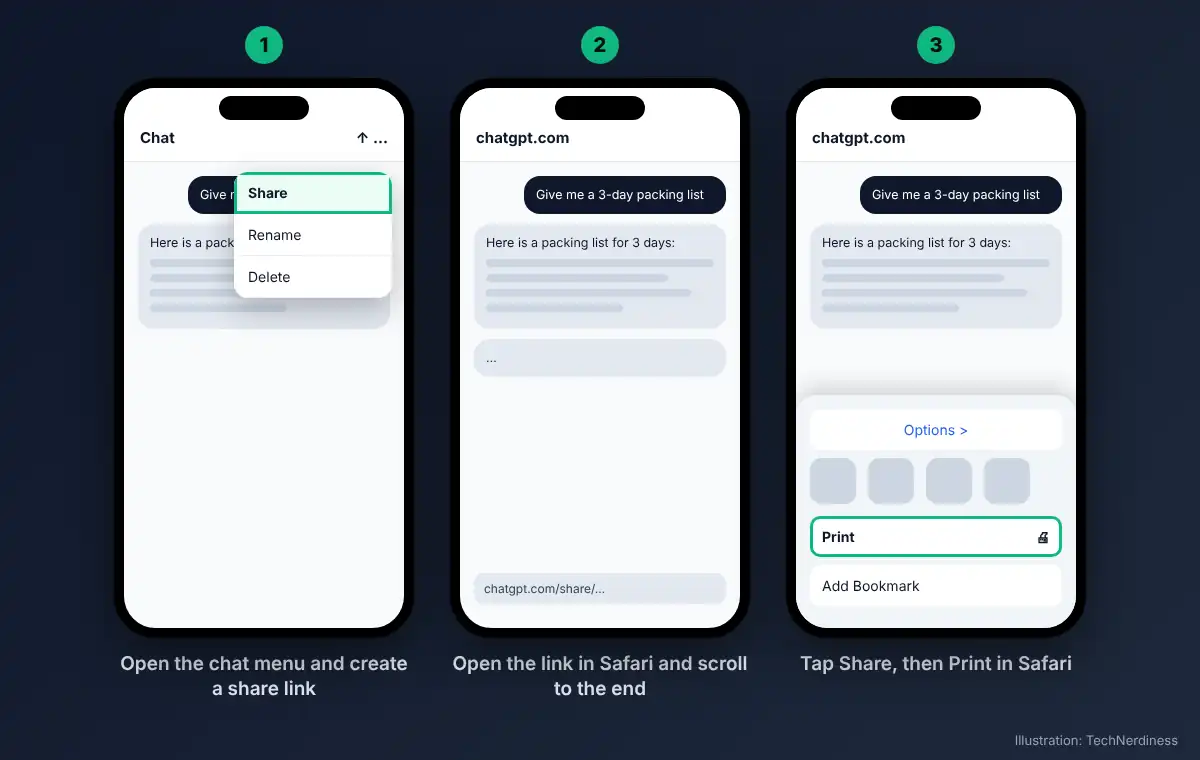
Step 4 matters more than it looks. ChatGPT loads messages as you scroll, and one tester’s long-chat print job came out as 17 pages with no conversation on any page. Images can fail the same way. Scroll first, print second.
Save It as a PDF Instead of Printing Right Away
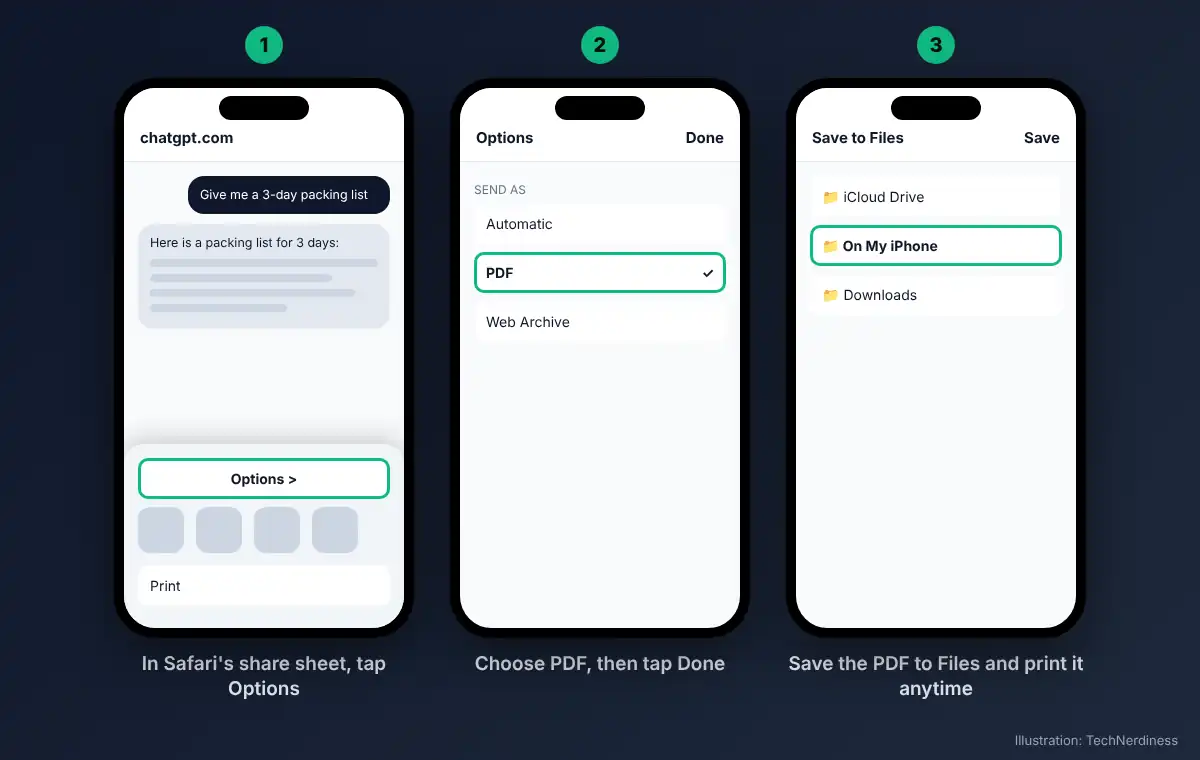
Want a file you can print later or email? In Safari, tap Share, then Options at the top of the share sheet, pick PDF, and save it to Files. You can also take a screenshot, tap the thumbnail, choose Full Page, and save that as a PDF.
The Privacy Catch Nobody Mentions
A shared link from a personal account is viewable by anyone who has the URL, and OpenAI doesn’t offer link expiry or granular permissions. The link also freezes the chat as it was when you shared it, so new messages won’t appear without a fresh link.
If the chat includes anything personal, delete the link after printing. Go to Settings > Data Controls > Shared links > Manage and remove it. Deleting the original conversation also deletes its shared link.
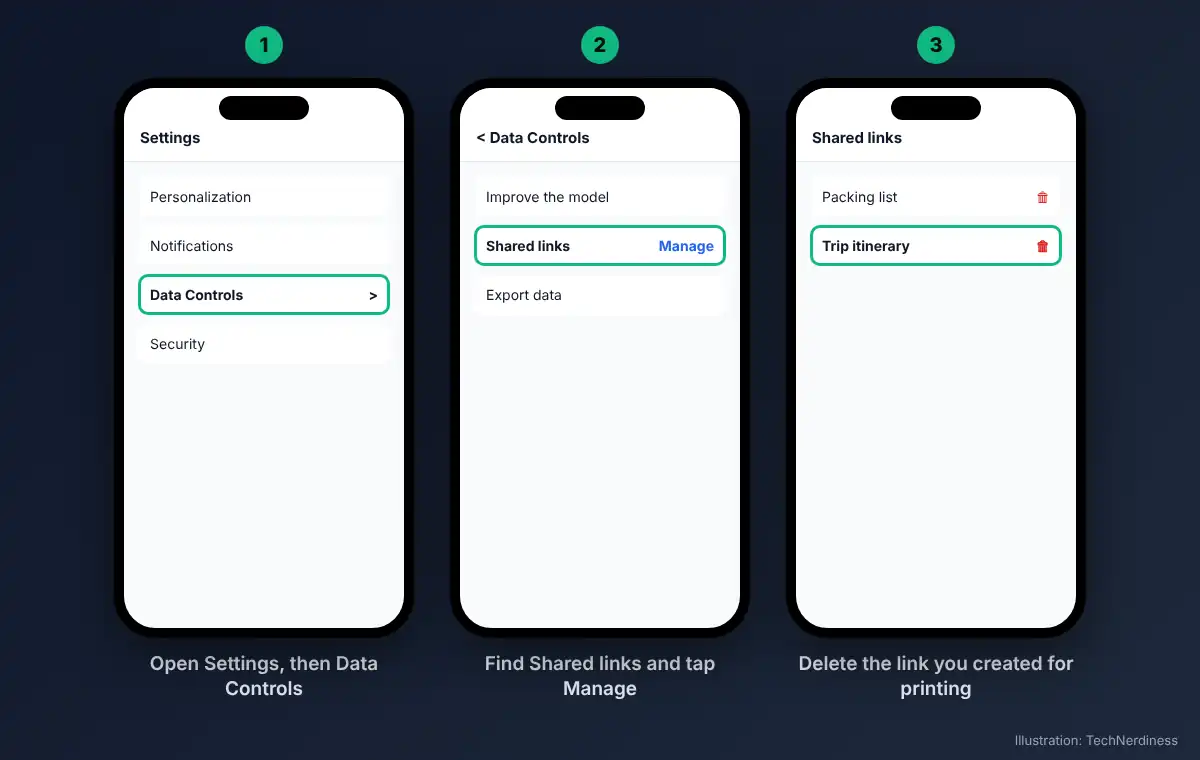
Business, Enterprise, and Edu users work differently: their links open only for members of the same workspace, and some Enterprise admins disable sharing altogether.
Method 3: Download a Deep Research Report as a PDF
Deep research is the one place ChatGPT gives you a real export. OpenAI’s help center confirms completed reports download as Markdown, Word, or PDF.
Open the finished report, use the download or share option in the report view, and pick PDF. Then open the file in Files, tap Share, and choose Print.
The PDF covers the report only, not the prompts and back-and-forth that produced it. That’s usually what you want for a handout. Deep research limits also vary by plan, so check what’s free and what isn’t in ChatGPT if the option is missing.
Method 4: Print Images ChatGPT Created
Tap the generated image, save it to Photos, then print it from Photos like any other picture.
Size your expectations. ChatGPT images usually land around 1,000 to 1,500 pixels per side, which looks sharp at 4×6 or 5×7 but soft on a full letter-size page. That viral 80s portrait in ChatGPT will look great framed small and blurry blown up.
Method 5: Ask ChatGPT to Build the PDF for You
When the final answer already reads like a finished document, skip the chat layout entirely. Type something like: “Turn your last answer into a formatted PDF I can download.”
ChatGPT generates the file, you tap to open it, then Share > Print. The output looks cleaner than any browser print. One caveat: ChatGPT may summarize or rephrase content while converting it, so read the file before you print 20 copies. This method also works poorly when you need the full conversation, since it tends to export only the final content.
What About Third-Party Export Apps?
App Store tools like ChatExport turn a shared ChatGPT link into a formatted PDF, HTML, or Markdown file through the iOS share sheet. They solve the pagination problem well.
They’re not made by OpenAI, though. Before you hand one your conversations, read its privacy policy and check whether it processes chats on your device or on its own servers. For one-off printing, the free methods above cover almost everything.
Quick Fixes When Printing Goes Wrong
- Blank pages: Scroll the shared page to the very bottom before printing.
- “Images are still loading” warning: Close the print screen, wait a few seconds, and try again.
- Code cut off at the edge: Copy the code into Notes or a text file and print from there.
- Printer not listed: Confirm the printer supports AirPrint and sits on the same Wi-Fi network as your iPhone.
- Broken symbols or math: Pasted special characters often render wrong. Check the preview, or use Method 5.
Most failures trace back to one cause: the page wasn’t fully loaded when iOS captured it.
Final thoughts
OpenAI still hasn’t added a Print button, and forum requests suggest it isn’t a priority. That’s frustrating, but the workarounds are quick once you match them to the job. Copy single answers into Notes.
Use a shared link for full chats, and delete it afterward. Download deep research reports directly. And for anything you plan to hand to someone else, have ChatGPT build a proper PDF and proofread it first.