Customers already ask ChatGPT which running shoes to buy or which bakery opens early. Until this week, businesses had no say in the answer. If ChatGPT showed an old return policy or the wrong website, you had nowhere to fix it.
OpenAI changed that on November 10, 2026, when it launched Businesses in ChatGPT in beta. The core piece is Business Hub, a dashboard where you claim your business, correct its details, add product feeds, and see how often ChatGPT mentions you. It’s free at launch, and you don’t need a paid plan (here’s what each ChatGPT plan costs if you’re wondering), an Ads account, or an Enterprise agreement.
Setup involves two separate approvals, and most confusion comes from treating them as one. Here’s the full process, plus the gotchas OpenAI’s help page doesn’t spell out.
Who Can Add a Business to ChatGPT Right Now
Eligibility depends on your location, business type, and whether you have a website. As of November 2026:
| Business type | Claim a profile | Business Agent |
|---|---|---|
| US ecommerce or online service with a website | Yes, if eligible | Yes, if eligible |
| US local store or restaurant | Existing listing only | No date announced |
| Online business outside the US | Where ChatGPT and verification are supported | Not at launch |
| Business without a website | Initially limited | Requires a website |
Existing OpenAI Enterprise customers and advertisers skip the self-serve flow and claim through their OpenAI representative.
One catch for local shops: if ChatGPT has no listing for you, you can’t create one yet. Only eligible online businesses see an option to add a new profile.
What to Have Ready Before You Start
Gather these first. The second approval stage stalls when details don’t match.
- Access to one verification route. The phone number on the listing, a business email, DNS access for your domain, or your Shopify login.
- Identity documents. A government-issued ID, business registration details, and proof you’re authorized to represent the business.
- Matching records. Your business name, address, and registration or tax number should match official records exactly.
If an agency or IT team manages your domain, loop them in now. They’ll need to add a DNS record if you verify that way.
How to Claim Your Business in ChatGPT Business Hub
- Sign in to ChatGPT and open Business Hub from the sidebar.
- Search for your business by name.
- Select the matching listing and confirm the ChatGPT account that will manage it. Pick the account you plan to keep; teammates join later with their own accounts.
- Choose one of the verification methods shown and follow the prompts (details below).
- Wait for OpenAI’s claim decision by email. You can select Cancel claim while it’s under review.
- Select Verify with Persona, then Continue to Persona, and submit the requested information.
- Once Persona approves you, the blue verified badge appears and the full dashboard unlocks.
Got a claim invitation by email instead? Open the personal link and sign in with the address that received it.
Pick the Right Verification Method
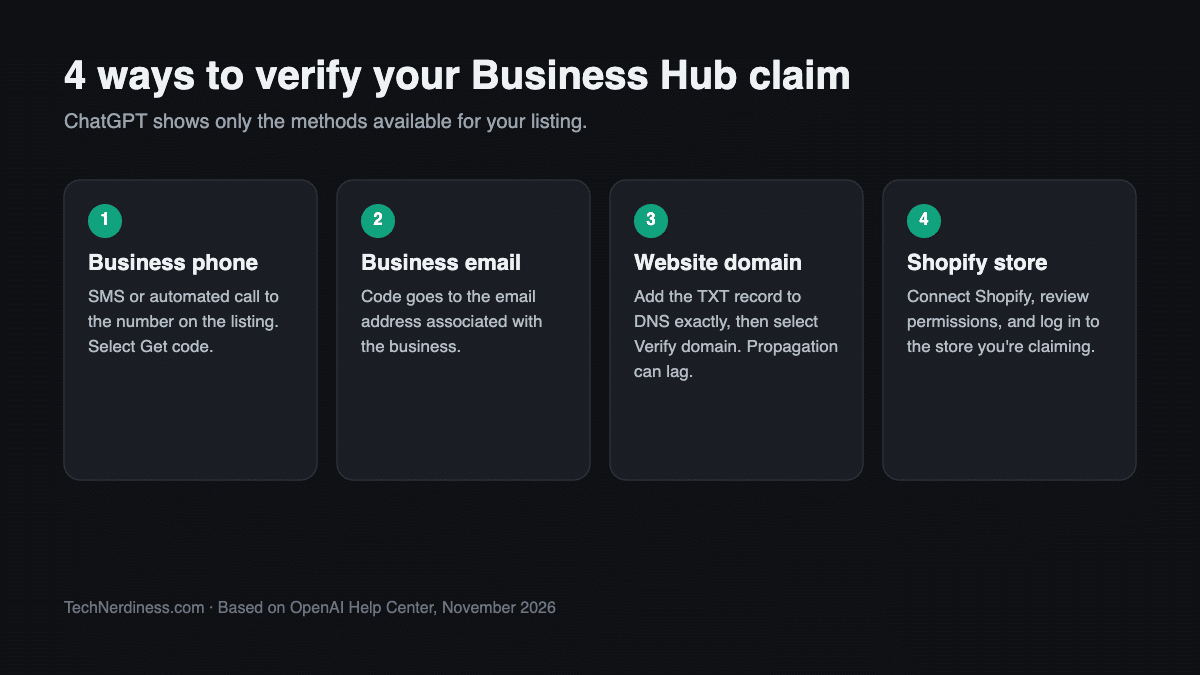
- Business phone: Select Business phone, choose SMS or an automated call, select Get code, and enter it. The code goes to the number on the listing, so this fails if that number is outdated.
- Business email: Select Business email, then Get code, and enter the code sent to your business address.
- Website domain: Select Website domain and copy the TXT record’s type, host, and value exactly into your DNS settings. Return to ChatGPT and select Verify domain. DNS changes can take time to appear, so don’t panic if it fails on the first try.
- Shopify store: Select Shopify store, then Connect Shopify. Review the permissions, select Log in to Shopify, and sign in to the store you’re claiming.
ChatGPT may not offer every method for your listing. The domain route is usually the most reliable for online brands, since it doesn’t depend on old contact details.
Claim Approval and Verification Are Not the Same
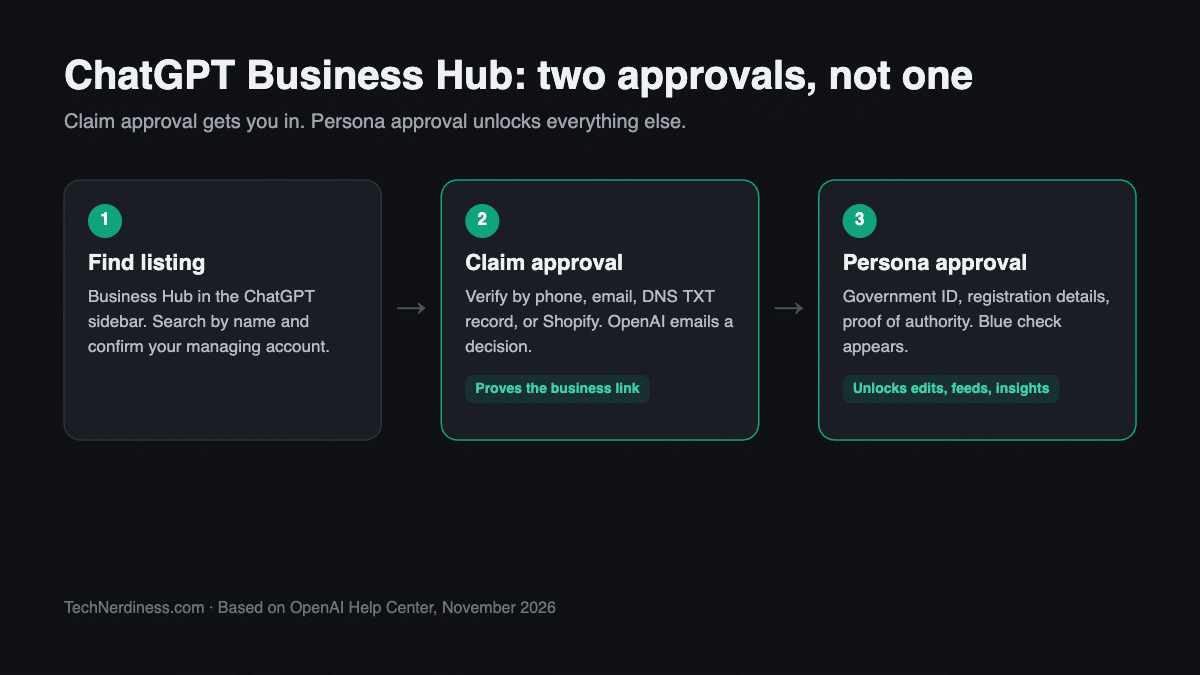
Claim approval proves you’re connected to the business. Persona proves who you are. Until Persona approves you, you can’t publish profile edits, connect a product feed, view insights, or build an agent. The blue check appears only after Persona, not after the claim.
Skipped Persona earlier? Open the Business tab, select your profile, find Complete verification with Persona, and select Verify.
Submitting to Persona isn’t approval. If the check fails or expires, follow the email’s instructions, select Try again if it’s offered, and make sure your name, address, and registration number match official records.
Review everything before you submit. If you create a new profile through Persona, approval publishes it automatically. Only unpublished drafts can be deleted, and support can’t unpublish or hide a published profile as part of a setup or ownership request.
Unlike Meta Verified, this badge costs nothing today. It confirms ownership, though, not that OpenAI checked every claim on your profile.
What If Someone Already Claimed Your Listing?
Open the profile, select the more options menu (•••), then Dispute ownership, and verify with Persona. Filing a dispute doesn’t change the profile’s visibility in ChatGPT.
If you see Contact support instead, the listing is locked. Select it to request access.
What You Can Edit After Verification
Verified owners can update the website, description, product or service category, logo, delivery policy, return policy, and cover photo. Everything must follow OpenAI’s Businesses in ChatGPT policy.
OpenAI reviews edits before they go live, so changes take time to show up. ChatGPT also pulls from other sources when answering questions about you. Fix outdated details on your own website and other listings too, or ChatGPT may keep repeating them.
Running several brands or locations? Each brand is managed separately, and claiming a parent company doesn’t claim its locations. Central multi-location management isn’t available yet.
How to Add a Product Feed for Your Store
Retailers can feed ChatGPT current prices and availability.
- Shopify merchants: Connect from Business Hub or the Shopify admin. Eligible Shopify products already appear in ChatGPT through Shopify Catalog, so connecting mainly speeds up verification.
- Everyone else: Upload a CSV that follows OpenAI’s product feed specification, or provide a hosted URL that links directly to the feed file. Products must follow OpenAI’s Commerce policies.
Watch your promotions. According to setup guides that summarize OpenAI’s feed spec, a sale end date doesn’t switch the price back on its own. Refresh the feed when a sale ends, or ChatGPT may quote a discount you no longer offer.
A connected feed doesn’t publish an agent or guarantee ChatGPT recommends your products.
How to Read Business Hub Insights Correctly
After Persona approval, open your business and select Insights. Data covers the past 28 days and only appears once activity crosses OpenAI’s privacy thresholds.
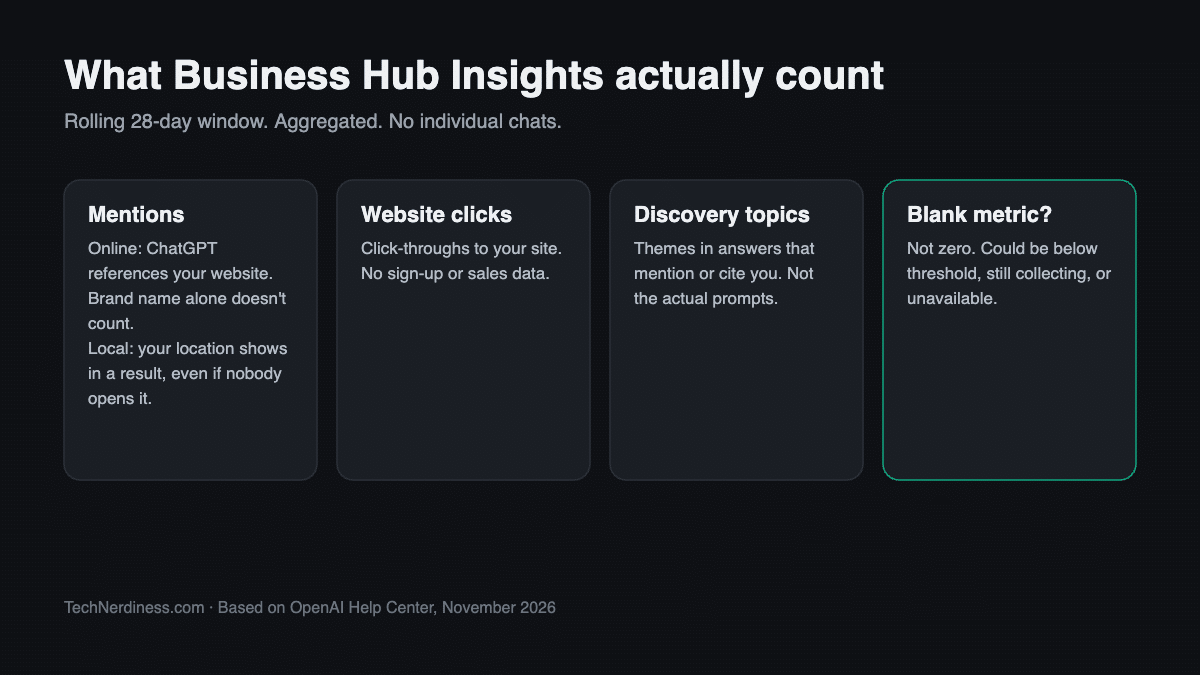
- Mentions: For online businesses, a mention counts only when ChatGPT references your website. Your brand name alone doesn’t count. For local businesses, it counts when ChatGPT shows your location in a result, even if nobody opens it.
- Website clicks: Click-throughs to your site. They don’t show sign-ups or sales.
- Discovery topics: Recurring themes in answers that mention or cite you, not the exact prompts.
That brand-name rule matters. If ChatGPT recommends you by name but links a review site instead of yours, your online mention count won’t move.
Two more mistakes to avoid. Don’t add up totals from different days, because the 28-day windows overlap; take a snapshot every 28 days and log the date. And a blank metric doesn’t mean zero activity. It can mean you’re below the reporting threshold or data is still being collected.
OpenAI doesn’t share individual conversations. Use your own analytics to judge whether ChatGPT traffic converts.
Should You Build a Business Agent?
A Business Agent answers questions about your products and policies inside ChatGPT. When your business appears in an answer, users can open your profile and chat with it in a labeled conversation, separate from ChatGPT’s own replies.
It’s limited to eligible US ecommerce and online-service businesses with a website and Persona approval. Your industry must also meet OpenAI’s Business Agents Policy, so some verified businesses can manage a profile but not publish an agent.
Know its limits before you invest time:
- It can’t complete purchases, make bookings, or check orders. It links customers to your website.
- It doesn’t use data or tools from a separate ChatGPT plugin your business may have.
- You won’t see individual agent chats.
Before you select Publish, preview it with questions customers actually ask, like “Can I return an item I bought on sale?” If the answer is wrong, fix your information or instructions and test again. Customers can only chat with a published agent. You can also sponsor the agent as the destination for paid ChatGPT Ads, which OpenAI labels as sponsored.
Final thoughts
Business Hub doesn’t buy you visibility. It gives you a correction tool and a rough view of how ChatGPT talks about you. That’s still worth the setup time for most businesses, since the alternative is letting ChatGPT describe you from whatever it finds online. Claim early, get your Persona documents right the first time, and keep your website accurate, because ChatGPT still reads it.
No. OpenAI says claiming doesn’t guarantee more visibility or control over ChatGPT’s independent recommendations, and ads don’t influence its independent answers.
It’s free during the beta, according to Digiday’s reporting. OpenAI hasn’t ruled out charging later.
Yes. The admin who claimed the business can add teammates and grant an agency access. Each person uses their own ChatGPT account. If you claimed it inside a ChatGPT workspace, invitees may need to be workspace members. Don’t forward your personal claim invitation.