Your iPhone stutters while loading a webpage that used to open instantly. An app you rely on for work has crashed twice this morning. You followed our guide on installing the iOS 27 beta to try the new features, and now you just want your reliable iPhone back.
iOS 27 is still in beta, and Apple’s “Surprise and shine” event is happening on September 9. Apple hasn’t announced the public iOS 27 release date yet, but based on its usual September schedule, the stable version should not be far away.
That timing changes what you should do. Getting off the iOS 27 beta isn’t one single process. You have two options depending on whether you can wait for the public release or need to return to iOS 26 immediately.
Should You Restore Now or Wait for the iOS 27 Public Release?
We faced the same trade-off last year when removing the iOS 26 beta, and the same logic still applies. If your iPhone is usable and you’re only dealing with occasional bugs, battery drain, or minor performance issues, waiting for the public iOS 27 release is usually the easier option.
You can simply turn off Beta Updates and stay on your current build until Apple releases a newer public version. When that happens, you can install it normally through Software Update without erasing your iPhone.
A full downgrade to iOS 26 is much more disruptive because it requires restoring the device. There’s also an important backup limitation. If your only recent backup was created while your iPhone was running the iOS 27 beta, that backup may not be compatible with iOS 26.
Apple specifically warns that backups created while using beta software might not work with an earlier iOS version. So, if your beta is annoying but still usable, waiting is usually the safer option.
If the beta is genuinely causing problems you can’t live with, such as severe battery drain, apps refusing to launch, repeated crashes, or broken work-critical features, then restoring to iOS 26 may make more sense.
Turn Off iOS 27 Beta Updates First
Turning off Beta Updates does not remove the iOS 27 beta already installed on your iPhone.
What it does is stop your device from receiving future beta builds.
If you’re planning to wait for the public release, this may be the only change you need to make.
- Open Settings on your iPhone.
- Go to General > Software Update.
- Tap Beta Updates.
- Select Off.
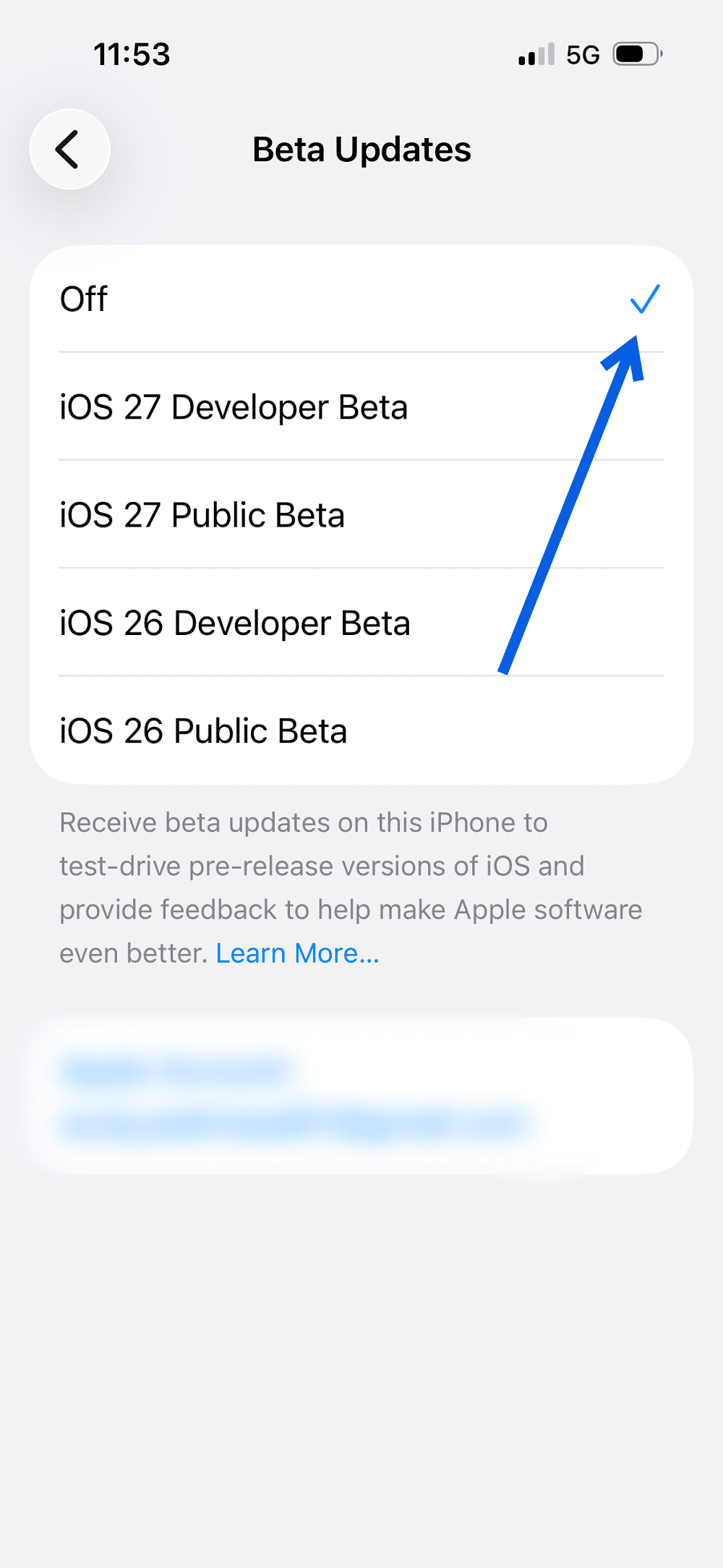
Your iPhone will remain on the currently installed iOS 27 beta until Apple releases a newer public version.
Once a compatible public build becomes available, you can install it normally through Settings > General > Software Update.
If you’ve already read our breakdown of what changed in iOS 27 beta 8 and the current version is stable enough for everyday use, this is the route I’d take.
How to Downgrade From iOS 27 Beta to iOS 26
If you want to remove iOS 27 immediately and return to iOS 26, you’ll need to restore your iPhone using a Mac or Windows PC. There is no option inside the iPhone’s Settings app that performs an in-place downgrade while keeping everything intact.
Before You Start
A downgrade erases your iPhone, so prepare carefully.
- Check for a pre-beta backup: Ideally, you should have a backup created before installing iOS 27. A backup created on iOS 27 may not restore onto iOS 26.
- Save important recent data separately: Any photos, files, messages, or app data created after your last compatible backup could be lost during the downgrade.
- Use a reliable cable and computer: Interrupting a restore halfway through can create additional problems.
- Make sure your Mac or Windows PC is updated: On Windows, use Apple’s Apple Devices app. On a Mac, you’ll use Finder.
Restore Your iPhone to iOS 26
- Connect your iPhone to your Mac or Windows PC with a cable.
- Open Finder on Mac or the Apple Devices app on Windows.
- Put your iPhone into recovery mode.
For an iPhone 8 or later:
- Quickly press and release Volume Up.
- Quickly press and release Volume Down.
- Press and hold the Side button.
- Keep holding it until the recovery mode screen appears.
- Your computer should detect an iPhone in recovery mode.
- Choose Restore when prompted.
- Allow the computer to download and install the currently available public iOS version.
- Once the restore finishes, set up your iPhone again.
- Restore from a compatible backup if you have one.
The restore process installs a version that Apple currently allows to be restored. You can’t simply choose any older iOS 26 build you want.
If your compatible backup is several weeks old, anything created after that backup may not automatically return unless it was separately synced to iCloud or another service.
Can You Restore an iOS 27 Backup to iOS 26?
Usually, you should assume no. Apple warns that a backup made while using beta software might not be compatible with an earlier version of iOS.
For example, if you:
- Install the iOS 27 beta.
- Use it for two weeks.
- Create an iCloud or computer backup.
- Restore your iPhone back to iOS 26.
That newer beta backup may not appear as an available restore option. That’s why creating a computer backup before installing a beta is so important.
If you use Finder on Mac, archiving that backup before installing beta software also helps prevent a newer backup from replacing it.
How to Leave the Apple Beta Software Program Completely
Turning off Beta Updates only removes your iPhone from receiving new beta software. Your Apple Account can still remain enrolled in the Apple Beta Software Program.
If you want to leave the program entirely:
- Go to Apple’s Beta Software Program website.
- Sign in with the Apple Account you used to join the program.
- Open the unenrollment section.
- Select the option to Leave Program.
- Confirm the change.
After you leave, Apple says you’ll stop receiving Apple Beta Software Program emails and won’t be able to submit feedback through Feedback Assistant as a program member. You can always enroll again in the future if you decide to test another beta.
Turning Off Beta Updates vs. Leaving the Beta Program
These two actions aren’t exactly the same.
- Turning off Beta Updates stops a particular device from installing future beta versions.
- Leaving the Apple Beta Software Program removes your Apple Account from the public beta program itself.
So, if all you want is to stop installing iOS betas on your iPhone, turning Beta Updates off is usually enough. If you’re done with beta testing completely, you can do both.
What About iPadOS 27 Beta?
The process is essentially the same on iPad. If you want to stay on your current iPadOS 27 beta until the public release:
- Open Settings.
- Go to General > Software Update > Beta Updates.
- Select Off.
If you want to return to iPadOS 26 immediately, you’ll need to restore the iPad using Finder on Mac or Apple Devices on Windows.
As with iPhone, make sure you have a compatible backup before restoring.
Can You Downgrade the watchOS 27 Beta?
Apple Watch is different. Apple does not provide users with a normal method for restoring an Apple Watch running beta software back to an earlier public watchOS release.
Once the watchOS beta is installed, you’ll generally need to remain on the beta path until a compatible newer non-beta version becomes available. That’s one reason I’d be much more cautious about installing beta software on an Apple Watch than on an iPhone or iPad.
The same general limitation also applies to beta AirPods firmware: Apple says you can’t restore AirPods to an earlier firmware version after installing beta firmware.
Should You Remove the iOS 27 Beta Right Now?
For most people this close to Apple’s September event, I wouldn’t erase the iPhone unless the beta is causing serious problems.
If your phone is mostly usable:
- Turn Beta Updates off.
- Stay on the current beta.
- Wait for Apple to release the public version of iOS 27.
- Update normally when it appears.
You’ll avoid wiping your device and won’t have to worry about restoring an older backup.
If the beta has made your iPhone genuinely unreliable, however, restoring to iOS 26 is still an option while Apple continues to make a compatible public build available for restore.
The Bottom Line
Removing the iOS 27 beta can be either extremely simple or fairly disruptive, depending on how quickly you want out. If you can wait for the stable release, turn off Beta Updates and install the public version of iOS 27 when Apple releases it. Your data stays intact, and there’s no complicated restore process.
If you need to return to iOS 26 immediately, you’ll have to restore your iPhone using Finder or Apple Devices, which erases the device and may prevent you from using a backup created on the iOS 27 beta. For most users this close to the public release, waiting is the easier route. Save the full restore for situations where the beta has made your iPhone genuinely difficult to use.