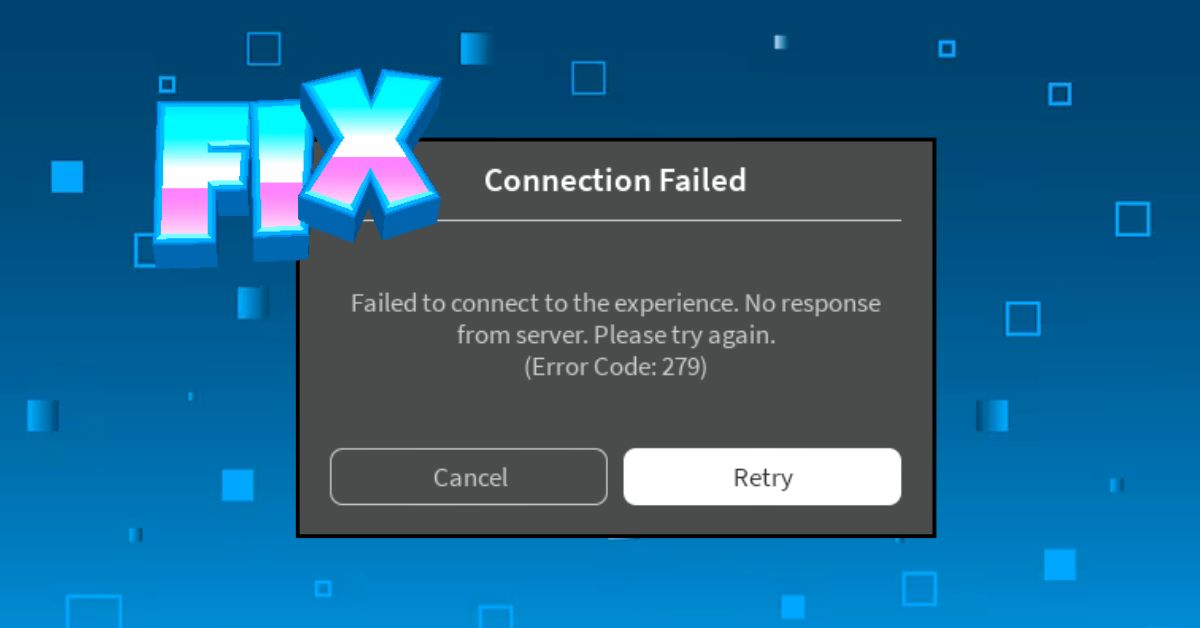
A gamer’s experience with Roblox is usually seamless, but there are errors that can interrupt your gameplay. One of the most common errors is Roblox Error Code 279, along with a message saying “Failed to connect to the game. (ID=17: Connection attempt failed.” While we know you might be worried, don’t be. Keep reading as our dedicated guide will show you what Roblox Error Code 279 is and how to fix it.
What is Roblox Error Code 279 and What Causes It?
Like Roblox Error Code 267, Error Code 279 is fairly common and can hamper your experience out of nowhere. This error appears when your host device fails to establish a connection with the Roblox servers. This can happen before, during, or after you are playing Roblox. There are some common causes for this happening, which are:
- Unstable Internet Connection: If you have a weak or unstable Internet connection that is slow or frequently drops, you are more prone to running into Error Code 279.
- Antivirus and Firewall: Windows Antivirus has a habit of blocking connections it deems risky. As such, it might be restricting your access to Roblox and causing this error.
- VPN Use: As with other Roblox errors, the 279 one can occur if you’re using a Virtual Private Network (VPN) to mask your identity online.
- Corrupted Browser Cache: If launching Roblox from a web browser, corrupted cache files might interfere with the connection handoff.
- Roblox Port Issues: Roblox requires certain UDP ports to effectively work with the experience’s servers. If your router, ISP, or other factors block these ports, you can run into issues.
- Roblox Server-Side Outage: If Roblox itself is having issues with its servers, you will most likely run into the Error Code 279.
Common Error Code 279 Messages on Roblox
While many Roblox errors have varied messages that accompany them, Roblox Error Code 279 has one or two fixed messages. These include:
- “Failed to connect to the Game. (ID = 17: Connection attempt failed.)”
- “Error Code: 279”
- “Disconnected: Failed to connect to the server.” (Player-reported variation)
- “Unable to connect to game server. Please try again.” (Player-reported variation)
You might see any of these messages with this error. However, as long as the code is attached, it’s the same Roblox Error code.
How to Fix Roblox Error Code 279
While this pesky Roblox error code might seem scary, it is fixable. Here are the most common fixes for Roblox Error Code 279.
1. Check Your Internet Connection
While we know this sounds obvious, you’d be surprised how many of us have unstable Internet connections. An ISP providing a link with high packet loss or interrupted connections can result in this error.
For this case, start a speed test online and check the connection’s quality. If it turns out badly, then the first thing to do is to contact your ISP for a proper reset. If your connection is fine, then keep reading.
2. Check Roblox Server Status
Another quick fix to try is to check the official Roblox Server Status page and see if there are any maintenance operations going on. Server outages are one of the most common reasons for Error 279.
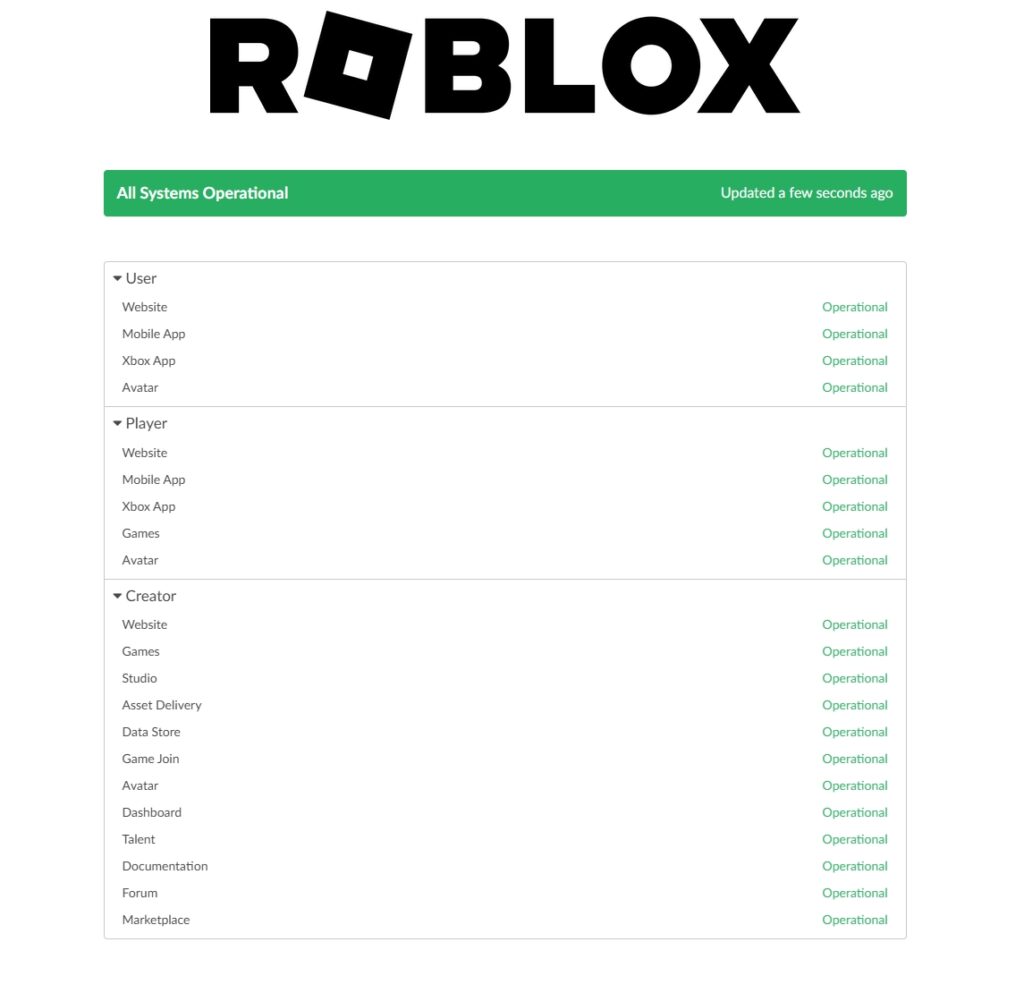
When you visit the page, you should see the “All Systems Operational” message alongside a green banner. If you don’t, then it’s time to wait for the outage to resolve itself.
3. Check NAT Type and Open Required Ports
One of the most common reasons this error happens is a restricted network configuration, specifically a strict NAT type or blocked ports. NAT (Network Address Translation) determines how your internet communicates with external servers.
Games like Roblox work best on Open or Moderate NAT. Open your router dashboard or device network settings and look for NAT Type. If it shows Strict, it can block Roblox from connecting to servers. If your ISP supports it, Port Forwarding can help in this case. Follow the steps below to do so:
- Head to your router’s settings by typing (commonly) “192.168.1.1” in any empty browser tab.
- Enter your router’s credentials.
- Search for port-forwarding under Internet settings.
- Look for the port range option and set it to 49152-65535 and assign it to your device’s IP.
- Once done, simply save and restart your router.
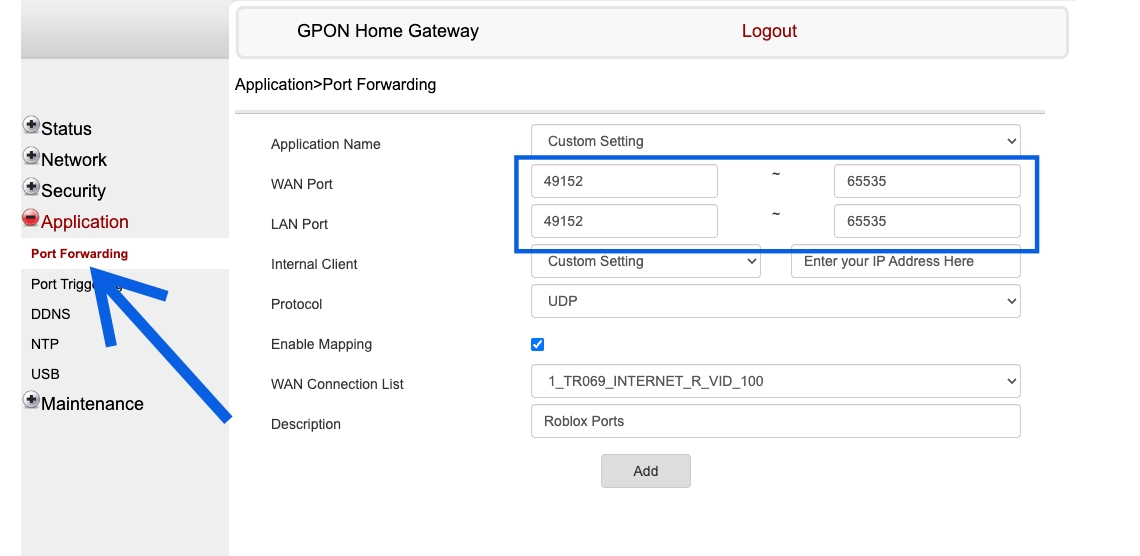
If you don’t see the option, that means your ISP doesn’t support port-forwarding. In that case, you’ll have to contact them. Nonetheless, keep reading for more fixes.
4. Disable Antivirus
Since Windows Antivirus could be one of the reasons the error code is happening, disabling it could also be an easy fix. You can disable it using various methods:
- Disable Protection Services: Windows has real-time protection that actively monitors for threats. All you need to do is head over to Windows Settings and turn off this real-time protection. While turning off permanently leaves you open to threats, it’s also one of the things you must do to ensure you can bypass this error.

- Disable Firewall or Add Exception: You can also turn off the Windows Firewall altogether or add an exception for the Roblox app. To do so, head over to the Firewall Settings > Allowed Apps > Add Roblox.
5. Disable VPN
Another simple yet effective fix to disable your Virtual Private Network (VPN) that might be interfering with Roblox and causing this error code. Thankfully, it’s universally straightforward to turn off VPN. Some of the most common providers and the methods to turn them off include Surfshark, NordVPN, and ExpressVPN.
6. Clear Browser Cache
If you launch Roblox through a browser, corrupted cache files or outdated cookies can interfere with the connection between your Internet and the Roblox client. Clearing the browser cache will force it to establish a fresh connection. Follow the steps below to clear browser cache:
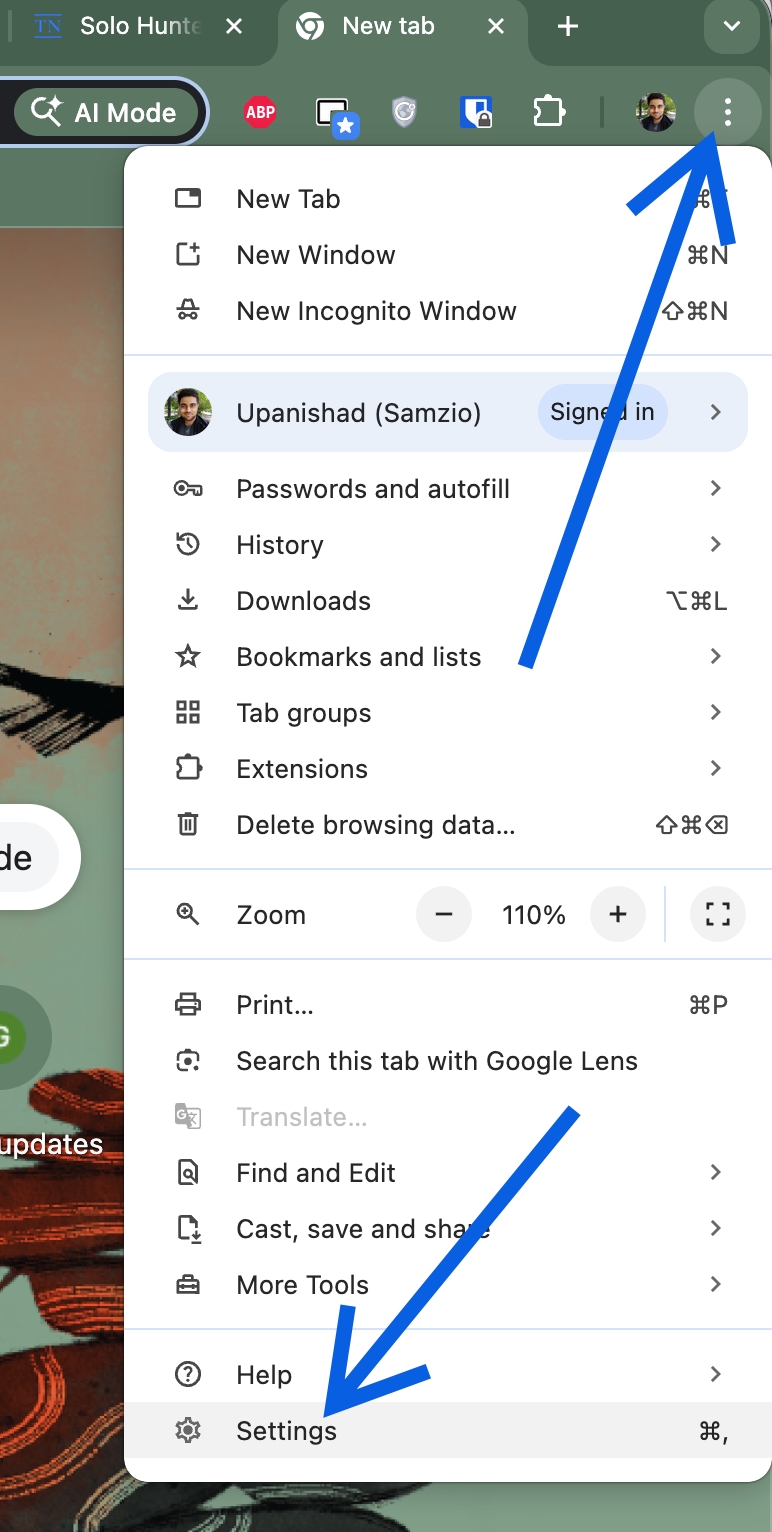
- Open your primary browser. We are using Chrome.
- Click the three-dot menu in the top-right corner > Settings.
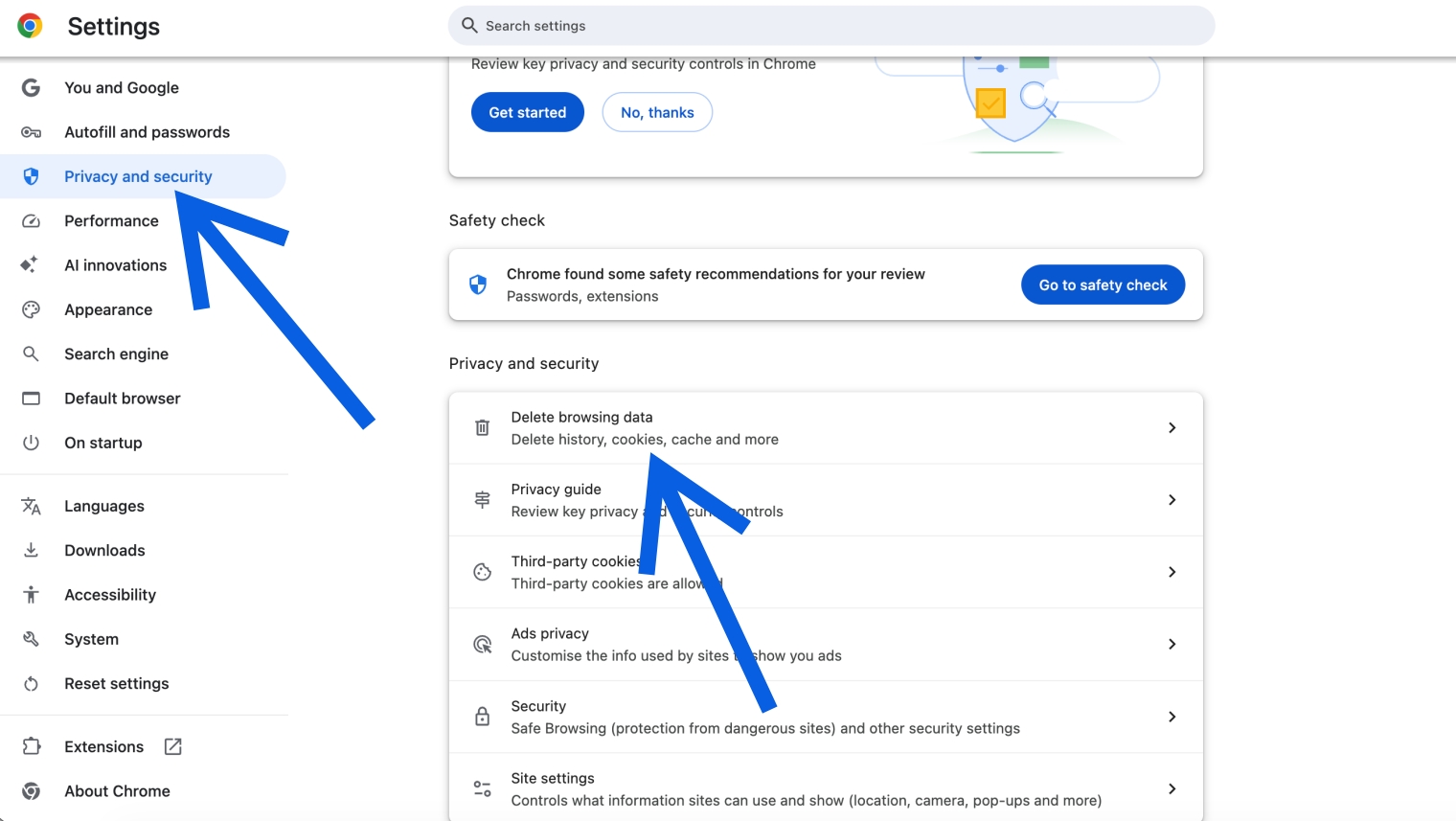
- Click Privacy and security, then select Delete browsing data.
- Set the Time range to All time.
- Once done, click Delete data.
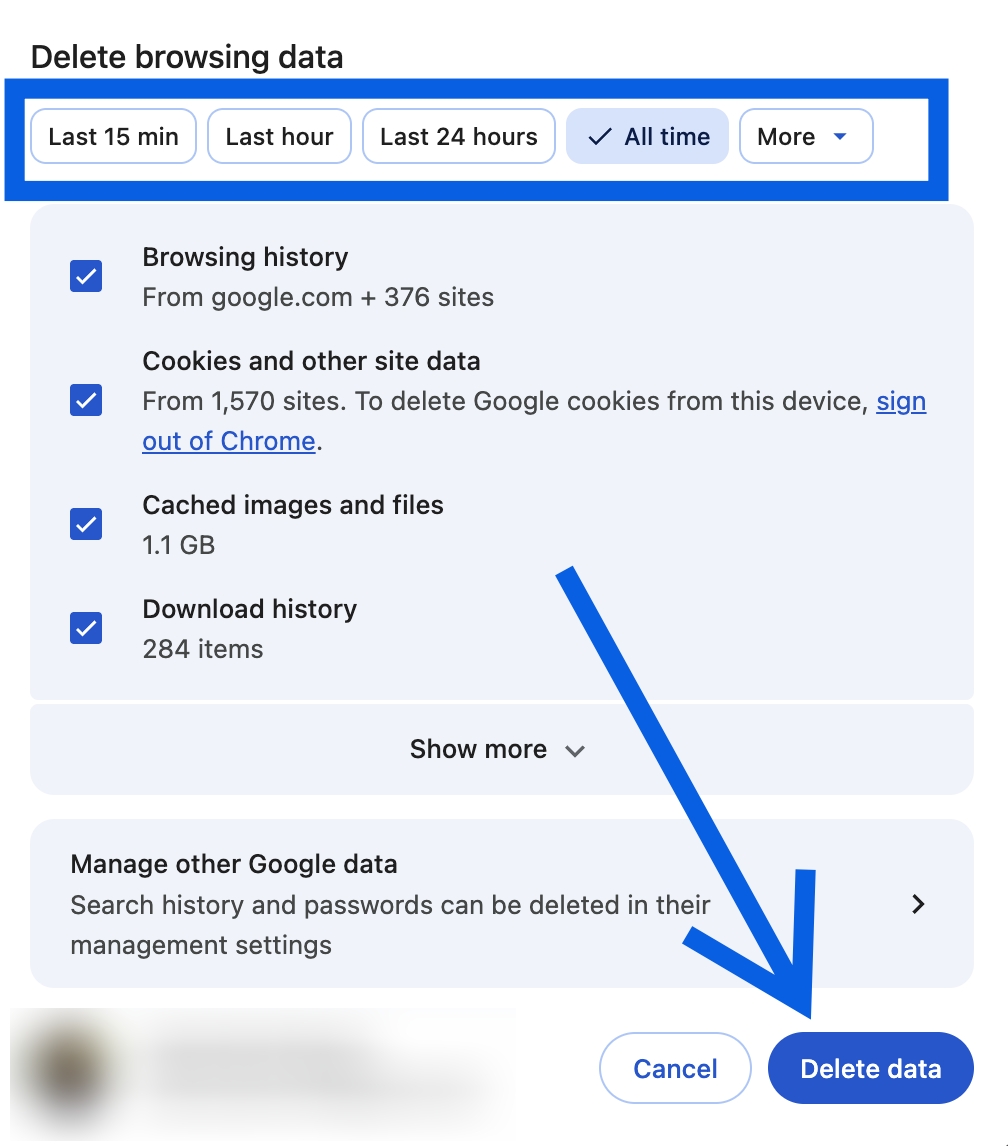
You can restart Chrome once if you wish, but you’re all done with clearing your browser data.
7. Reset Network Settings
If none of the above fixes work, your system’s network configuration may be corrupted or misconfigured. Resetting your network will restore everything to default and often resolves stubborn issues like the Roblox Error Code 279. Follow the steps below to do so:
- Open Windows Settings and head over to Network & internet.
- Select Advanced network settings.
- Click Network reset.
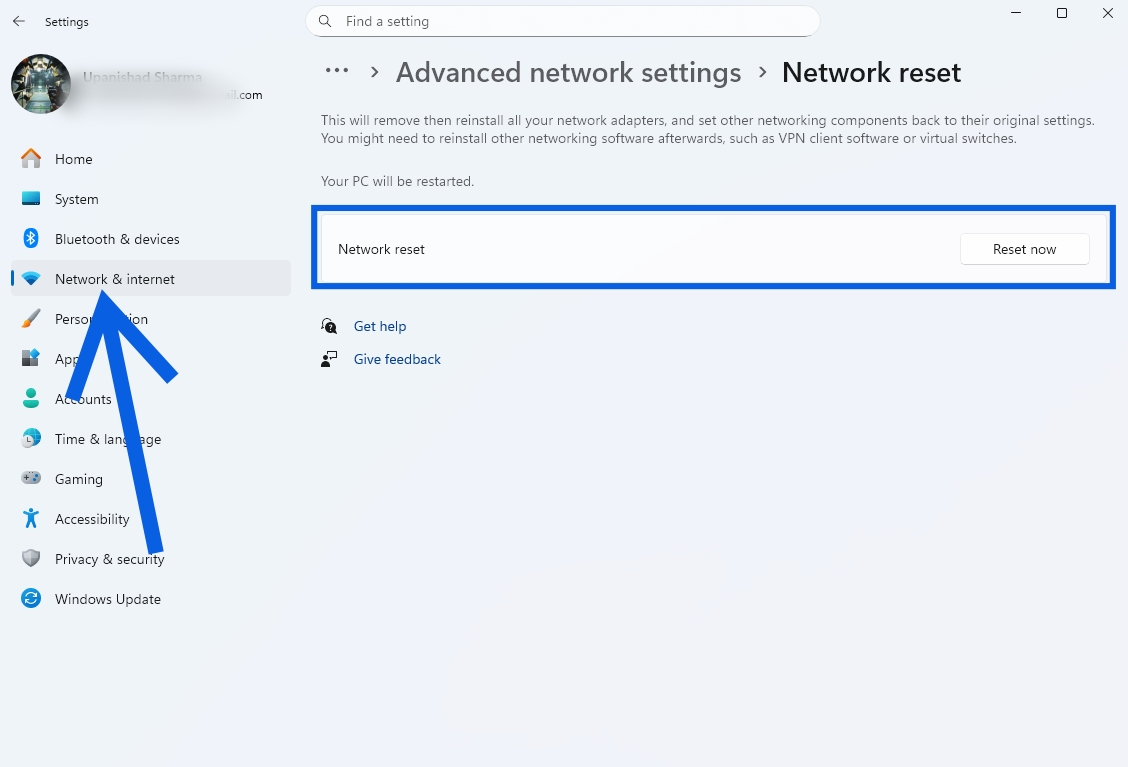
Once done, restart your PC. This will reset your network adapters, DNS settings, and everything else. With everything reset, your Roblox Error Code 279 should be gone.
Final Thoughts
Provided you follow the fixes, Roblox Code 279 should disappear faster than working Solo Hunters codes. If you’re still having problems, drop your questions in the comments, and we will try our best to help you out.
No, Error Code 279 is not a ban. It is a connection-related error. If you see Error 279, it means your device failed to connect to the server, which can be resolved with the fixes above.
Yes. Many VPNs interfere with Roblox’s connection and can trigger this error. In such cases, it’s best to turn off your VPN and try connecting again.
Sometimes, a corrupted browser cache can also cause this error code. In such a case, you can reset your browser cache as we showed you above to fix it.
While there are times this error could be caused by a Roblox server outage, it doesn’t always mean the server is down. There could be other reasons, including corrupted cache, VPN use, and other factors.
Yes. A strict NAT type can block Roblox from establishing a connection to its servers. You can switch to an Open or Moderate NAT by following our Port Forwarding steps above.