Emojis have outgrown their role as cute little pixels and settled into life as a full-blown language of the internet. On phones, tossing one into a message feels automatic. On a desktop, though, things can feel oddly sterile, as if all that expressive range got left behind with the touchscreen. Windows actually ships with a capable set of tools that bring the same tone and personality to your emails, spreadsheets, and Discord messages, once you know where to find them.
Whether you are adding a polite checkmark to a work email or dropping a perfectly timed reaction into a chat, here is how to get fluent at using emojis on Windows 10 and 11.
How to Open the Emoji Picker Using a Shortcut
A single, system-wide keyboard shortcut gets you emojis almost anywhere on Windows. Microsoft built an Emoji Picker you can summon in just about any app, from plain Notepad to a browser with a dozen tabs open.
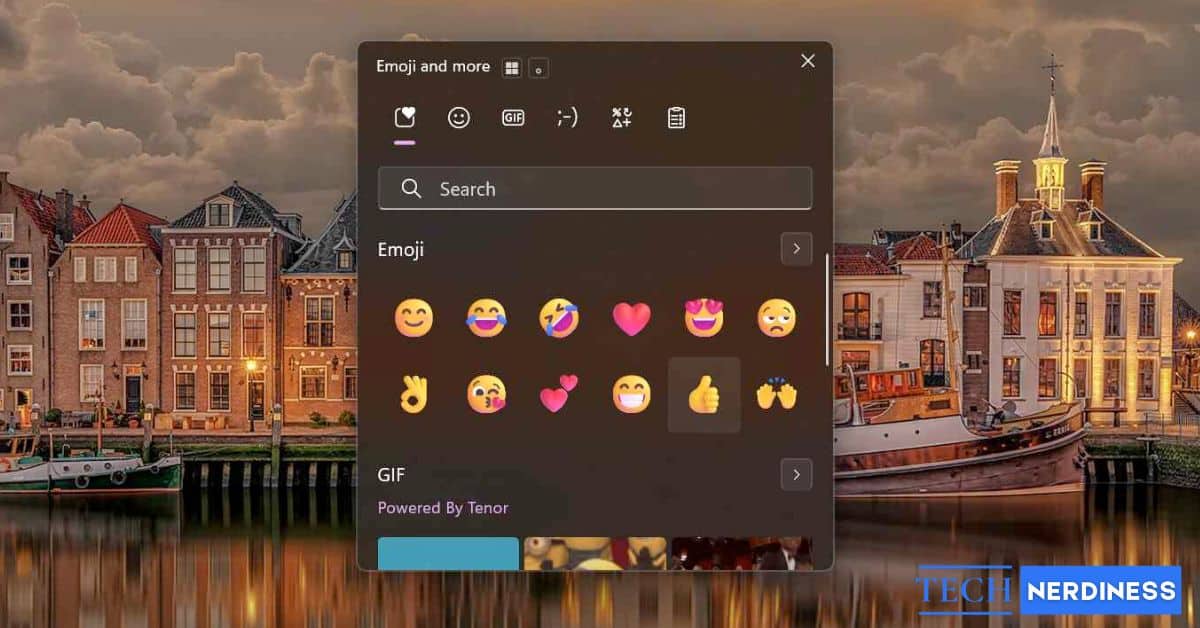
- To bring it up, press Windows key + . (period) or Windows key + ; (semicolon).
- A small panel pops up on your screen, and that’s basically your backstage pass to a whole library of symbols. It’s neatly split into a few tabs:
A small panel pops up right where your cursor sits, and it splits neatly into a few tabs.
- Emoji: the familiar, colorful faces and icons everyone knows.
- GIF: a searchable library of short, looping animations for moments a static icon cannot quite capture.
- Kaomoji: old-school, text-based expressions, like (╯°□°)╯︵ ┻━┻, for a more retro feel.
- Symbols: math signs, currency symbols, and punctuation you can never remember how to type on a normal keyboard.
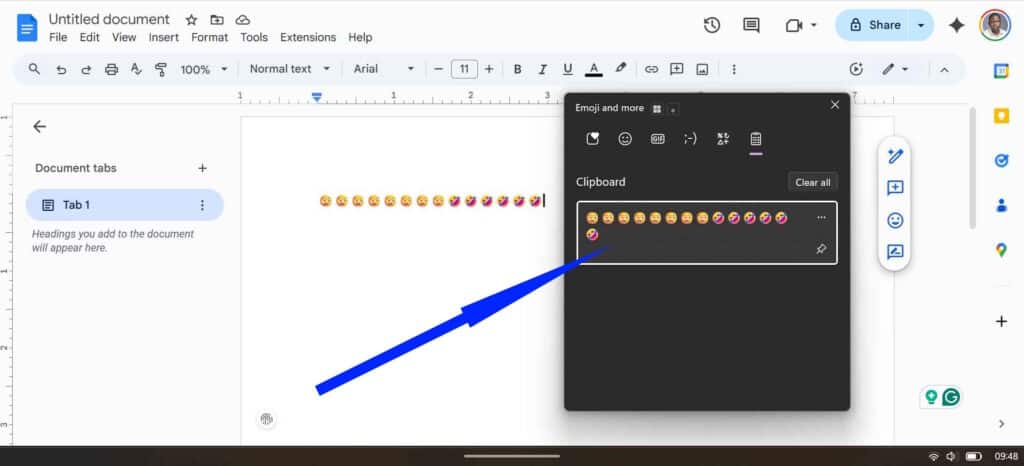
- Clipboard history: on current Windows 11 builds, the same panel often surfaces a clipboard history section too, so recently copied text and images sit right alongside your emoji options.
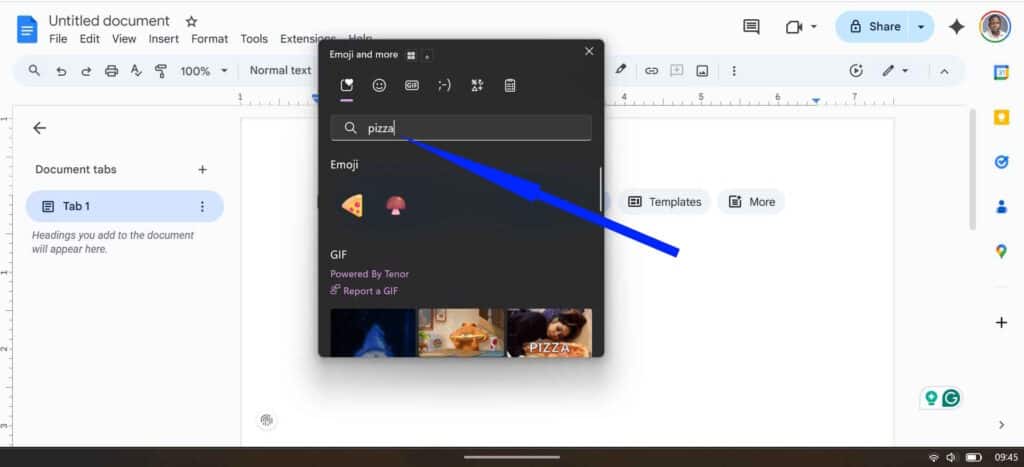
You do not need to scroll endlessly through categories to find what you want. Open the picker and type a word like “sad,” “pizza,” or “shrug,” and Windows narrows the results down to the best matches instead of sending you on a scavenger hunt.
Using the On-Screen Keyboard on Windows
If you are on a Surface Pro or any touchscreen laptop, reaching for a physical keyboard shortcut can feel clunky. The Touch Keyboard method solves that, giving you a more natural, mobile-style interface built for tapping rather than typing.
To enable the Touch Keyboard:
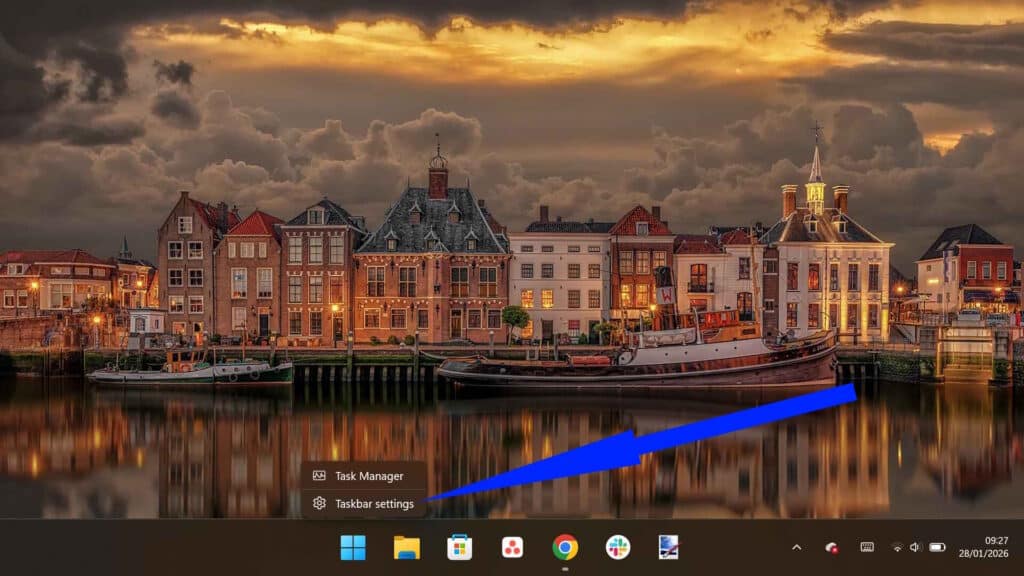
- Right-click the taskbar.
- Select Taskbar settings.
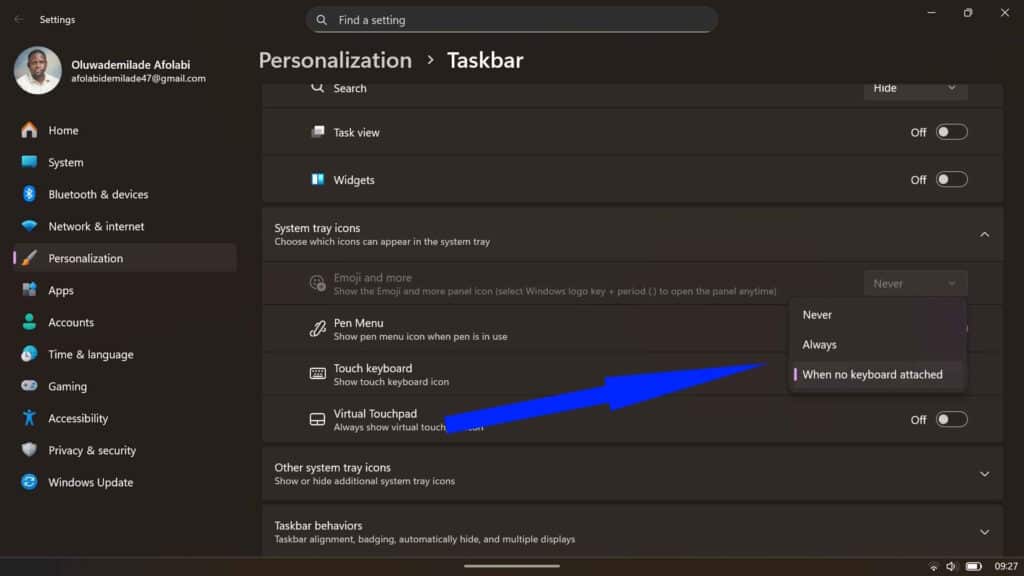
- Toggle the Touch keyboard option to either Always or When no keyboard attached.
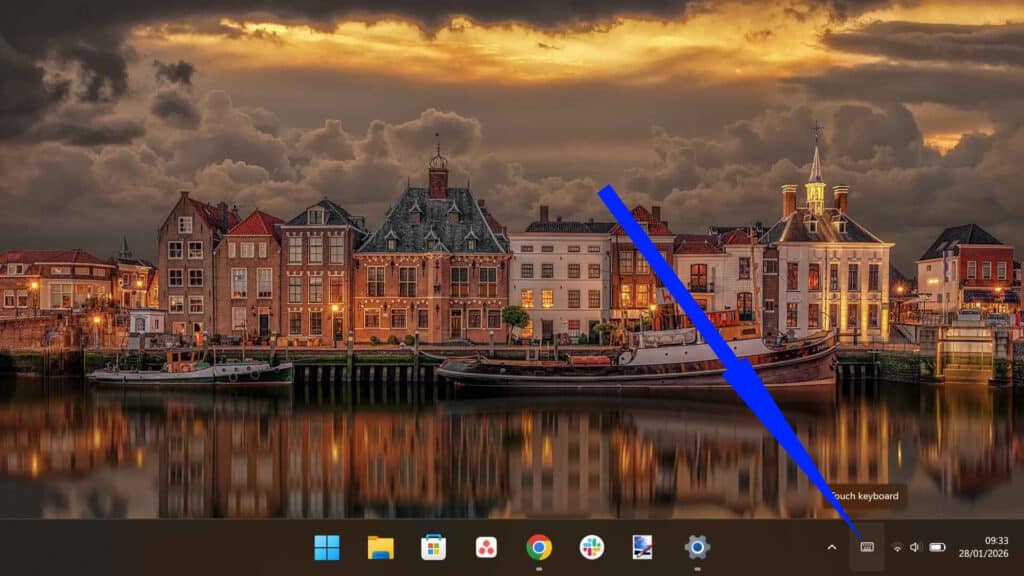
- Once the keyboard icon appears in the system tray (next to the clock), tapping it opens a full-screen keyboard.
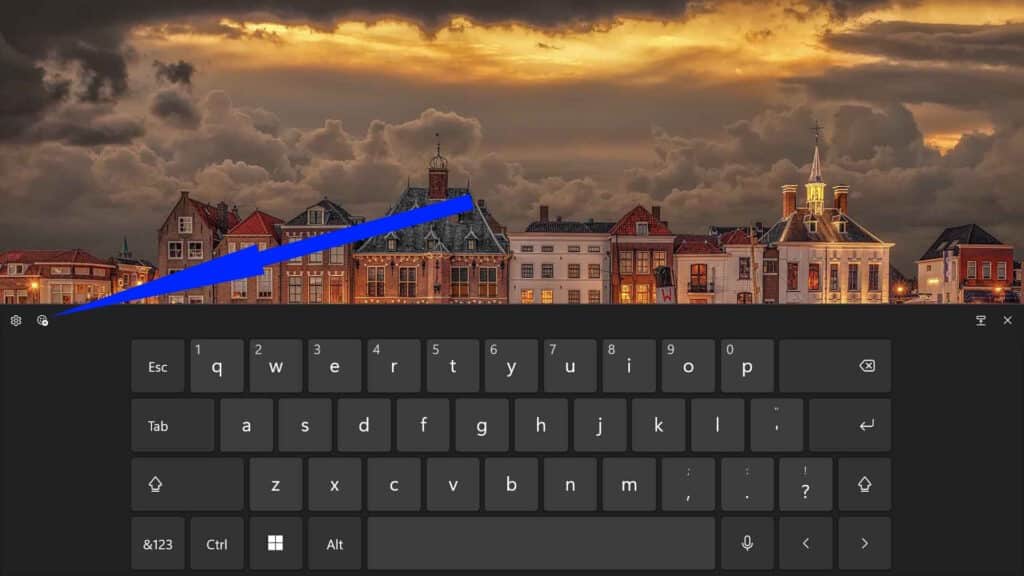
- In the top-left corner, you’ll see an emoji button—typically represented by a smiley face. Tap or click that to get a wide, scrollable emoji gallery.
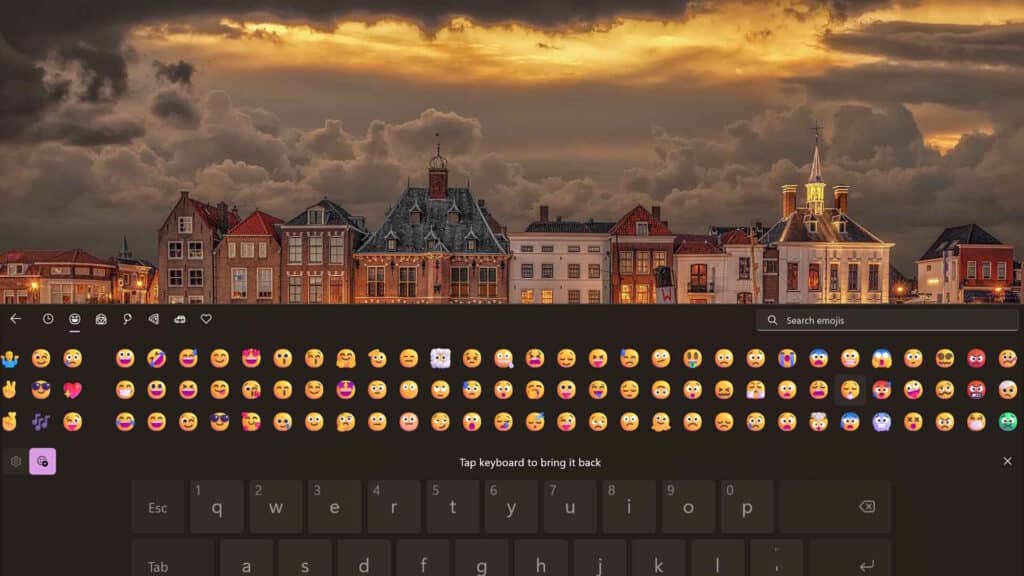
If you are documenting anything you did along the way, our guide to screen recording on Windows 11 covers the built-in tools for that too.
Pin Your Most-Used Emojis for Instant Access
The Emoji Picker keeps a Most Recently Used section, and it remembers every emoji or symbol you drop, parking each one right at the front of the panel. That first tab quickly turns into a personal shortlist without any setup on your part.
If you regularly reach for something more obscure, a specific Greek letter or a niche math symbol, there is a neat trick to level things up. Press Windows key + V to summon a chronological list of everything you have copied recently, emojis and special characters included. Pin any item you want to keep, and it stays put even after a restart.
How to Copy and Paste Emojis from Websites on Windows
Sometimes the native Windows emoji set does not quite cover what you need, or the emoji picker feels temperamental on a particular system. In those cases, several dedicated websites host comprehensive emoji libraries you can copy and paste directly into any Windows application.
- Open a site like Emojipedia, GetEmoji, or Unicode.org in your browser.
- Browse or search for the emoji you want.
- Click Copy.
- Switch to your target application, then paste with Ctrl + V, or right-click and select Paste.
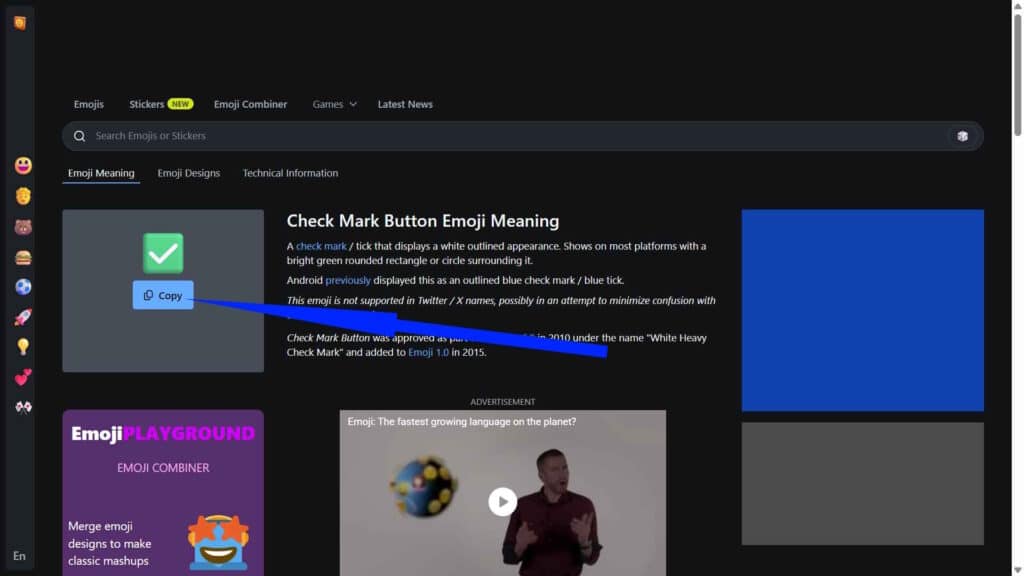
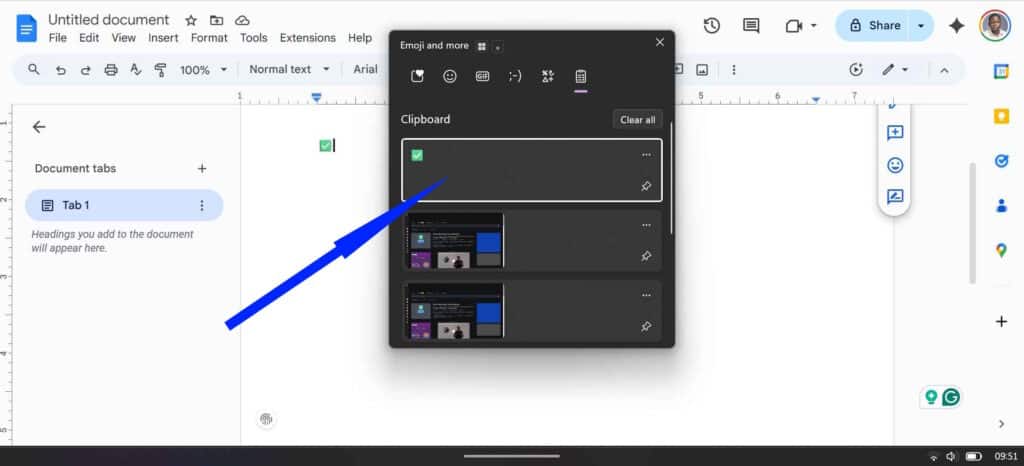
Websites like Emojipedia, GetEmoji, or Unicode.org maintain comprehensive emoji databases that you can access through any web browser. Simply navigate to your preferred emoji website, browse or search for your desired emoji, then click Copy.
The emoji lands exactly as it would through the native Windows picker.
This route offers a few real advantages. These sites usually provide richer context for each emoji, including its official Unicode name, how it renders across different platforms, and example uses. You also get access to emoji variations and newer additions to the Unicode standard that have not made it into your Windows emoji picker yet.
Copy-paste also sidesteps compatibility issues. If you are working in legacy software that does not play nicely with the Windows emoji picker, a copied emoji often pastes through successfully where the native shortcut fails.
Wrapping Up
Emojis on Windows are no longer a gimmick or an afterthought. Microsoft has built them in deeply enough that, with the right habits, they become as natural as typing punctuation. Whether you prefer the quick keyboard shortcut, a touch-friendly layout, or expressive text alternatives, Windows gives you several genuine ways to say more with less typing.