Blocking an app from going online might sound like the kind of niche trick only power users care about, but it comes up pretty often. Maybe you want to play an older game that insists on phoning home to a dead server, or you’re tired of background updaters devouring bandwidth. Or perhaps you just need a specific application to work offline without resorting to airplane mode on your entire PC.
Windows technically includes a built-in firewall that can handle this, which I’ll go over first, but wading through its rules interface might feel like an archeological dig. This is where TinyWall comes in. With it, you can deny specific applications internet access on a Windows PC in just a few clicks.
Block Internet Access for Apps Using Windows Defender Firewall
Windows Defender Firewall is your operating system’s built-in security bastion, and it’s quite adept at granular network control. It allows you to block the internet for a specific application while leaving the rest of your system untouched. This method is ideal if you generally trust your software ecosystem but have one specific “noisy” app you want to silence without installing extra software.
To do this, you must create an Outbound Rule. In networking terms, “Outbound” traffic is data leaving your computer (like an app asking for an update), while “Inbound” is data coming in. Blocking outbound traffic is usually sufficient to kill an app’s internet connectivity completely.
- To begin, press the Start button, then type Windows Defender Firewall with Advanced Security. It is a mouthful, but selecting this exact result is crucial (do not just click standard “Firewall & network protection“).
Alternatively, press Win + R, type wf.msc, and hit Enter to launch the application.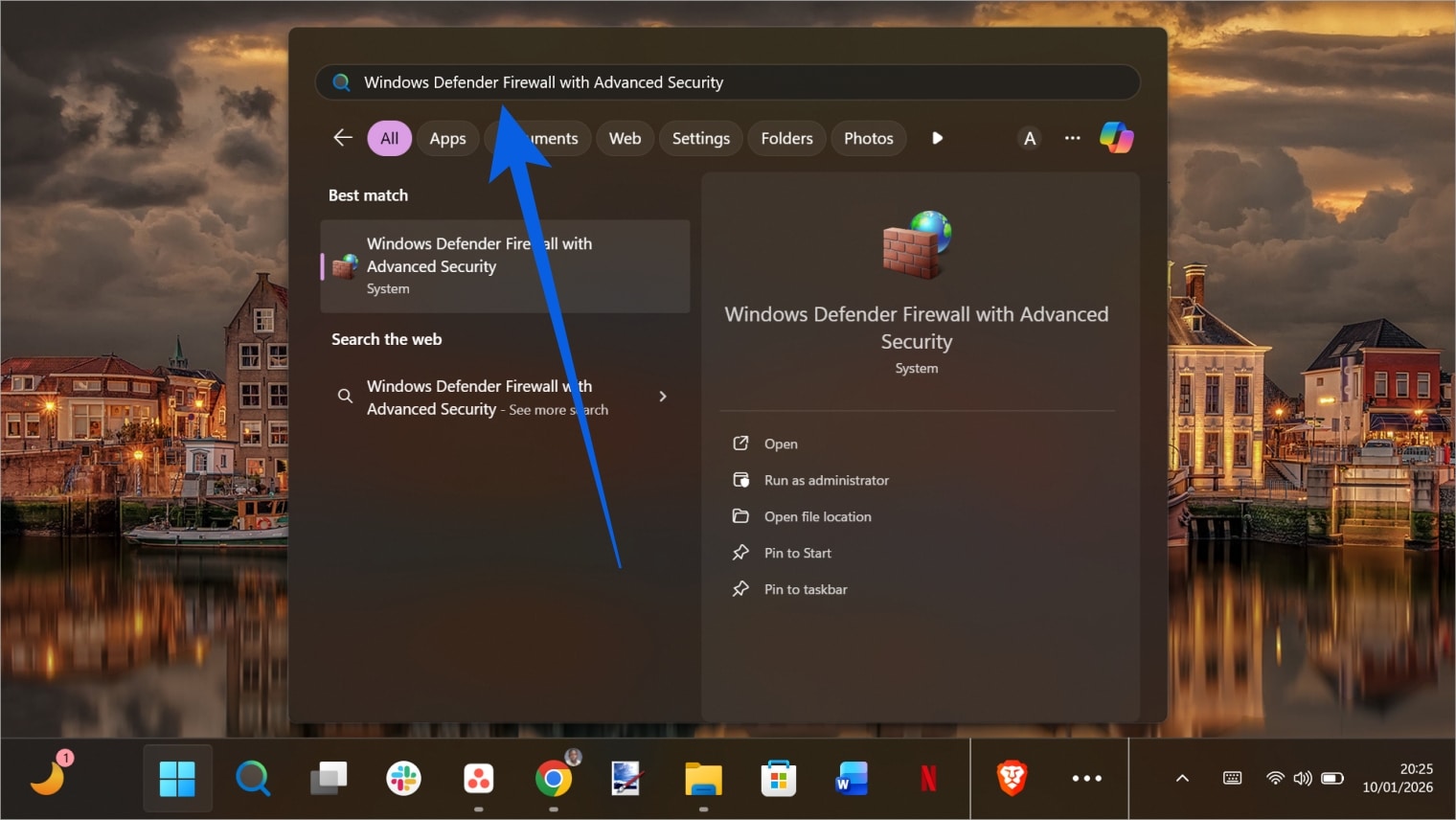
- In the left-hand pane, click on Outbound Rules. This displays a list of every program currently allowed or blocked from sending data. In the right-hand “Actions” pane, click New Rule….
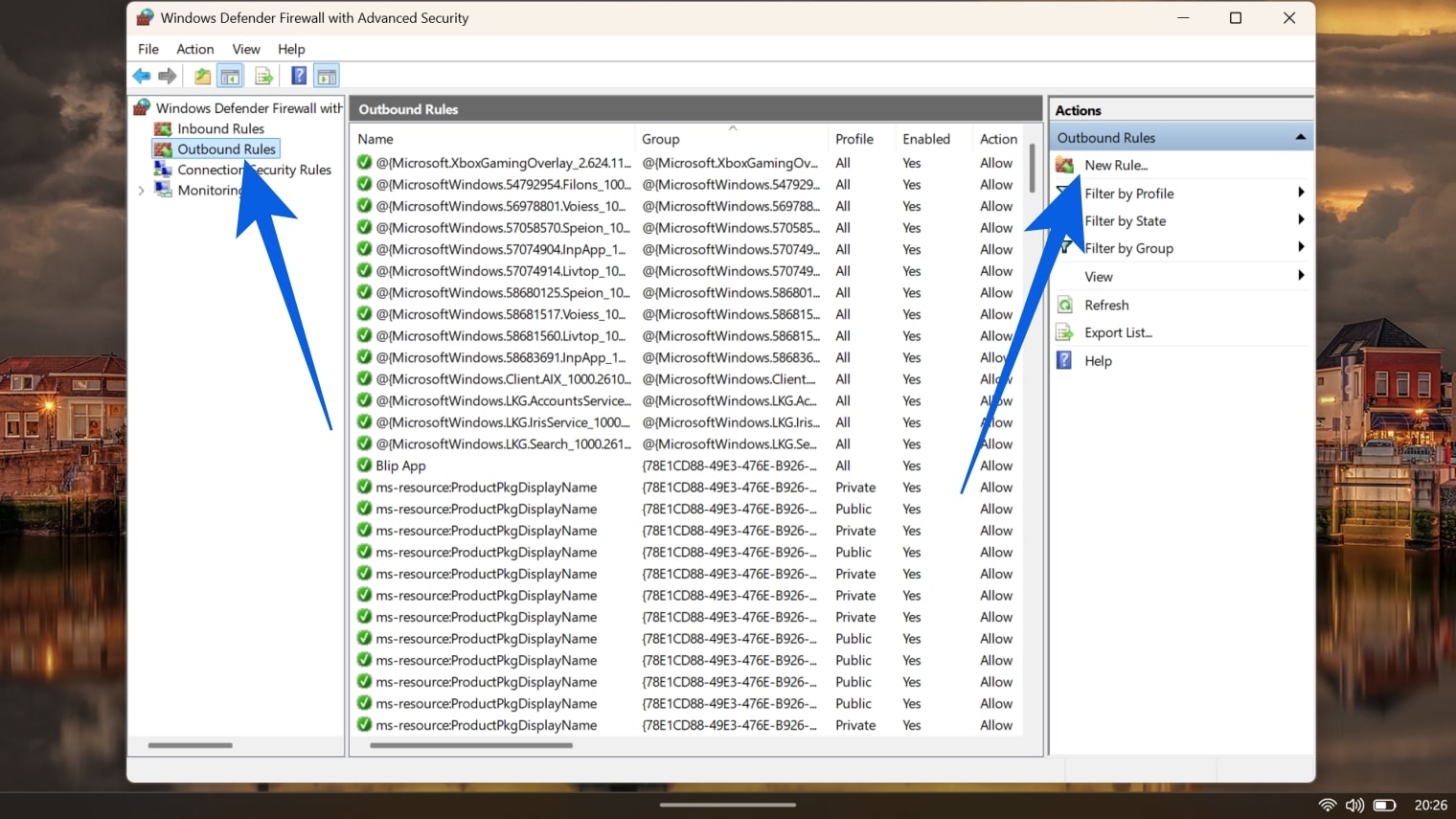
- The wizard will ask, “What type of rule would you like to create?” Keep the default selection on Program and click Next.
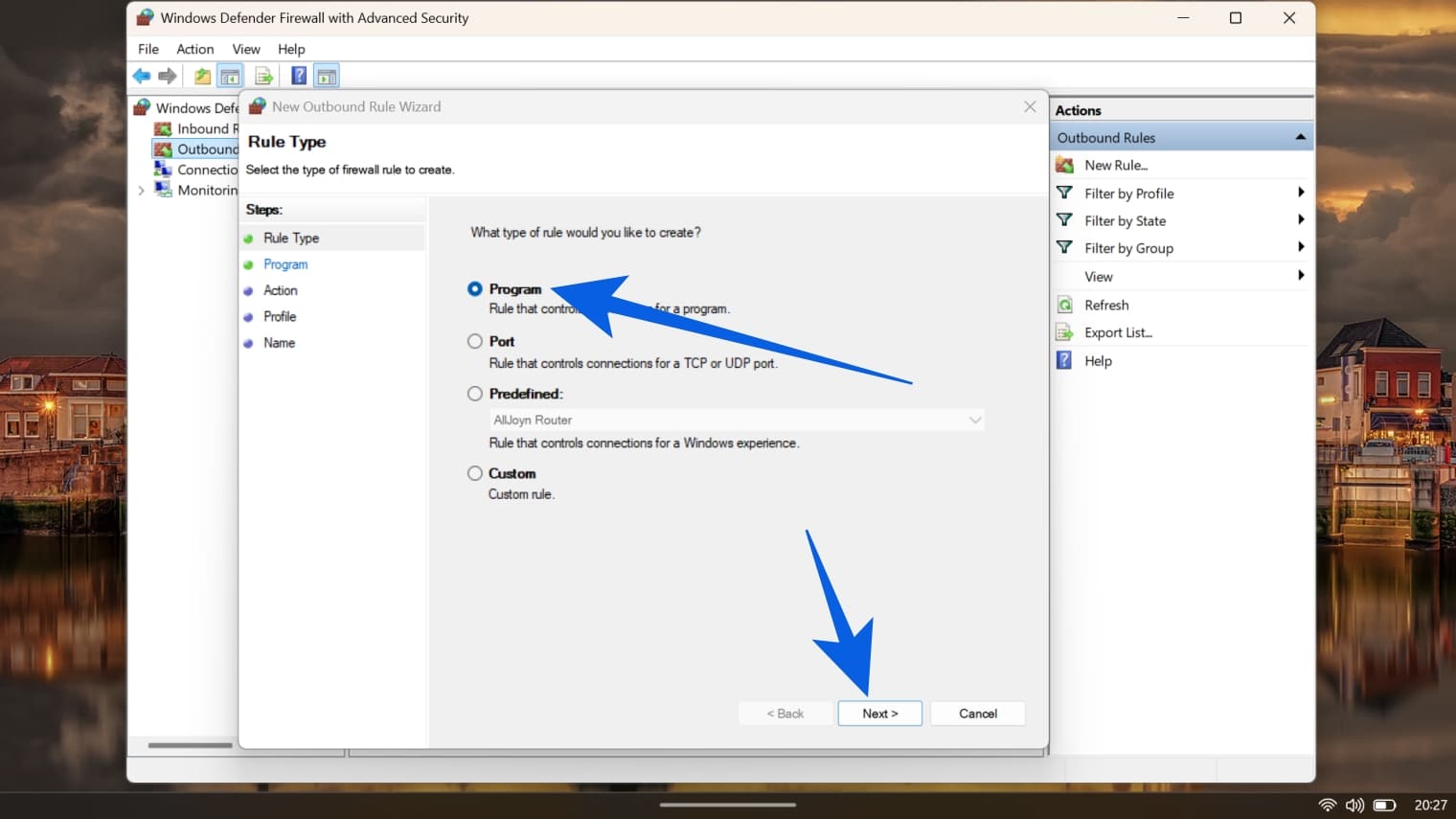
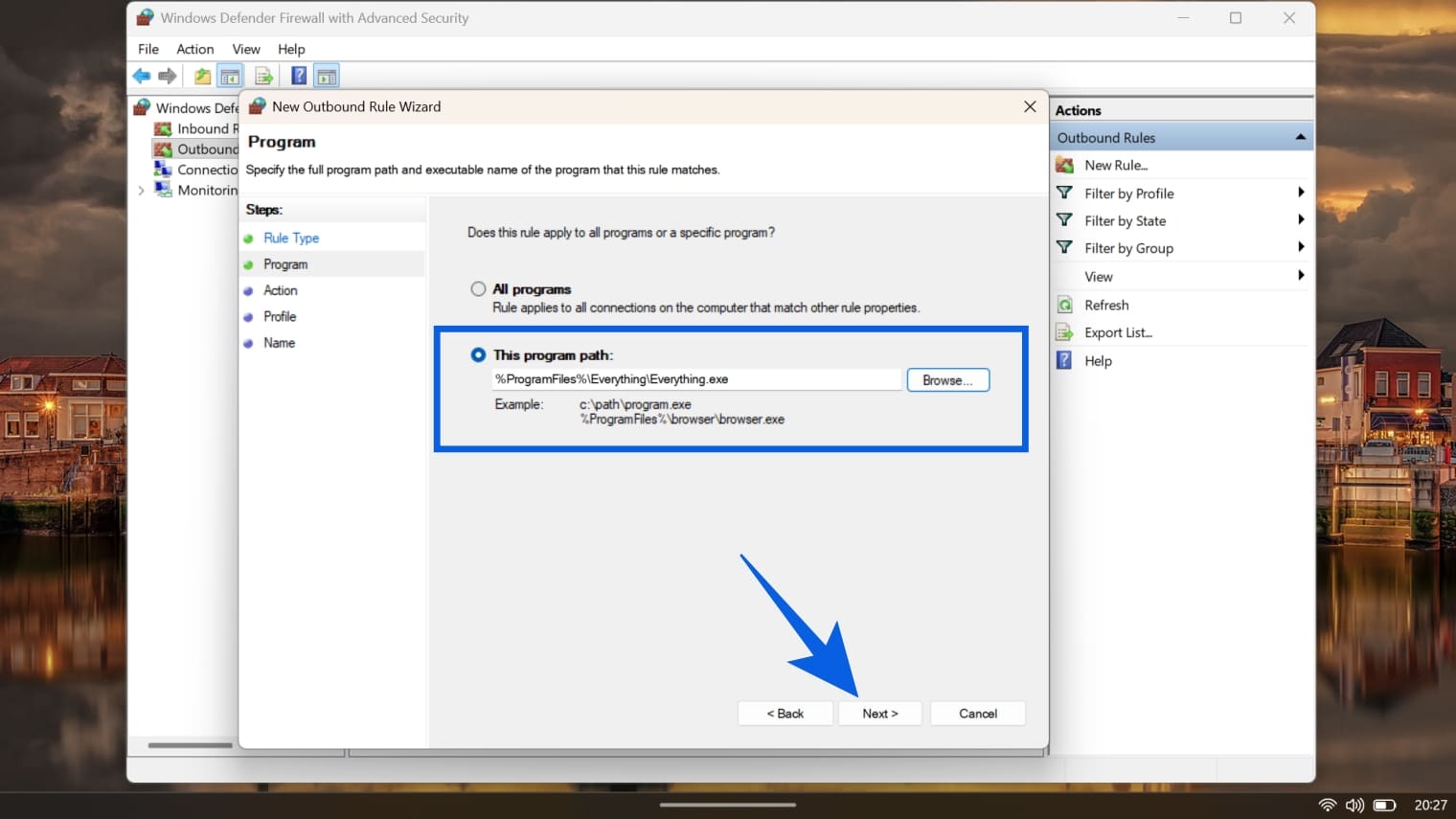
- Select This program path and click Browse. Navigate to the app or game’s installation folder you want to block. Select the main executable file (e.g., C:\Program Files\SuspiciousApp\app.exe) and click Open, then Next.
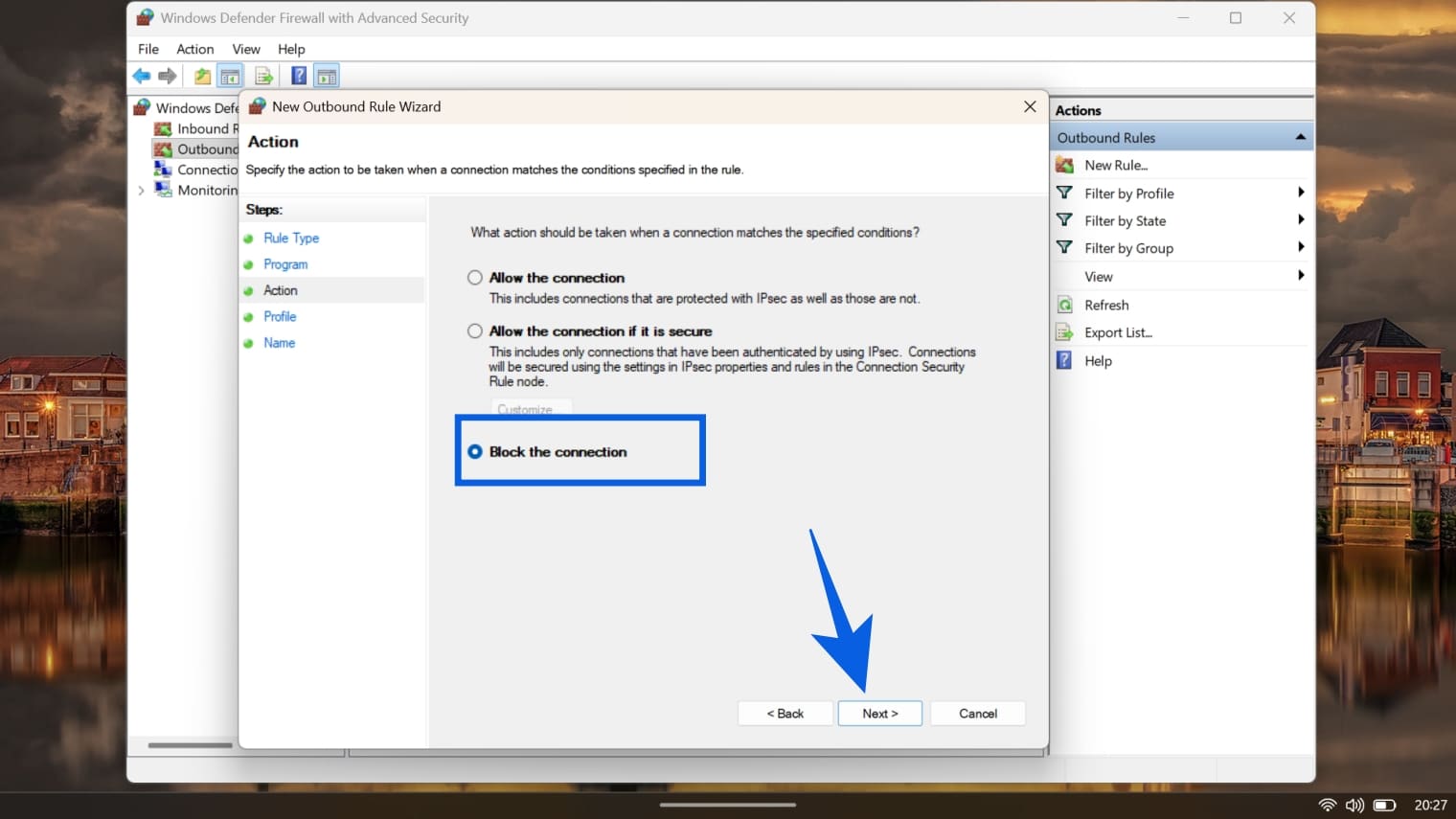
- You will see three options: Allow the connection, Allow the connection if it is secure, and Block the connection. Select Block the connection and click Next.
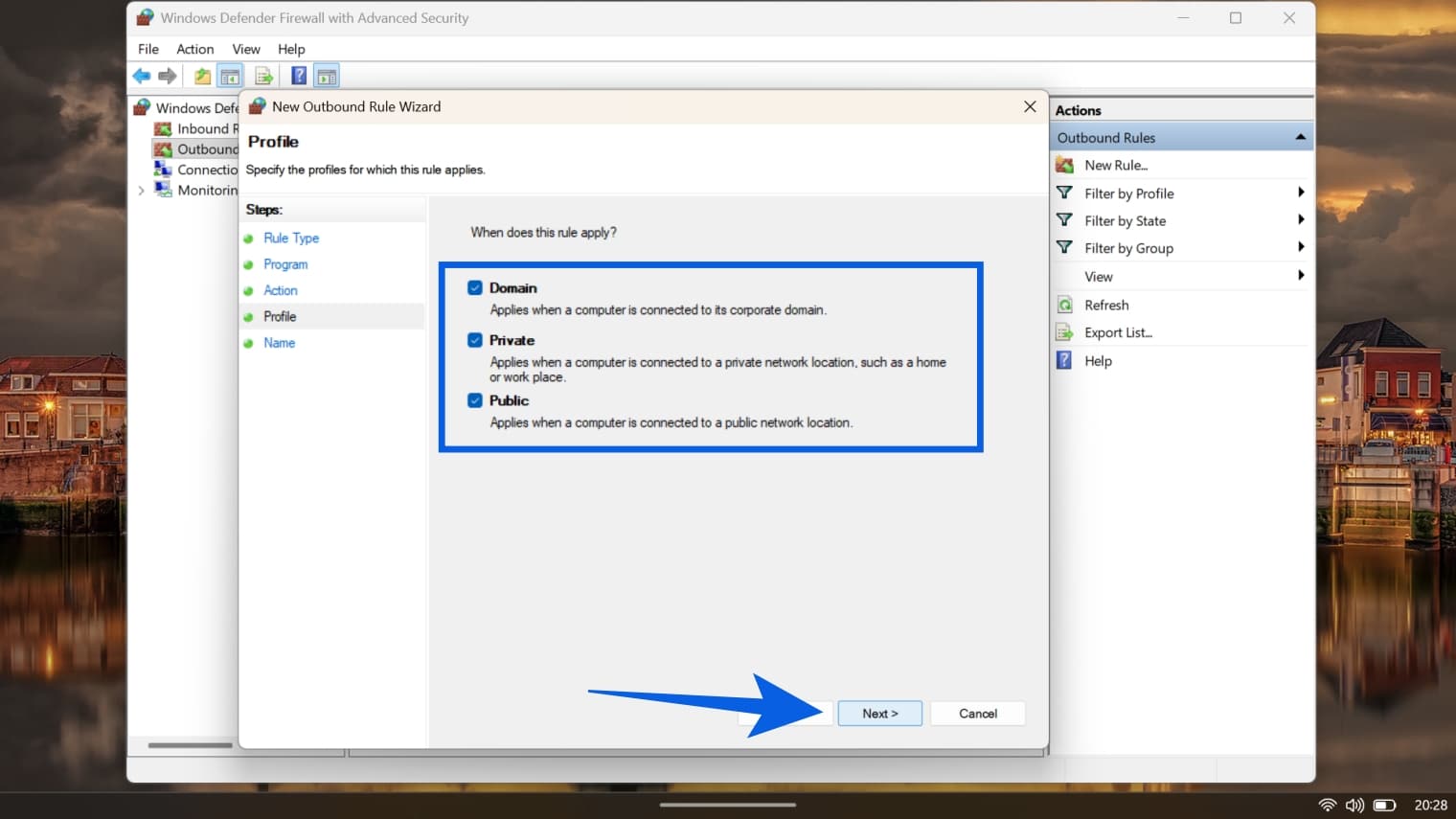
- Windows asks when this rule should apply: Domain, Private, or Public. Check all three boxes to ensure the app is blocked regardless of whether you are connected to your home Wi-Fi or a coffee shop hotspot. Click Next. Give your rule a memorable name, such as “BLOCK – Game Updater,” and click Finish.
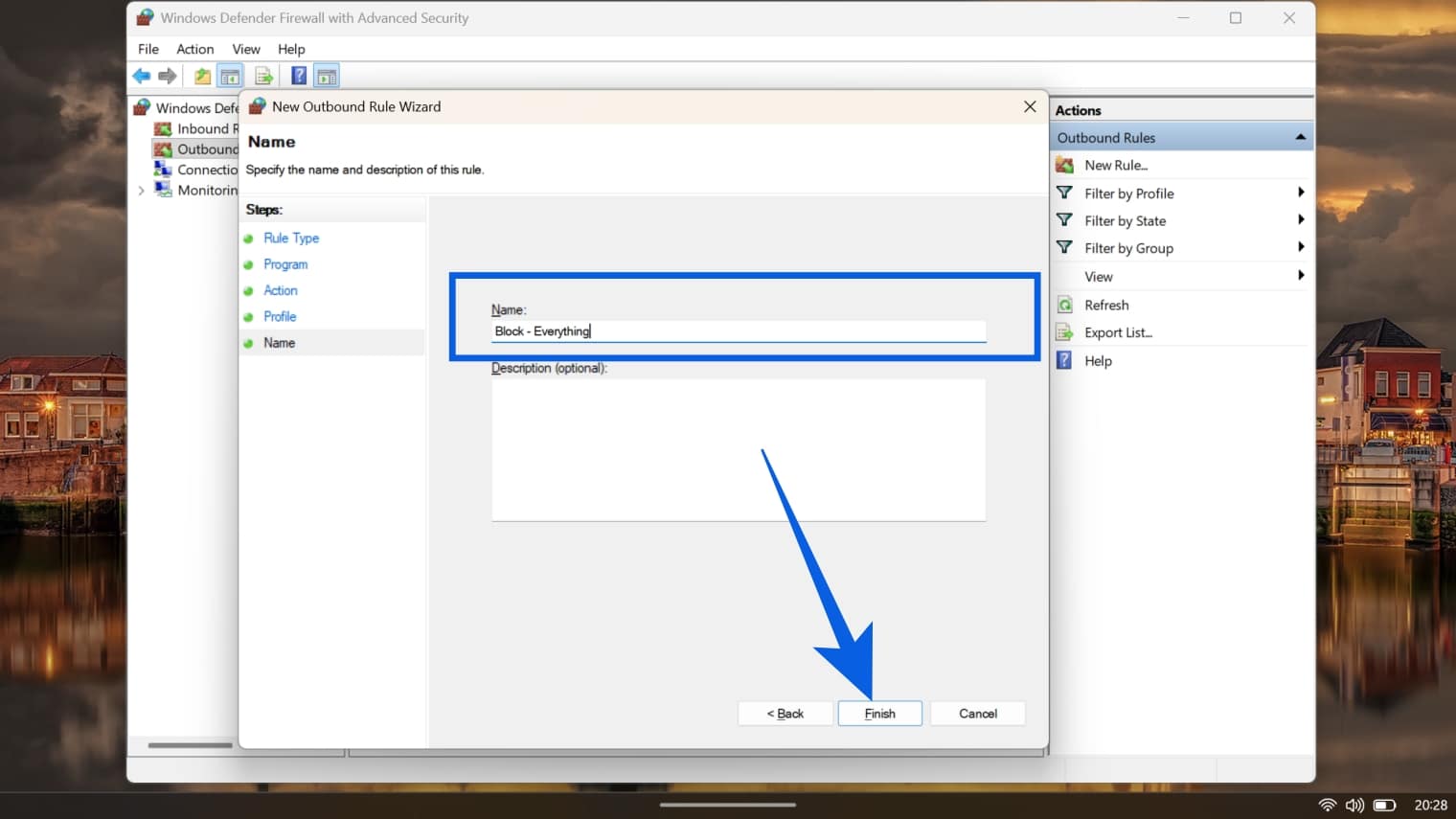
The rule takes effect immediately. The application will now behave as if your Ethernet cable has been unplugged, while your browser and other tools continue to surf the web without interruption. If you ever need to reverse this (for example, to download a critical patch), simply return to the Outbound Rules list, find your custom rule, right-click it, and select Disable Rule or Delete.
Block Internet Access for Apps Using TinyWall
If the native Windows interface feels too permissive or somewhat labyrinthine for your tastes, TinyWall offers an elegant alternative. By default, TinyWall functions as an allowlist controller a “Default Deny” system. This means that instead of asking you what to block, it blocks everything and waits for you to tell it what to allow. This inversion of the standard model makes it exceptionally good at ensuring a specific app never sees a byte of data.
So here’s how to use it:
- Download TinyWall and install it. After installation, you’ll notice TinyWall’s icon in your system tray.
The software defaults to an allowlist approach where everything is blocked unless explicitly permitted. To block a specific application, you’ll actually use TinyWall’s blocking mechanisms in reverse.
First, if the application currently has internet access, you need to remove it from the exceptions.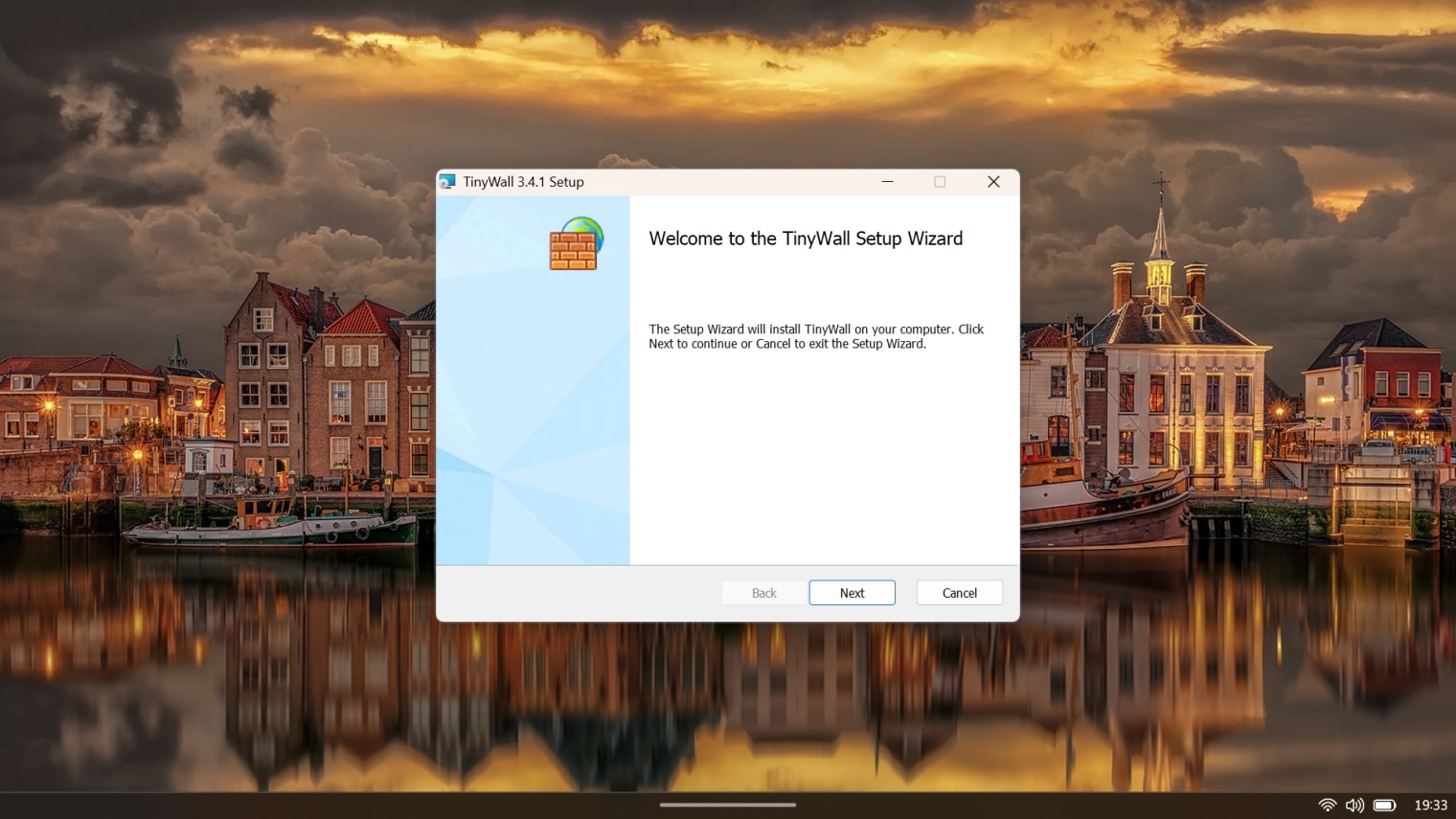
- Right-click the TinyWall tray icon and select Manage. This opens the main configuration window.
Navigate to the Special Exceptions tab, where you’ll see applications that TinyWall has allowed through the firewall perimeter.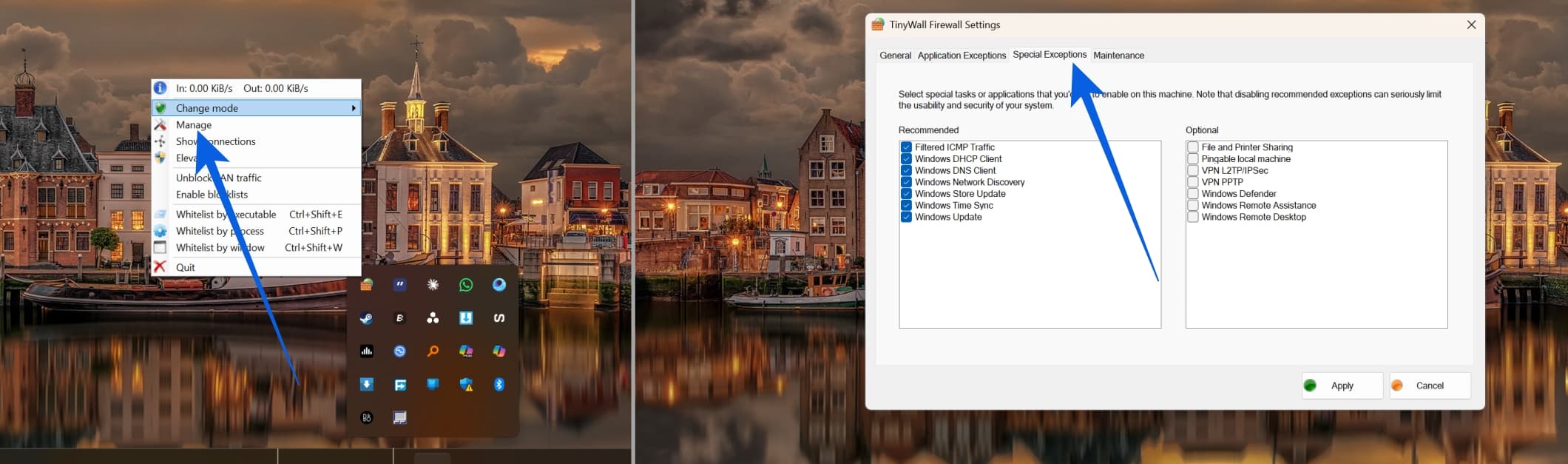
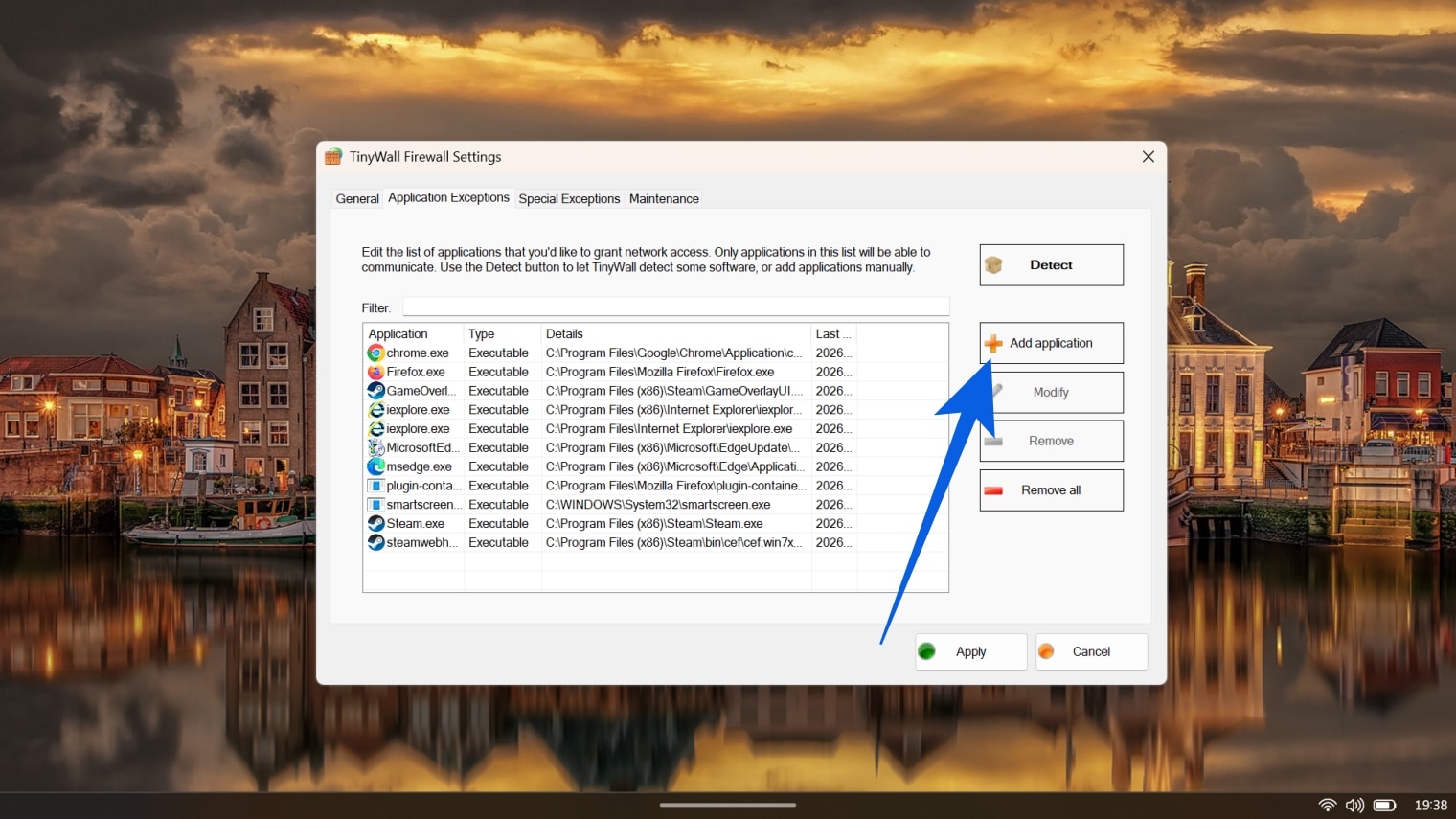
- Locate your target application in the list. If it appears here, select it and click Remove. This strips away its privileges immediately, without having to restart.
- If you want to target a specific game or app that is not on the list, click the Add application button on the right side of the window. A new dialog box titled Add/Modify Firewall Exception will appear.
You have a few ways to find your app:- Select a process: Ideal if the game or app is currently running.
- Browse for a file: Use this to dig through your hard drive (e.g., C:\Program Files) and select the specific .exe file you want to block.
- Once you have selected the application (for example, Everything.exe as seen in the screenshot), look at the list of radio buttons near the bottom. By default, you might see Unrestricted UDP and TCP traffic selected.
However, to cut the cord, strictly select Always block all traffic. This ensures that even if you later change your global firewall mode, this specific app will remain fully isolated.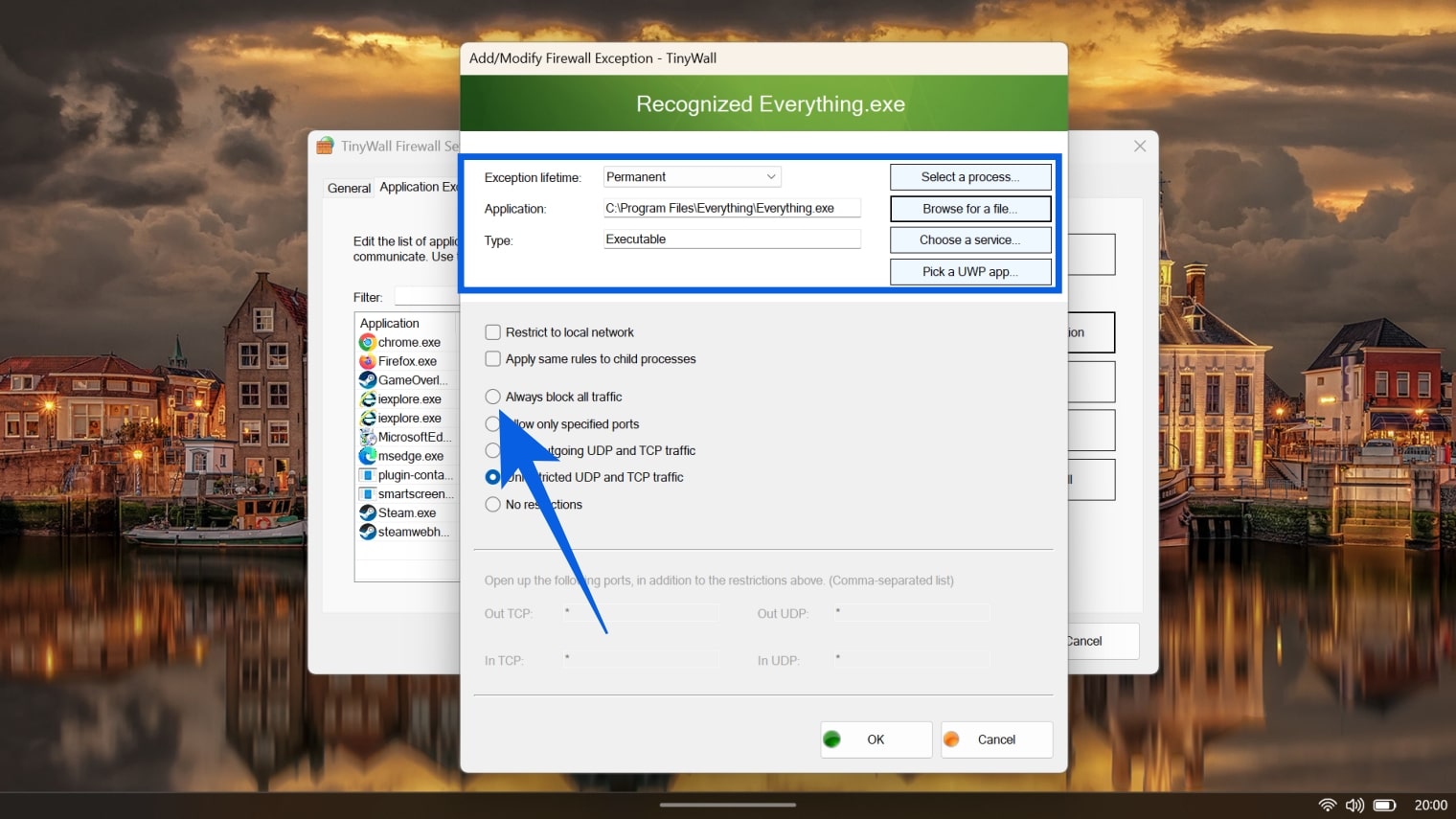
- If you only want to block this app temporarily, perhaps just for a few hours to focus or test something, click the Exception lifetime dropdown menu.
You can set the block to expire after 5 minutes,1 hour, or Until reboot. For a permanent ban, leave it set to Permanent.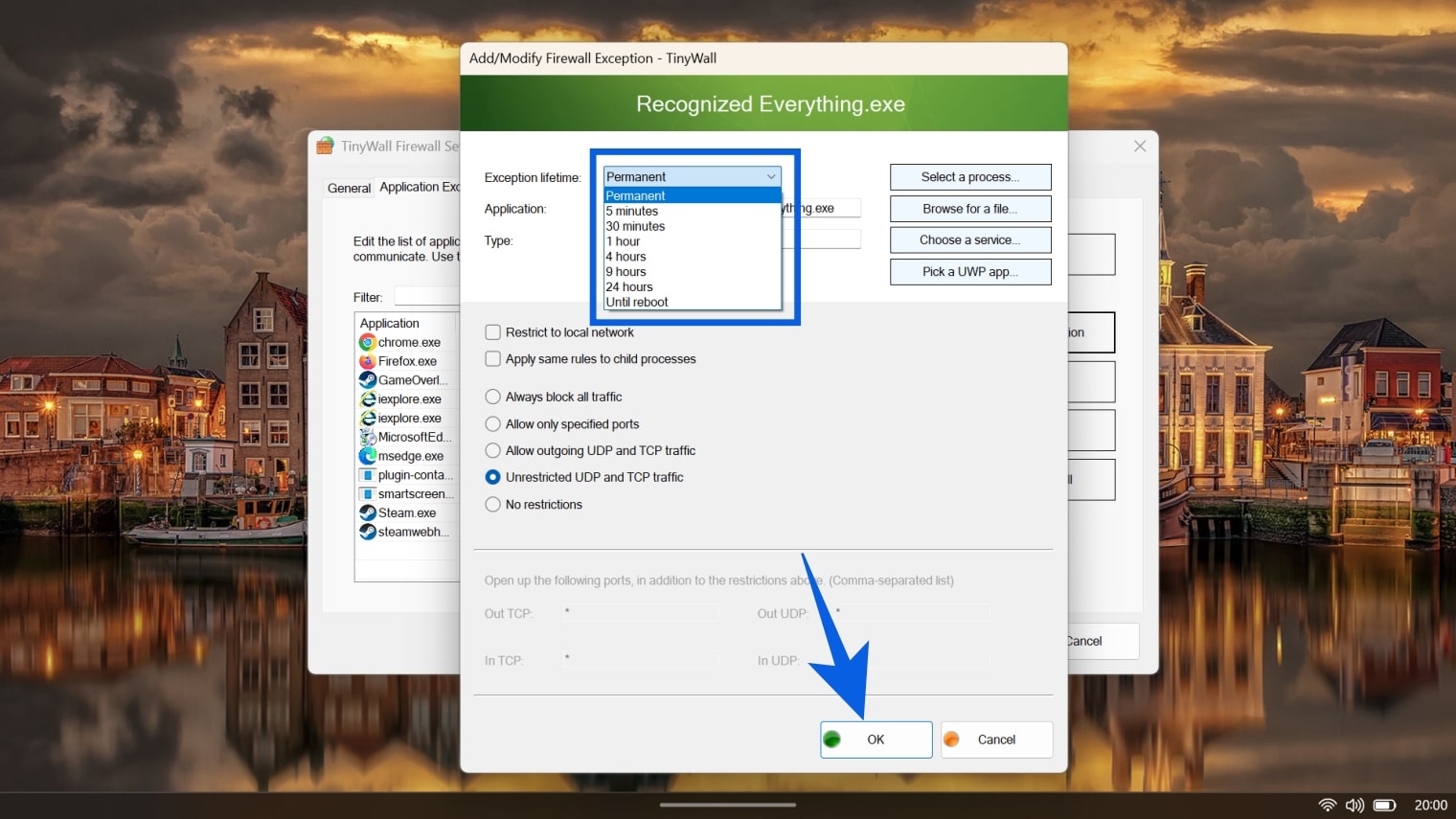
- Click OK to save the rule, then click Apply in the main window to ensure your changes take effect immediately.
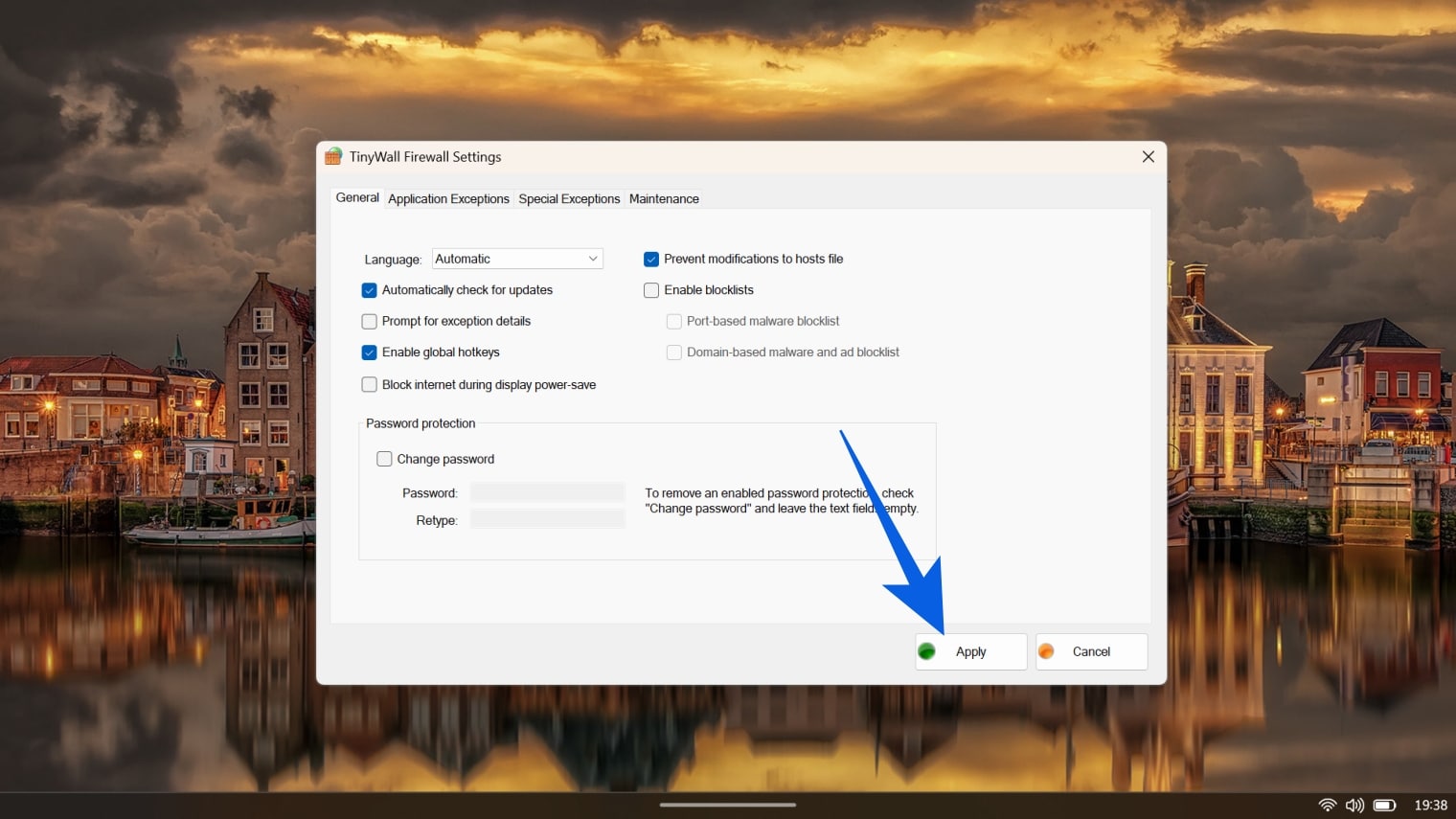
The app is now effectively sandboxed from the web.
Final Thoughts
Whatever your reason for doing so, both Windows Defender Firewall and TinyWall provide solid tools for isolating apps from the internet. Windows Defender leans toward power users who like knobs and switches to tweak, while TinyWall feels more approachable without sacrificing control.
It is also worth noting that blocking internet access does not automatically cut off your local network. Apps can still talk to other devices on your home or office LAN unless you go out of your way to restrict that too. In practical terms, that means a multiplayer game running over your local network will keep working just fine even when its online access is shut off.