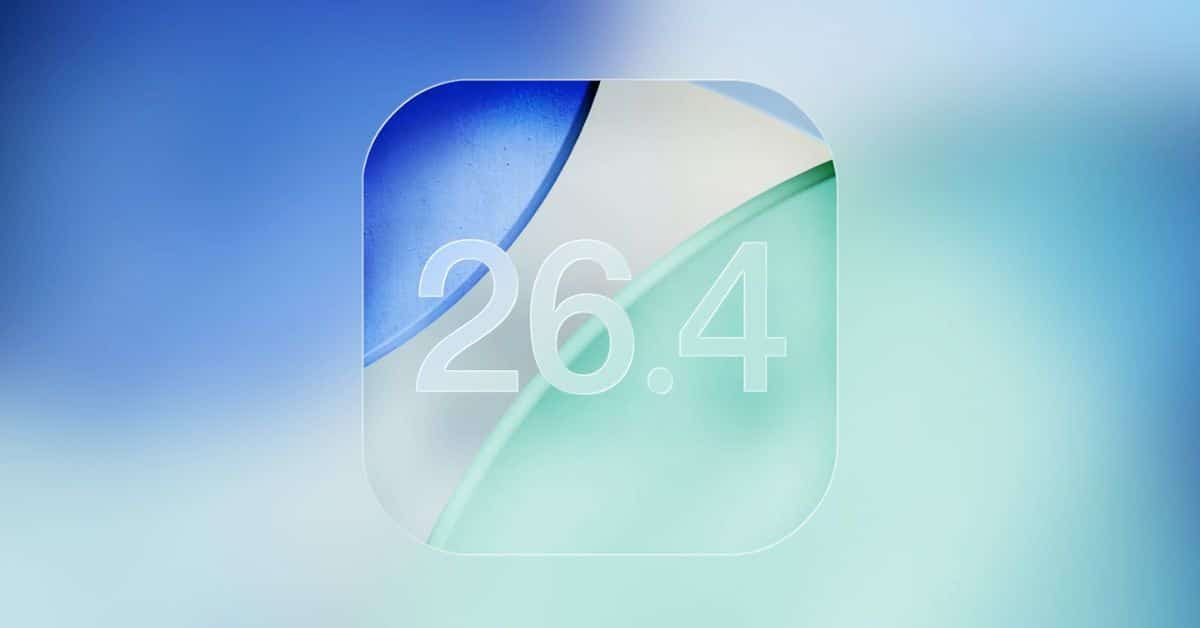
Apple releases iOS 26.4, and honestly, it’s a pretty solid update even if it isn’t the headline-grabbing release everyone was hoping for. Yes, the long-rumored Siri overhaul is still a no-show, but what’s new in iOS 26.4 covers a lot of ground, including smarter Apple Music tools, better Podcasts, tighter security, and a bunch of quality-of-life fixes that you’ll actually notice in your day-to-day use.
Let’s break down the iOS 26.4 new features that actually matter and how they change your iPhone experience.
Apple Music Gets Smarter and More Useful
Apple clearly put a lot of love into Apple Music this time around. The changes touch discovery, personalization, and playlist management in ways that feel genuinely useful rather than just cosmetic.
Playlist Playground Brings AI Playlist Creation
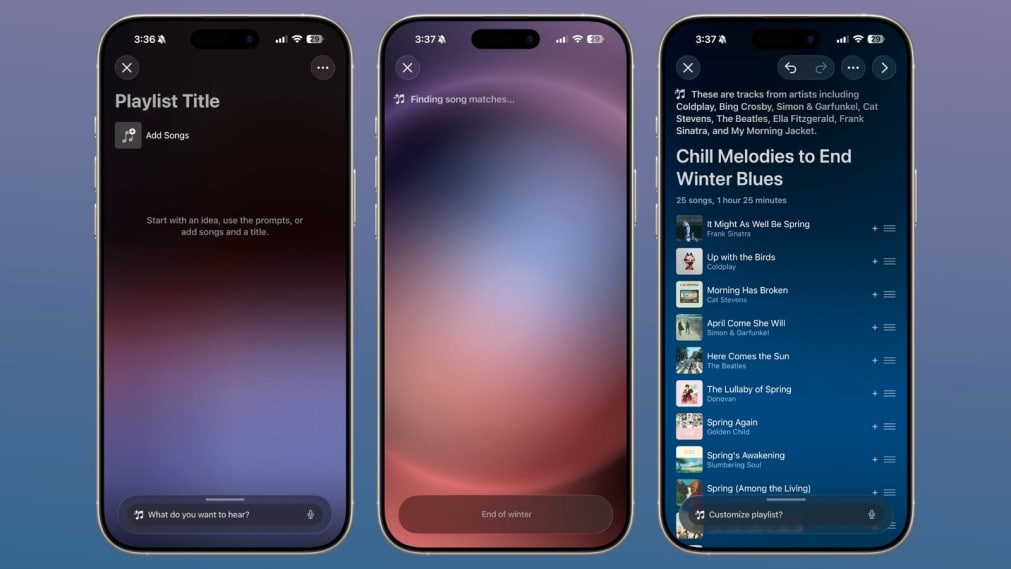
The standout addition is Playlist Playground. It lets you build playlists using simple text prompts, which is way more fun than it sounds.
You can type things like:
- “late night focus music”
- “gym hype songs”
- “90s road trip hits”
The system then generates a full playlist complete with a custom title, around 25 songs, and a short description. You can keep refining it by adding more prompts or tweaking the list manually. It’s powered by Apple’s on-device AI and, for now, it’s only available in the United States.
Concert Discovery and a Better-Looking UI
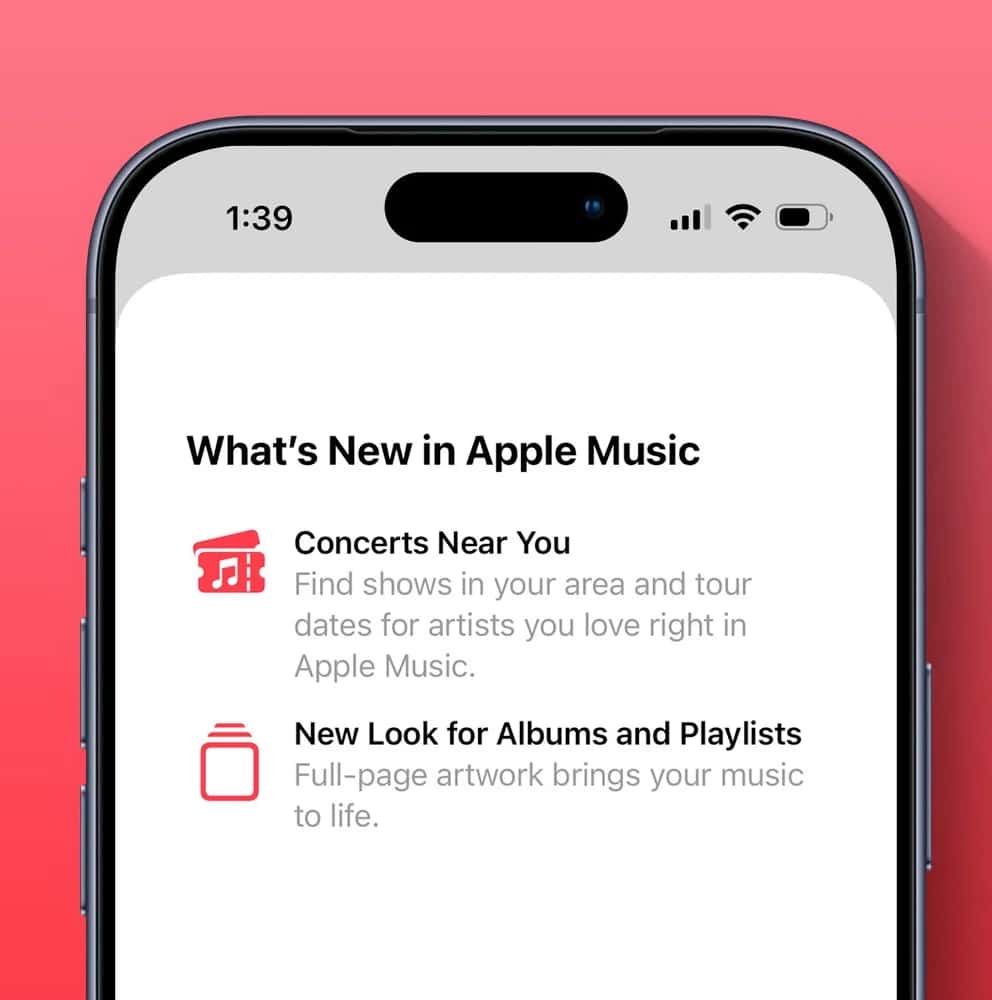
Apple Music now has a “Concerts Near You” section that pulls in local shows, tour dates, and artist-based recommendations. Apple is working with platforms like Ticketmaster to make this work, so the data should be reasonably up to date.
On the visual side, album and playlist pages now use full-screen artwork, which makes the whole app feel more immersive and a lot less cluttered.
A Few Small but Genuinely Useful Tweaks
- Add a song to multiple playlists at once
- Smoother playlist management overall
- General visual polish throughout the app
Nothing revolutionary, but if you manage a big music library, these save real time.
Podcasts Now Support Better Video Playback
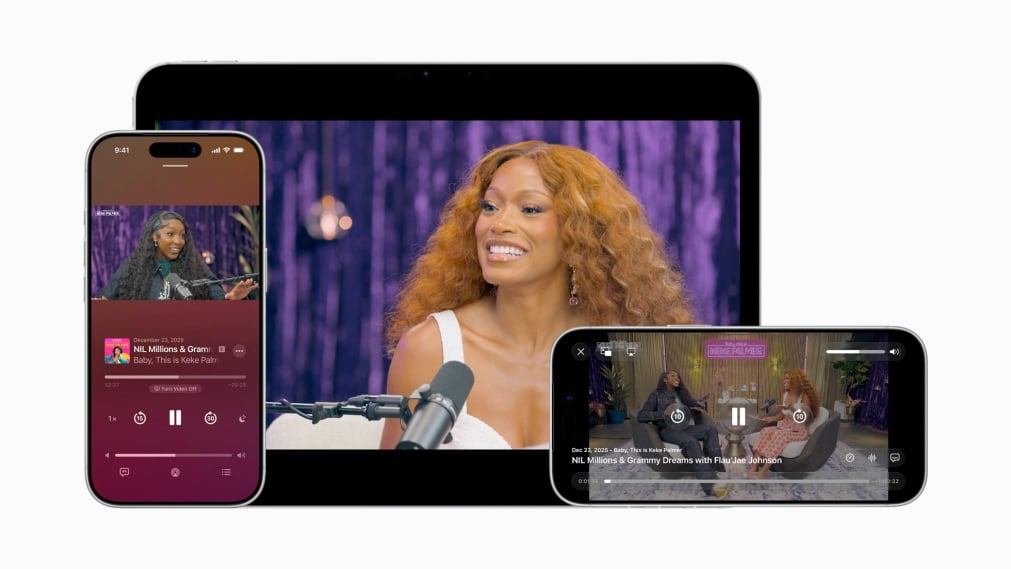
Apple Podcasts gets a major upgrade here, and it’s one of those changes that makes you wonder why it took this long.
You can now:
- Watch and listen without the experience feeling disjointed
- Download video podcasts for offline viewing
- Switch between audio and video on the fly
The app uses HTTP Live Streaming to adjust quality based on your connection, so playback stays smooth whether you’re on Wi-Fi or a shaky cellular signal. This brings Podcasts much closer to what YouTube and Spotify already offer in terms of video experience.
Offline Song Recognition Is Finally Here
This one is genuinely handy. iOS 26.4 upgrades song recognition through Control Center so your iPhone can now identify tracks without an internet connection, store the results locally, and show you the details once you’re back online.
If you’ve ever heard something great playing in a shop or at an event where the signal is terrible, you’ll appreciate this more than you’d expect.
Family Sharing Gets a Fix That Was Long Overdue
Here’s one that a lot of families will be relieved about. Before this update, Family Sharing forced everyone to use a single payment method, which caused all kinds of awkward billing situations. Now, each adult in a Family Sharing group can use their own payment method for purchases. Clean, simple, and honestly should have been there from the start.
Security Gets Stronger by Default
Stolen Device Protection Is Now Always On
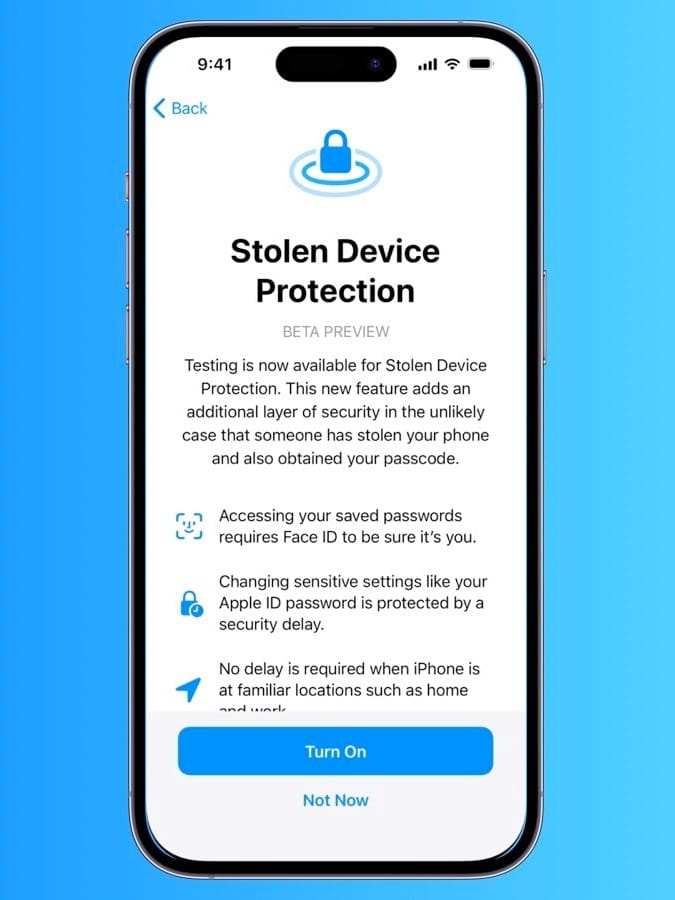
Apple is now turning on Stolen Device Protection by default, which is a smart move. The feature requires Face ID or Touch ID for sensitive actions, adds a time delay before certain settings can be changed, and keeps your accounts protected even if someone has watched you type your passcode.
It’s a direct response to theft scenarios where attackers use a stolen phone to get into banking apps and change account passwords. Having it on by default means casual users who never dig into settings are now better protected automatically.
Accessibility Improvements Feel More Thoughtful
Reduce Bright Effects
A new setting called Reduce Bright Effects tones down flashing UI elements and bright animations. This is a meaningful addition for users who are sensitive to intense visuals.
Better Motion Control
The existing Reduce Motion setting now works more consistently with Liquid Glass animations, which caused issues for some users in earlier builds.
Easier Captions Control
Subtitles and captions can now be adjusted directly from the media player, so you don’t have to hunt through Settings every time you want to make a change.
Messages and System UI Changes
These are smaller, but they add up.
Messages App
- New animations for conversations
- Slightly smoother overall interactions
Apple Account Redesign
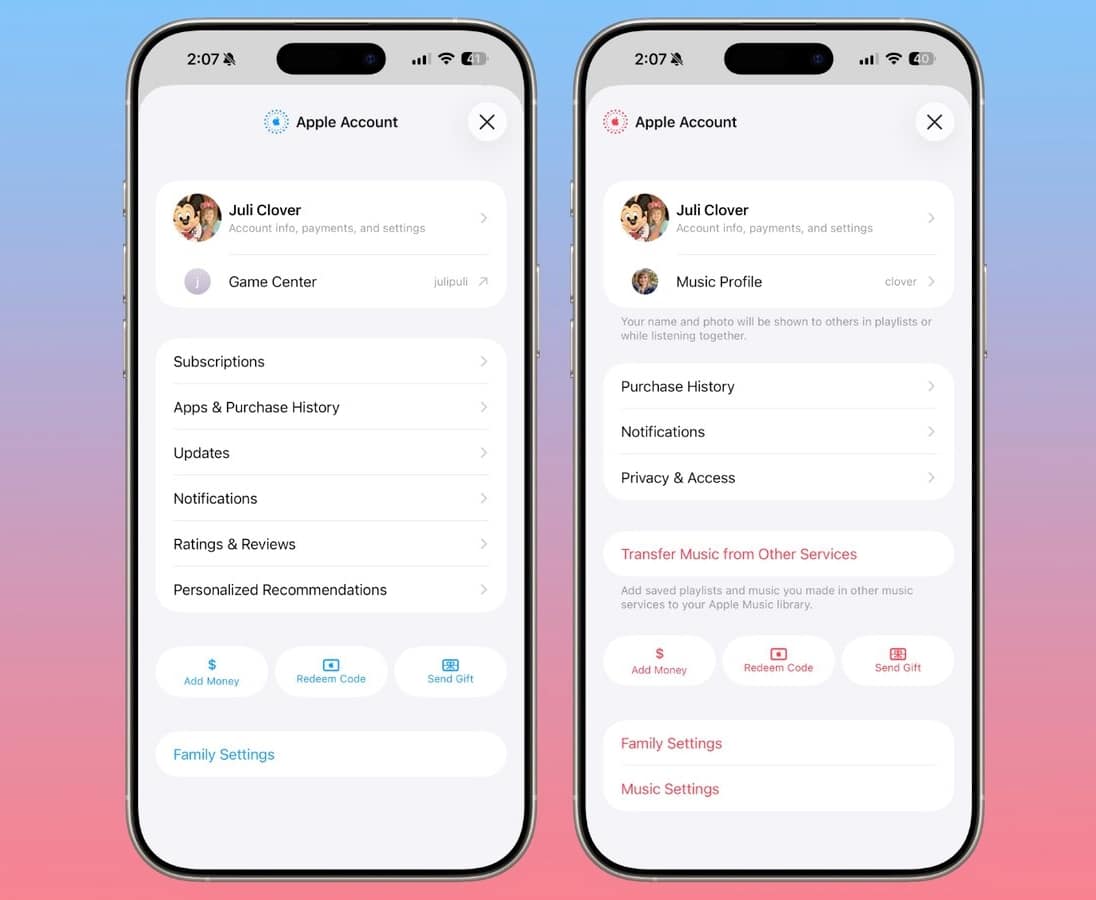
- A unified account hub across apps
- Cleaner layout for purchases and updates
App Store Tweaks
- Search bar moved to the top
- Updates section gets a redesign
New Widgets and Customization Tools
Ambient Music Widget
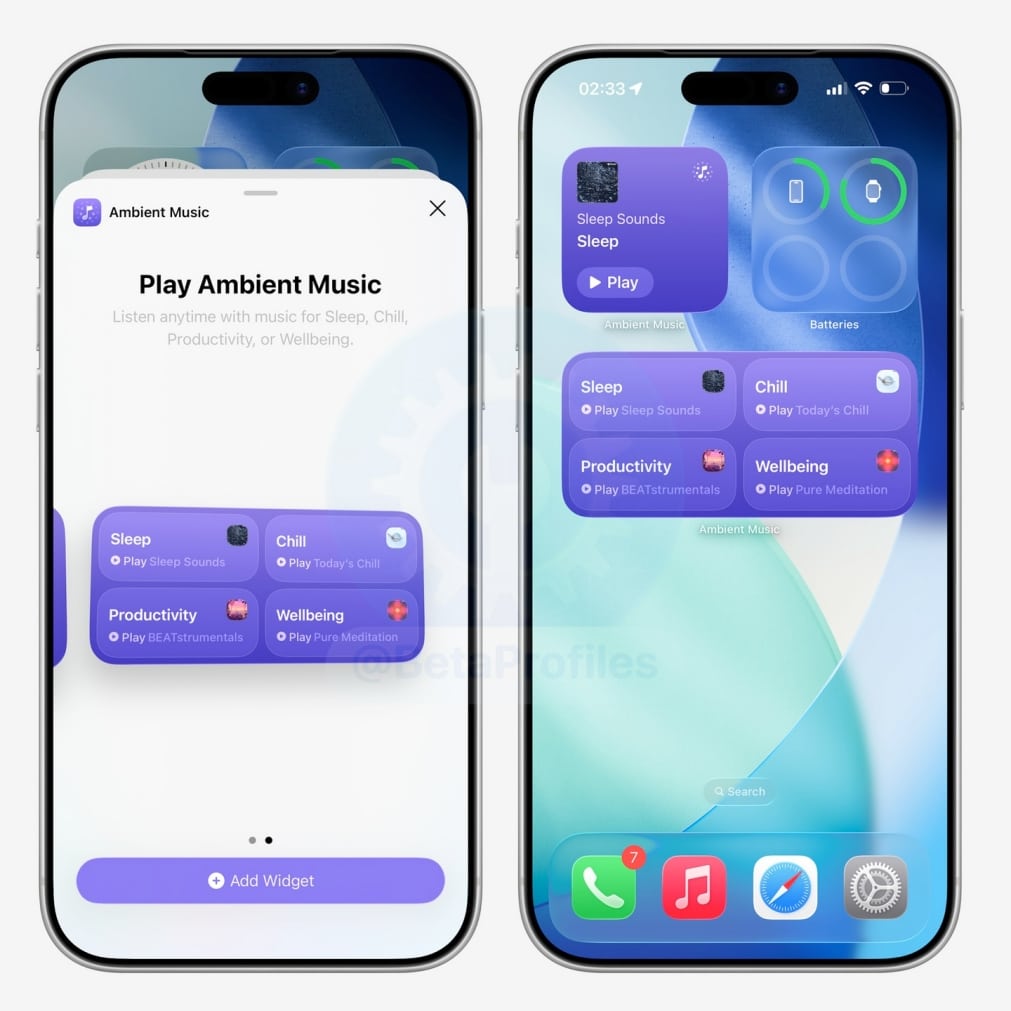
You can now add an Ambient Music widget to your Home Screen or Lock Screen. It supports categories like Sleep, Focus, and Wellbeing, which essentially turns your iPhone into a quick ambient sound player without having to open any app.
Wallpaper and Watch Face Updates
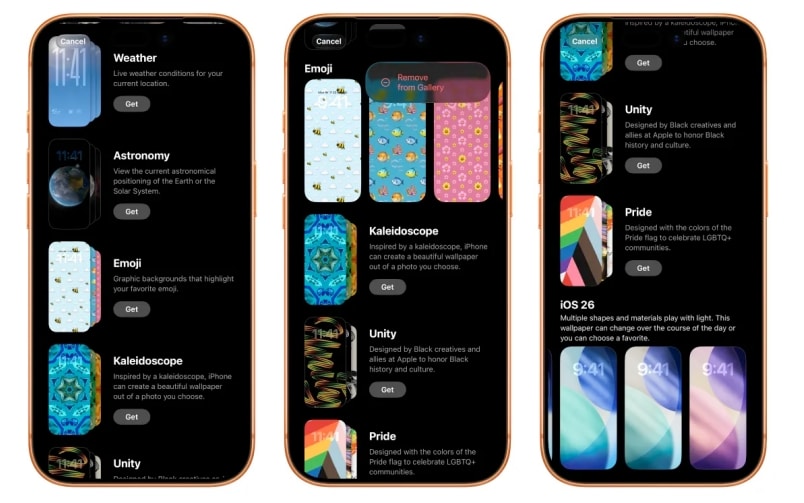
Apple has redesigned both the Wallpaper Gallery and the Watch Face Gallery, making it easier to browse and download new options.
Freeform Creator Studio Adds Pro Tools
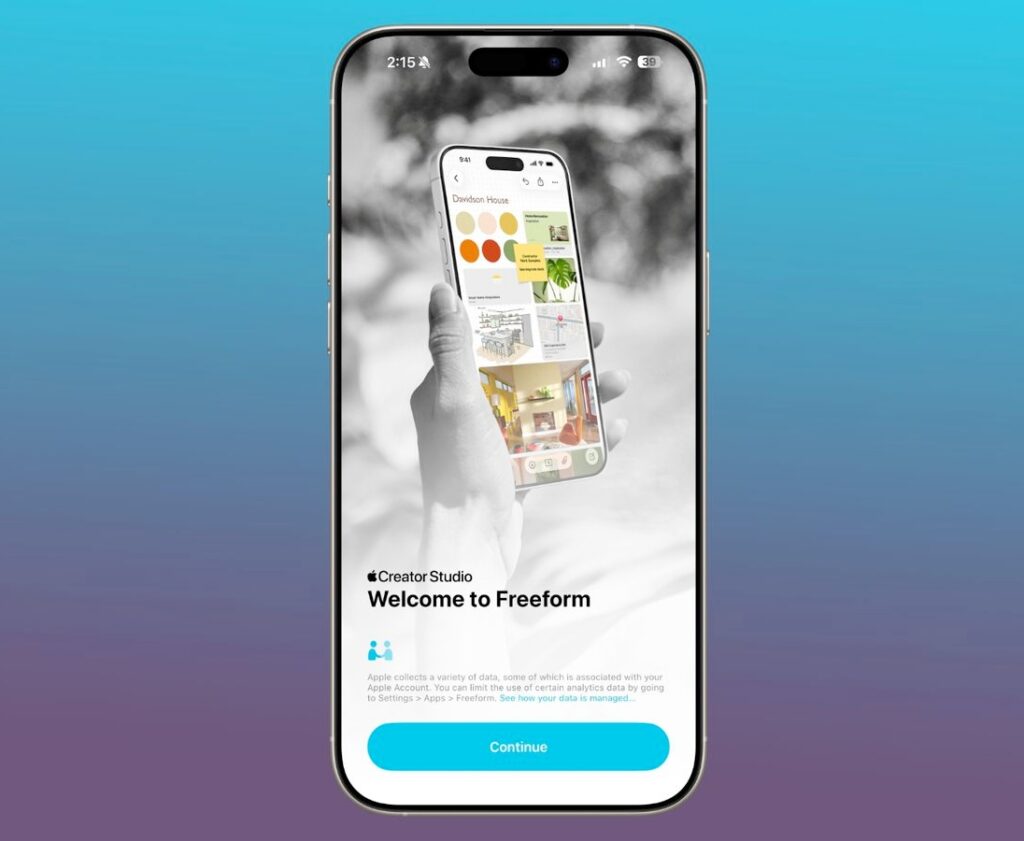
Freeform gets a Creator Studio upgrade with a content hub for assets including graphics, photos, and illustrations, plus AI-powered image tools. This feels aimed at people who use Freeform for serious collaborative work rather than casual sketching.
Related: How to Put Time Behind Wallpaper on iPhone (iOS 26)
Reminders Get an Urgent Section
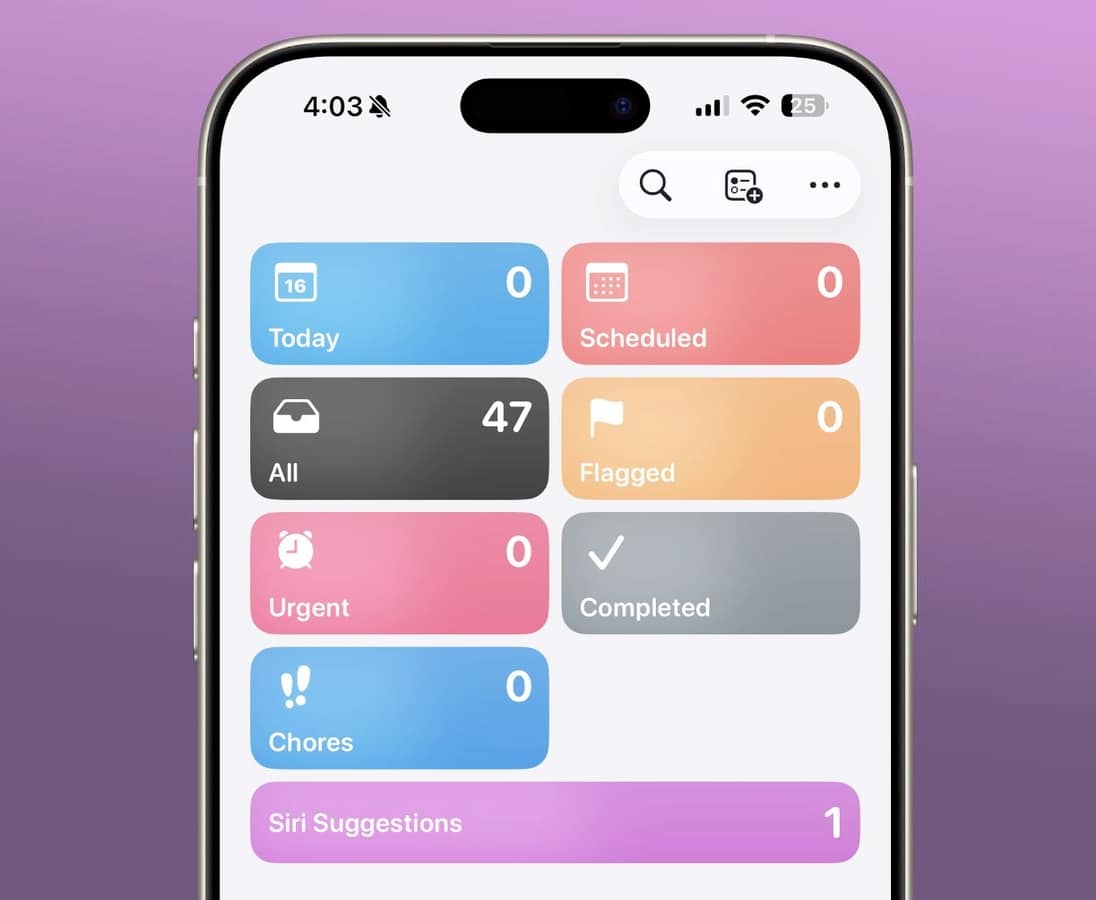
The Reminders app now has an “Urgent” category. You can mark specific reminders as urgent, trigger stronger alerts, and get more noticeable notifications. It’s a simple change, but it helps if you use Reminders heavily and need a clear way to separate critical tasks from everything else.
Camera and Audio Upgrades
Audio Zoom Improves Video Recording
A new Audio Zoom feature makes the microphone follow the subject when you zoom in during video recording. The result is clearer audio from your subject and less distracting background noise, all without any extra gear. It’s a solid improvement for anyone who records a lot of video on their phone.
CarPlay Gets AI App Support
CarPlay now supports third-party AI apps including ChatGPT, Gemini, and Claude. You can ask questions hands-free and use voice-based interactions while driving. That said, these apps cannot control car functions and there’s no wake-word support yet. It’s an early step toward smarter in-car assistants, but the foundation is there.
Health and System Updates
Health App
- New Average Bedtime metric added
- Better sleep tracking insights overall
- Blood oxygen data now included in graphs
Hotspot Tracking
- Data usage is now visible directly in the Personal Hotspot section
iCloud Web Settings
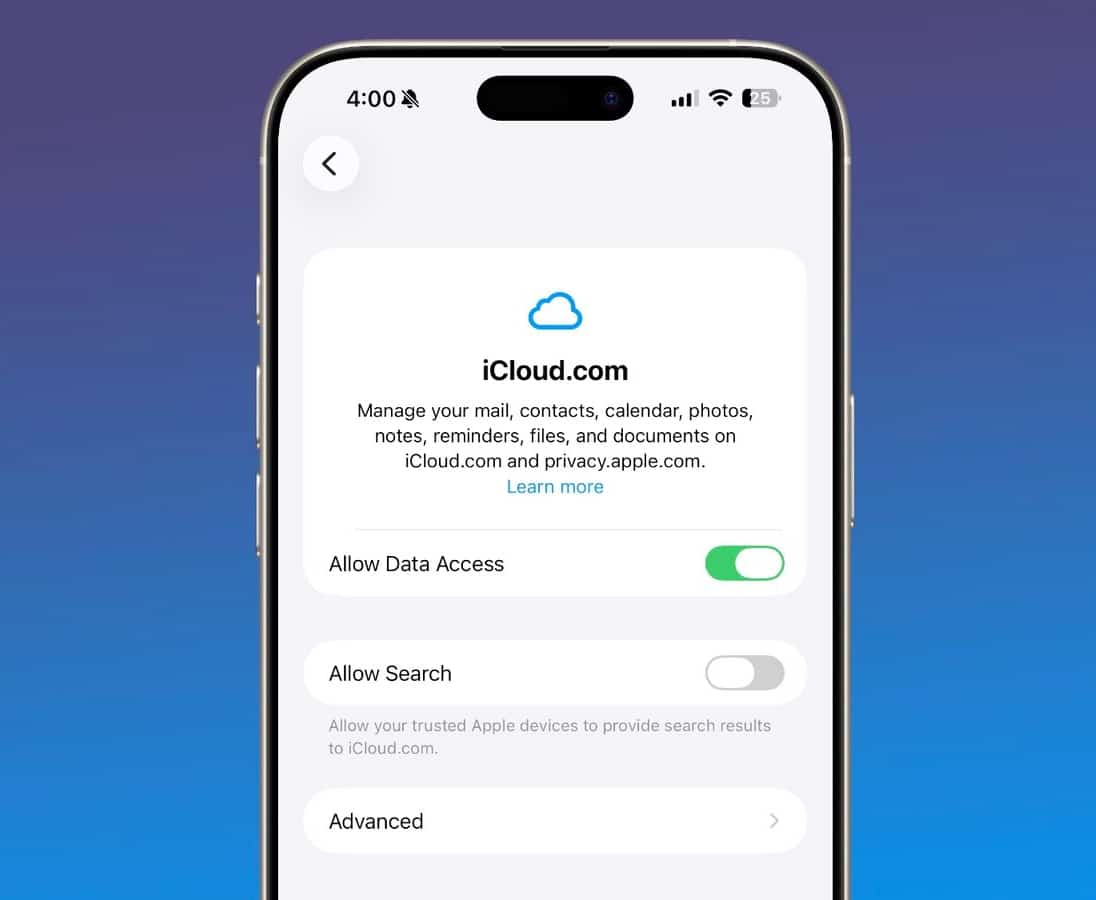
- A new “Allow Search” toggle added to iCloud.com
New Emoji Finally Arrive
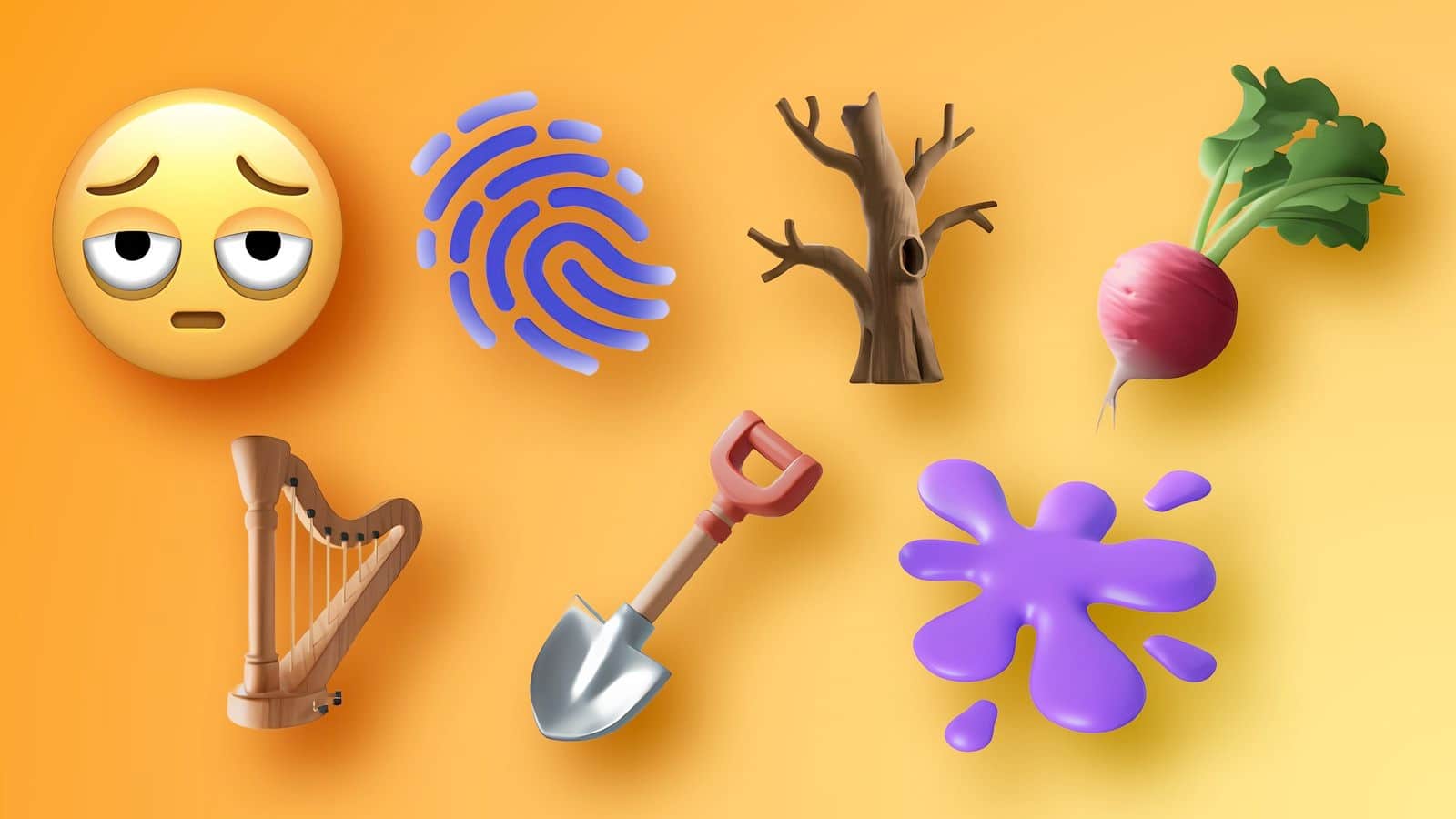
iOS 26.4 drops eight new emoji into the mix:
- Trombone
- Treasure chest
- Distorted face
- Hairy creature
- Fight cloud
- Orca
- Landslide
- Ballet dancer
There are also new skin tone options and gender-neutral variants across the board. Apple tends to do one big emoji refresh per year, and this batch adds some genuinely expressive options for messaging.
Performance and Bug Fixes
Keyboard Accuracy Fix
Apple addressed a frustrating typing bug where characters would get missed during fast input and autocorrect would struggle to keep up. Users are reporting noticeably better accuracy after updating.
Security Patches
iOS 26.4 fixes over 35 vulnerabilities across Safari, Messages, and various system services. Apple is recommending everyone update as soon as possible, and it’s worth taking that advice seriously.
How to Install iOS 26.4
- Open Settings
- Tap General
- Tap Software Update
- Download and install
The update is available for iPhone 11 and later.
What’s Still Missing
The one noticeable gap is the upgraded Siri experience. There were solid reports suggesting a smarter, more capable AI-powered Siri was coming, but it didn’t make it into this release. No word yet on when that might actually land.
Final Thoughts
iOS 26.4 is not trying to be a landmark release, and that’s fine. What it does well is clean up a lot of the rough edges that have been bothering people and adds features that genuinely improve daily use. Smarter Apple Music, better security out of the box, real improvements to accessibility, and fixes to long-standing annoyances like Family Sharing payments make this a worthwhile update even without a Siri headline.
If your iPhone is running well, you’ll still notice the difference after installing this one.
Yes, and especially because of the security patches. iOS 26.4 fixes over 35 vulnerabilities, so from a security standpoint alone it makes sense to update promptly. On top of that, if you use Apple Music, Podcasts, or Family Sharing regularly, there are real improvements waiting for you.
iOS 26.4 is compatible with iPhone 11 and later. If you’re still on an older model, you won’t be able to install this update, but the good news is that most of the headline features like Playlist Playground and improved Podcasts video support work on any supported device without needing the latest hardware.