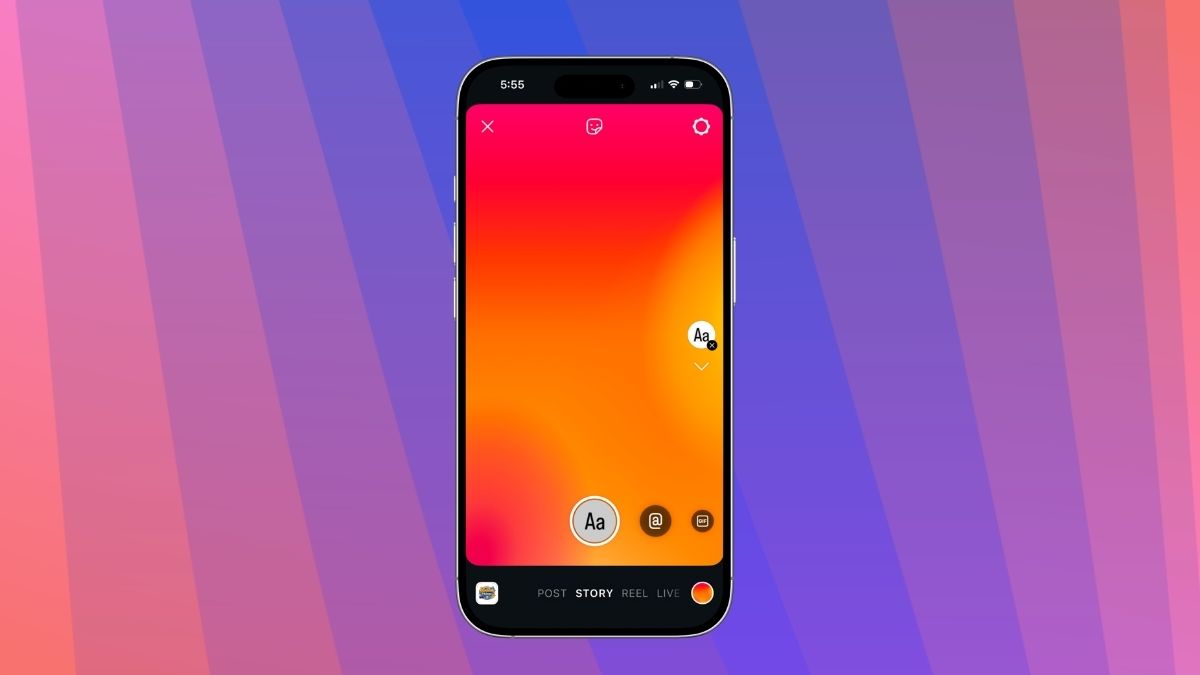
Believe it or not, people share more Stories on Instagram than posts or Reels. That’s because Stories disappear automatically after 24 hours. This feature is designed to let you share daily moments with followers or close friends without permanently posting them on your profile. One thing that makes Stories more engaging is the background color.
Sometimes the default background color doesn’t match the theme of your Story. Fortunately, Instagram lets you change the Story background color, and here are the steps to do it.
Set a Solid Color Background on Instagram Story
If your Story includes media like a photo or video, you can change the background using the Draw tool to fill the blank spaces.
- Open the Instagram app and tap the “+” icon at the top-left corner, then select Story.
- Choose the photo or video you want to upload, tap the three-dot icon, and select Draw.
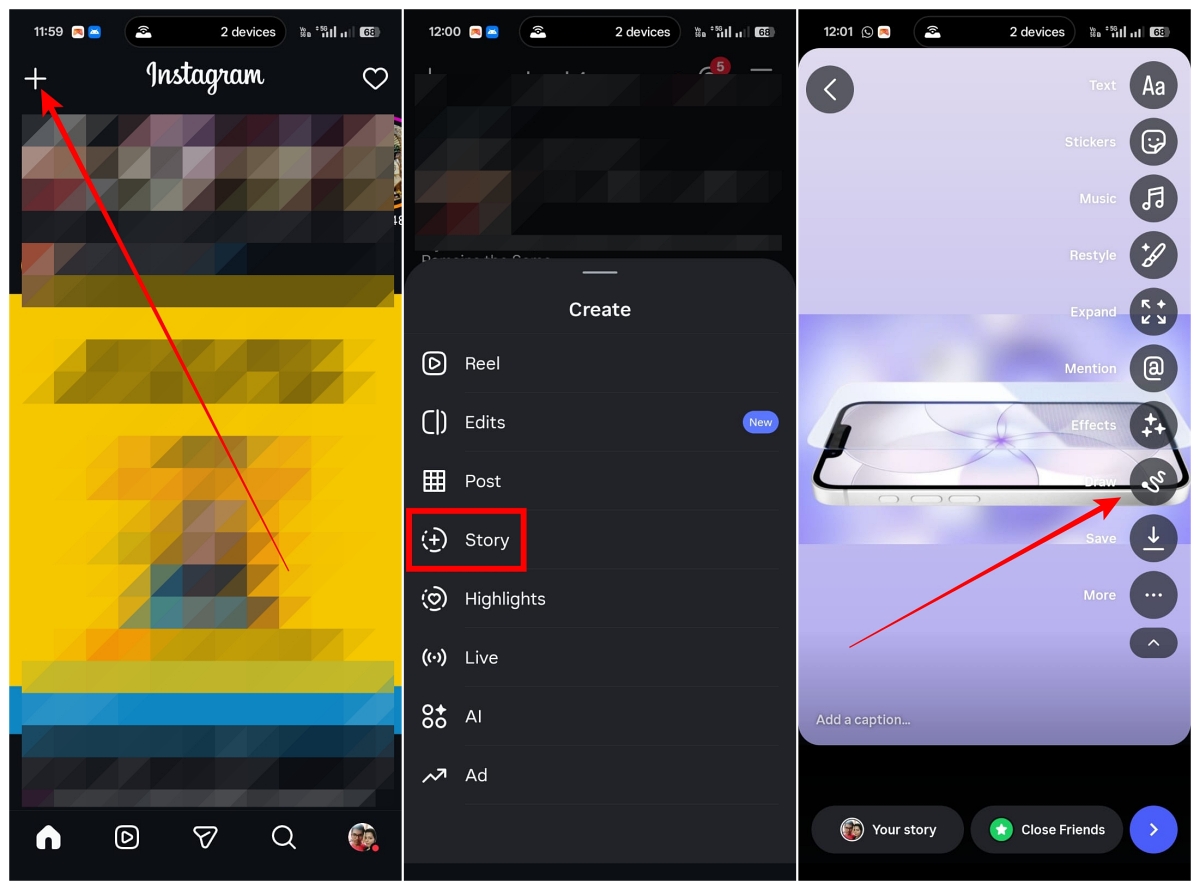
- You will see multiple color options along with a dropper icon. The dropper lets you pick a color directly from your photo or video.
- After selecting a color, press and hold anywhere on the screen, and the color will automatically fill the background.
- Select the eraser brush (the far-right paintbrush) to erase parts of the background color and reveal sections of the photo or video.

Use Create Mode for Gradient Backgrounds on Instagram Stories
If you’re creating a Story using the Create tool, changing the background color is even easier. Here’s how:
- Open the Instagram app, tap the “+” icon, and choose Story.
- From the left-side menu, tap the “Aa” Create option.
- Add text, polls, countdown timers, GIFs, or other elements to your Story.
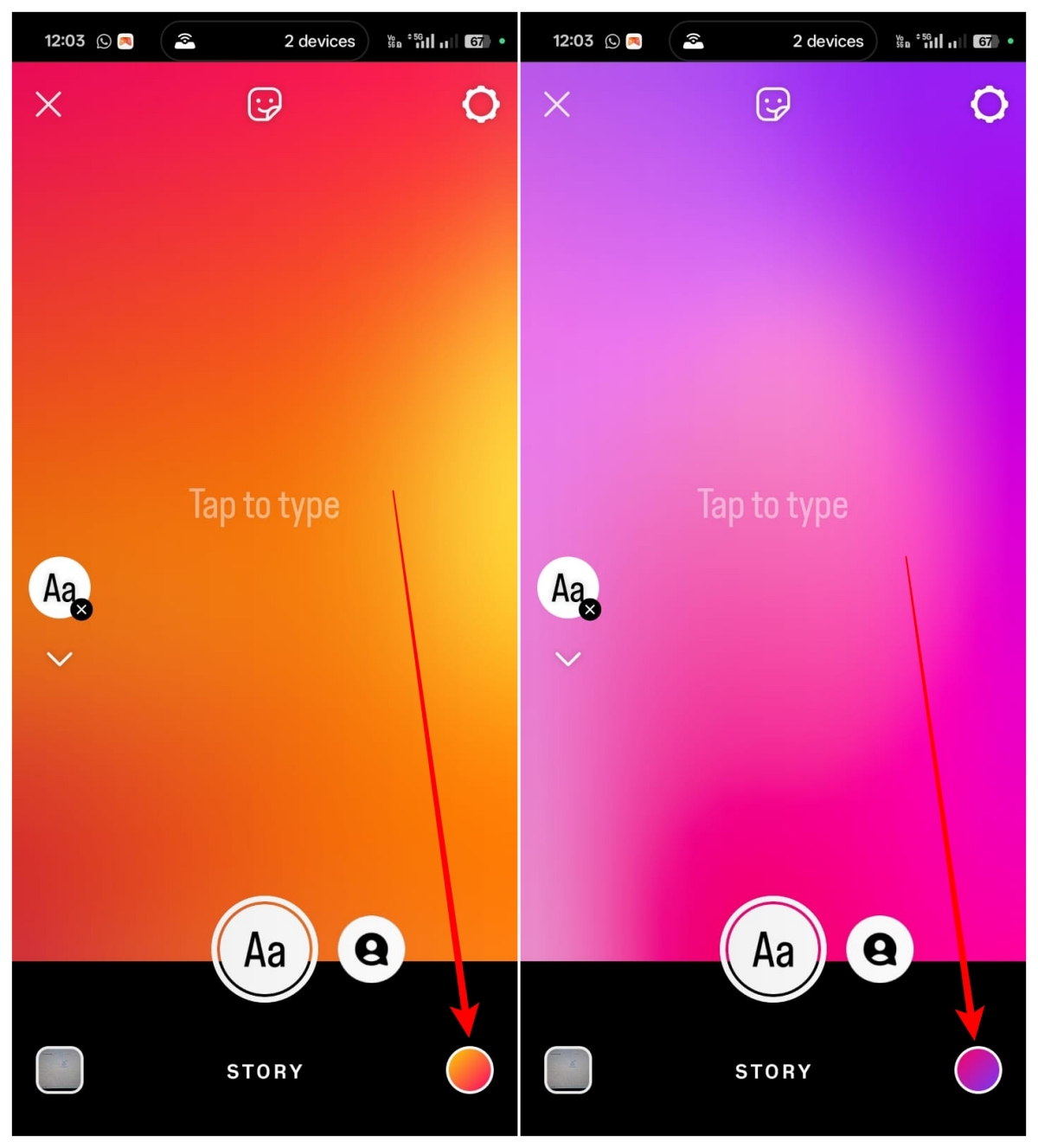
- Tap the circular color bubble at the bottom-right corner of the screen.
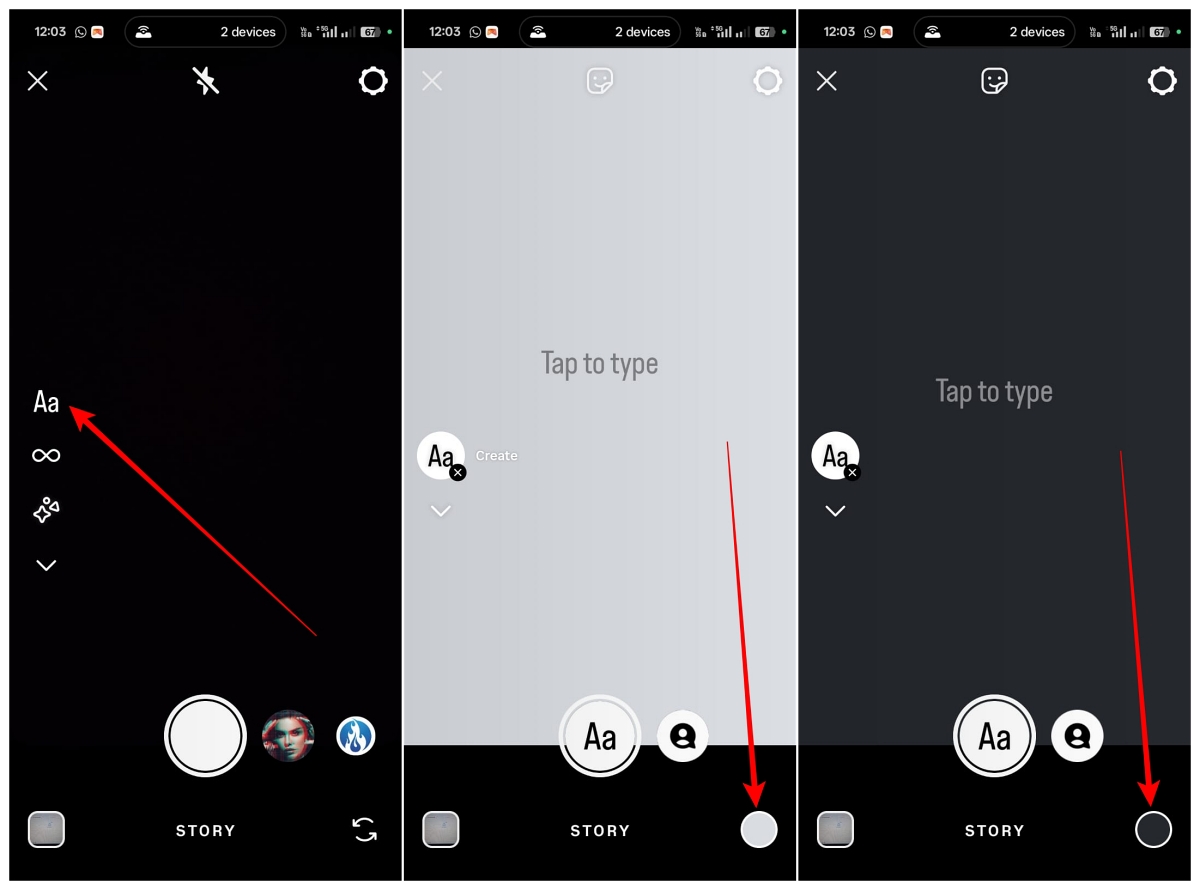
- Each tap will switch the background to a different color or gradient.
Use the Photo Sticker for a Custom Instagram Story Background
If you want to use a custom image as the background, Instagram allows that as well through the Photo sticker.
- On the Story creation page, tap the Stickers icon at the top.
- From the list, select the Photo sticker.
- Choose the photo you want to use as the background.
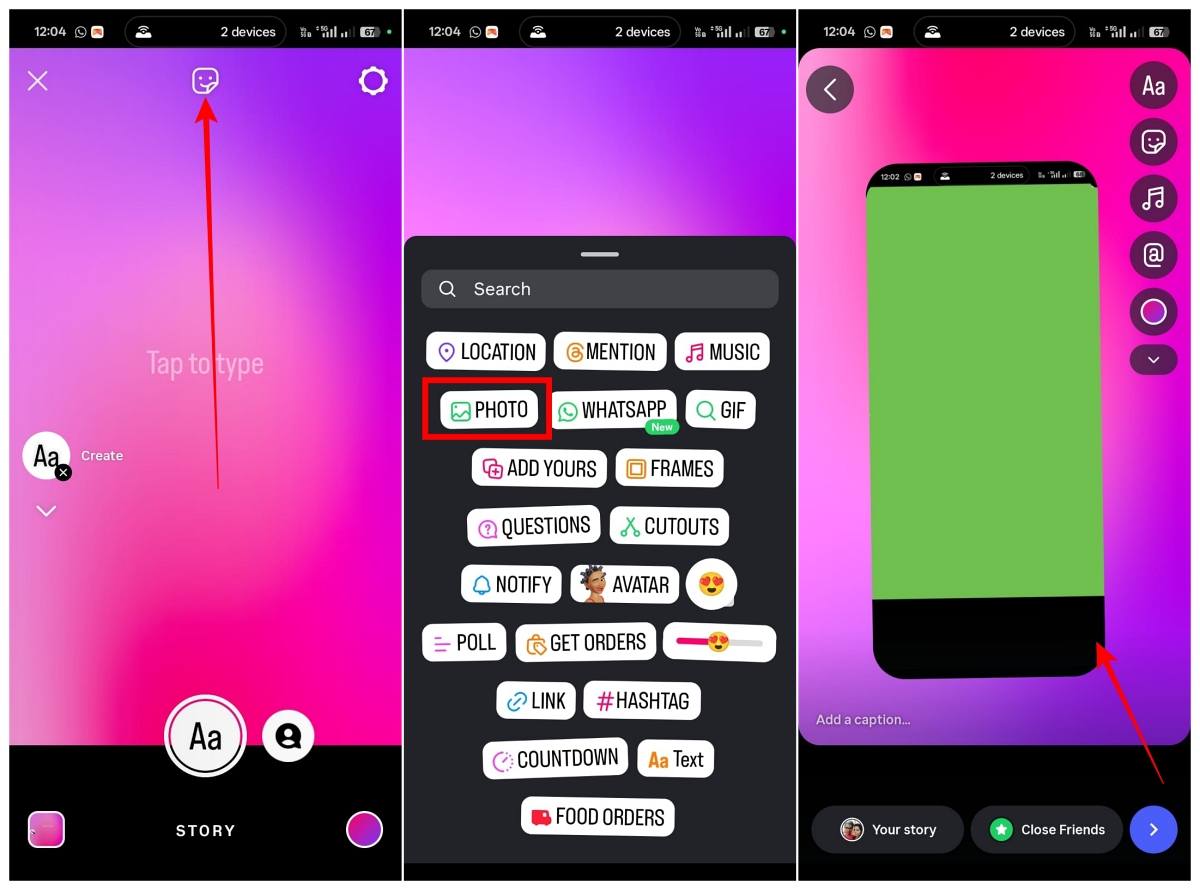
- Resize and position it to fill the entire screen.
- Finish creating your Story.
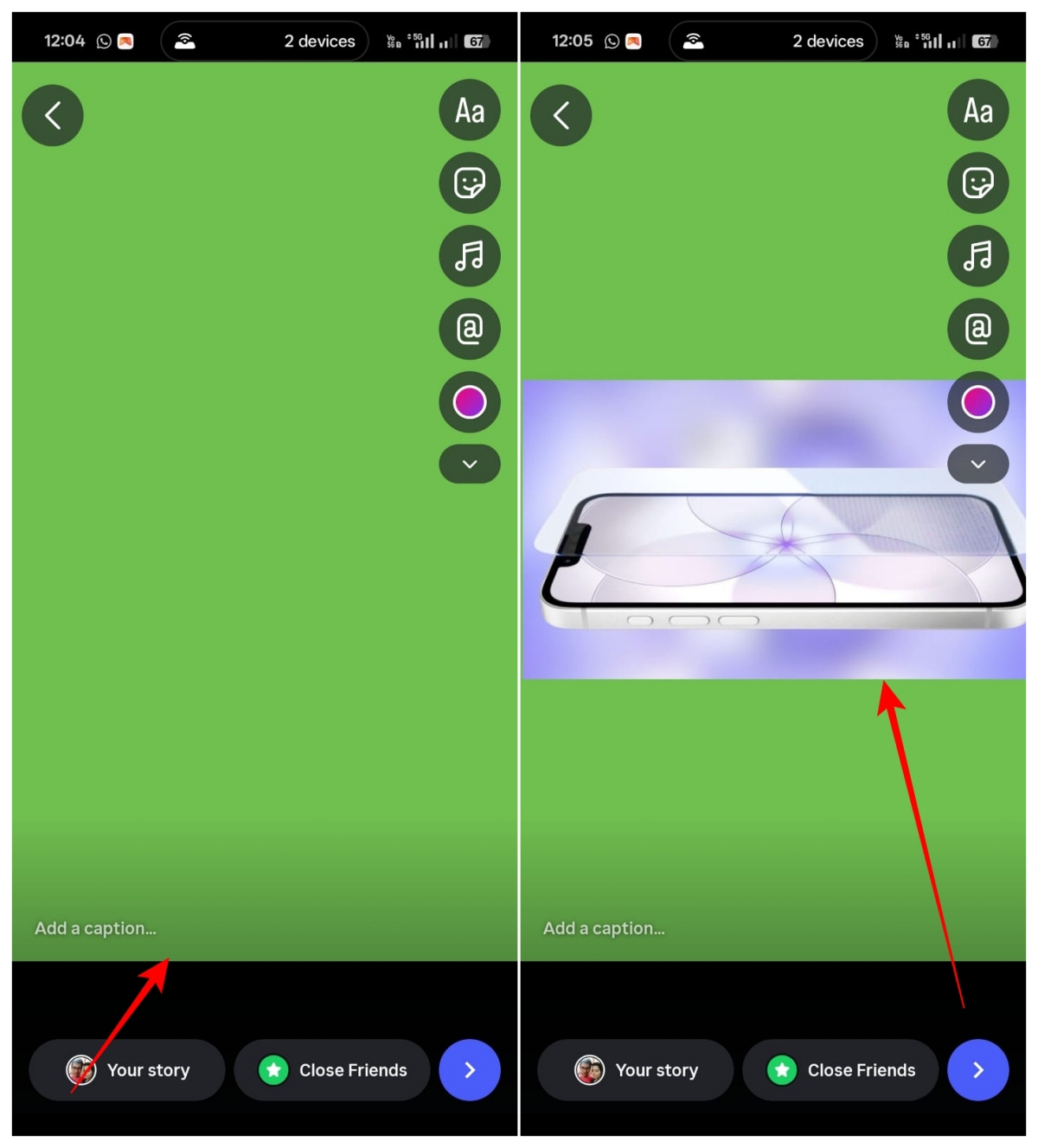
If you want to add another image on top of the background, tap the Stickers icon → Photo sticker again and choose another image.
Wrapping Up
These are some simple ways to change the background color of an Instagram Story. You can also use third-party apps like Canva or Picsart to design Stories with more customization options.
These tools allow you to remove backgrounds, use templates, and create visually appealing Stories. Once you’re done editing, download the design and upload it to your Instagram Story.
No. Once a Story is posted on Instagram, you cannot edit or change its background color. To make changes, you must delete the Story and upload it again with the desired edits.
When you upload media like a photo that doesn’t fill the entire screen, Instagram automatically adds a background color. It usually matches the dominant color in the image.
Yes. Instagram offers gradient backgrounds in Create mode, which you can use while creating your Story.
Yes. You can use the color dropper tool in the Draw section to pick a color directly from your photo or video and apply it as the background.
Don’t miss these related reads: