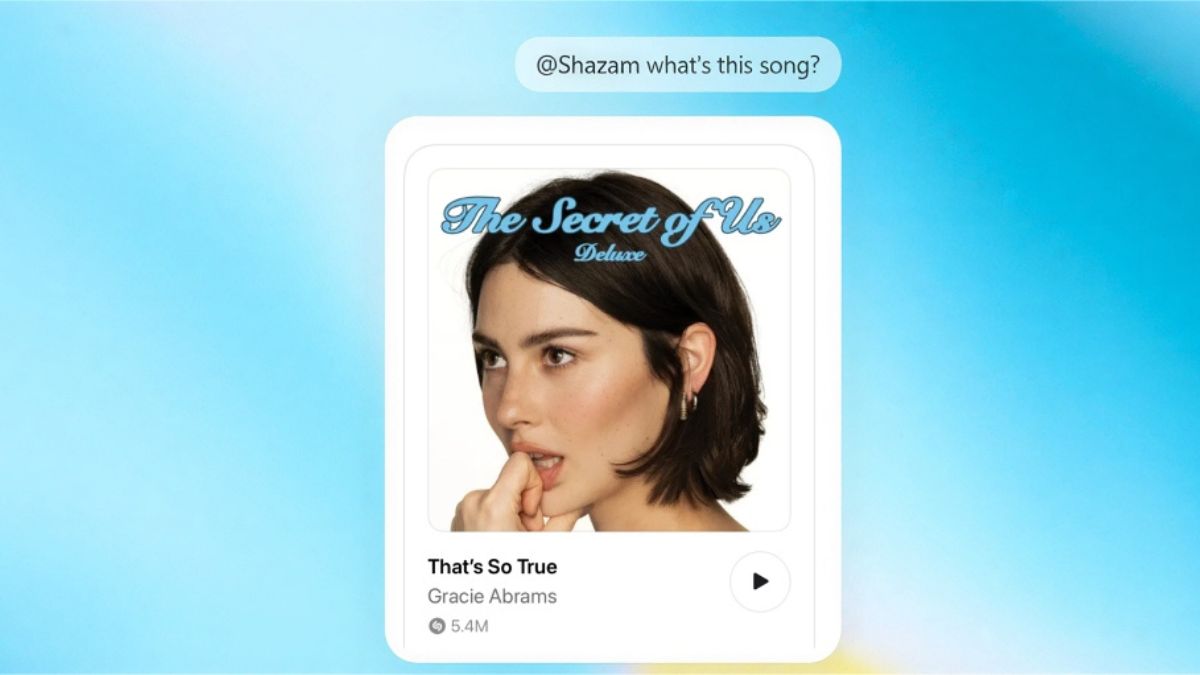
Shazam and ChatGPT are probably two of the most-used apps on your phone, or at least in your top five. That’s why it’s so exciting that they’ve finally come together. One identifies the song playing around you, while the other can tell you everything about it.
It sure sounds like a perfect match, but you might not see the value right away, especially if you’ve already been using Shazam for years. Initially, it may even seem like a longer way to discover songs. However, before you decide whether this feature is worth your time, it helps to understand what it does, and just as importantly, what it doesn’t. Here’s a breakdown of everything you need to know.
How to Connect Shazam to Your ChatGPT Account
Getting Shazam connected to your ChatGPT account is very easy, even if you’ve never had a reason to navigate the Apps section before.
- Start by opening the ChatGPT mobile, desktop, or web app. Depending on the version you’re using, you might need to tap the hamburger menu (the three lines) in the top-left corner to reveal the sidebar.
- In the sidebar, select Apps and then use the search bar to find Shazam.
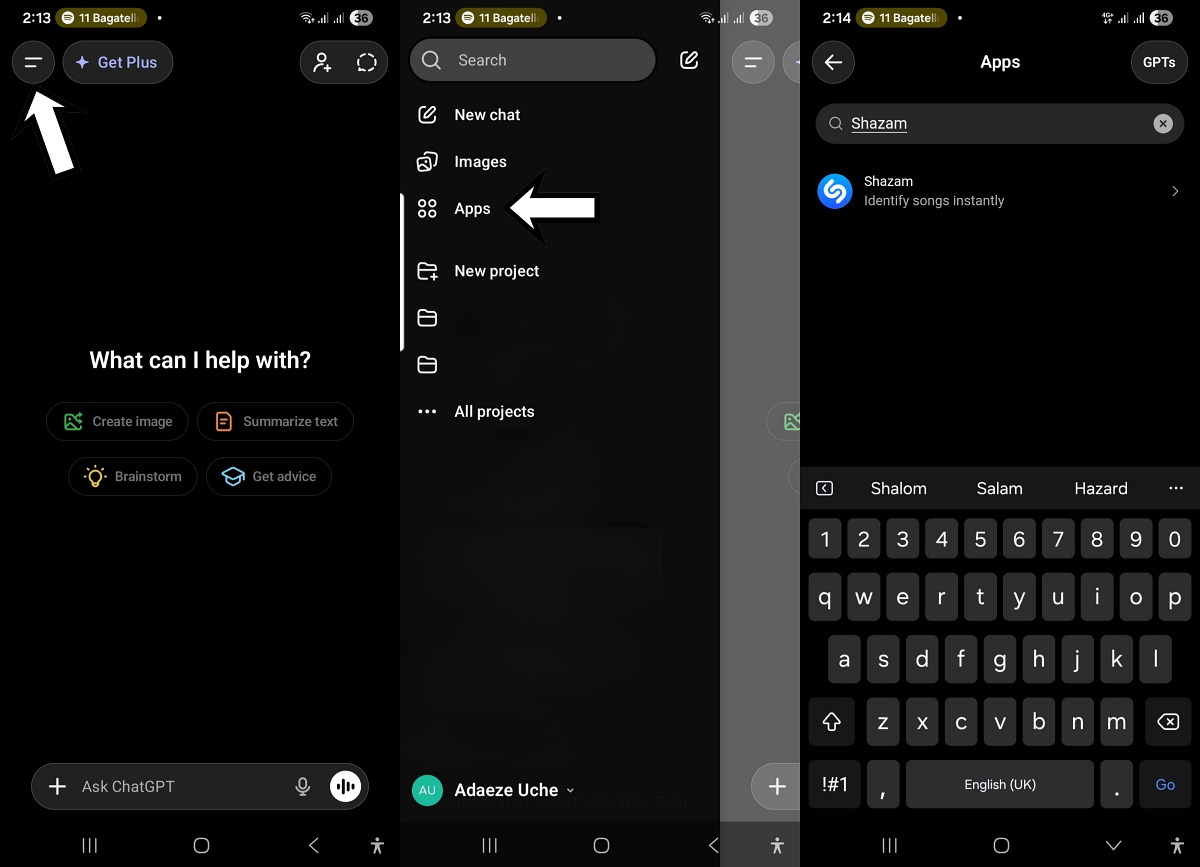
- You’ll see the familiar blue Shazam logo with the description “Identify songs instantly.”
- Tap it and then select Connect.
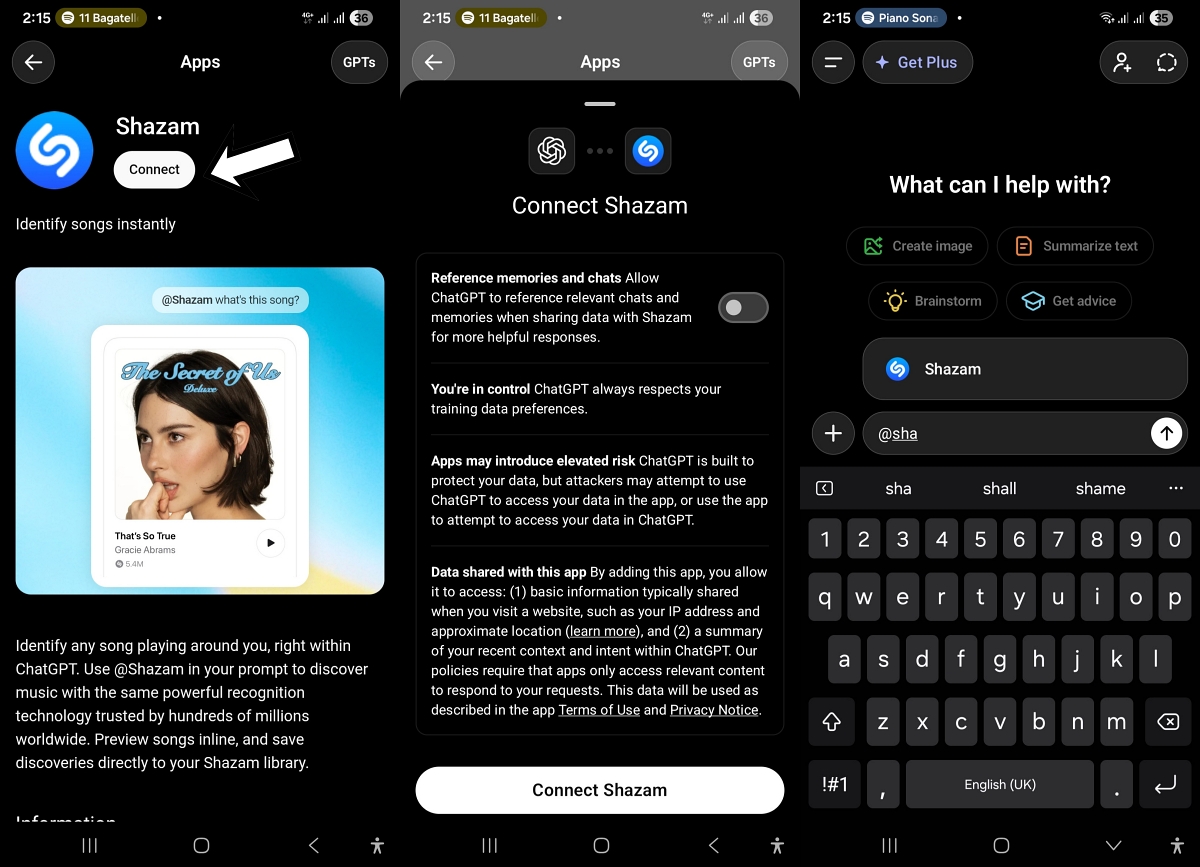
Before the connection is completed, ChatGPT walks you through a permissions screen.
This covers a few things: whether ChatGPT can reference your recent chats and memories when sharing data with Shazam, a reminder that you’re always in control of your training data preferences, and a note that connecting third-party apps can introduce some security risk. It’s fairly standard, but you should still read through it.
Once you’re happy, tap Connect Shazam at the bottom, and you’re good to go. You’ll then be able to invoke Shazam in any ChatGPT chat by typing @Shazam in your message.
How Shazam’s Live Song Recognition Works in ChatGPT
When you type something like “@Shazam what am I listening to right now?” ChatGPT will display a Shazam listening interface in the chat. It appears as a dark card with the Shazam logo and the message “Let’s find and name your song. Tap to get started.” When you tap it, a browser window opens at shazam.com, where the “Tap to Shazam” button appears.
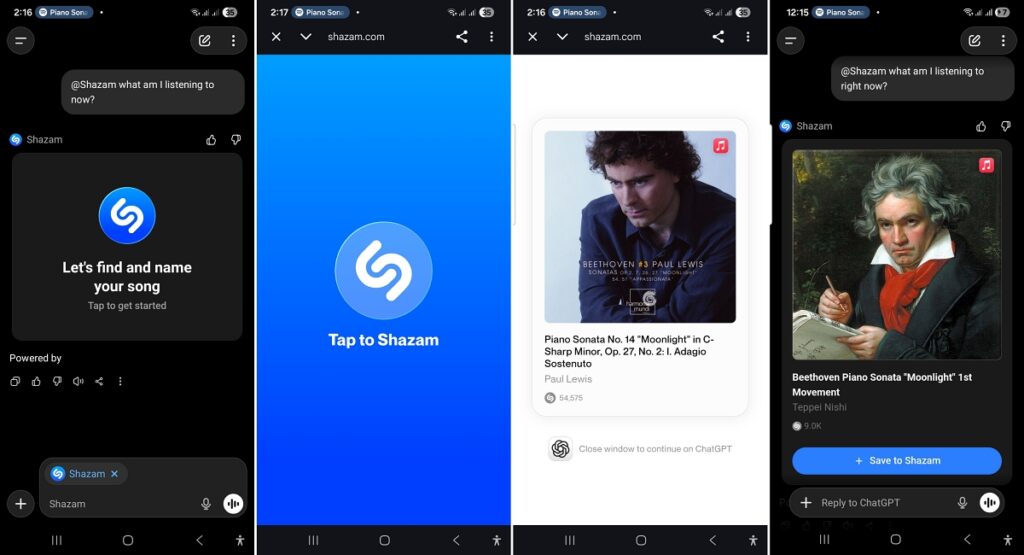
Shazam’s audio recognition, how the tool listens to the world around your device, still runs through Shazam’s web tool. ChatGPT doesn’t have this feature natively, so it can’t hear what’s playing around you. Instead, it launches the experience. Once Shazam identifies the song, it displays the results in the browser, including the artist, track name, album art, and play count, along with a prompt to close the window and return to ChatGPT.
I’ve found the process more intuitive in the mobile app, because results from desktop or web searches don’t always carry back into ChatGPT after I close the browser.
It works well enough, but it’s worth acknowledging that you’re adding an extra step to something most Android and iOS users can already trigger directly from their notification bar or lock screen. If your only goal is to find out what song is playing across the room, you’ll likely have little reason to rely on the Shazam and ChatGPT integration.
Related: How to Fix Slow ChatGPT Responses
Key Benefits of Using Shazam Inside ChatGPT
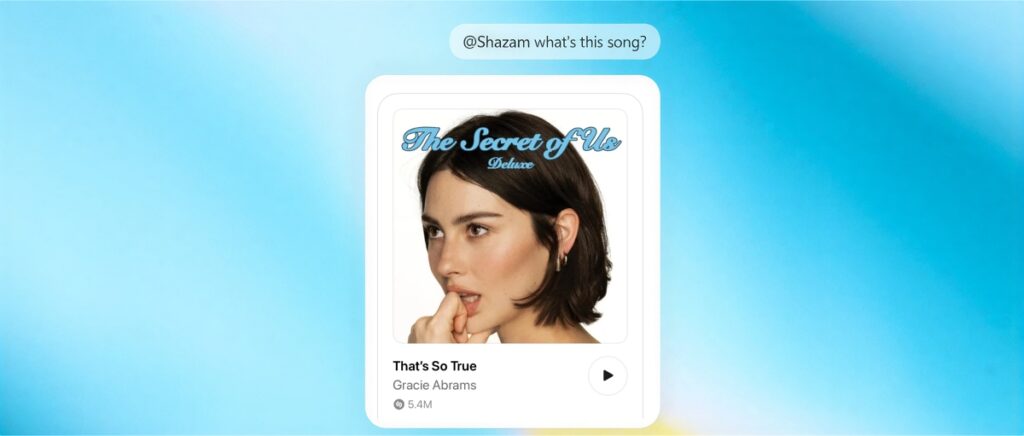
Yes, live song recognition isn’t exactly the main benefit of this integration, but there are other benefits to gain. Using @Shazam in ChatGPT is actually most powerful when you’ve identified a song or already know the music you want to talk about.
Imagine you’re hanging out with a friend at a cool restaurant and Beethoven’s Moonlight Sonata is playing in the background. You want to know more than just the title. You Shazam it, get the result (Piano Sonata No. 14 in C-sharp minor, Op. 27, No. 2 by Paul Lewis, in this case), and then immediately pivot to asking ChatGPT to explain the emotional arc of the piece, its historical context, or why the first movement hits differently at 2 a.m. You can do all of this in ChatGPT without first using Shazam and then copying the title into ChatGPT to ask your question. On top of that, you can preview songs inline and save your discoveries directly to your Shazam library if you have the Shazam app installed on your device.
You can also use @Shazam to identify songs from lyrics you only half remember. If you type something like “Why is this beautiful man waiting for me to get old?”, it can tell you that the song is “Where Is My Husband” by Raye.
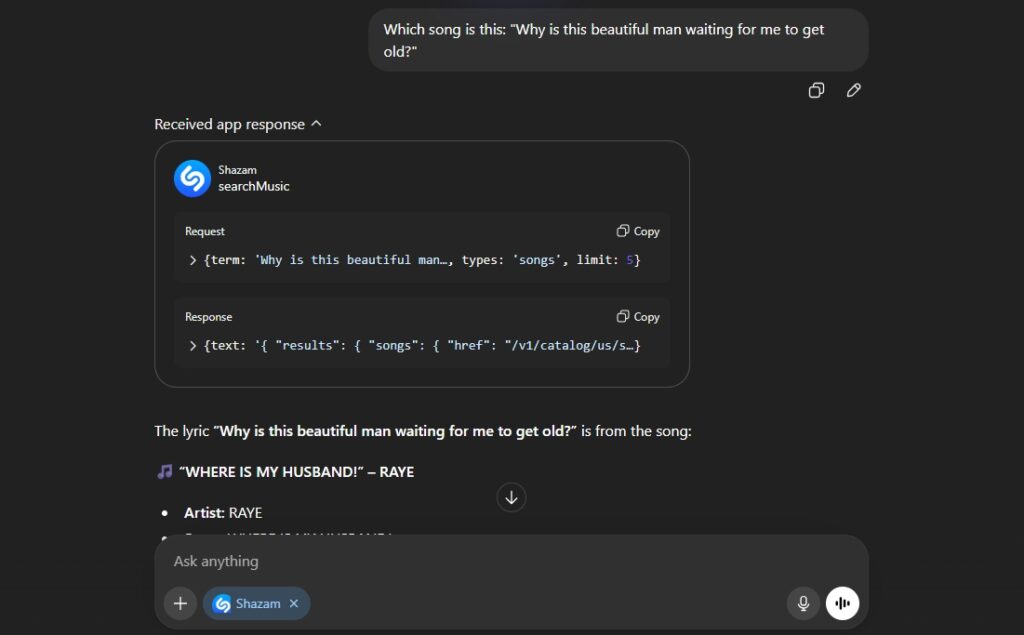
From there, you can ask it for the exact timestamp of the lyric, a comparison of the artist’s style with another, a playlist for a specific mood or occasion, or what makes a song culturally significant. The integration keeps everything in one place while you explore.
What @Shazam Can (and Can’t) Do in ChatGPT
To avoid any surprises, it helps to have a clear picture of what you can and can’t do with @Shazam in ChatGPT:
- Once connected, you can trigger live audio recognition through Shazam’s web interface,
- Identify songs from lyrics or partial titles,
- Save discoveries to your Shazam library,
- Ask for detailed breakdowns of a song’s meaning, themes, and symbolism,
- Request music recommendations based on a specific mood, genre, or artist,
- Build custom playlists for different occasions,
- Look up album details, chart history, and artist background, and
- Compare artists and explore how their sounds have evolved over time.
Basically, once Shazam has identified a song, or even fragments of it, you can stay in the same conversation to explore it in much greater depth.
However, there are still a few limitations worth noting. ChatGPT can’t hear audio directly, which means it can’t listen to humming, singing, or ambient music on its own without launching the external Shazam web tool. As a result, it also doesn’t replace the standalone Shazam app when you want the fastest possible song identification on the go.
Final Thoughts
The goal of integrating Shazam into ChatGPT isn’t to replace how you normally find songs with the native Shazam app. Instead, it bridges the gap between identifying a song and understanding its context.
You’ll probably not see much value in this integration if you’re a casual listener who only wants to know what track is playing. But if you enjoy going deeper into the music you hear—learning the stories behind the tracks, the artists, and the cultural moments around them—this integration turns ChatGPT into something closer to a music companion. The more you use it that way, the more it starts to make sense.
Don’t miss these related reads: