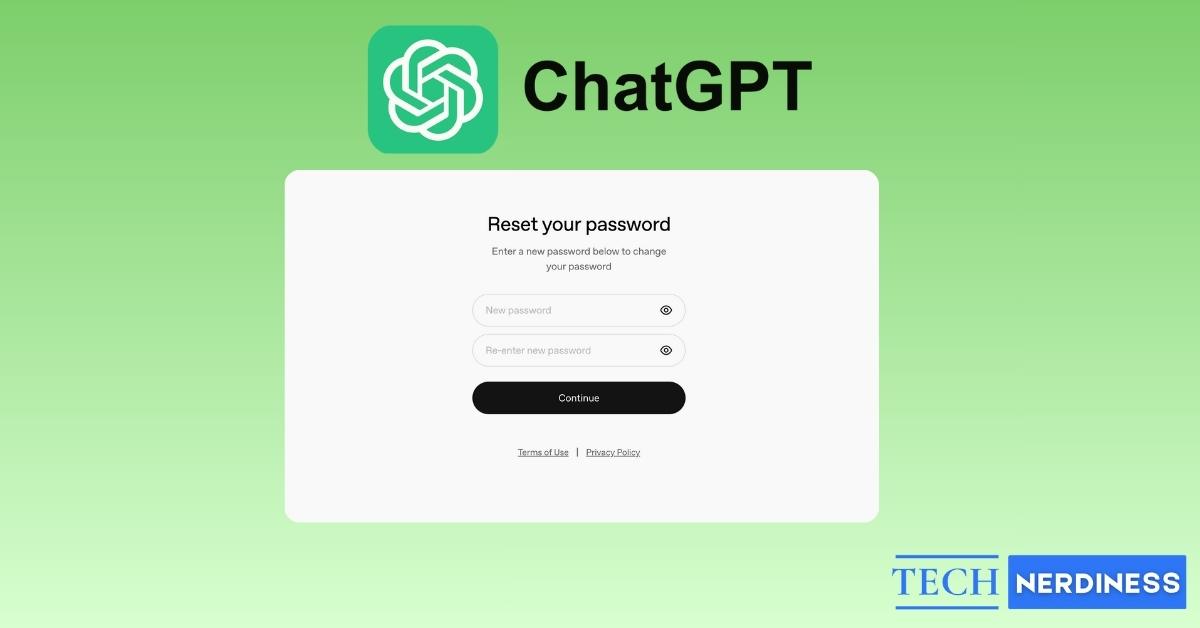
Forgetting a password happens to all of us. Sometimes you just want to update it for peace of mind. Other times, you notice something strange in your account activity and panic sets in. No matter the reason, changing your ChatGPT password is a quick fix that puts you back in control.
Before You Reset Your Password
A few quick things to know before you start:
- You need access to the email address linked to your ChatGPT account. The reset link is sent there.
- If you signed up using Google or Microsoft, you do not have a separate ChatGPT password. You’ll need to manage your password through Google or Microsoft instead.
- You cannot reset your password from inside account settings. You must be logged out or use a private browsing window.
- Reset emails can sometimes land in spam or junk folders.
- You’ll be asked to create a strong new password. OpenAI recommends at least 12 characters.
How to Reset Your ChatGPT Password
The steps are the same on desktop, iPhone, and Android.
- Log out of ChatGPT or open a private/incognito browser window. (If you’re already locked out, skip this step.)
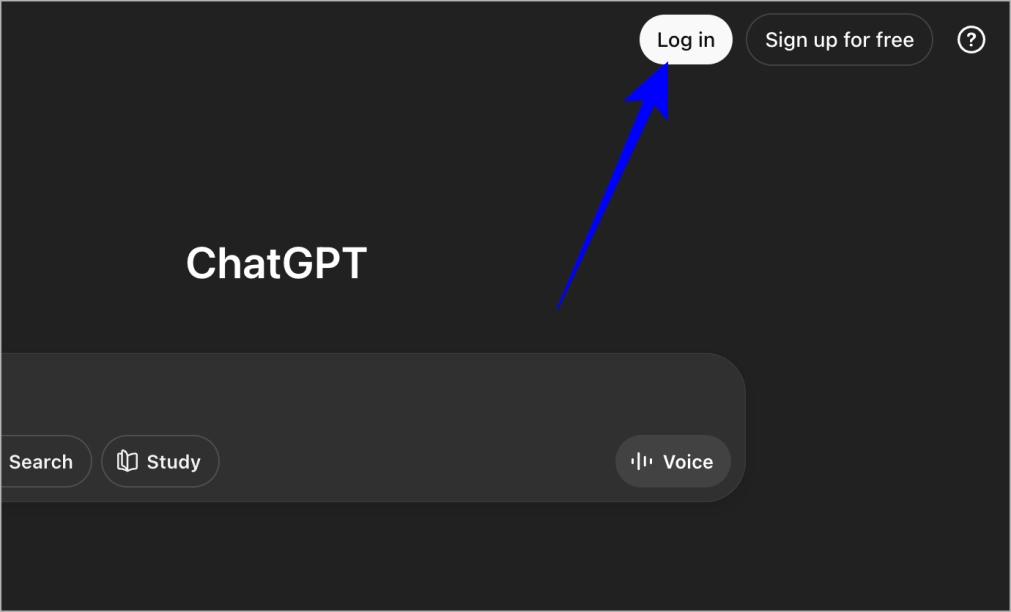
- Go to the ChatGPT home page and click Log in.
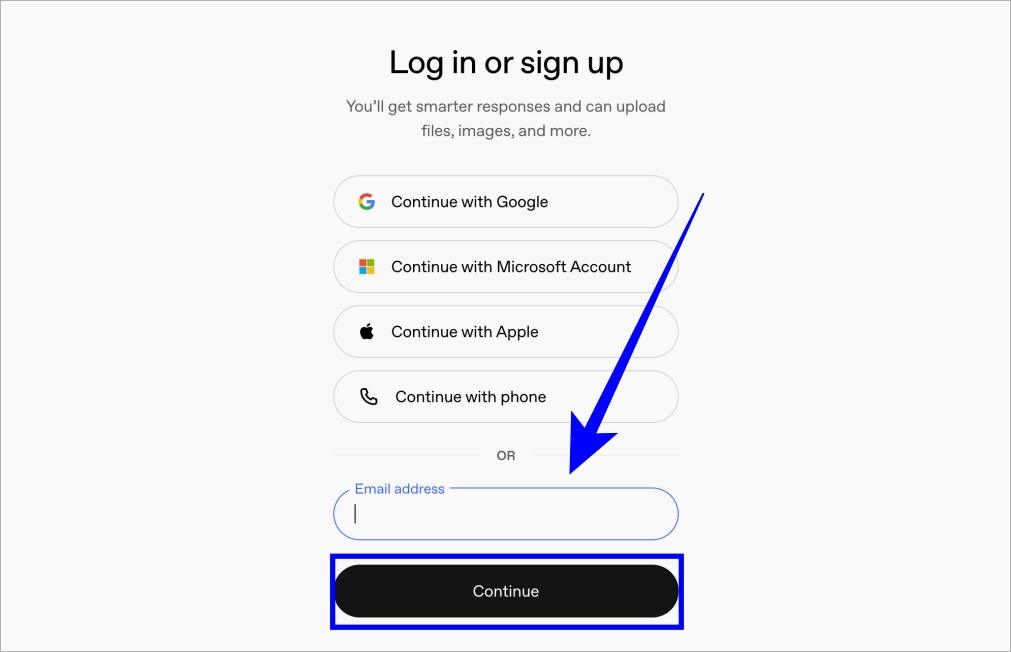
- Enter your registered email address and click Continue.
- Select Forgot password? on the password screen.
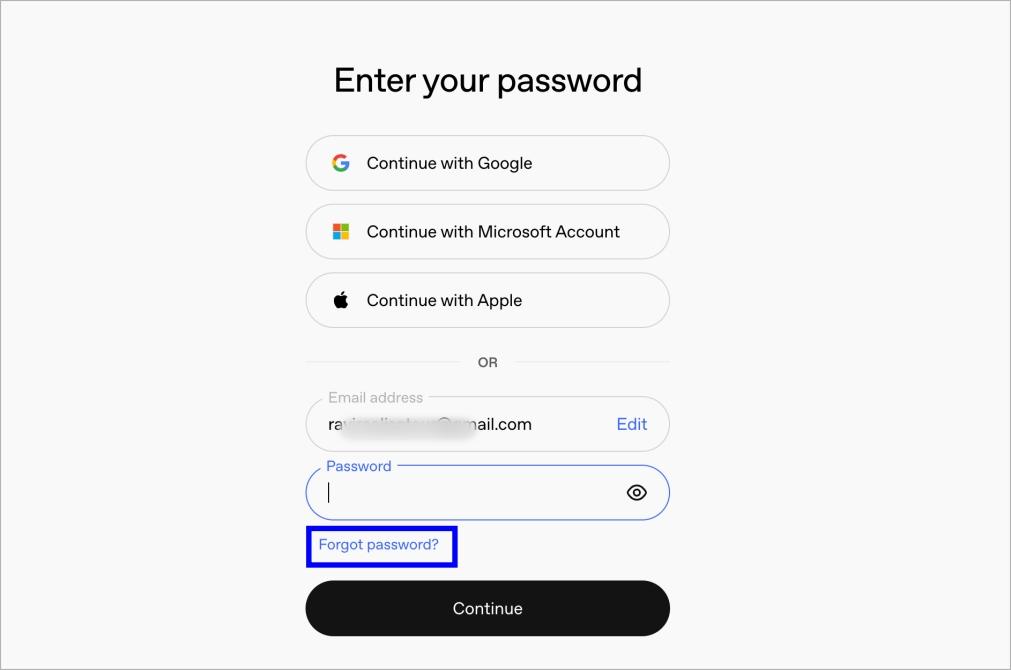
- Confirm your email address and click Continue.
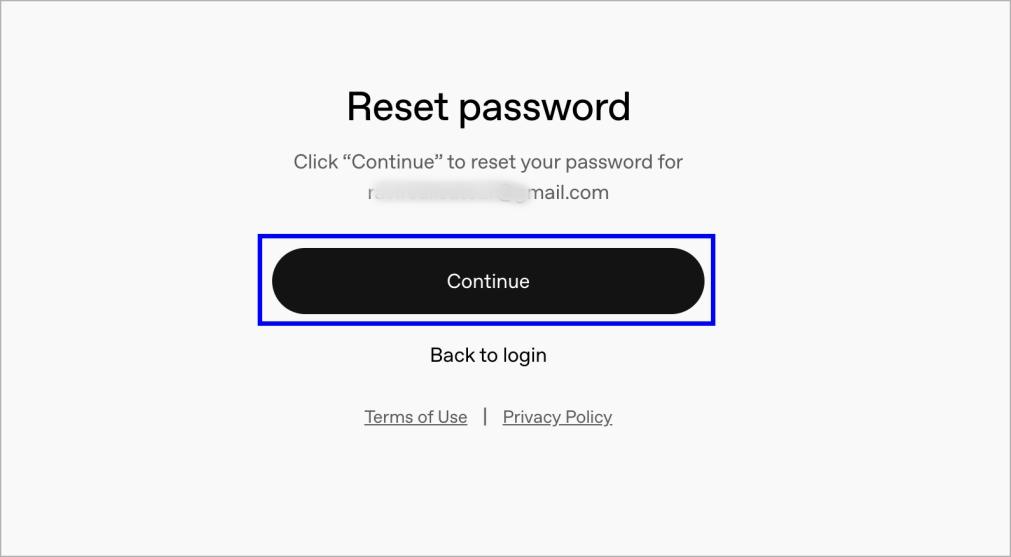
- Check your inbox for an email from OpenAI titled Change Password for ChatGPT.
- Enter the code and click Continue.
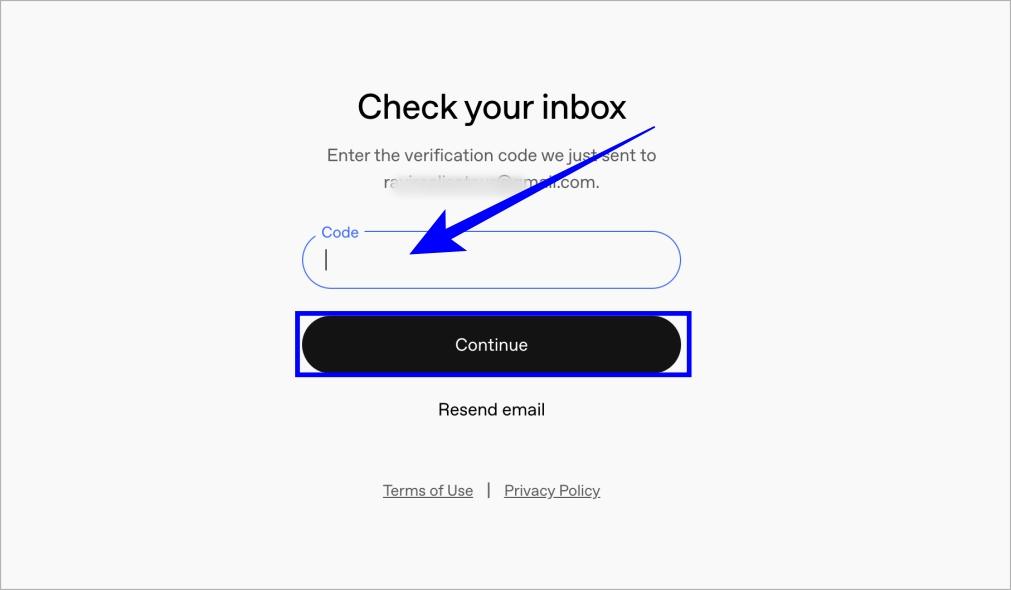
- On the next page, create a new password that’s strong and unique, at least 12 characters with letters, numbers, and symbols.
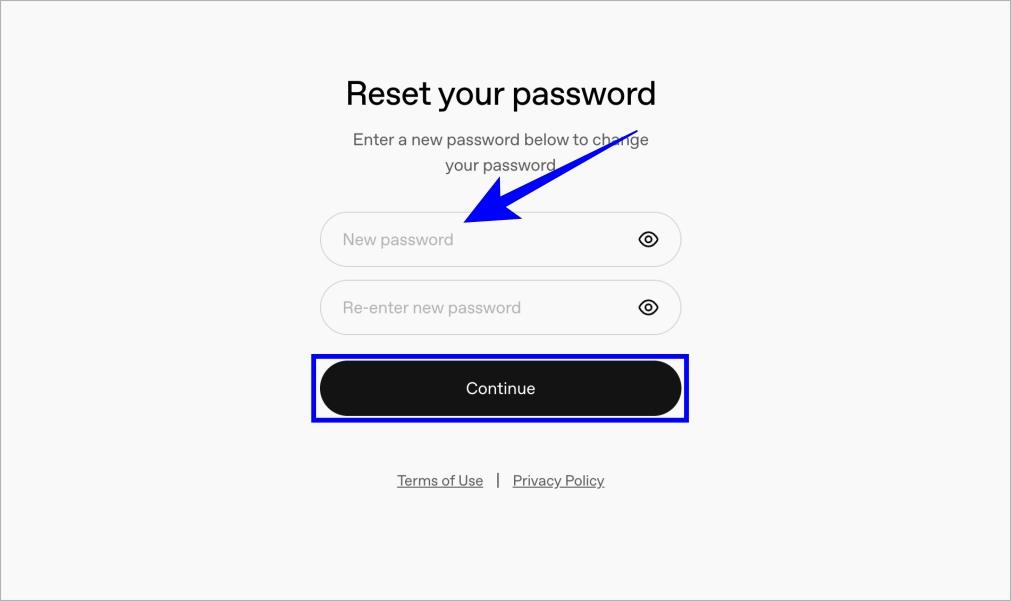
- Return to the ChatGPT login page and sign in with your new password.
Once completed, you’ll be logged back into your account.
If the Password Reset Isn’t Working
If something goes wrong, try these quick fixes:
- No email received: Wait a few minutes and check spam, junk, or promotions folders. Then request the reset again.
- Wrong email address: Make sure you’re using the same email you originally signed up with.
- Google or Microsoft login: There is no ChatGPT password to reset. Sign in with your Google or Microsoft account or reset the password directly on their site.
- Still stuck: Clear your browser cache, try a private window, or contact OpenAI Support for help.
You can also cancel your subscription at any time.
When Should You Change Your Password?
Most people only reset passwords after getting locked out, but it’s smart to do it sooner if:
- You see login alerts from unfamiliar devices
- Your chat history shows activity you don’t recognize
- You reuse the same password on multiple services
- You haven’t updated it in a long time
Regular password updates reduce the risk of unauthorized access.
Final Thoughts
Resetting your ChatGPT password is quick and painless. Whether you forgot it or just want extra security, taking a few minutes to update your password can save you bigger problems later. A strong, unique password goes a long way in keeping your account safe.
You may like to read: