
We’ve all been there. You log into Fortnite after a long day, just wanting to play a few quiet matches, and within seconds your squad starts pinging you with invites and messages asking where you’ve been. Sometimes, you just want to play without the social layer.
The good news is, you don’t have to disappear completely to get that space. Fortnite gives you enough control over your visibility settings to effectively appear offline, even though you’re still connected to the game. Whether you’re grinding solo, testing a new loadout, or just playing without interruptions, here’s exactly how to do it.
Can You Actually Appear Offline in Fortnite?
This is one of the most common questions, and the honest answer is simple: not completely, but close enough.
Fortnite is always online. There’s no true offline mode where you vanish entirely from the Epic ecosystem. However, Epic has added privacy controls that work well in practice.
By setting your Online Status to “Away” and changing Party Joinability to “Invite Only,” you can stay under the radar. To most people on your friends list, you’ll look inactive, and they won’t be able to join your session.
You’re not invisible, but you are effectively out of reach.
How to Appear Offline on Fortnite (All Platforms)
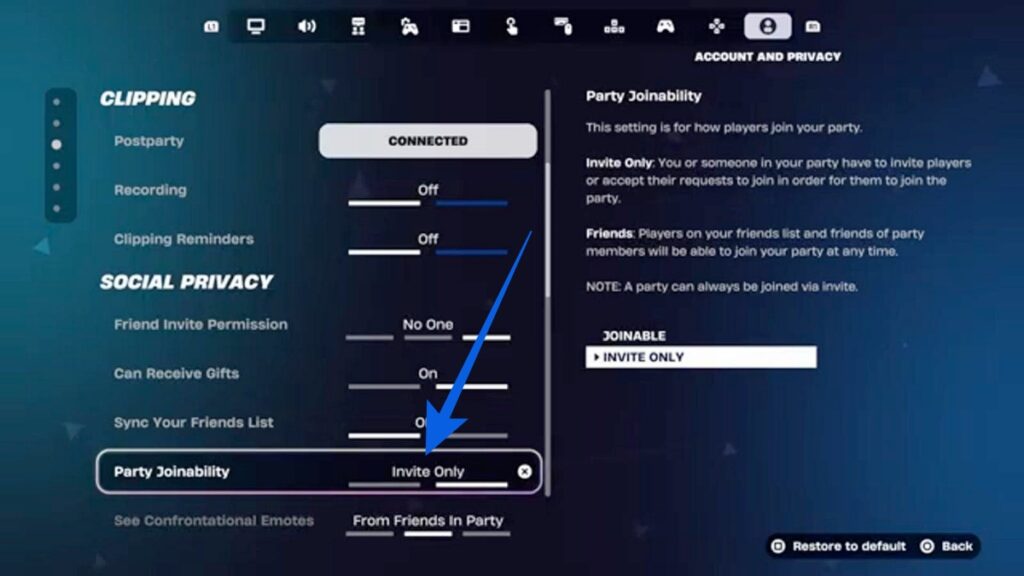
The steps are almost identical across PC, console, and mobile, which makes this easy to remember.
On PC
- Open the main menu from the lobby and click your profile icon in the top-right corner.
- Set your Online Status to “Away” and change Party Joinability to “Invite Only.”
That’s it. You’ll appear inactive, and no one can join your game without an invite.
On PlayStation and Xbox
- Go to the main menu and open your profile settings.
- Set Online Status to Away and Party Joinability to Invite Only.
For extra privacy, you can also use your console’s system settings to appear offline at the account level. This hides your activity across all games, not just Fortnite.
On Mobile
- Tap the menu icon in the lobby and open your profile.
- Change Online Status to Away and set Party Joinability to Invite Only.
The layout is slightly different, but the settings are in the same place.
Extra Tip (PC Users): If you’re playing on PC, enable Do Not Disturb in the Epic Games Launcher. This blocks notifications entirely and makes the experience feel much more focused.
What “Away” Status Actually Does (And Doesn’t Do)
Before relying on this fully, it’s worth understanding how it works.
Setting your status to Away does not make you completely invisible. Your friends can still see that you’re in Fortnite, just not actively available. They can technically send invites, although most won’t once they see your status.
If someone ends up in the same match as you, your username will still be visible like any other player.
So this isn’t a full offline mode like you might see on other platforms. It’s more of a social filter than a hard disconnect.
That said, for most players, it works exactly as needed. The invites stop, the pressure disappears, and you can play without interruptions.
If you need complete privacy, removing or blocking a contact will fully cut off visibility. Most players won’t need to go that far.
What to Do Once You’re Playing Solo
Once you’ve set your status and finally have some uninterrupted time, it’s worth making the most of it.
If your goal is to level up quickly without distractions, trying out some of the best Fortnite XP maps can help you farm XP efficiently while playing solo.
And if you’re just looking to relax or experiment with different game modes, exploring the best Fortnite creative maps is a great way to enjoy Fortnite without the pressure of competitive matches.
How to Appear Offline on Epic Games
This is where a lot of confusion happens. The Epic Games Launcher has an offline browsing mode, but it’s not the same as appearing offline in Fortnite.
Here’s how to enable it:
- Open the Epic Games Launcher.
- Click your profile icon.
- Go to Settings.
- Enable Offline Mode Browsing.
This feature is designed for accessing games without an internet connection, not hiding your activity.
Since Fortnite requires an active connection, this setting won’t make you appear offline in-game. For that, the in-game status settings remain your best option.
Final Word
Fortnite is built as a social experience, but that doesn’t mean you need to be available every time you log in.
Setting your status to Away and locking your party to Invite Only takes less than a minute, and it completely changes how the game feels. No interruptions, no pressure, just your own pace.
Once you start using this, going back to constant invites feels unnecessary.
Yes. These settings only change your visibility. Your gameplay, matchmaking, and progress remain completely unaffected.
Technically yes, but most players won’t. Your status clearly signals that you’re unavailable.
Yes. The steps are identical on PlayStation and Xbox. You can also use your console’s offline mode for extra privacy.
No. You’ll need to enable these settings each session. The good news is, it only takes a few seconds once you know where to look.
Don’t miss these related reads: