Wondering what Time Sensitive means on Snapchat? When that label appears, it leaves you guessing. Is this urgent? Am I about to lose a streak? Should I open the app right now?
Here is the short answer that most guides bury: Time Sensitive is not a Snapchat feature at all. It is an Apple system, and understanding that changes how you fix it. This guide covers what triggers the label, why it sometimes breaks through settings you thought would block it, and exactly how to turn it off on both iPhone and Android.
What is a Time Sensitive Notification?
Time Sensitive is a priority level built into iOS, introduced by Apple alongside Focus modes in iOS 15. Snapchat simply taps into that system for certain alerts.
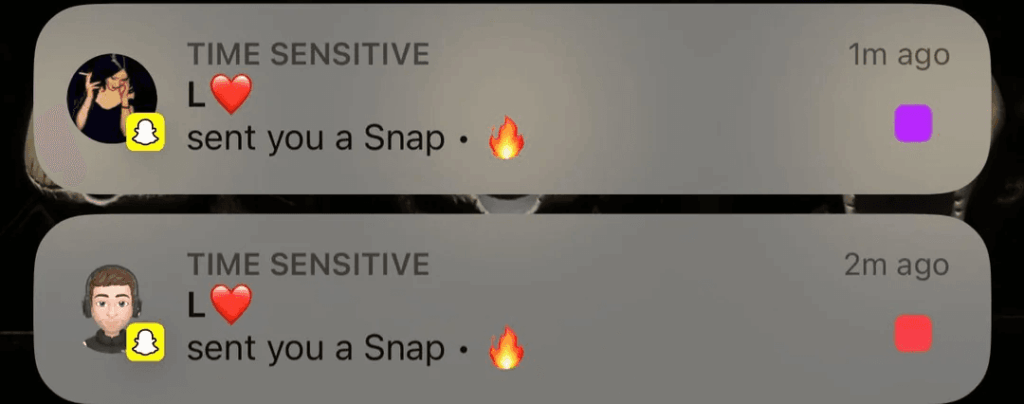
iOS actually has four notification priority levels:
- Passive. No sound or vibration, does not interrupt you.
- Active. The standard level, with sound and screen wake.
- Time Sensitive. Can break through Focus modes and scheduled delivery.
- Critical. Bypasses everything, reserved for emergencies like severe weather, and requires Apple’s approval to use.
Snapchat added support for the Time Sensitive level in 2023 for devices running iOS 15 or later. Apps like Find My, Uber, and banking apps use the same priority level.
How Time Sensitive Behaves on iPhone
- It can bypass Focus modes and Do Not Disturb.
- It appears immediately, even if you use Scheduled Summary.
- It stays pinned to your Lock Screen for about an hour.
Important: Snapchat is not claiming an emergency. It is marking the alert as time-relevant inside Apple’s system, nothing more.
How Time Sensitive Behaves on iPhone
| Normal Notification | Time Sensitive Notification |
|---|---|
| Waits for you to check the phone | Appears right away |
| Quiet during Do Not Disturb | Can break through Focus modes |
| Scrolls with other alerts | Stays pinned up to 60 minutes |
| No urgency assigned | Treated as priority messaging by iOS |
Why Does Snapchat Mark Some Alerts as Time Sensitive?
Snapchat has never published its exact triggers, and its Help Center does not list Time Sensitive as something you can customise inside the app. Based on user reports and observed behaviour, these are the common triggers:
- Snapstreak alerts when you are close to losing a streak
- Expiring Snaps and chat messages
- Close friend Story updates, based on your interaction history
- Pinned BFFs and Snapchat Plus features like Snapstreak Reminders
- Re-engagement notifications aimed at bringing inactive users back
The logic makes sense given how Snapchat works. Snaps disappear, streaks reset, Stories vanish. Timing is the whole product, so the notification system prioritises anything tied to a countdown or expiry.
Worth knowing: app developers decide what gets flagged, not you. Apple hands that choice to the app. All you control is whether the app is allowed to use the priority level at all. That also means the occasional Time Sensitive alert on an ordinary message may be a misclassification rather than a deliberate call.
The Setting Most People Miss
Here is the part that trips people up, and it explains a complaint that shows up repeatedly in Apple’s own community forums: users turn off Time Sensitive for Snapchat, and the notifications still break through Focus mode.
The reason is that there are two separate controls, and switching off one does not disable the other.
- Control one, per app: Settings, then Notifications, then Snapchat, then the Time Sensitive Notifications toggle. This stops Snapchat specifically from using the priority level.
- Control two, per Focus mode: Settings, then Focus, then pick a mode, then Options, then Time Sensitive Notifications. This decides whether any app not on your allowed list can break through that particular Focus mode.
If you only turned off the first one and alerts still get through, check the second. And if you run several Focus modes, the setting applies per mode, so Work Focus and Sleep Focus each need checking separately.
How to Turn Off Time Sensitive Notifications on Snapchat
If these alerts genuinely help you keep streaks alive, leave them on. If they interrupt your downtime, here is how to stop them.
On iPhone or iPad
- Open the Settings app.
- Tap Notifications.
- Select Snapchat.
- Toggle Time Sensitive Notifications off.
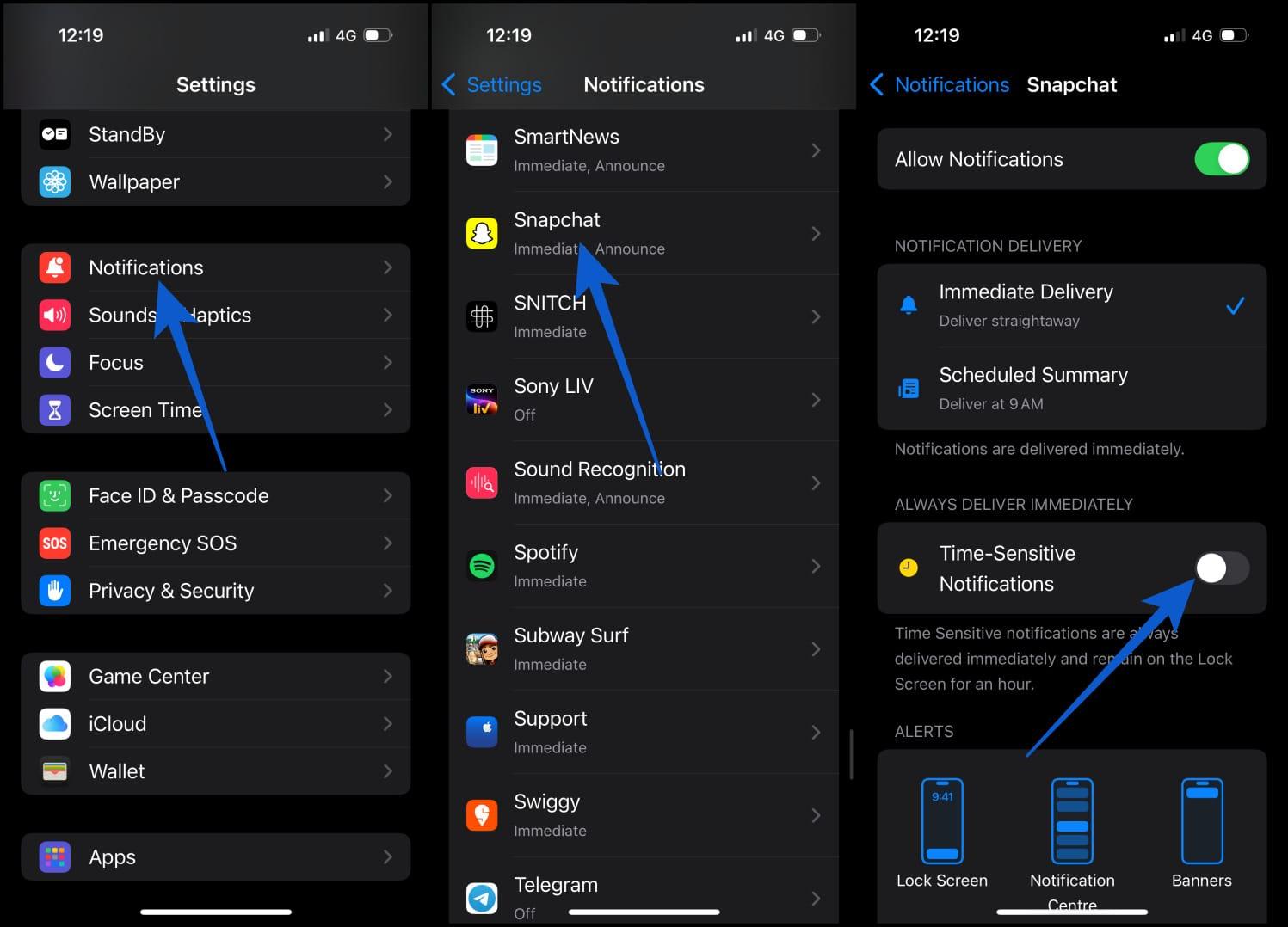
You will still receive regular Snapchat notifications. They just will not break through Focus or Do Not Disturb anymore.
To Block Time Sensitive Alerts Across All Apps
- Open Settings and tap Focus.
- Select the Focus mode you want to adjust, such as Work or Sleep.
- Tap Options.
- Toggle Time Sensitive Notifications off.
Repeat for each Focus mode you use.
On Android
Android has no Time Sensitive label. Snapchat instead requests High Priority notification status, which on some devices lets it bypass battery optimisation.
- Open Settings on your Android.
- Go to Apps.
- Select Snapchat.
- Tap Notifications.
- Adjust the notification settings as you prefer.
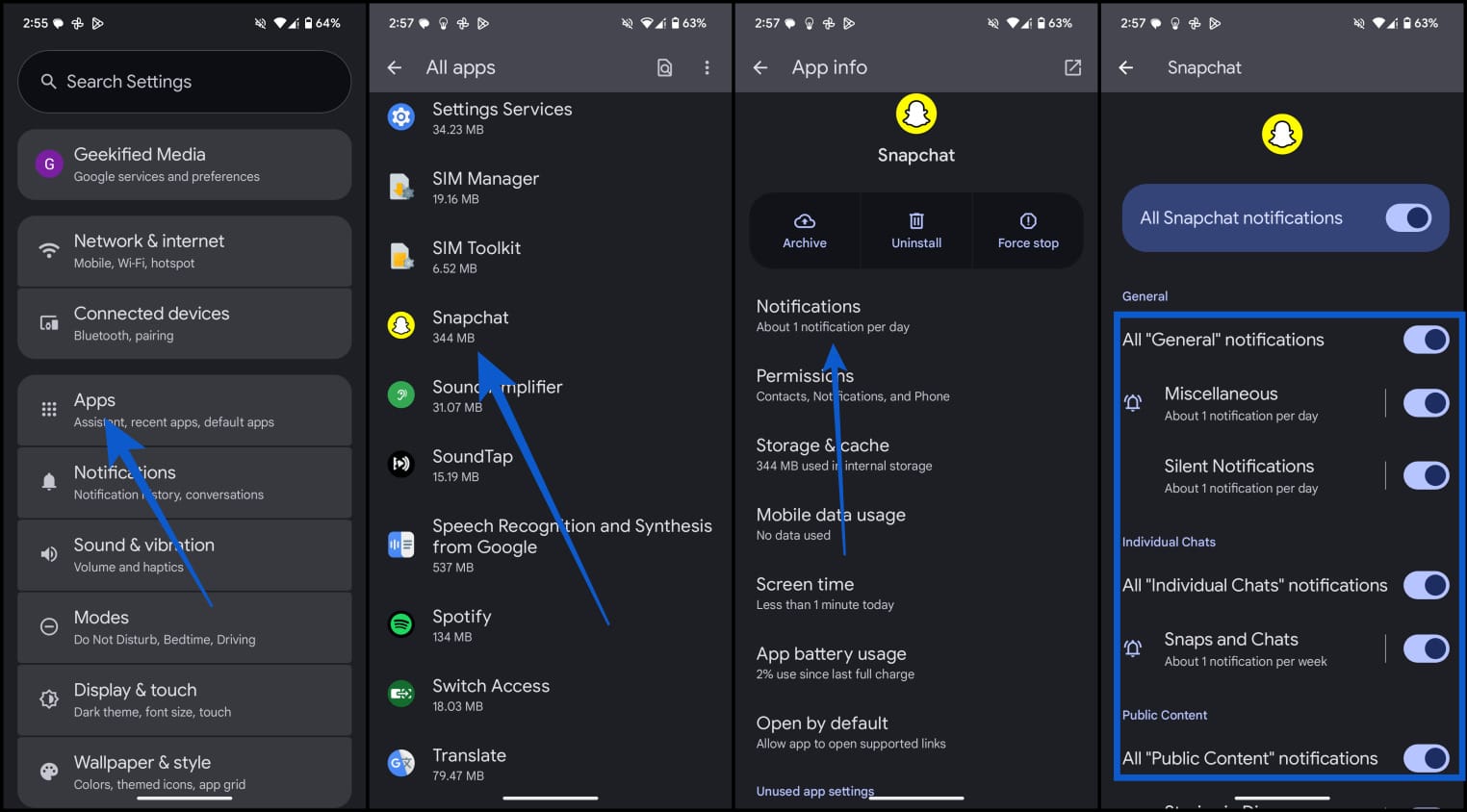
Menu names vary between manufacturers, so the exact wording may differ on Samsung, Xiaomi, or OnePlus devices compared to a Pixel.
Extra Notification Controls Inside Snapchat
For more control:
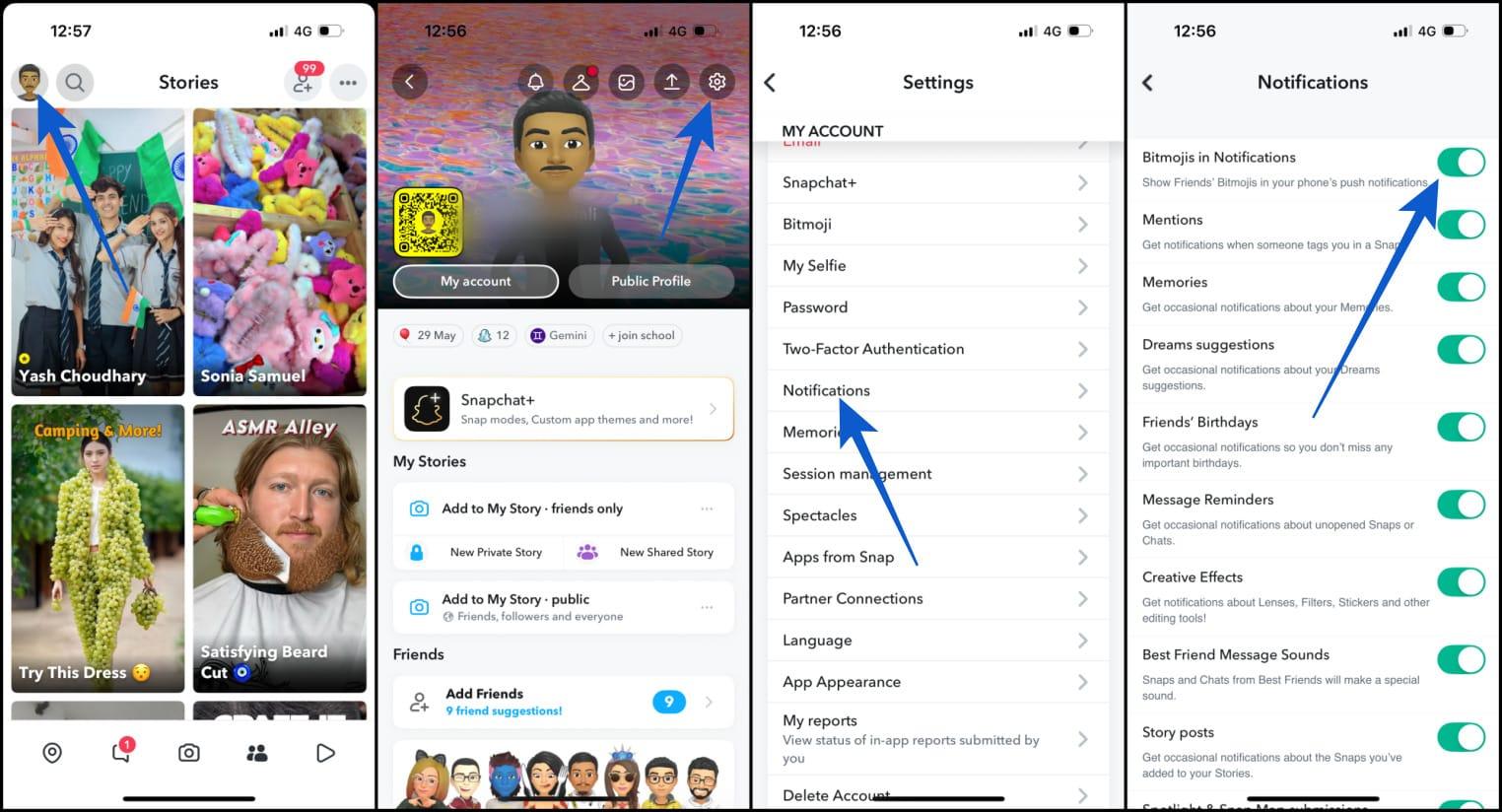
- Open Snapchat on your phone.
- Tap your profile icon in the top-left corner of the screen.
- Go to Settings by tapping the gear icon in the top-right corner.
- Select Notifications.
- Turn notifications on or off for specific actions, such as Snaps, mentions, Stories, Trending Public Content, or Friend Suggestions.
- Choose whether to show Bitmojis in notifications.
If Story alerts specifically are the problem, our guide to turning off Snapchat Story notifications walks through that in more detail on both platforms.
What Changed in iOS 26
Apple added Intelligent Breakthrough and Silencing in iOS 26, and it changes this picture on supported devices.
Rather than relying purely on the priority level an app assigns, Apple Intelligence now analyses the actual content of a notification to judge whether it genuinely matters, and can let it through Focus mode on that basis. The intent is to reduce apps over-using the Time Sensitive label for engagement rather than genuine urgency.
In practice this means two things. Some Snapchat alerts that previously broke through may now get filtered out as unimportant. And some that were not marked Time Sensitive may still reach you if the system judges them worth surfacing. If Snapchat’s notification behaviour on your iPhone feels different from what older guides describe, this is likely why.
Pros and Cons of Time Sensitive on Snapchat
Worth keeping on if:
- Helps prevent losing a Snapstreak.
- Makes sure you catch time limited content.
- Prevents hidden alerts in Do Not Disturb.
Worth switching off if:
- Can interrupt focus or sleep.
- Sometimes overused for engagement.
- Not always as urgent as the label implies.
A practical middle ground: Turn it off and set a daily check-in time instead. Plenty of users report that streak anxiety drops noticeably once alerts stop dictating when they open the app.
Tips for Managing It Sensibly
- Keep Time Sensitive enabled only for apps where timing genuinely matters to you.
- Switch it off during weekends, travel, or holidays, then re-enable it after.
- Build a custom Focus mode that allows specific contacts rather than whole apps.
- On Android, revoke High Priority status during quiet hours.
- Check your Focus-level Time Sensitive setting, not just the per-app one.
Wrapping Up
Time Sensitive alerts are an Apple system feature that Snapchat taps into for timing based notifications. They are not always critical, but they are often tied to elements that expire or reset. Now that you understand what triggers them, you can decide whether to keep them on or shut them down.
If you prefer urgency and rely on streak preservation, leave it on. If you want a calmer notification experience, turn it off for Snapchat at the system level.
No. It means the alert has been marked as time-relevant inside Apple’s priority system. It is not a claim of genuine urgency, and Snapchat applies it to things like streak reminders and expiring Stories.
Not always. It is designed to, but it depends on your settings. If alerts still break through after you disabled Time Sensitive for Snapchat, check Settings, then Focus, then your active mode, then Options, and switch off Time Sensitive Notifications there too.
No. Android does not use the label. Snapchat requests High Priority notification status instead, which is the closest equivalent and can push alerts through battery optimisation. Behaviour varies by manufacturer and Android version.
No. Streak reminders are the most common trigger, but Snapchat can also apply it to Story updates, disappearing messages, and activity from close friends.
No. Apple lets the app decide which alerts carry the priority level. Your only control is whether Snapchat can use it at all, which you set in your iPhone’s notification settings.
Most likely a misclassification. The system is not perfect, and users regularly report the label appearing on routine notifications with no obvious time element.