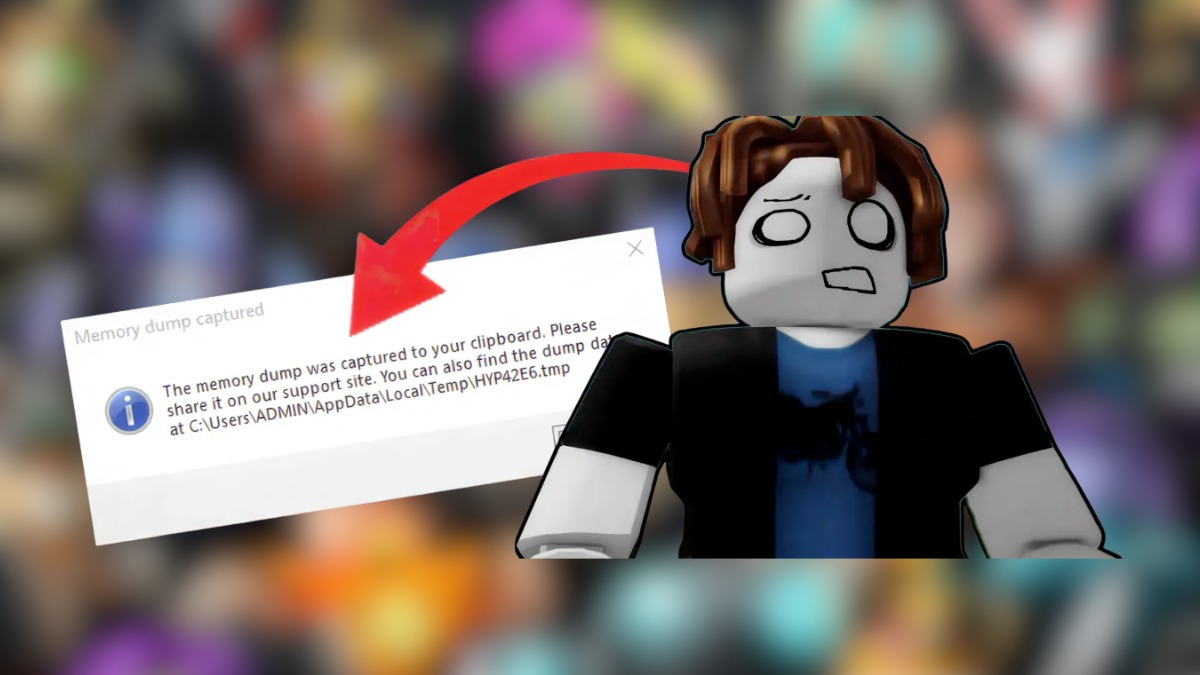
Crashing out of a game is bad enough, but when you’re hit with a “memory dump” error, it’s even more frustrating. If you’ve seen messages like “Roblox has encountered an unexpected error” or prompts asking to create a memory dump, you’re dealing with a deeper system-level issue rather than a simple glitch. The good news? This problem is fixable.
In this guide, we’ll break down what causes the error in Roblox and walk you through proven fixes that cover these cases. So without further ado, let’s begin!
Note: This guide covers the Windows PC version of Roblox. The fixes below (Task Manager, Windows Security, SFC scans, and so on) are Windows-specific and won’t apply if you’re running into crashes on Mac, Xbox, or mobile.
What Is the Roblox Memory Dump Error?
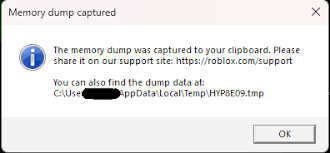
A Roblox Memory Dump Error happens when the game crashes and generates a log file to record what went wrong. When a memory dump error occurs, the problem is usually related to:
- System memory (RAM)
- Graphics drivers
- Corrupt game files
- Windows-level conflicts
Unlike network-related errors, this one is tied to your system’s stability, not your internet connection. You can also see messages like “Roblox has encountered an unexpected error,” “An error occurred, and Roblox needs to quit,” or a prompt asking you to “create a memory dump” before the game closes.
Roblox Memory Dump Error Causes
Before we jump into fixing this, it’s important to understand the reasons behind it. The most common reasons behind the Roblox Memory Dump Error include:
- Outdated or incompatible GPU drivers: If your GPU drivers are old or not fully compatible with the latest version of Roblox, the game can become unstable and crash during gameplay.
- Corrupt Roblox installation files: Missing or damaged game files can prevent Roblox from running properly. This can often lead to sudden crashes and memory dump errors.
- Too many background apps: Running multiple apps at the same time can eat into your available RAM, leaving Roblox with insufficient resources to function smoothly.
- Windows security features interfering with Roblox: Certain built-in security features, such as Memory Integrity, or third-party antivirus software, can conflict with Roblox and cause unexpected crashes.
- Broken system files or outdated OS: Corrupted Windows system files or an outdated operating system can create compatibility issues, making Roblox more prone to crashing.
Because there isn’t just one cause, you may need to try more than one fix below.
How to Fix Roblox Memory Dump Error
Despite sounding complicated, the Roblox Memory Dump Error is usually easy to fix. Here are the most effective solutions:
1. Update Your Graphics Drivers
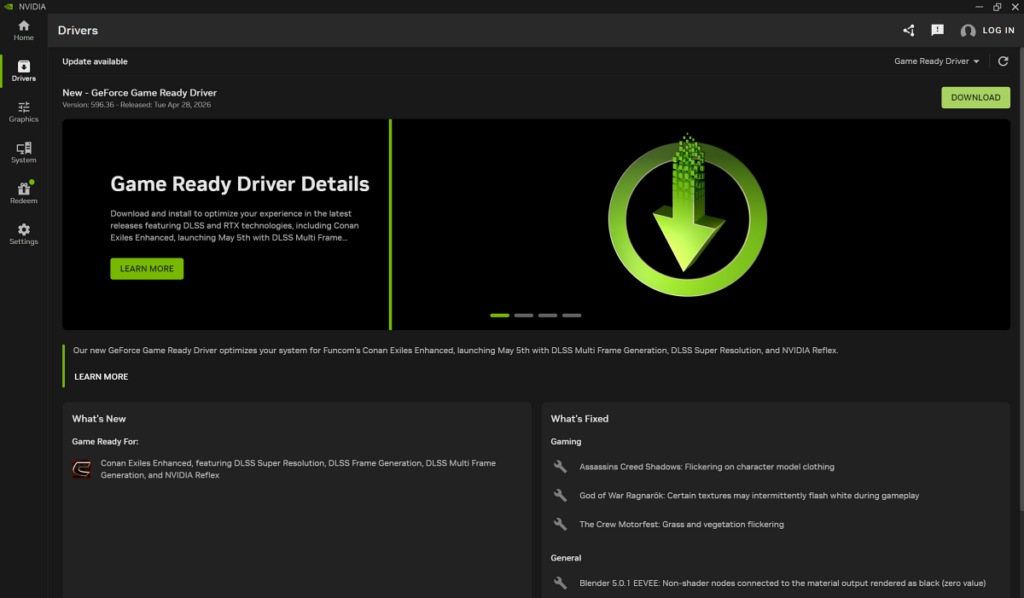
Outdated or buggy graphics drivers are one of the most common reasons Roblox crashes. Your graphics card is what runs and displays Roblox on your screen. If the drivers aren’t up to date, the system can struggle to run Roblox properly.
This can lead to instability, crashes, and memory dump errors while playing. All you need to do is update your GPU drivers. While the exact steps are dependent on the manufacturer (NVIDIA, Intel, or AMD), the best steps are:
- Open your GPU software (GeForce / AMD Software / Intel Driver Support)
- Click on ‘Check for Updates’.
- Install the latest stable driver and restart your PC.
Doing this alone should fix a large number of issues, including the Roblox Memory Dump Error. If it doesn’t, keep reading.
2. Close Unnecessary Background Apps
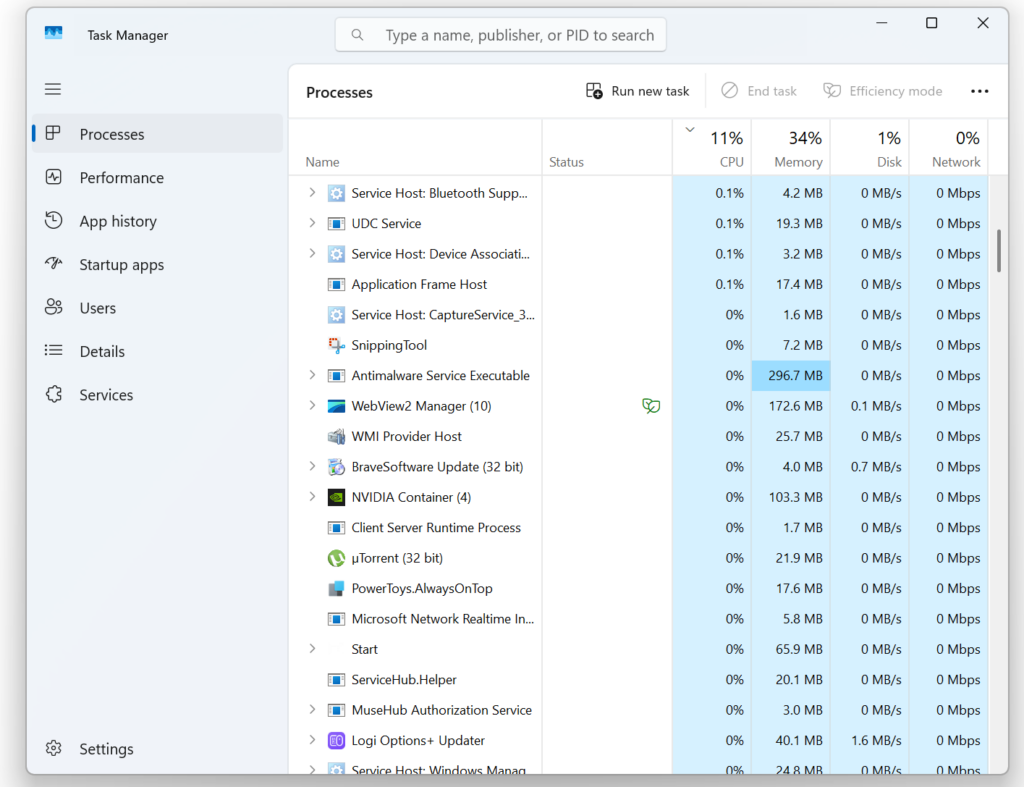
If too many apps are running, your system can run out of memory and crash Roblox. Programs like Chrome, Discord, and game launchers use a lot of RAM in the background. This leaves less memory available for Roblox to run properly.
As a result, the game may lag, freeze, or show a memory dump error. To fix this, press CTRL + Shift + ESC to open up Task Manager on Windows. End unnecessary processes and focus on apps using high memory. Once enough RAM clears up, the Roblox error should go away.
3. Clear Roblox Cache Files
Roblox stores temporary files called cache to load games faster. Over time, these files can become corrupted or outdated. When that happens, the game may crash or show a memory dump error.
Clearing the cache removes these files and will help restore not only stability but speed. For step-by-step instructions, check out our detailed guide on how to clear the Roblox cache.
4. Reinstall Roblox
If Roblox files are corrupted or missing, the game can crash and show a memory dump error. A simple reinstall often does not fix this because leftover files stay on your system. That is why a clean install is important.
Once you’re done clearing the cache above, uninstall the Roblox app, then manually check the %LOCALAPPDATA%\Roblox folder in File Explorer and delete it if it’s still there — this is the folder that most often survives a normal uninstall and keeps corrupted files in play.
Once that’s done, head over to the official Roblox website and download the correct version for your platform. You can now sign in, and the memory dump error should be gone.
5. Disable Windows Memory Integrity
Windows has a security feature called Memory Integrity that protects your system from malicious software. While useful, it can sometimes conflict with games like Roblox and cause crashes or memory dump errors. This happens because the feature blocks certain drivers or processes that the game needs to run properly.
If you’re on an AMD Ryzen processor, this is worth trying first: Roblox’s own Developer Forum documented a period where Roblox Player wouldn’t launch on Ryzen CPUs with Memory Integrity enabled, tied to one of Roblox’s updates. Roblox said a fix was in the works, so if your system is fully updated this may already be resolved — but disabling Memory Integrity is still a quick way to confirm whether it’s the culprit.
To turn off Windows Memory Integrity, follow the steps below:
- Open Windows Security and go to Device Security.
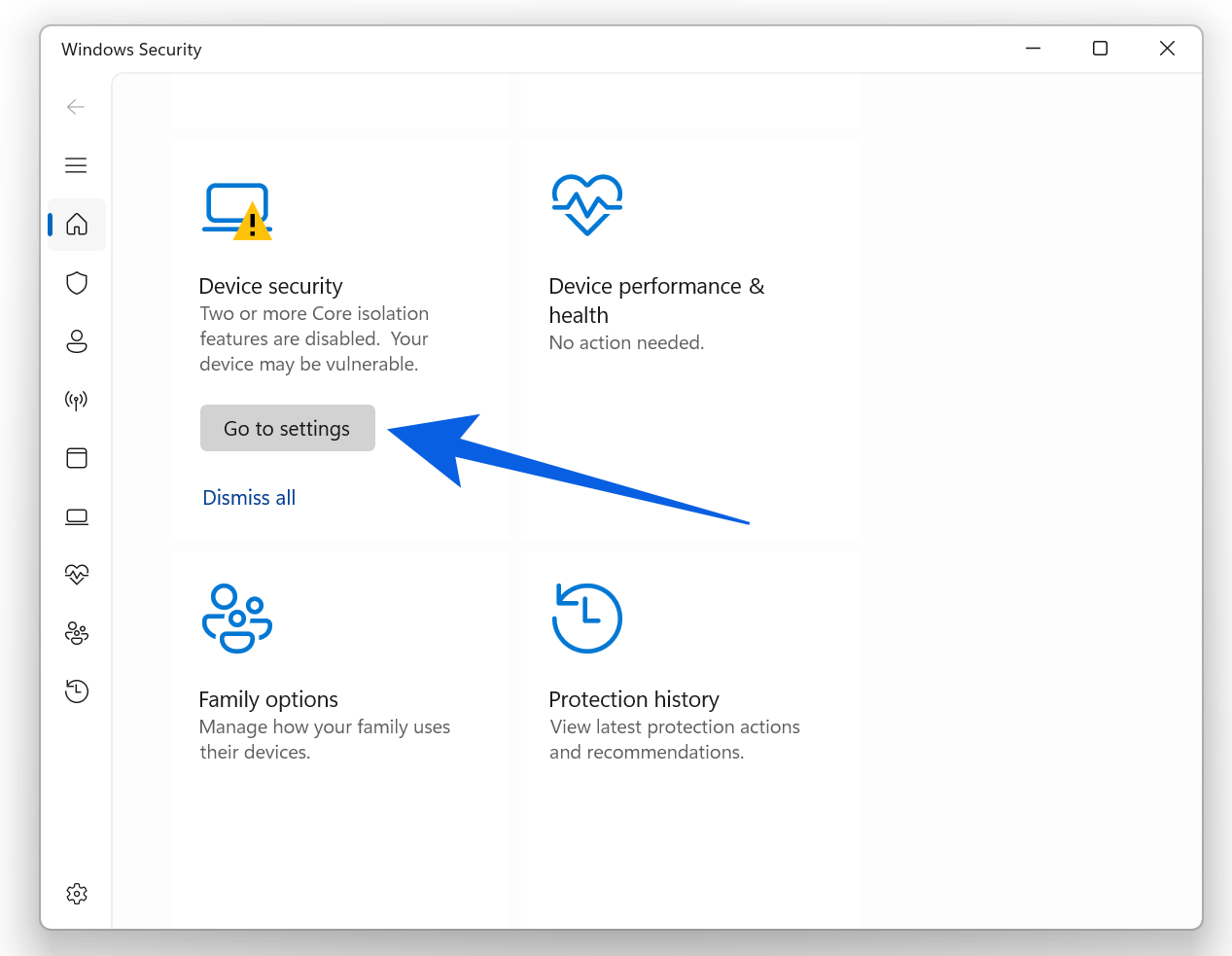
- Select Core isolation (or Core isolation details).
- Under the Memory Integrity section, toggle it off.
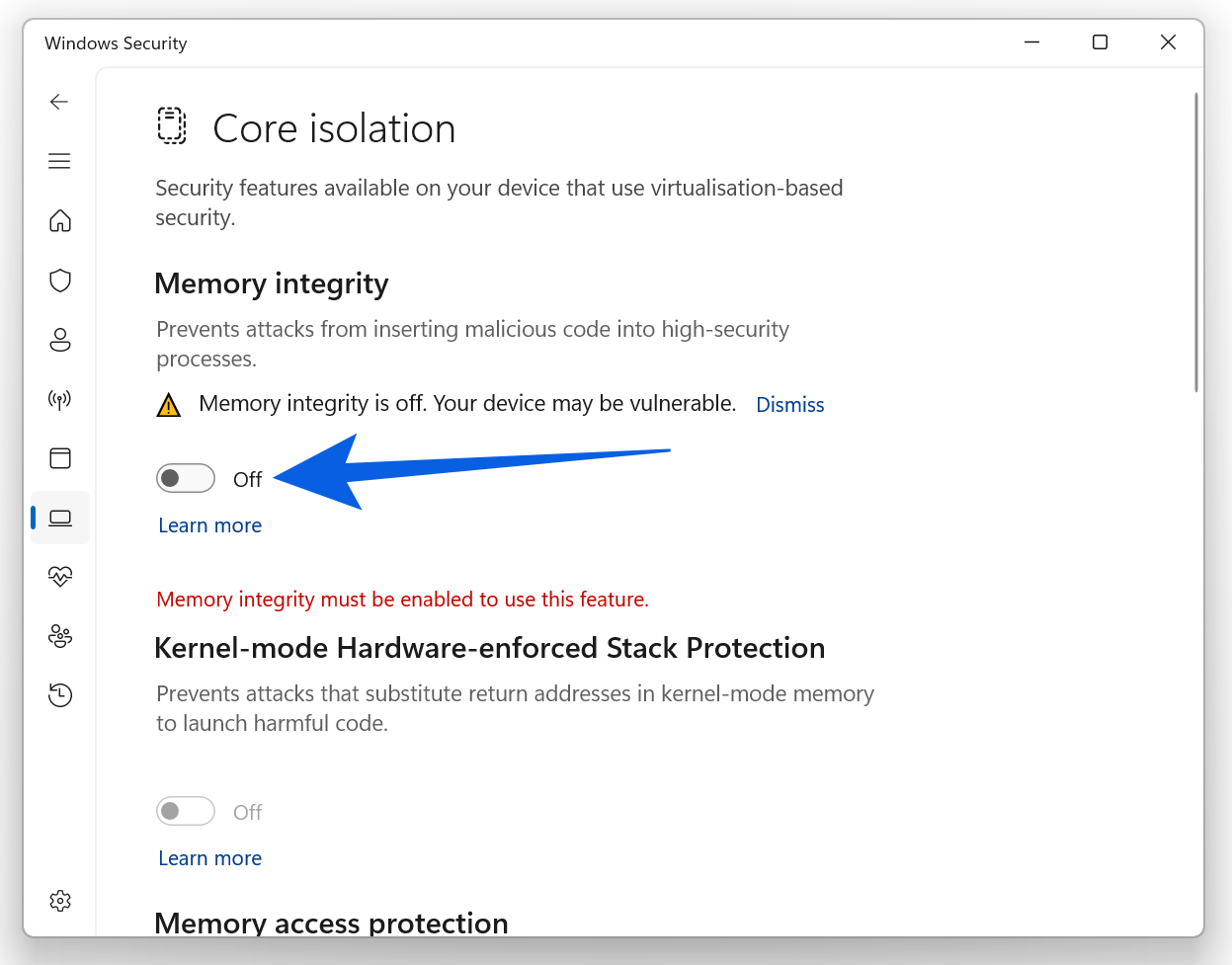
Once done, simply restart your PC once, and you’re good to go. This should help resolve the memory error.
6. Update Windows
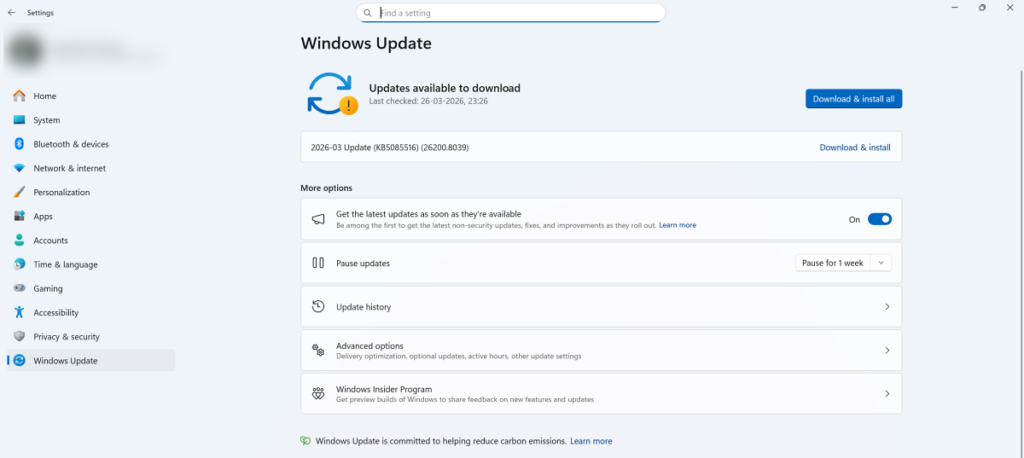
Running an outdated version of Windows can cause compatibility issues with games like Roblox. Updates often include bug fixes, security patches, and driver improvements that help your system run more smoothly. If your system is not up to date, Roblox may crash or show a memory dump error.
To fix this, open Settings and go to Windows Update. Click Check for updates and install any available ones. Once the updates are installed, restart your PC. After restarting, launch Roblox again and check if the issue is resolved. Keeping Windows updated also helps prevent similar problems in the future.
7. Increase Virtual Memory (Page File)
If your system does not have enough available RAM, Roblox can crash and show a memory dump error. Virtual memory acts as extra memory by using a portion of your storage when your RAM is full. If this setting is too low, the game may not have enough resources to run properly. To increase your Virtual Memory, follow the steps below:
- Search for View Advanced System Settings in the Windows Search and open it.
- Under Performance, click Settings.
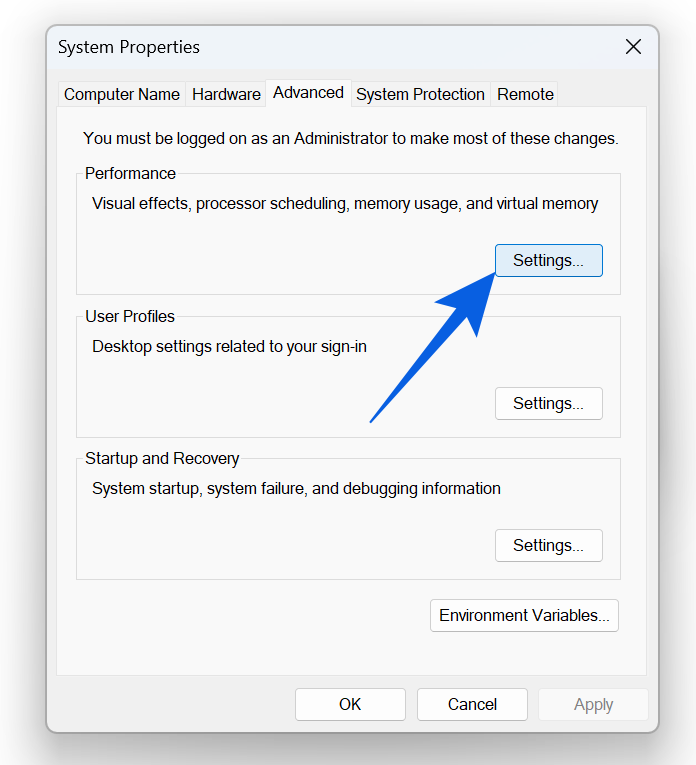
- Go to the Advanced tab and click Change under Virtual Memory.
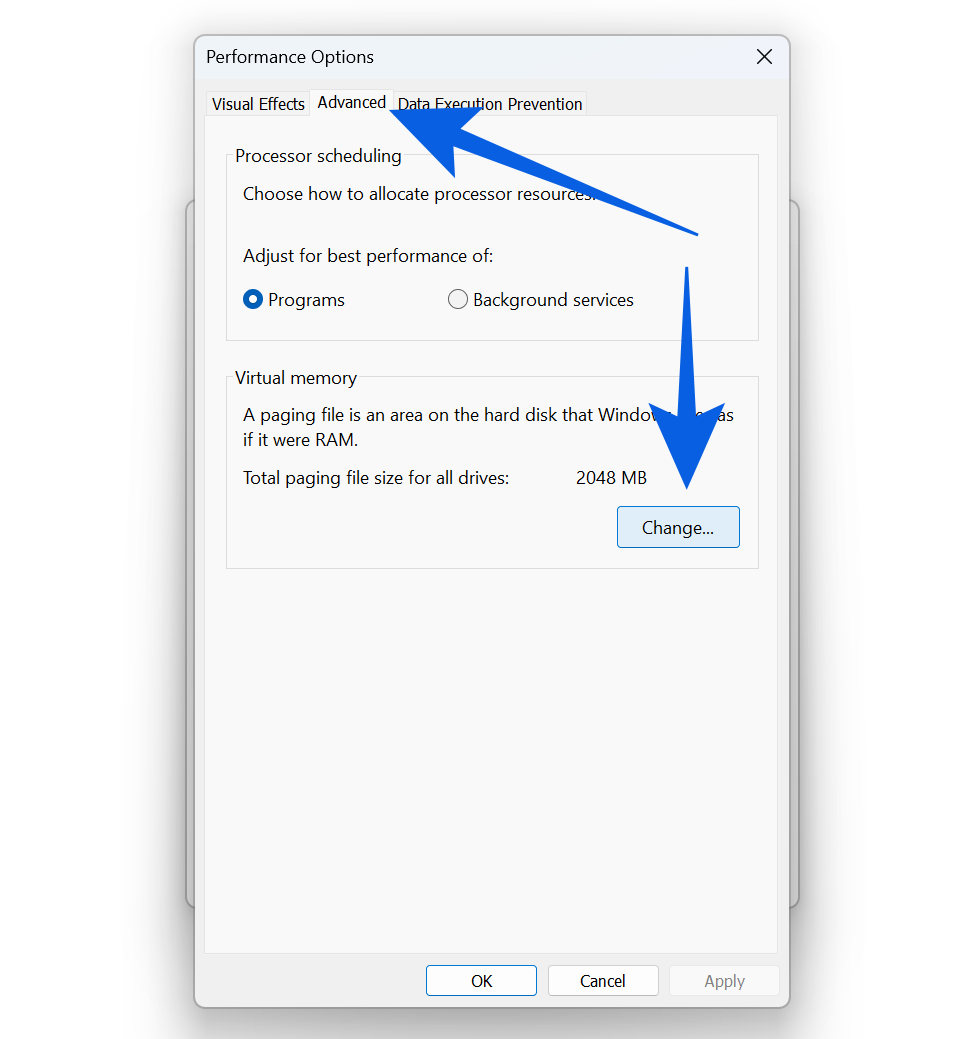
- Uncheck Automatically manage paging file size for all drives.
- Select your main drive and choose Custom size.
- Set the size to about 1.5 to 2 times your RAM, then click OK.
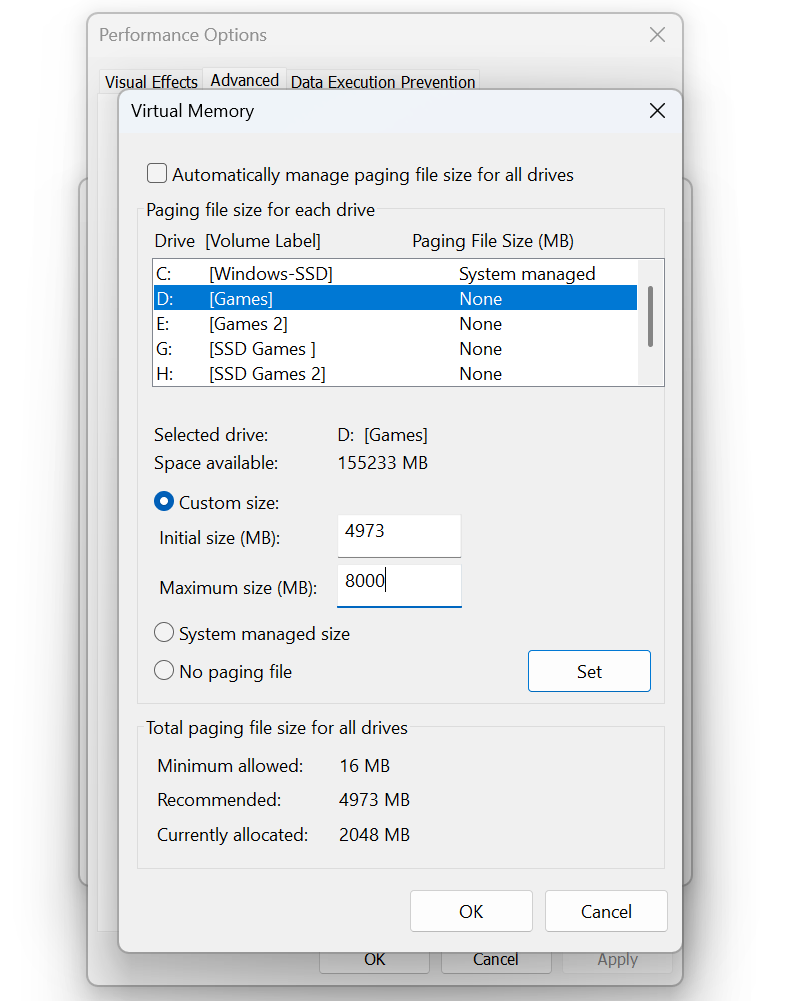
Restart your PC to apply the changes and check if the error is resolved.
8. Run a System File Check (SFC Scan)
If some of your Windows system files are corrupted or missing, it can lead to crashes in apps like Roblox. This can also trigger memory dump errors, especially if important system processes are affected.
To fix this, open Command Prompt as an administrator. Type ‘sfc /scannow’ and press Enter. The system will scan for any corrupted files and automatically repair them if possible.
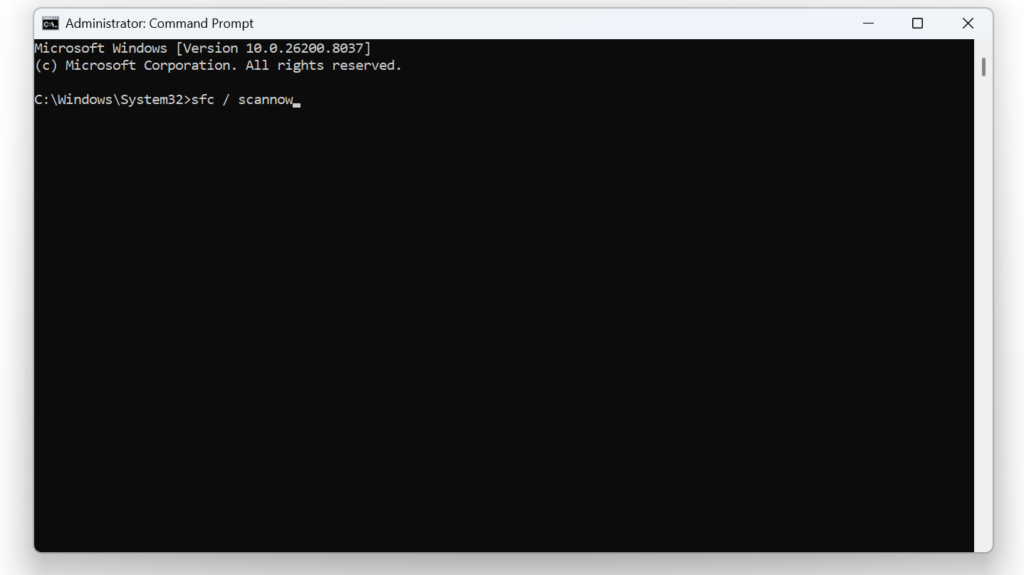
This process may take a few minutes, so let it complete. If system file corruption was causing the issue, the game should now run without crashing.
9. Check Your Antivirus Software
Third-party antivirus software can sometimes flag or block Roblox’s process, triggering a crash that looks identical to a memory dump error.
This has been a recurring, specifically-documented issue with Norton 360, where users report Roblox Player failing to open until Norton is uninstalled or Roblox is whitelisted.
To rule this out:
- Open your antivirus software and look for a whitelist, exclusions, or “allowed apps” section.
- Add Roblox and RobloxPlayerBeta.exe to the exclusions list.
- If the error persists, temporarily disable real-time protection and try launching Roblox again to confirm whether your antivirus is the cause.
- If it is, re-enable protection afterward and keep Roblox on the exclusions list rather than leaving protection off long-term.
Final Thoughts
The Roblox Memory Dump Error may look serious, but it is usually caused by simple system issues like outdated drivers, low memory, broken files, or a security tool getting in the way. The good part is that these problems are fixable with the steps above, and most readers will find their fix within the first few solutions.
If you’ve worked through every fix here and the error still shows up, you’re not necessarily doing anything wrong — Roblox’s own Developer Forum has ongoing reports of the error persisting even after all standard troubleshooting, which points to a cause on Roblox’s end rather than your PC in some cases. If that’s where you land, it’s worth filing a report on the Roblox Developer Forum or checking Roblox’s status page for known issues, rather than continuing to troubleshoot your own system indefinitely.
If you’re still facing the error or have questions, let us know in the comments, and we’ll help you out!
Check out more Roblox posts: