Google Gemini can be incredibly useful, from brainstorming ideas to solving everyday problems. But over time, chats stack up quickly with random questions and drafts, which makes the history feel messy. If you’d like more control over your privacy, deleting your Google Gemini chat history is a smart move. Whether you want to remove a single conversation, wipe everything, or stop future chats from being stored, this guide will walk you through the process step by step.
What is Gemini Chat History and Why Should You Delete It?
When you chat with Gemini, your conversations may be stored in your Google account activity. Google uses this data to improve AI responses, personalize your experience, and maintain conversation continuity.
Most of you are probably wondering why you need to delete chats on Google Gemini. But trust me, it’s more important than it seems.
- Unlike ChatGPT, Gemini doesn’t let you create folders or projects, even for pro users. This means all your random chats are stored in one place. So, if you want to keep things clean, the only way is to delete the chats you no longer need.
- Sometimes you search for something personal on Gemini, and you wouldn’t want anyone else to see it later.
- The more chats you have, the more data accumulates. Over time, Gemini can become slow and buggy. Deleting old chats can make the app faster and may resolve loading issues.
Note: Deleted chats cannot be recovered, so back up your important information.
How to Delete Conversations in Gemini AI on iPhone and Android
The steps to delete Gemini chats are the same on both the iPhone and Android apps, and once you know where the option is, it takes less than five seconds.
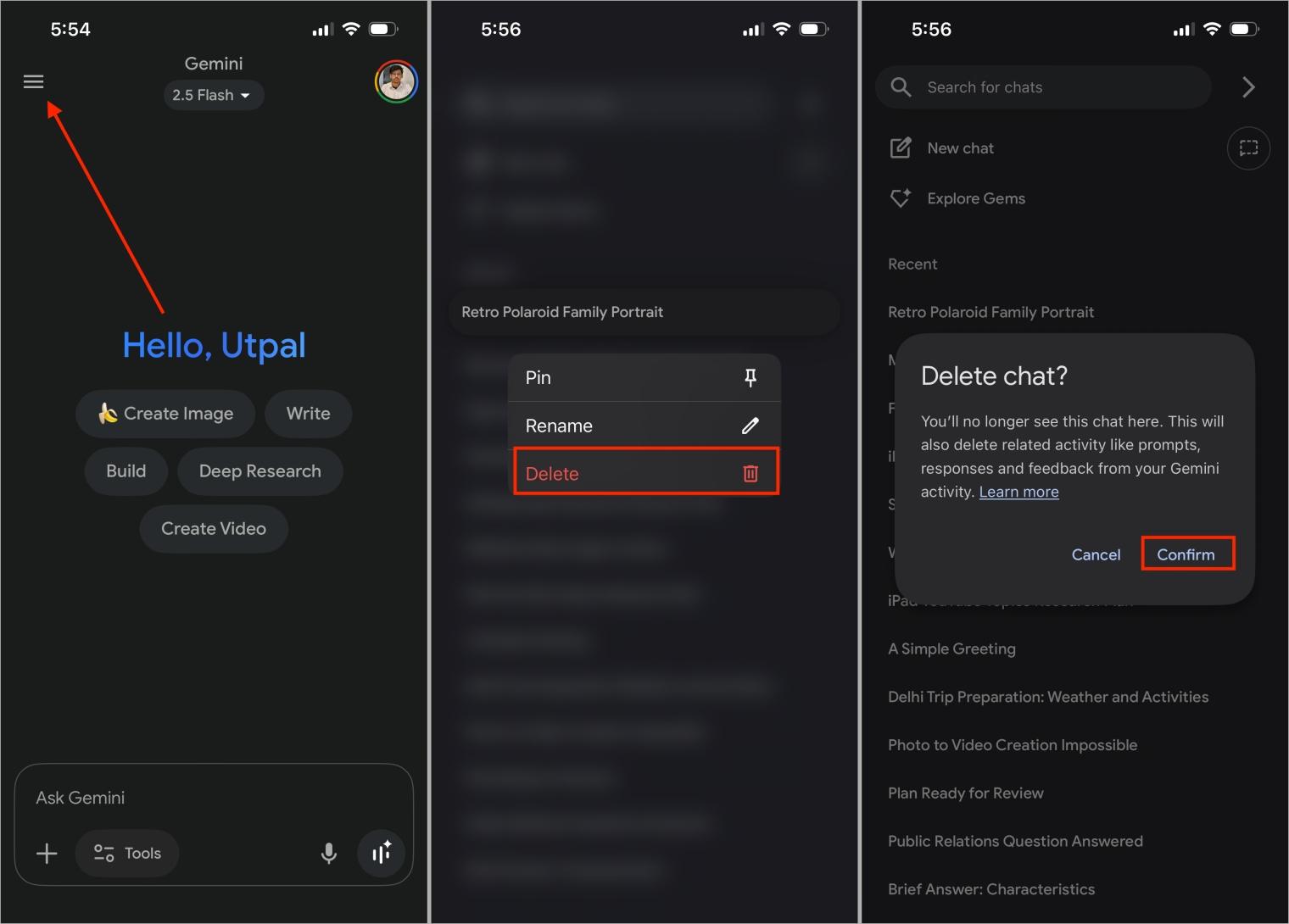
- Open the Gemini app on your phone.
- Tap the three horizontal lines at the top left corner.
- From the chat list, locate the conversation you want to remove.
- Press and hold the chat until a menu appears.
- Select Delete from the options.
- Confirm your choice, and the chat will disappear immediately.
Related: How to Turn off Gemini on Android (Step-by-Step Guide)
How to Delete Conversations in Gemini AI on Desktop
Deleting chats here is just as simple as on mobile, and the option is placed in a similar place. Here’s what you need to do:
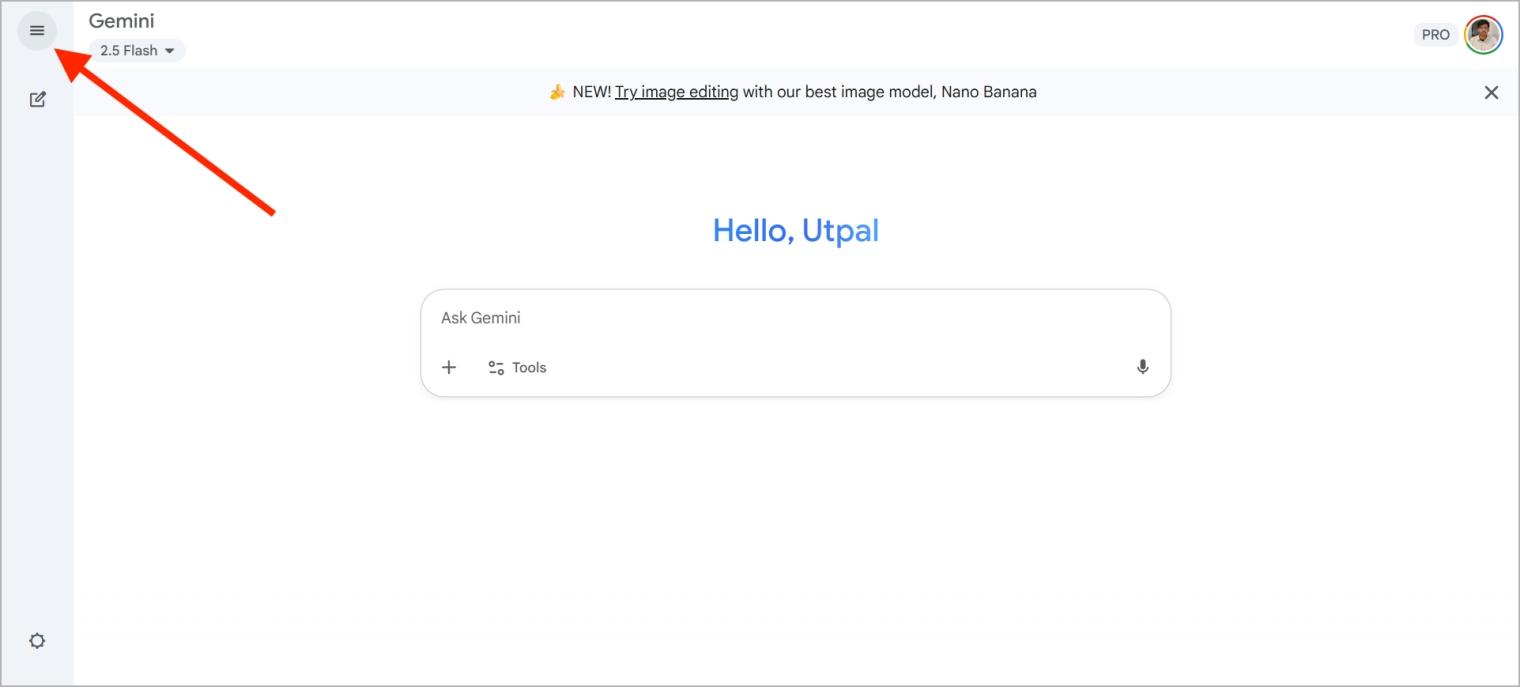
- Open Google Gemini in your browser and sign in.
- Click the three horizontal lines in the top left corner.
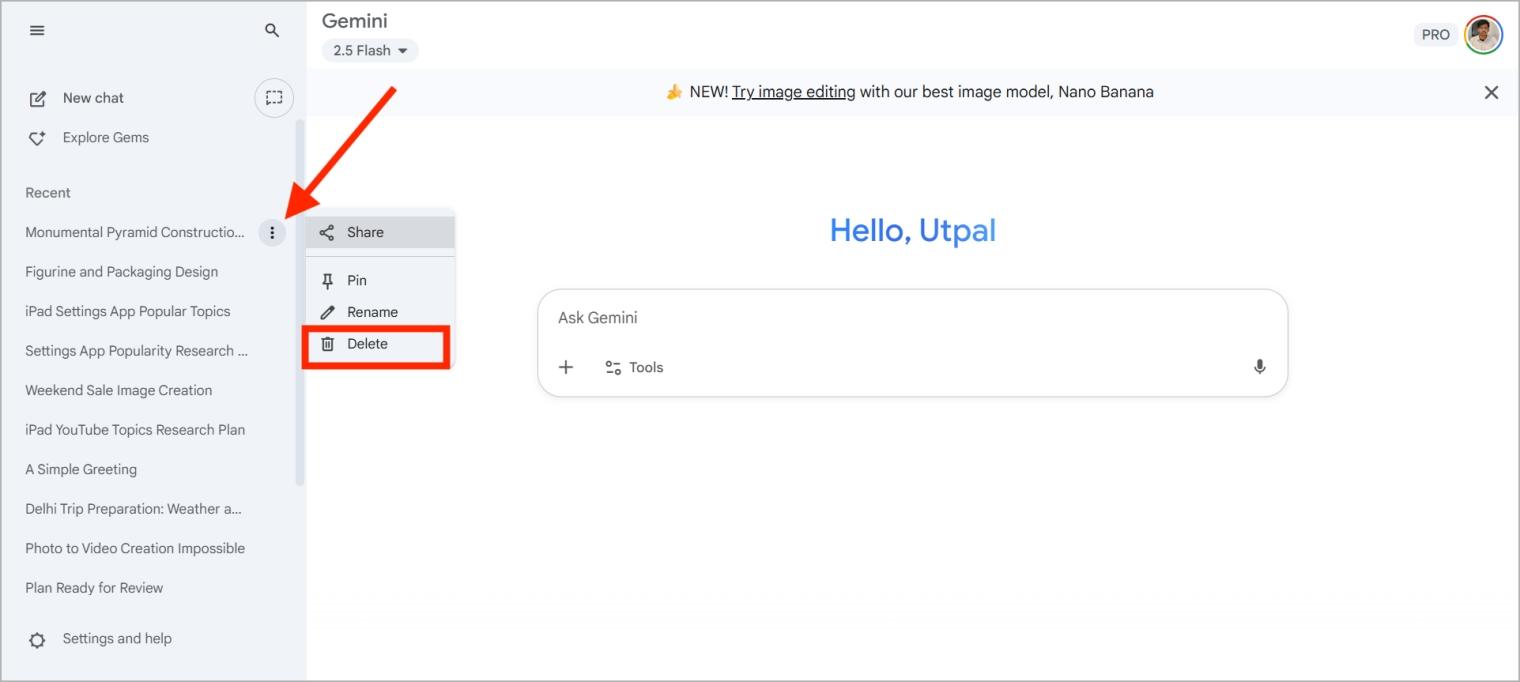
- In the left sidebar, hover over the conversation you want to delete.
- Click on the three–dot menu that appears next to it.
- Select Delete, then confirm.
How to Clear All Gemini AI Chats at Once
If deleting chats one by one feels tedious, you can clear everything at once. It only takes a few seconds, but make sure to save any conversations you might need later. Here’s how to delete all Gemini chats in one go.
On Android and iPhone
- Open the Google Gemini app.
- Tap your profile icon in the top right corner.
- Select Gemini Apps activity from the pop-up menu.
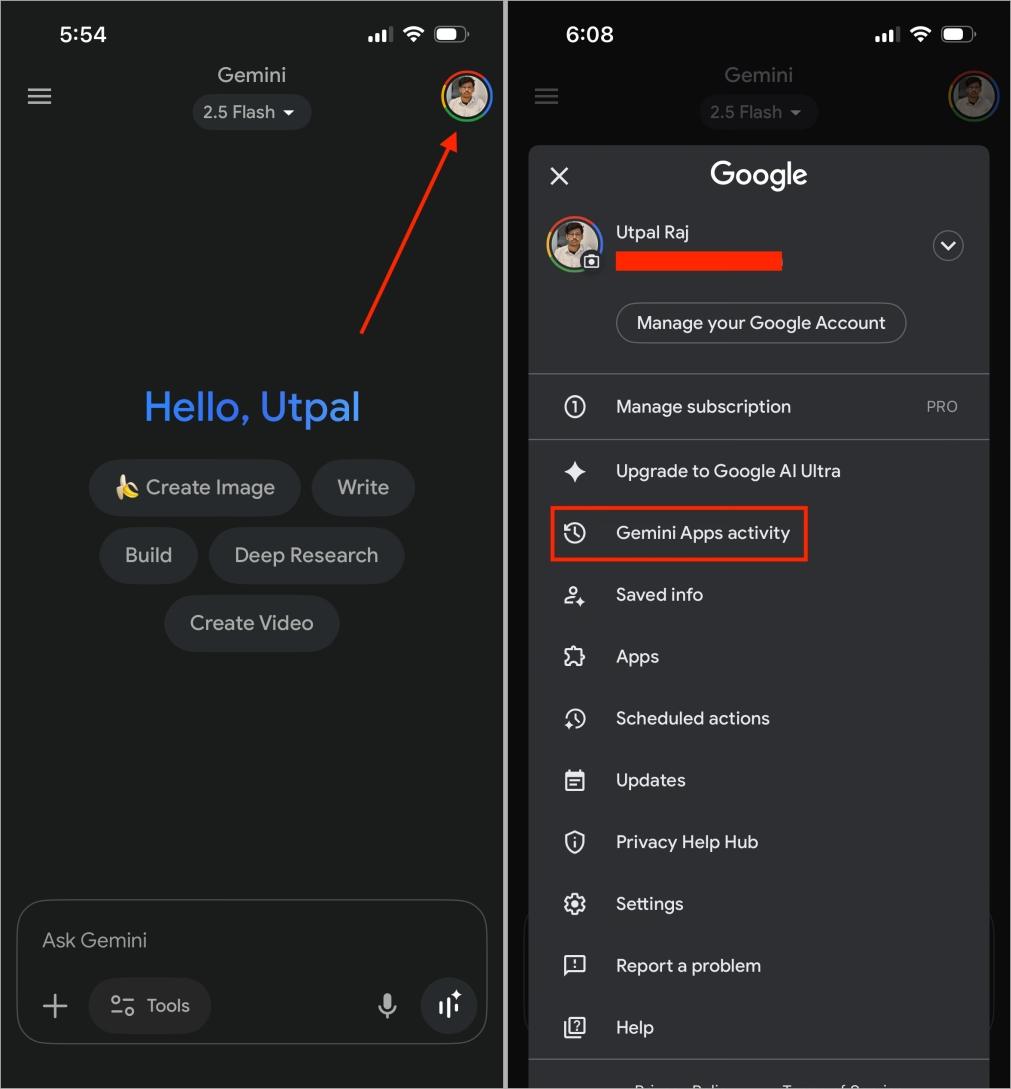
- Tap Delete, then choose Always.
- Tap Delete to confirm.
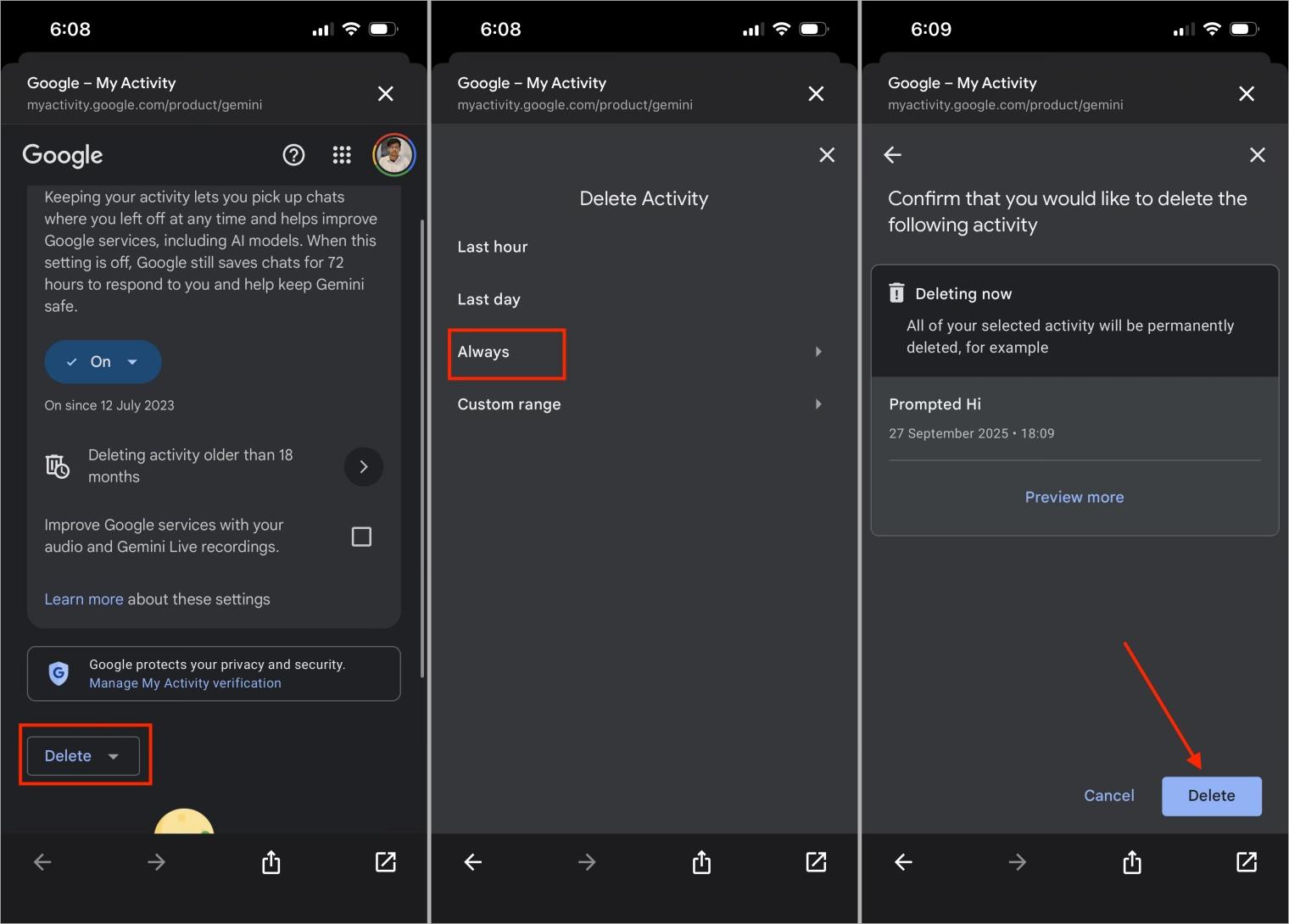
That’s it. All your stored Gemini chats will be permanently removed.
On Desktop
- Open Gemini in your browser.
- Click the three horizontal lines in the top left corner.
- Click the Settings and help option at the bottom and select Activity from the menu.
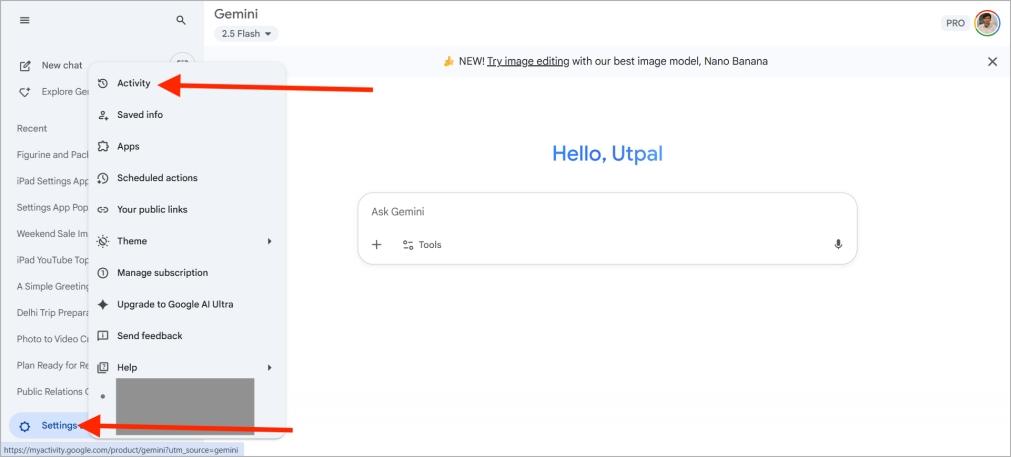
- Select Delete → Always.
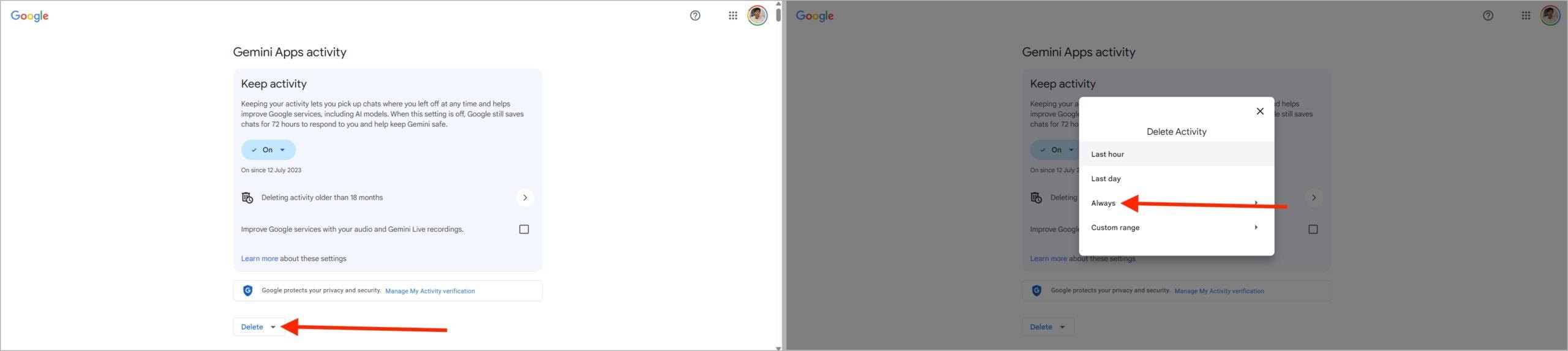
- Preview the chats, then click Delete to confirm.

How to Manage Chat History in Gemini AI
By now, you know two ways to clear Google Gemini chat history: deleting individual chats or wiping everything at once. But Gemini Activity offers more powerful controls for managing your chats, which can be even more useful than simple deletion. Here are three key options.
1. Turn Off Chat History Permanently

When you go to Gemini Activity, you’ll see a section about keeping your activity. If you disable this, no future chats will be saved to your account. It’s the best option if you want full privacy and don’t want Gemini to keep any record of your conversations.
- Go to the Gemini Apps Activity website as mentioned above.
- Tap the On button under the Keep activity section.
- Select Turn Off.
However, Gemini may not remember previous conversations for context, and personalization may be reduced due to this. Also, turning off history doesn’t make you anonymous. Google may still collect limited data for security and system performance.
2. Set Auto-Delete for Old Chats
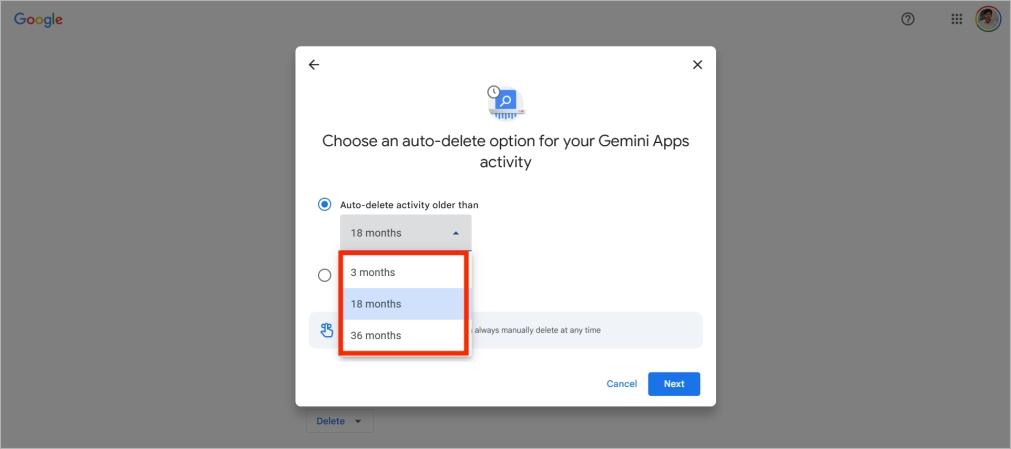
Don’t want to manage this manually? Gemini also allows you to enable auto-delete, so older chats are removed automatically.
Tap the Choose an auto-deletion option text in the Keep activity section. Here, you can choose from three options for Auto-delete activity older than: 3 months, 18 months, or 36 months.
For example, if you select 3 months, any Gemini chat older than 3 months will be deleted automatically without your intervention. This keeps your history from building up long-term.
3. Delete by Time Range
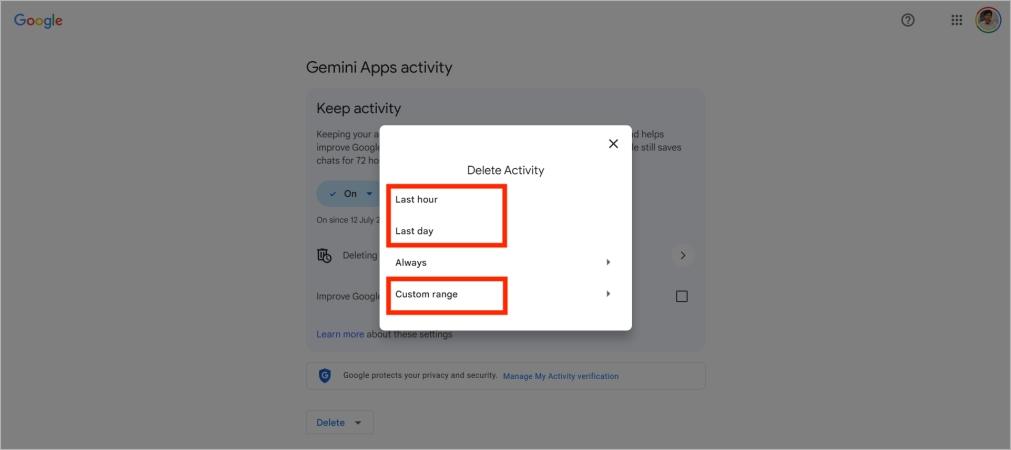
Another option is deleting Gemini chats from a specific time period. After you tap the Delete button, you can choose the last hour, the last day, or set a custom time range.
- Last hour removes only the past hour’s history.
- Last day clears the previous 24 hours.
- Custom range lets you pick exact dates, such as September 15 to September 19, 2025.
Troubleshooting: Can’t Delete Google Gemini Chats?
If you can’t delete your Gemini chats, don’t worry. It’s usually a small glitch in the app, not a serious issue. First, make sure you’ve tried all the methods above. If they still don’t work, here are a few simple fixes you can try.
- The most common issue is that your app is not up to date. If you’re on an iPhone, just open the App Store, search for Google Gemini, and check for an app update. On Android, do the same in the Play Store.
- Another reason could be a syncing delay. Sometimes, Gemini takes a few seconds to process changes, so the chat might still appear even after deletion. Just close and reopen the app and check again.
- If your internet connection is slow, Gemini may be unable to complete the deletion. Switch between Wi-Fi and mobile data, then try deleting the chat again. Also, try restarting your device.
Extra tip: If none of these work, just wait a bit. Not being able to delete the chat right now doesn’t mean you’ve done anything wrong. Sometimes, it’s just a temporary bug on Gemini’s end, and it resolves itself after some time.
Final Thoughts
Managing your chat history in Google Gemini is a simple but powerful way to stay in control of your personal data. Whether you choose to delete past conversations, set up auto-delete, or turn off history altogether, these tools help you balance convenience with privacy.
Make it a habit to review and delete chats regularly. And if you only need answers once, use Temporary Chats. They are automatically cleared when you close the app or browser.
If you liked this tip, don’t forget to share it with your friends and explore our other expert guides!
When you delete a chat in Google Gemini, it’s gone permanently. There’s no recovery option, so be sure you don’t need the conversation before pressing delete.
Yes, your Gemini chats are private and linked only to your Google account. Nobody else can see them unless they have access to your account.
No, Gemini doesn’t record your voice or video conversations. It only stores the text of the chats you type. So if you ask something in writing, that gets saved to your history (if history is enabled).
Yes, but only if chat history is turned on in settings.