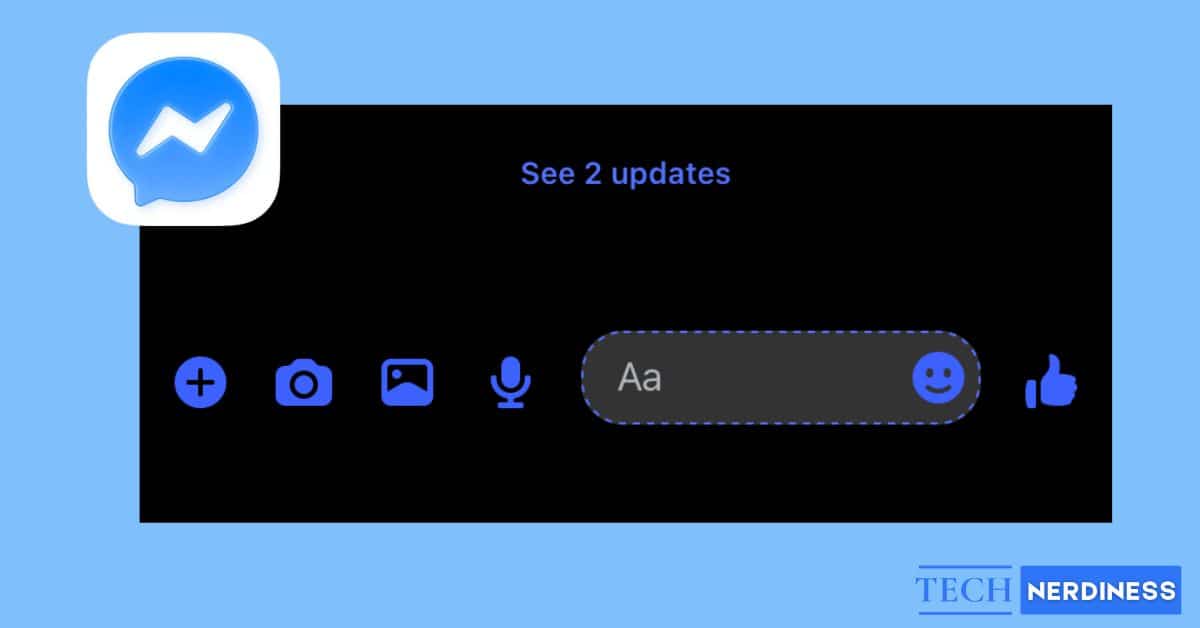
Facebook Messenger communicates almost everything through icons. Small circles, dots, locks, and bells quietly tell you whether a message is sending, delivered, seen, muted, or failed. Most people use Messenger every day without fully understanding these symbols, which leads to confusion and second-guessing.
This guide explains Facebook Messenger icons in simple, clear language. We’ll move step by step in a logical structure, starting with the home screen, then chat screens, message status symbols, and privacy features, so you can easily follow along and understand exactly what each icon means.
Facebook Messenger Home Screen Icons
The home screen is the first thing you see when you open Messenger. It shows your conversations, active contacts, and overall activity.
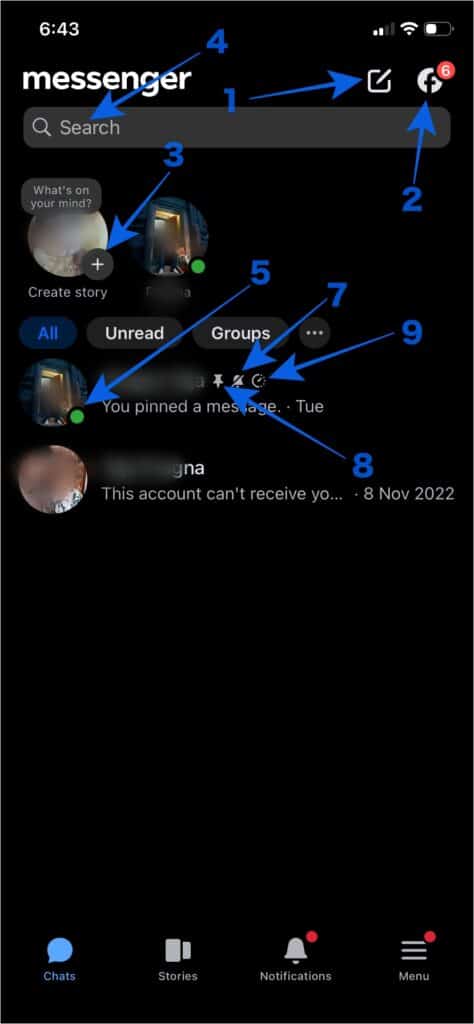
1. New Message (Pencil) Icon
The pencil icon allows you to start a new chat, create a group conversation, or open a Messenger Room. On this screen, you may also see a lock icon to start a secret conversation.
2. Facebook Icon
This icon opens the Facebook app, and if not installed, it opens Facebook on the browser.
3. Profile Pic with Plus icon
It’s the Facebook Stories icon. Clicking on your profile with the plus icon lets you create a story that shows up on Facebook and Messenger apps.
4. Search Bar
The search bar helps you find people, conversations, or specific messages by typing keywords. It’s useful when your inbox becomes crowded.
5. Green Dot
A green dot next to a person’s profile picture means they are currently online or recently active on Messenger.
6. Blue Dot
A blue dot next to a chat indicates an unread message. Once you open the chat, the dot disappears.
7. Bell with a Line (Muted Chat)
A crossed-out bell means the conversation is muted. You will still receive messages, but Messenger won’t send notifications for them.
8. Pin Icon
You can pin a chat by long-pressing it. Once done, those chats will stay at the top of your chat and will show a pin icon beside them.
9. Timer Icon
When it appears beside any chat, it indicates that chat has disappearing messages enabled.
Facebook Messenger Chat Screen Icons
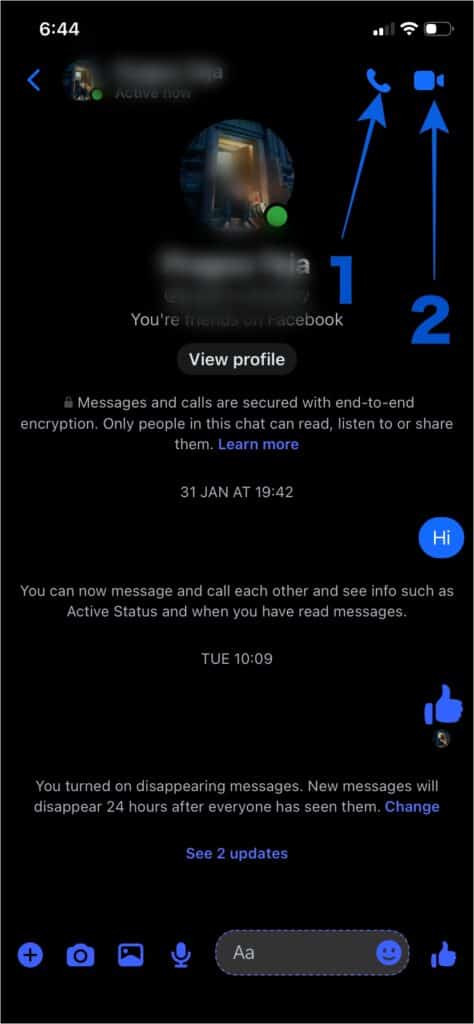
When you open a conversation, Messenger displays icons that control calling, settings, and communication tools.
1. Phone Icon (Voice Call)
The phone icon lets you make an audio call. During a call, additional icons appear for speaker, mute microphone, add people, and end the call.
2. Video Camera Icon (Video Call)
The video camera icon starts a video call. Inside the call screen, you can turn the camera on or off, switch cameras, mute the microphone, apply effects, or hang up.
3. Floating White Circle (Screenshot)
During video calls, a small floating white circle may appear. Tapping it takes a screenshot and automatically sends it in the chat.
Message Typing Bar Icons
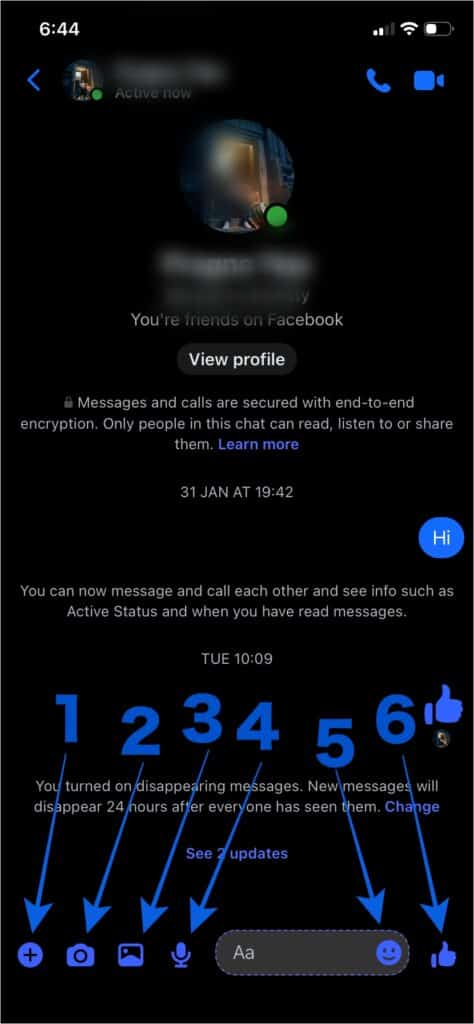
At the bottom of each chat, the typing bar contains icons that help you send different types of content.
1. Plus Icon
Tapping on it will give you the option to send files and location. Apart from them, you also use AI to generate an image and send it directly from the chat itself. Facebook also has a feature to play games together; you can send a game link from here, too.
2. Camera Icon
This camera icon lets you take a photo or video and send it instantly.
3. Gallery Icon
The gallery icon allows you to choose existing photos or videos from your device.
4. Microphone Icon
The microphone icon lets you record and send voice messages. Press and hold to record, then release to send.
5. Smiley Face Icon
The smiley face icon opens emojis, stickers, GIFs, and sound emojis so you can express emotion visually.
6. Emoji Shortcut Icon
The emoji icon on the far right sends a quick reaction emoji. Apart from that, you can also send GIFs, stickers, create custom stickers or even create your avatar reactions.
Emoji Reactions
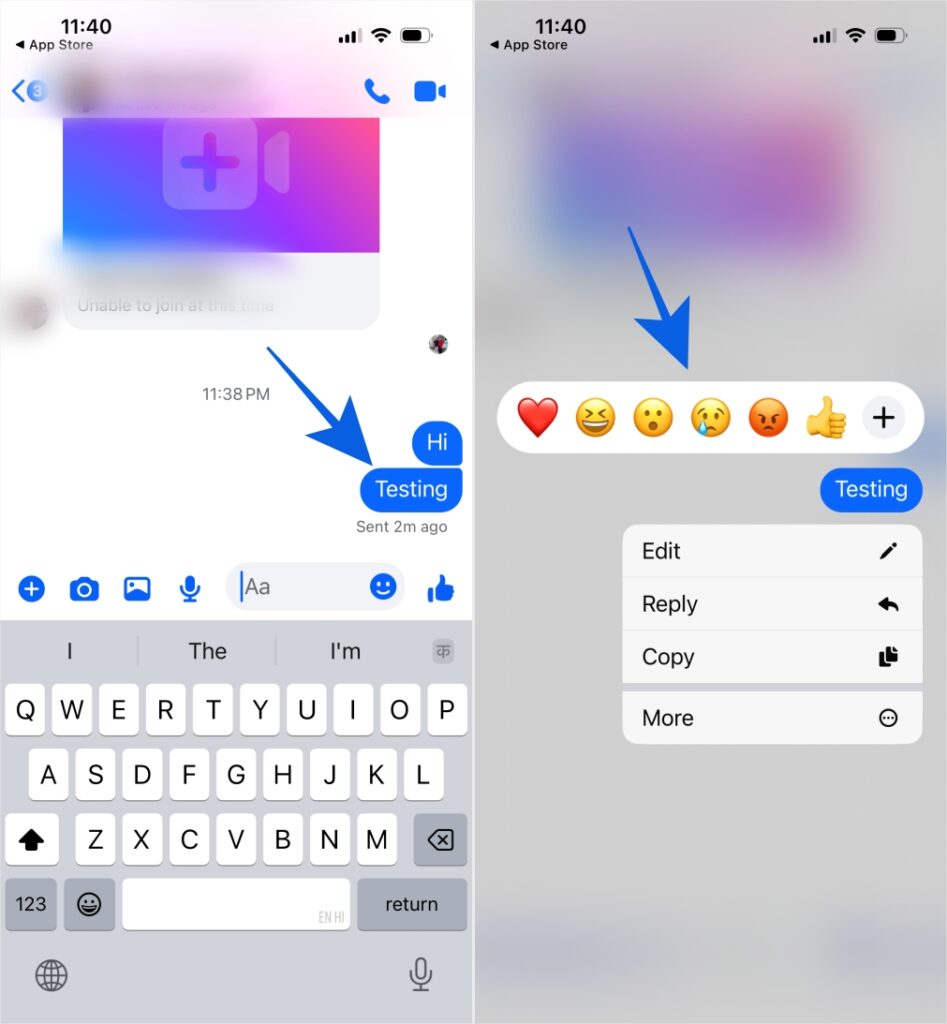
Emoji reactions appear underneath messages. By long-pressing a message, you can react with an emoji instead of replying with text.
Facebook Messenger Message Status Icons
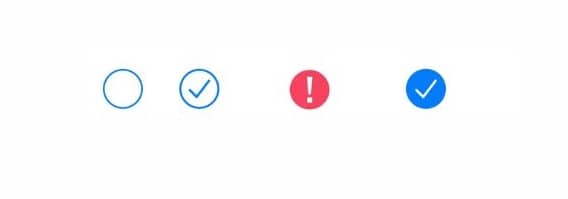
These icons appear next to messages after you send them and show the message status clearly.
1. Open Blue or Gray Circle
This icon means your message is currently being sent.
2. Open Circle with Checkmark
The message has been sent from your device but has not yet delivered to the recipient.
3. Filled Circle with Checkmark
The message has been delivered successfully but has not been read.
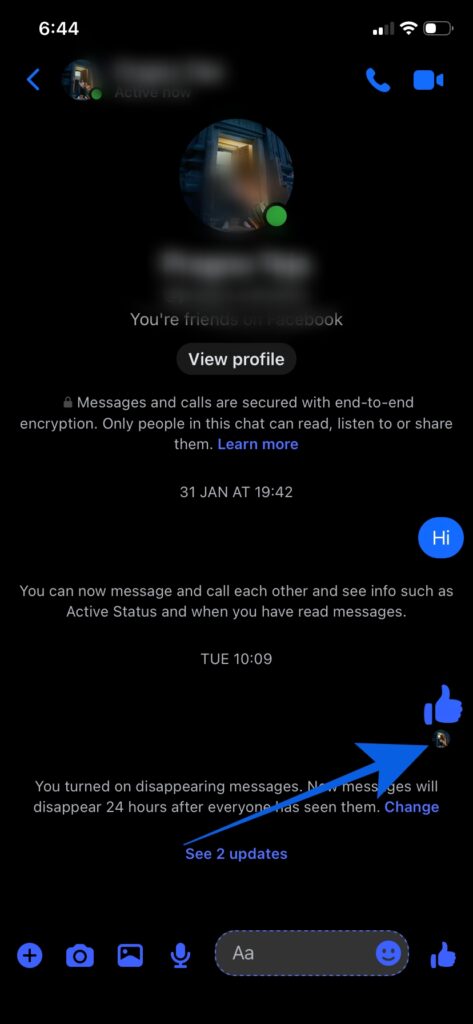
4. Profile Picture or “Seen”
When the recipient reads your message, their profile picture or the word “Seen” appears below it. In group chats, multiple profile pictures may appear.
5. Red Triangle with Exclamation Mark
This symbol means the message failed to send, usually because of an internet connection problem. Tap the message to retry.
Message Color Meaning: Blue vs Green
Blue messages are sent through Facebook Messenger to other Messenger users. Green messages are SMS or MMS texts sent to contacts who are not using Messenger.
Final Thoughts
Facebook Messenger icons may seem small, but they provide clear answers if you know how to read them. Understanding these symbols helps you avoid confusion, communicate better, and use Messenger with confidence. Once you learn what each icon means, Messenger feels simpler, clearer, and far less frustrating, because the app has been telling you everything all along.
You may like to read: