We all know the famous dynamic: iOS is the more secure and locked-down operating system, and Android is the more fluid and fun one. As such, it shouldn’t shock you that Android lets you change your phone’s text font. It’s a pretty basic functionality, and it’s been around since the early days of Android. A simple setting can change how the text across your phone looks.
There are a few ways that you can change the font on your Android phone, so here’s a quick guide on how to do so. We’ll talk about how to change the font on your Stock Android, One UI, OnePlus, Xiaomi (by extension, POCO), Vivo phone.
This guide will cover the most basic and well-known methods, but your experience will vary depending on your phone’s manufacturer. So bear in mind that you may not find the method for your specific phone.
How Do I Change The Font on My Pixel/Stock Android Phone?
Many Android manufacturers put their own skin on top of the operating system, but many others choose to keep the software unchanged from what Google offers. This is called Stock Android; it’s the most basic and untouched version of the software. As such, most settings you’d find on a Pixel phone will make their way to a device using Stock Android.
Some companies use stock Android but add their own tweaks here and there. This is called Near-Stock Android. A good example would be Motorola’s My UX. Most phones using Stock and Near-Stock have settings in similar places.
To change the font on your Stock Android phone:
- Go to the Settings.
- Find the Display section.
- Go to Display size and text.
- Go to Font Style.
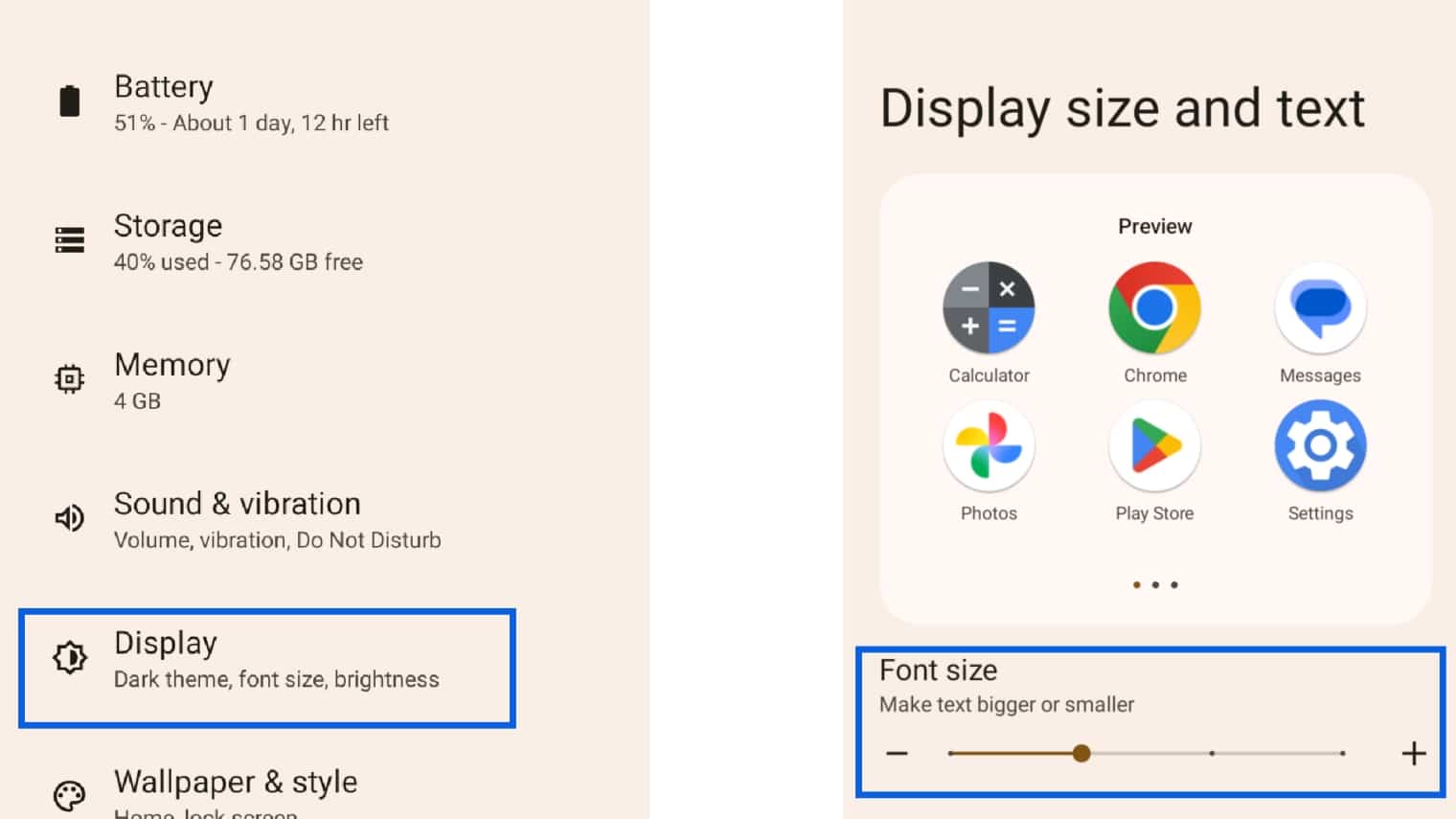
You’ll see a short list of fonts that you can apply to the system. Just know that the selection of fonts will vary depending on your phone’s maker. You may get a wide selection of fun and expressive fonts, or you may have just a few boring fonts. Anyway, once you select the font, you’ll see it instantly change across your system.
What Changes When I Adjust The Font?
When you change your phone’s font, most of the text you see while navigating the software will comply. So, the text in menus, settings, your home screen, and across many will change. However, not all apps support system fonts. This means that, if you change your phone’s font, the app will stick with its default font.
So, just keep that in mind. Much of the time, games will have their own fonts to match the overall style of the game – imagine playing Genshin Impact using Roboto!
Can I Change The Font On My Samsung Phone?
While Samsung has nipped one too many features from Apple, the company still offers a wide array of customization tools far beyond its fruit-based competitor. So, of course, you can change the font on your Samsung phone. In fact, Samsung gives you a larger variety of fonts to choose from compared to other phone makers.
Just like with Stock Android, you’ll handle it through the settings.
- Go to your Settings.
- Scroll down to Display.
- Go to Font size and style.
- Choose Font style.
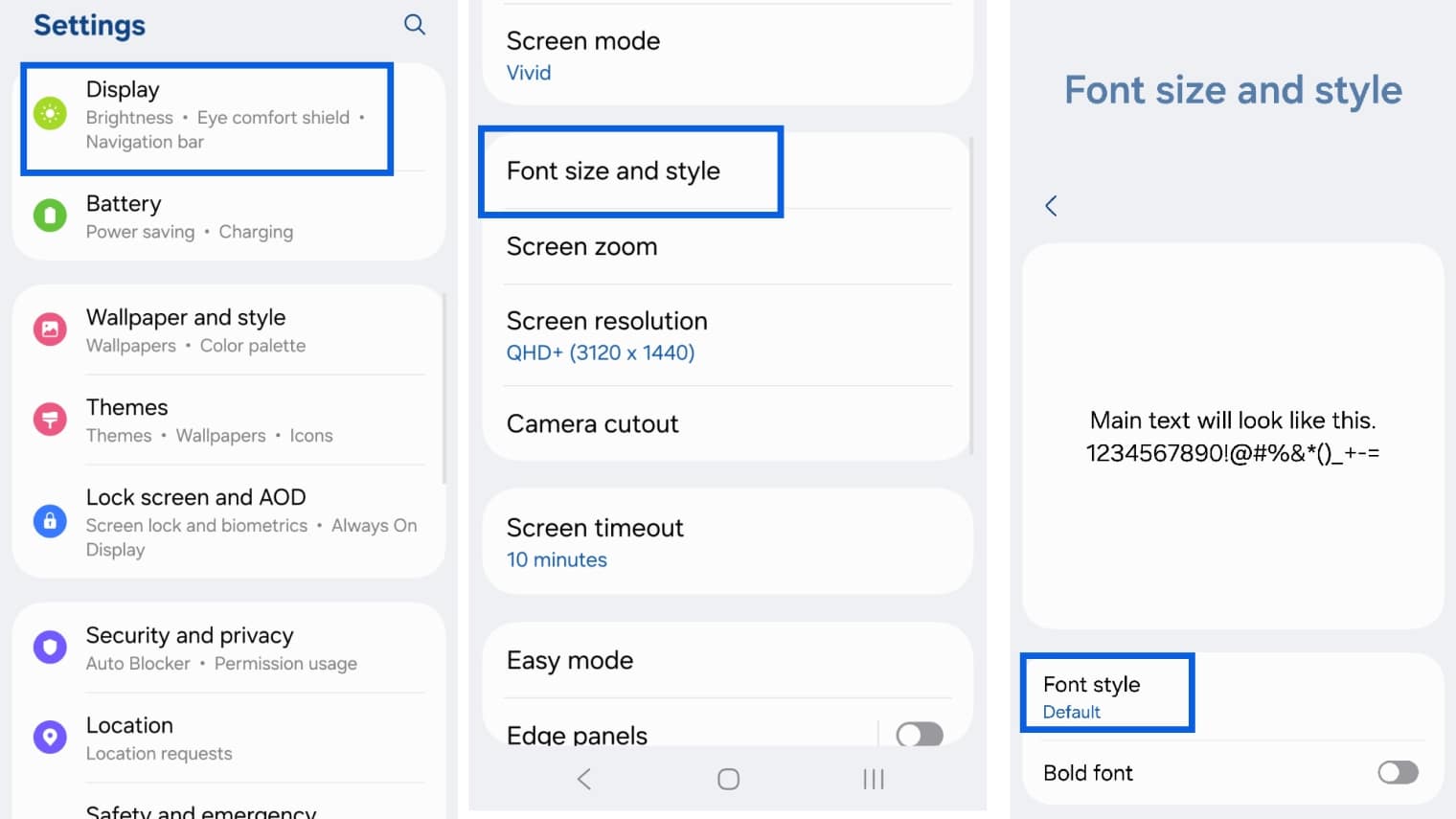
Again, when you select the font you want, it will change throughout the interface. However, One UI has something up its sleeve. The bottom option lets you download additional fonts from the Samsung store.
As you know, Samsung has a theme store jam-packed with icon packs, wallpapers, and themes to customize your phone. Well, the company also offers fonts. You can scroll through hundreds of fonts to apply through your system.
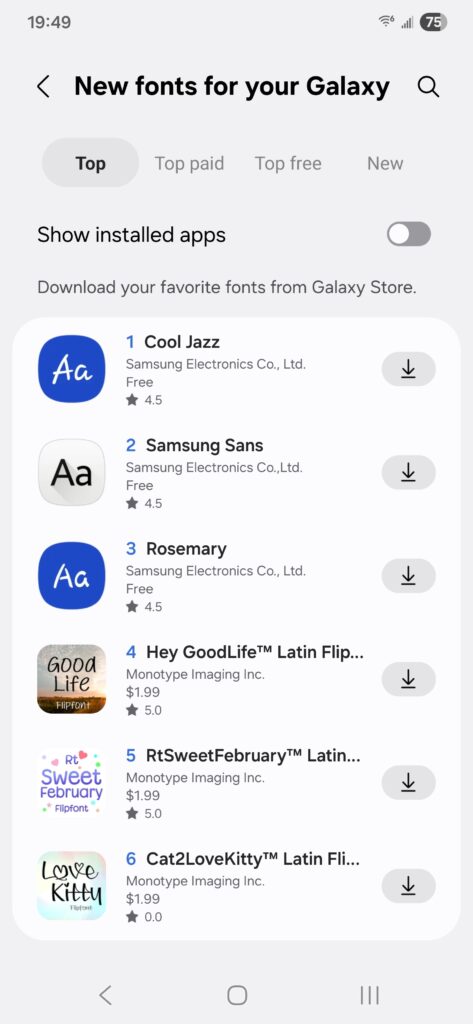
At the top of the interface, you’ll see four categories to help filter the results. These are Top, Top paid, Top Free, and New. After downloading the font you want, go back to the Font style menu and select it.
How Do I Change The Font on A Xiaomi or Vivo Phone?
Xiaomi and POCO phones use Xiaomi’s HyperOS, so the experience will be the same.
It’s a bit different from changing your font on a Samsung or Stock Android phone.
- Go to settings.
- Go to Display & brightness.
- Go to the Font section > Tap Font.
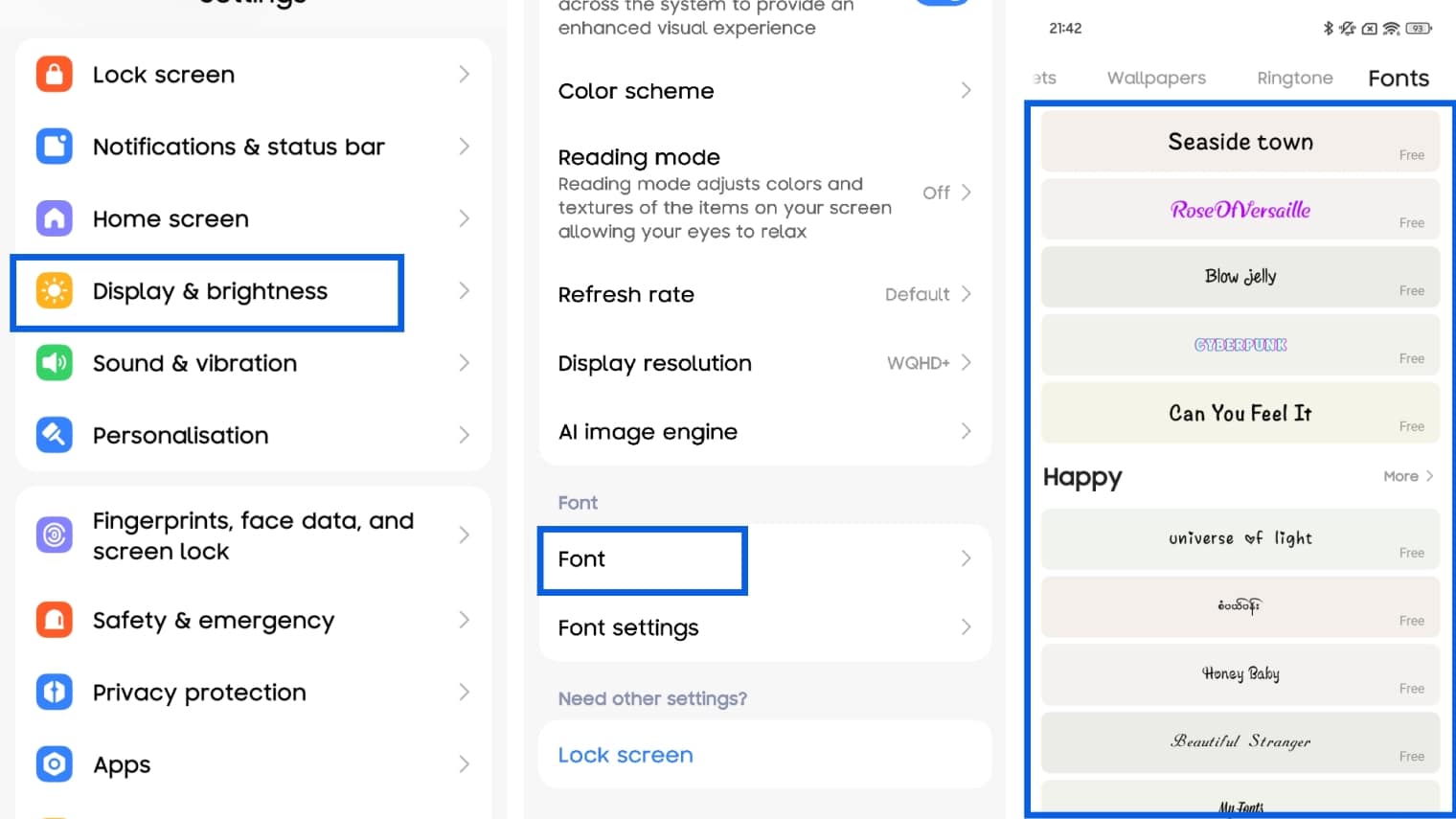
After that, the phone will take you to the phone’s Fonts app. Accept the terms and conditions, and you’ll see a scrollable list of fonts to choose from.
To install a new font:
- Tap the font you want.
- Tap the Download button (the downward-facing arrow).
- Tap on the Apply button.
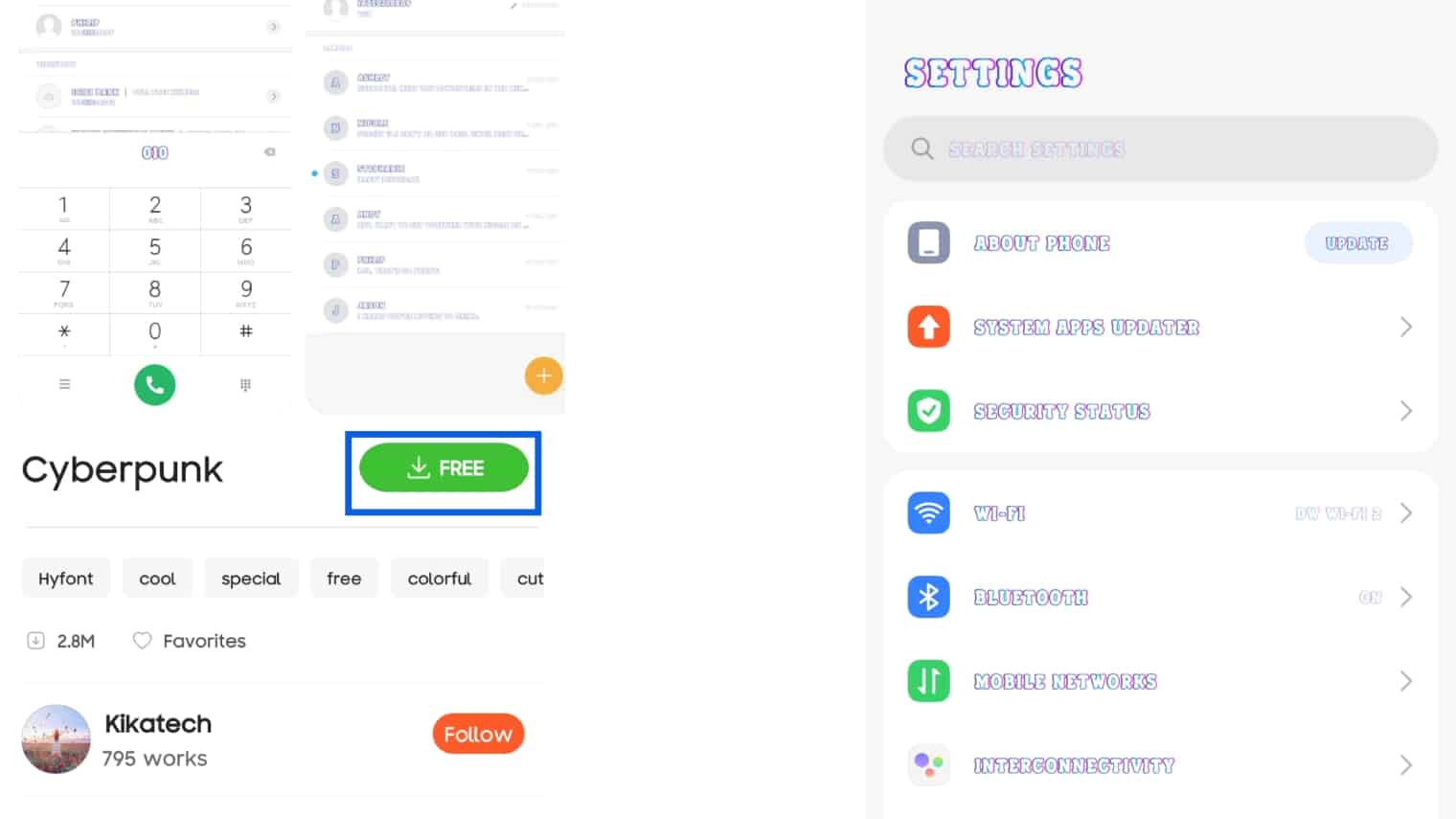
After a few seconds, you’ll see the font change.
Vivo Phones
As for Vivo phones, the process is pretty similar
- Go to Settings.
- Go to Display, brightness & eye protection.
- Go to Font style.
- Tap the font you want to use.
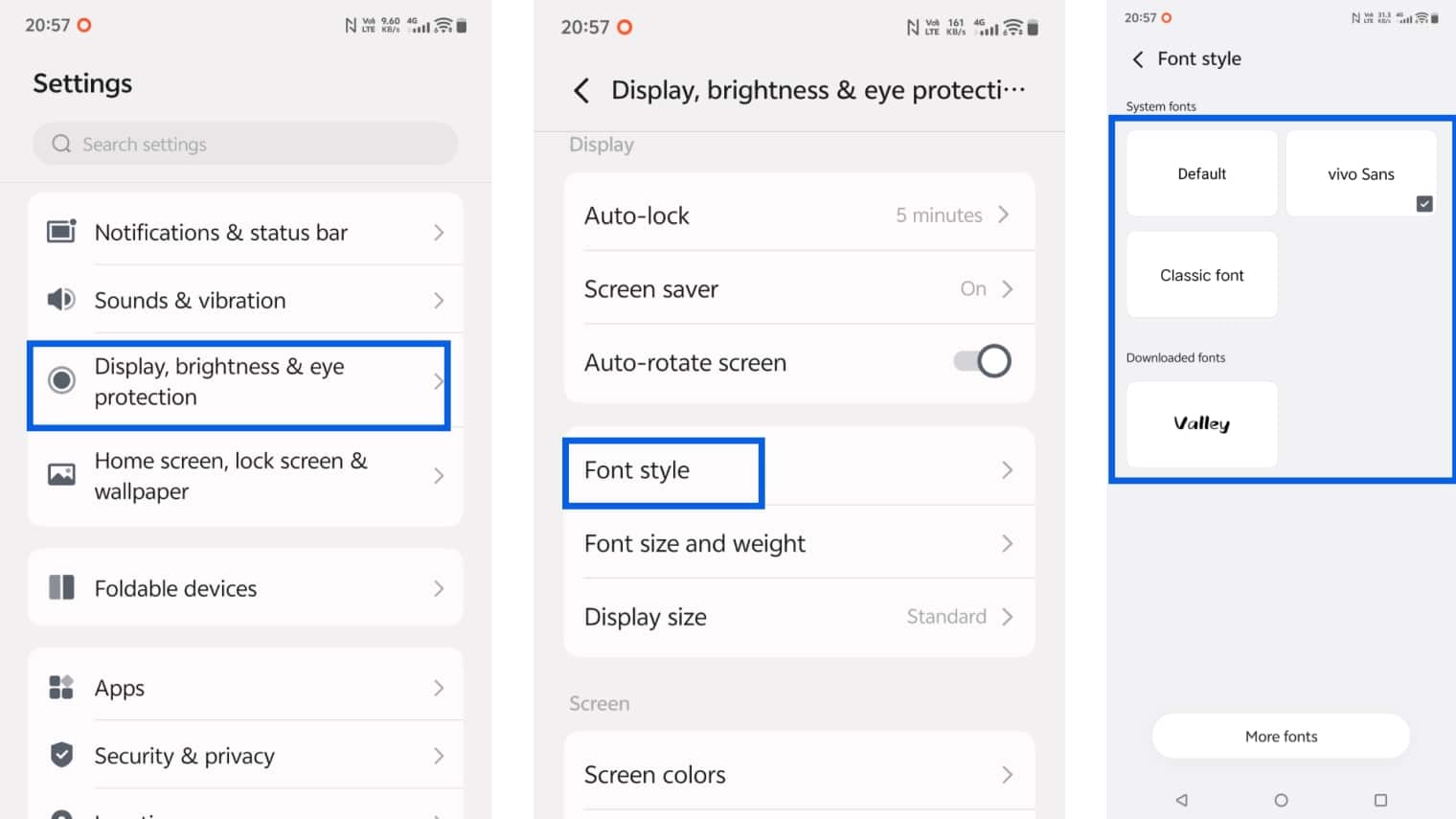
After that, you’ll see the font change. Tapping on the More Fonts button at the bottom will take you to a similar theme store where you can download more fonts. The main difference is that the fonts on Vivo’s storefront all cost money. The fonts cost between about 50¢ and about $1.10.
If the price gets you down, you can try out the fonts before you buy. The app lets you temporarily apply fonts (the same thing goes for themes and icon packs) across your system. The trial lasts for five minutes before reverting back.
How to Change Fonts on My OnePlus Phone
OnePlus’ Oxygen OS may not have the most robust selection of fonts to choose from. However, you can’t argue with customizability.
The process is pretty straightforward:
- Go to Settings.
- Scroll down to the Display & brightness section.
- Tap the Font button.
- Choose between the fonts to apply.
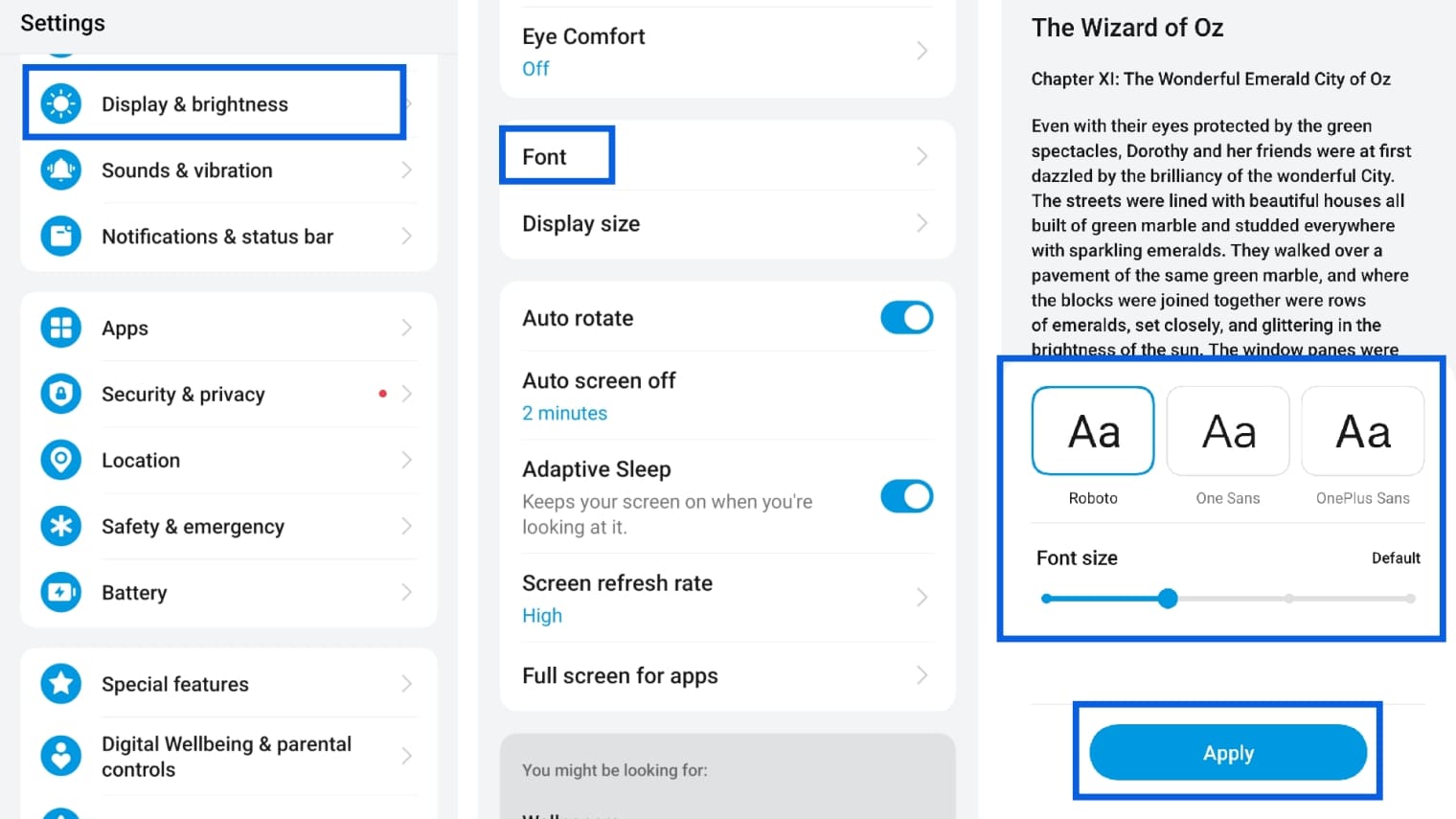
There’s no fancy theme store to wade through hundreds of options, which is unfortunate. In any case, it’s still neat to have some options.
Are There Any Issues With Applying Fonts?
There aren’t really many issues you should expect. Sometimes, software updates can cause simple system functions to act up. So, there’s a chance that the latest software update could cause fonts to go haywire, but the chances of that are slim.
The only issue you should expect would be conflicts with your phone’s theme. When you apply a full system, there’s a chance that it will overwrite the font you applied. So, you might have to reapply your selected font after changing the theme.
Conclusion
It’s all about the little things. Sometimes, changing something as simple as the font can breathe some life into your smartphone experience. It’s easy to make your phone look and feel different, and the font could be the thing to do it.