Losing your phone is bad enough. Losing it and then watching a stranger stare at your lock screen, unsure whether to hand it to a store clerk, a lost-and-found bin, or the trash, is worse. Up until now, there was no easy way for that stranger, or the police, to confirm the phone even belonged to you without unlocking it.
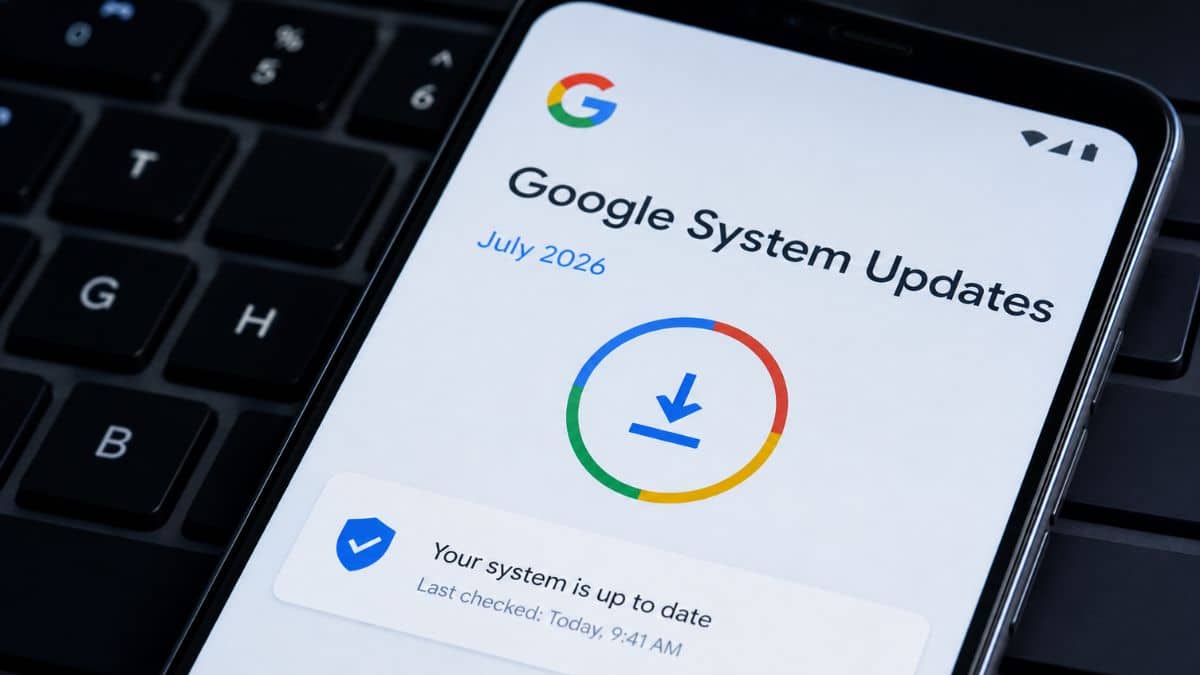
Google’s July 2026 Google System Update quietly fixes that, along with a batch of smaller changes rolling out across Google Play services, the Play Store, WebView, and Wear OS between July 6 and July 21. This isn’t a flashy, keynote-worthy release. It’s the kind of monthly maintenance drop Google ships almost every month, the software equivalent of tightening a few loose screws rather than remodeling the kitchen. But two of the changes in it, an IMEI viewer built into your lock screen and a genuinely smarter Play Store search bar, are worth knowing about even if you never read a changelog.
Here’s what’s in this update and what it means for you.
What’s New in Google’s July 2026 System Update?
Google shipped this update in staggered component releases rather than a single package. Below is what dropped, and when.
- Google Play services v26.26: released July 6, 2026
- Google Play Store v52.3: released July 13, 2026
- Android System WebView v151: released July 15, 2026
- Google Play services v26.28: released July 20, 2026
- Google Play Store v52.4: released July 21, 2026
A feature appearing in the changelog does not guarantee it lands on your phone that day. Most rollouts are gated on the server side by device, region, and Google account, so if you do not see a change described here yet, that is normal.
Lock Screen IMEI on the Emergency Screen
If you’ve ever misplaced your phone in a cab, a coffee shop, or under a couch cushion, you know the sinking feeling of realizing whoever finds it has no easy way to get it back to you, and you have no easy way to prove it’s yours if you do get it back.
That’s the gap Google is closing with a new option in Play services v26.28: “You can now find your device IMEI on the lock screen.” IMEI, short for International Mobile Equipment Identity, is the 15-digit serial number carriers and police use to identify a specific phone, and until now, seeing it usually meant unlocking the device or digging through Settings.
Here’s how it works. From the lock screen, you tap into the Emergency screen the same way you would to make an emergency call, then open the three-dot overflow menu to reveal a Device Info section. That shows your IMEI (both IMEI1 and IMEI2 if you use dual SIM, or an MEID on older devices) along with a short explanation: if the phone is lost or stolen, law enforcement can use that number to help return it, without needing to unlock the device or wipe it first. Google rejected this exact feature request back when it first surfaced, over concerns that IMEI counts as sensitive personal information. The current version, gated behind the Emergency screen rather than sitting in the open, looks like Google’s answer to that earlier objection.
Who this matters to: anyone who’s ever lost a phone in public, or who works somewhere phones regularly get turned in to lost-and-found. Who can skip it: if you’ve never lost a device and don’t plan to start, this is one you’ll simply never open.
One important caveat worth keeping in mind: this method sits behind the emergency screen precisely so a thief can’t just glance at a locked phone and pull your IMEI to run a scam. If you need your number today, dialing *#06# or checking Settings still works exactly as before.
Play Store Search Finally Understands What You’re Looking For
Here’s something Google rarely admits: Play Store search has underperformed for years. Type in a vague description of an app instead of its exact name, “that app that tracks how much water I drink,” say, and you’d often get back a wall of loosely related junk instead of the one thing you meant.
Play Store v52.4 addresses that directly with support for natural language queries, so a plain-English description has a real shot at surfacing the right result instead of forcing you to guess the exact app name. The search suggestions panel and the search box itself also now span two lines instead of one, giving you more visible options before you even finish typing. It’s a small interface change, but it removes a layer of squinting that’s been there for years.
The same update adds a second convenience: when you install a new app, the Play Store now offers to add that app’s home screen widget right there in the install flow. That solves a real, specific annoyance, downloading an app, forgetting it has a widget, and never using the widget because you never thought to dig for it in the widget picker three weeks later. Google also capped mobile data usage during app restoration on new devices in India, Nigeria, and Indonesia, a smaller but meaningful change for anyone setting up a phone on a limited data plan in those markets.
Small Wear OS and Android TV Upgrades You’ll Notice
Beyond phones, this update touches two categories that don’t usually get much attention: your watch and your TV.
Play services v26.26 lets you transfer a work profile account directly to a Wear OS smartwatch, useful if your employer requires managed apps and you want your notifications on your wrist instead of just your phone. On the TV side, Play services v26.28 brings Credential Manager support to Android TV, meaning saved passwords and passkeys now work when you’re signing into a streaming app with a remote control, including phone-assisted passkey verification so you’re not hunting for a physical keyboard to type a password one letter at a time.
Everything Else Worth Knowing About
A few smaller changes round out the update, each minor on its own but adding up to a noticeably smoother experience:
- Google Wallet stops dumping you back to the home screen. After you complete, cancel, or hit an error during a wallet transaction, you now return to wherever you were instead of losing your place entirely.
- Google One’s purchase flow got a real storefront. Buying more cloud storage or upgrading a subscription now happens through a cleaner, more direct checkout instead of the clunkier flow it replaced.
- WebView v151 adds an HTTP Cache Quota API for developers, letting apps manage their cached web content more efficiently, plus a shift to partitioned-aware “visited link” handling, a privacy-minded change that keeps sites from inferring your browsing history through link-color tricks.
- AICore, the on-device engine behind several of Android’s AI features, picked up improved safety filtering and diagnostics for multimodal tasks (the kind that mix text, images, and other inputs).
- Play services v26.26 also shipped new developer APIs tied to Maps, extending utility support across phones, Android Auto, PCs, TVs, and Wear OS.
None of these will make headlines. Together, though, they’re the difference between an OS that feels handled and one that feels neglected.
How to Check If You Have These Updates
You don’t need to wait for anything to show up on its own if you’re curious what version you’re running:
- Open the Google Play Store, tap your profile icon, then go to Settings → About to see your current Play Store version number.
- For Google Play services, go to Settings → Apps, search for Google Play services, and check the version listed under App details.
- If you’re behind, tap Update where available, though remember that some of these features depend on a server-side switch Google controls, not just the app version installed on your phone.
The Bottom Line
Nothing in this Google System Update will change how you use your Android device day to day. What it does is fix two long-standing quiet annoyances, add a real usability boost for TV sign-ins, and quietly tighten the plumbing behind Wallet, WebView, and AICore. If you have ever lost a phone or squinted at Play Store search results, the July drop is worth updating for.
All information current as of July 22, 2026. Feature availability varies by device, account, and region, and some capabilities described here may take additional weeks to reach every user.