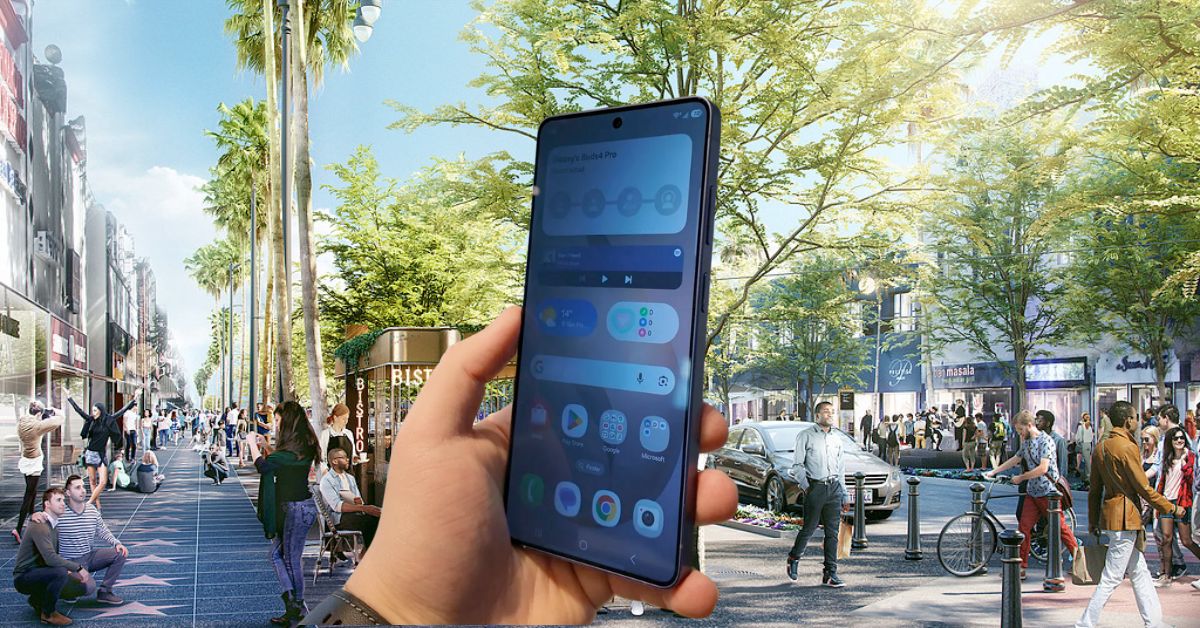
We use our phones for everything. Banking, private chats, work emails, government IDs, health apps, passwords. Yet we use them in the most public places: metros, offices, cafes, airports. One quick glance from the wrong angle is all it takes.
With the Galaxy S26 Ultra, Samsung is trying to solve that modern problem with something called Privacy Display. This is not a filter. Not a screen protector. It is built directly into the display hardware itself. Here is everything you need to know.
What Is Samsung Privacy Display?

Privacy Display is a hardware-level feature exclusive to the Galaxy S26 Ultra. It limits how your screen looks from different angles. If someone tries to view your phone from the side, top, or bottom, the display appears dark or almost turned off. But when you look at it straight on, it looks completely normal.
Samsung says anyone outside roughly a 45-degree viewing angle will not be able to properly see your content. That applies horizontally and vertically.
Unlike third-party privacy screen protectors, this solution does not permanently reduce clarity, interfere with fingerprint sensors, or make your display look dull all the time. You turn it on only when you need it.
How Does the Galaxy S26 Ultra Privacy Display Work?
The Galaxy S26 Ultra uses a special display panel called the Flex Magic Pixel OLED. This panel can manipulate pixels individually.
There are effectively two pixel behaviors at play:
- Standard wide pixels that allow normal wide viewing angles.
- Narrow pixel emission when Privacy Display is active.
When you enable Privacy Display, the phone dims and adjusts the wide-angle pixels at the sides and focuses light output through narrower pixel paths toward the center. In Maximum mode, it narrows and dims even further, limiting visibility almost entirely to head-on viewing.
The result is simple: from an angle, the screen looks black or unreadable. From straight ahead, it looks normal.
Samsung compares this to how OLED pixels constantly adjust brightness while playing videos. It is controlled pixel behavior, not a mechanical layer.
Samsung is Offering Two Privacy Display Modes

Not every situation requires the same level of protection. Sometimes you just want a little discretion in public. Other times, you want your screen to disappear entirely from side views. Samsung splits Privacy Display into two clear modes to handle both.
1. Basic Privacy Display
This is the everyday setting. It adds protection without dramatically changing how your phone feels to use.
- The screen gradually darkens as viewing angle increases.
- Content becomes difficult to read from the side.
- Ideal for everyday public use like buses, subways, or waiting rooms.
- Slight dimming occurs, but image quality remains strong.
This is the mode most people will likely use daily.
2. Maximum Privacy Protection
This is the stronger option for moments when you cannot afford even partial visibility from the side.
- The screen becomes almost completely invisible from side, top, and bottom angles.
- From off-angle views, it can look like the phone is turned off.
- Slight reduction in contrast and image quality may occur.
- Best used when viewing highly sensitive information.
This is designed for moments when privacy is critical.
What Can You Customize in Privacy Display?
Privacy is not always all or nothing. Sometimes you only want to hide a banking app. Other times, you just want notifications to stay private while everything else remains visible. Samsung designed Privacy Display with that flexibility in mind. You can:
- Hide the entire screen.
- Hide only notifications.
- Hide only specific apps, such as banking or work email.
- Automatically activate during PIN, pattern, or password entry.
- Protect only the notification pop-up area.
- Trigger it quickly from Quick Settings.
- Activate it instantly using a power button shortcut.
This flexibility is important. Sometimes you only care about hiding incoming messages. Other times, you want everything invisible.
Will You Notice It When Privacy Display Is On?
Yes, but not dramatically. When enabled, brightness slightly dims. However:
- Resolution remains unchanged.
- Adaptive brightness still works.
- Vision booster and extra brightness features remain active.
- Straight-on viewing feels normal.
In hands-on demos, reviewers mentioned they forgot the feature was active because daily usage felt unchanged. If you move outside the central viewing zone, that is when you see the strong darkening effect.
Does Privacy Display Impact Screen Durability or Lifespan?
Samsung says no.
The feature relies on pixel-level brightness control, something AMOLED panels have done for years. It does not introduce extra stress beyond normal pixel dimming behavior during regular content playback. There is no indication of reduced durability.
Why Is Privacy Display Limited to the Galaxy S26 Ultra?
Privacy Display is not software-based. It requires the Flex Magic Pixel OLED hardware.
Because the Galaxy S26 and Galaxy S26 Plus use different display panels, the feature cannot simply be added through an update. It is also not dependent on the processor. It is purely display hardware-driven. That is why it remains Ultra-only.
Privacy Display vs Privacy Screen Protector: What’s the Difference?
At first glance, this might sound similar to those privacy screen protectors people stick onto their phones. But the experience is very different. One is a permanent physical filter. The other is dynamic hardware that activates only when you choose.
| Feature | Traditional Privacy Screen Protector | Galaxy S26 Ultra Privacy Display |
|---|---|---|
| Brightness | Permanently reduces brightness | Activates only when needed |
| Clarity & Contrast | Lowers clarity and contrast at all times | Keeps full clarity in normal mode |
| Fingerprint Sensor | Can interfere with fingerprint recognition | Does not interfere with biometrics |
| Flexibility | Cannot be turned off once applied | Can be toggled instantly |
| App-Level Control | No selective control | Allows selective app-level protection |
Privacy Display offers control instead of compromise.
Privacy Display is Just One of the Security Features
While Privacy Display is Ultra-exclusive, the Galaxy S26 lineup includes other privacy systems powered by Samsung Knox. These include:
- Knox Vault for securing biometric and sensitive data.
- Personal Data Engine (PDE) for encrypting AI-processed information.
- Call Screening to identify unknown callers.
- Privacy Alerts for suspicious app data access.
- Private Album for locking photos.
Privacy Display focuses on physical visibility. Knox focuses on data protection. Together, they address both digital and visual privacy.
Is the Galaxy S26 Ultra Privacy Display Worth Using?
Yes, and the usefulness becomes obvious the moment you picture real life.
- Reading a confidential work email in a cafe.
- Checking your bank balance on a crowded train.
- Entering a PIN while someone is seated right next to you.
- Receiving a personal message during a meeting.
Normally, you tilt your phone, lower the brightness, or shift awkwardly just to block someone’s line of sight. Privacy Display removes that tension. You hold your phone naturally, and the display handles the rest.
This is what makes it important. It solves a real, everyday problem without permanently degrading your screen and It is not a gimmick and not a software trick layered on top. It is pixel-level control built directly into the Galaxy S26 Ultra’s hardware.
If you care about discretion in public spaces, this is the kind of feature you may not think about often, but once you use it, you will not want to give up.
Don’t miss these related reads: