You finish editing a 20-minute podcast clip, drag it into the X composer, and X rejects it without saying why. The cause is usually one of three things: your account tier, the app you’re using, or how the file was exported.
X’s rules for long videos haven’t changed much in the past year, but they’re spread across help pages that don’t always agree. This guide brings them together and works out the file size math X doesn’t spell out.
X Video Limits at a Glance: Free vs Premium
The gap between free and paid accounts is huge. Here’s what X’s help center lists right now:
| Account | Max length | Max file size | Where it works |
|---|---|---|---|
| Free | 140 seconds (2 min 20 sec) | 512MB | Web, iOS, Android |
| Basic, Premium, Premium+ | Up to 4 hours | 16GB | x.com and X for iOS |
| Basic, Premium, Premium+ | Up to 10 minutes | Not listed | X for Android |
Two details matter more than the headline numbers:
- Anything over 2 hours drops to 720p. X accepts 1080p only for videos under 2 hours. Between 2 and 4 hours, the file must be 720p and still stay under 16GB.
- Android is capped at 10 minutes, even if you pay. The 4-hour limit applies only to the web and the iPhone app.
X’s own pages also disagree. The main Premium overview page still describes longer uploads as “up to ~3 hours” and 8GB, while the dedicated longer-videos help page says 4 hours and 16GB. The newer, more specific page is the one to trust, but if a 3.5-hour upload fails, that mismatch may be why.
You’ll also find April 2025 reports of free accounts quietly getting longer uploads on the web. X never confirmed it, and its help center still lists 140 seconds, so plan around that number.
Which X Premium Plan Do You Need for Long Videos?
The cheapest one. According to X’s Premium help page, every paid tier includes longer video uploads, even Basic. Current US pricing:
- Basic: $3/month or $32/year
- Premium: $8/month or $84/year
- Premium+: $40/month or $395/year
If long uploads are all you need, Basic is enough. Premium makes sense if you also want the verified checkmark, fewer ads, or eligibility for X’s Original Content Rewards payout program, which requires an active Premium subscription. Premium+ doesn’t raise the upload limit any further.
Supported Video Formats and Specs on X
Even with Premium, a badly exported file can still fail. X’s web upload specs:
- Formats: MP4 and MOV
- Resolution: 32 x 32 minimum, 1920 x 1200 (or 1200 x 1920) maximum
- Aspect ratio: anywhere from 1:2.39 to 2.39:1, so vertical, square, and widescreen all work
- Frame rate: 40 fps maximum
- Bitrate: 25 Mbps maximum
X’s help page doesn’t list a required codec. Guides from video tool makers recommend H.264 video with AAC audio in an MP4 file, and they report more failures with MOV and HEVC (H.265) files. On an iPhone, you can record in H.264 by going to Settings > Camera > Formats and choosing Most Compatible.
The frame rate cap often trips up people posting gaming or sports clips. Some other guides list 60 fps, but X’s own page says 40. If a 60 fps recording keeps failing, export it at 30 fps.
The File Size Math X Doesn’t Explain
This is where most long uploads go wrong. On long videos, the 25 Mbps bitrate limit and the 16GB file size limit work against each other.
A 4-hour video at the full 25 Mbps would come out around 45GB, nearly three times the limit. To fit in 16GB, your total bitrate (video plus audio) has to average about:
- 4 hours: roughly 8.5 Mbps
- 2 hours: roughly 17 Mbps
- 1 hour: the full 25 Mbps fits easily (about 11GB)
Free accounts have a smaller version of the same problem. A 140-second clip at 25 Mbps comes to about 440MB, just under the 512MB cap, so short clips at maximum quality usually upload fine.
So if you’re uploading a saved livestream or a full webinar, set a target bitrate when you export instead of relying on a “high quality” preset. HandBrake, Premiere Pro, DaVinci Resolve, and Final Cut Pro all let you set it directly. X also re-encodes every upload and adjusts resolution and bitrate to each viewer’s connection, so an oversized source file won’t look noticeably better.
How to Upload a Long Video on X (Web and iPhone)
With a paid tier active and a properly exported file, the upload itself is quick.
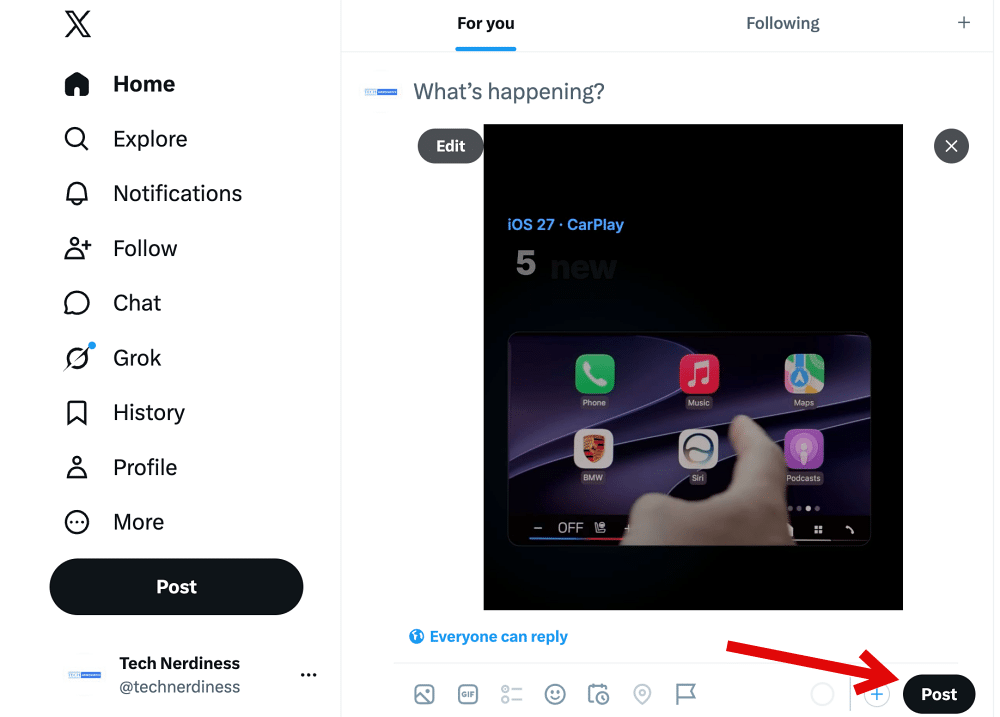
On x.com
- Click the compose box or the Post button.
- Click the media (gallery) icon.

- Select your video file.
- Add your text and click Post.
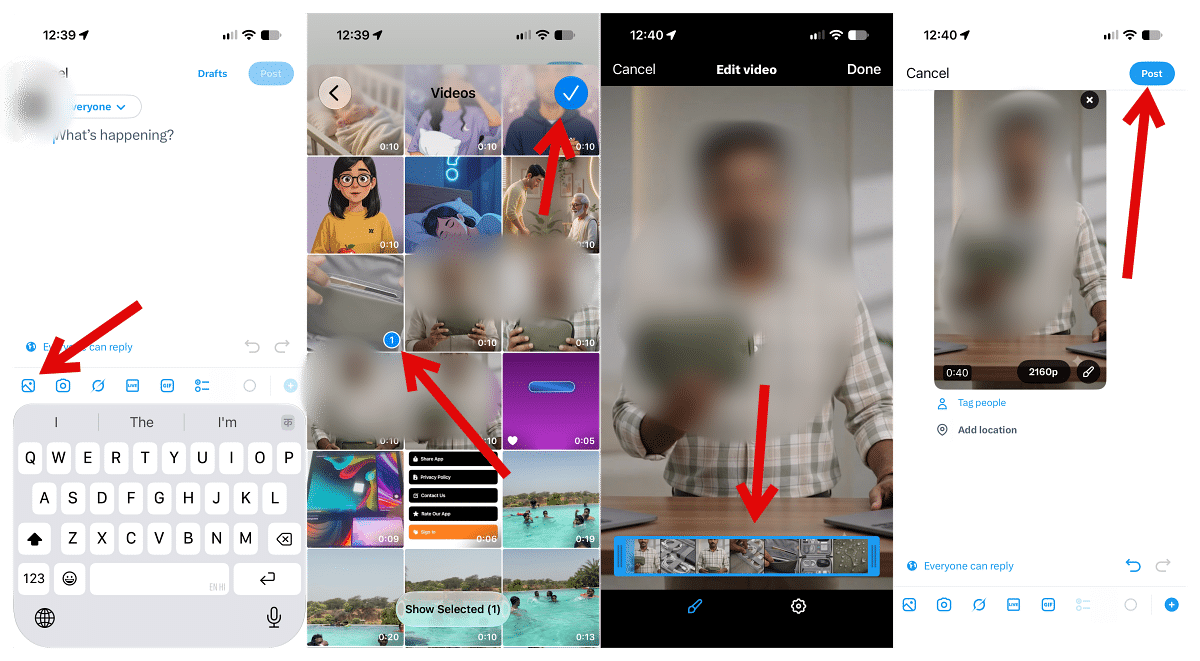
On X for iPhone
- Tap the Post (+) icon.
- Tap the gallery icon and choose your video.
- Drag either side of the trim bar if you want to cut it down.
- Tap Post.
Keep the tab or app open until a multi-gigabyte file finishes uploading. Android users need a computer or an iPhone for anything over 10 minutes. There’s no limit on how many videos you can post.
If you record a tutorial or gameplay session on your PC first, these ways to screen record on Windows 11 let you set the frame rate and quality before you export, so you won’t need to re-encode later.
Should You Post Long Videos on X at All?
You can post up to 4 hours, but people on X scroll fast. Autoplay and video autoscroll on X move viewers on to the next post, and guides for creators often report that many viewers leave after the first 30 seconds.
What works best: open with your strongest 20 seconds, post the full video for people who want it, and add a short clip as a reply to tease the rest. Full-length uploads suit podcasts, interviews, and replays of live events, where your audience already expects to stay.
Final Thoughts
A rejected long video usually comes down to your account tier, your app, or your export settings, and each one is easy to fix. Any paid tier, including $3 Basic, unlocks 4-hour uploads on the web and iPhone.
Android is still limited to 10 minutes. Export an H.264 MP4 at 40 fps or less, keep videos over 2 hours at 720p, and set your bitrate so the file stays under 16GB.
Worth checking on Amazon: