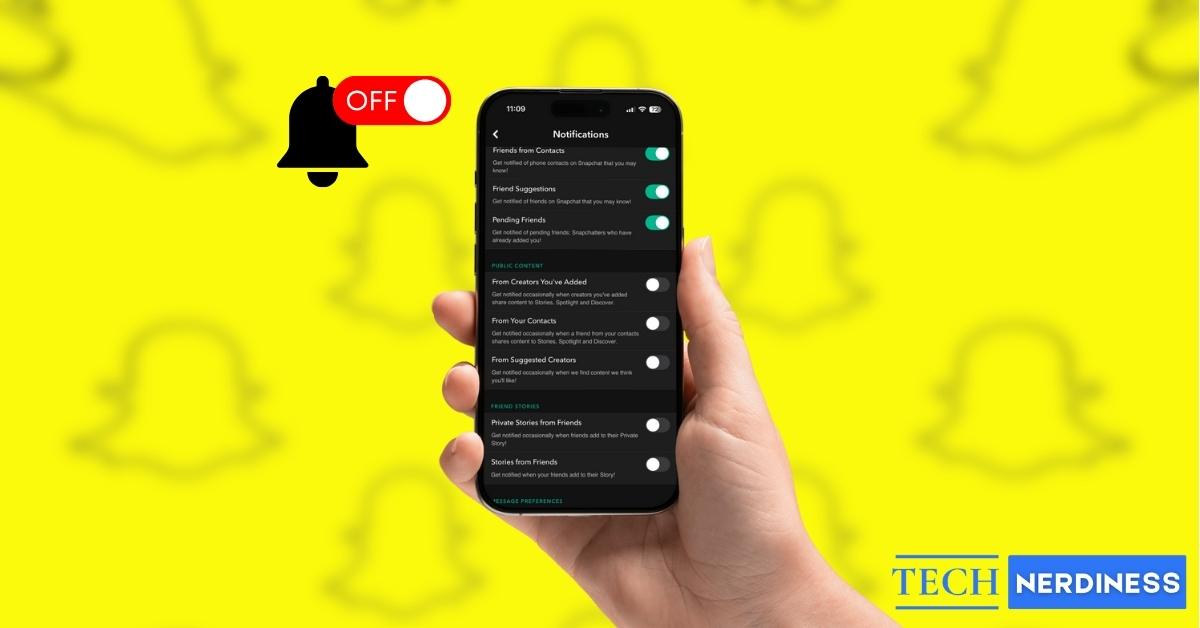
Most Snapchat notifications like snaps and chats are essential for staying in the loop. Story notifications, however, often feel like digital clutter. Since many users post the same content to their Stories that they’ve already sent as direct Snaps, these alerts can quickly become repetitive and overwhelming.
If you’re ready to reclaim your lock screen from constant buzzing, you’re in the right place. Here is your step-by-step guide on how to turn off Snapchat story notifications on both iPhone and Android.
Why Does Snapchat Send You Story Notifications?
Like all other notifications, the story notifications are sent to keep you engaged with the app and updated on what your friends are sharing. These alerts appear when any of the following occur:
- A friend posts a new story, so you don’t miss updates from people you interact with most.
- Someone you rarely engage with posts a story to encourage interaction with friends you haven’t connected with recently.
- You have set story reminders to check out new stories if you haven’t opened the app in a while.
- Snapchat+ subscribers may even get alerts when certain friends view their stories, depending on their settings. (Curious? Here’s how to tell if someone has Snapchat Plus.)
How to Turn Off All Snapchat Story Notifications
Turning off all story notifications from friends on Snapchat is pretty simple on both iPhone and Android, and can be done in a few quick steps:
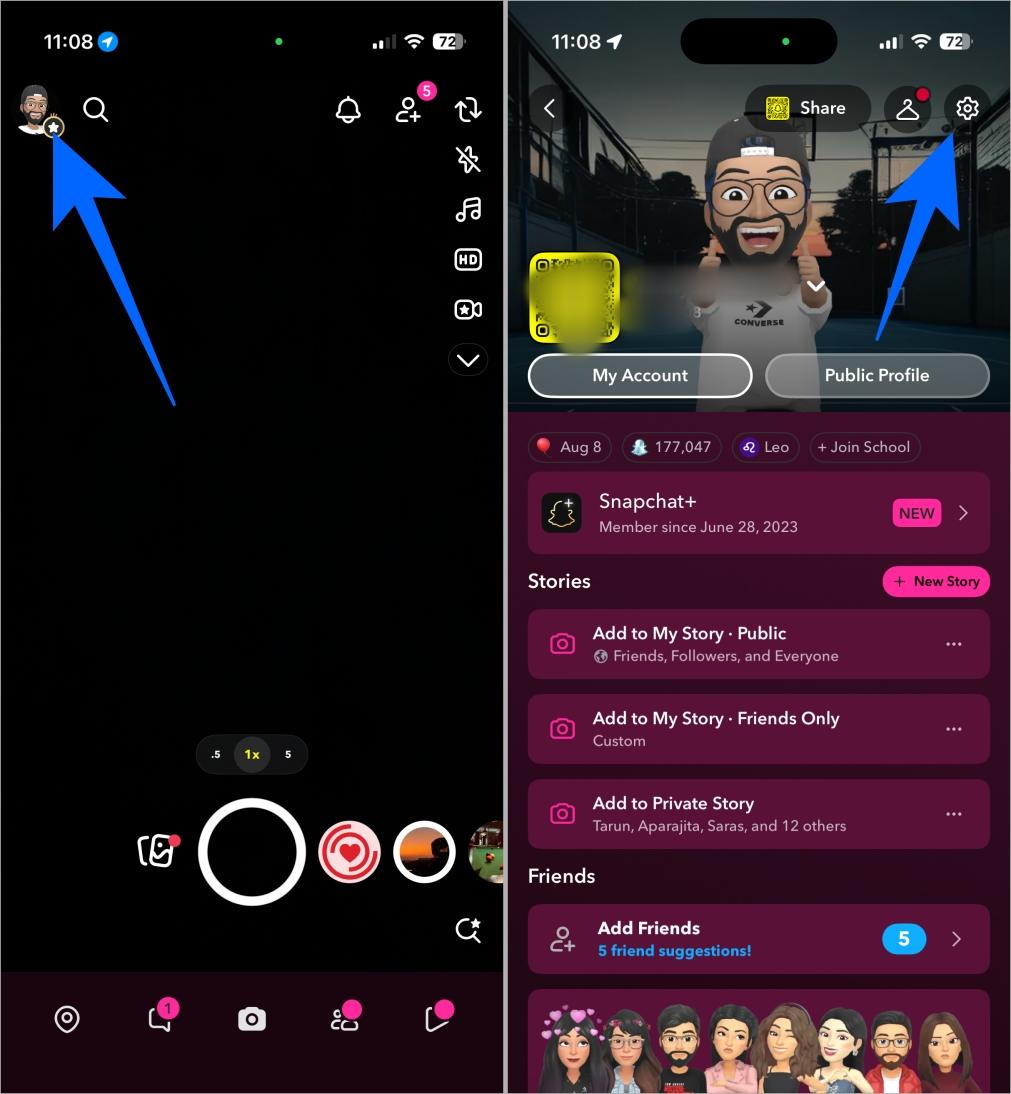
- Open Snapchat and tap your Bitmoji icon at the top left to visit your Snapchat profile.
- Here, tap the Settings cog at the top right corner.
- Next, locate and tap Notifications under “My Account.”
- Now, scroll down to the Friend Stories section and toggle off “Private Stories from Friends” and “Stories from Friends.“
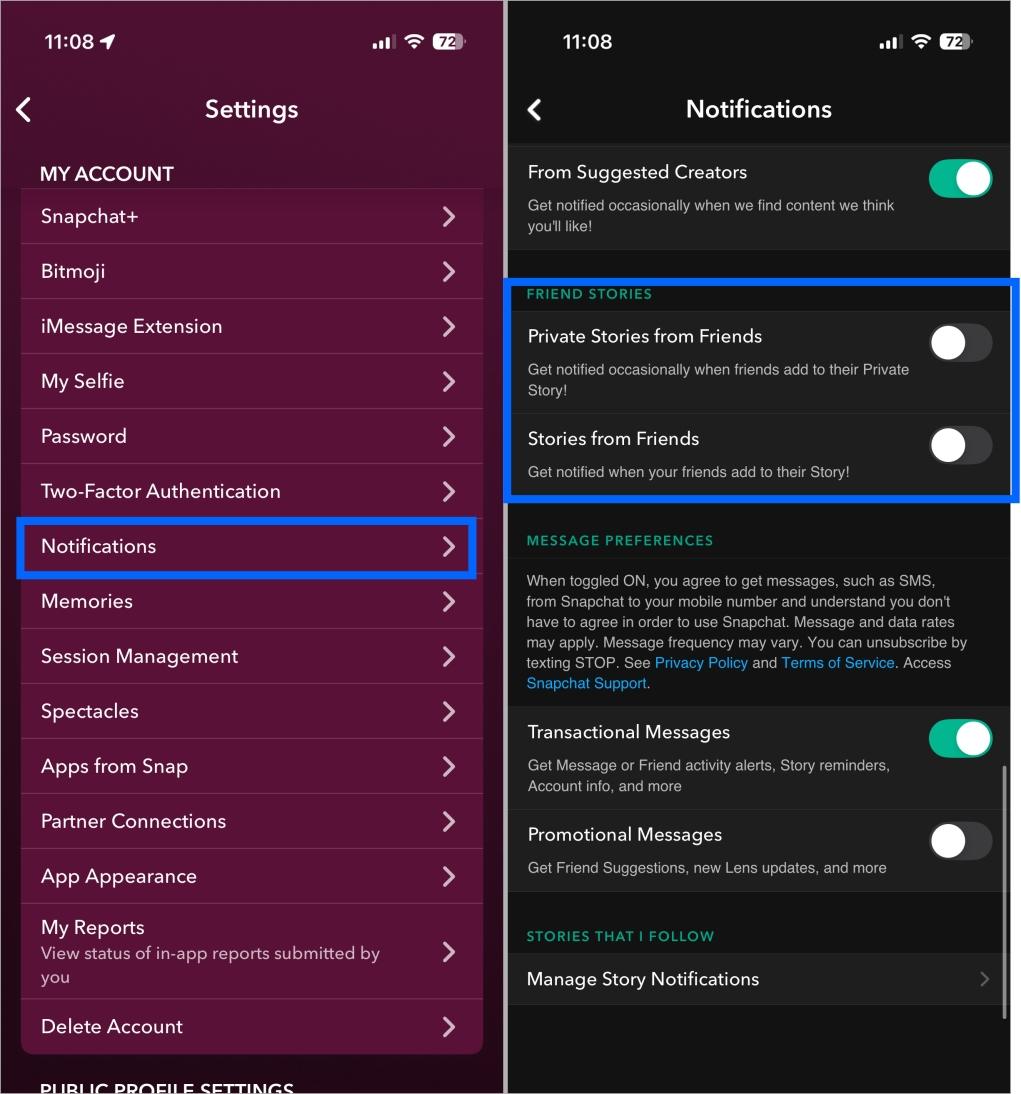
Once done, all notifications related to stories from your friends will stop.
How to Mute Snapchat Story Notifications from Specific Friends
If you only want to silence a few people, muting works better than turning everything off. And if you’d rather change how chats appear instead, here’s how to unpin someone on Snapchat.
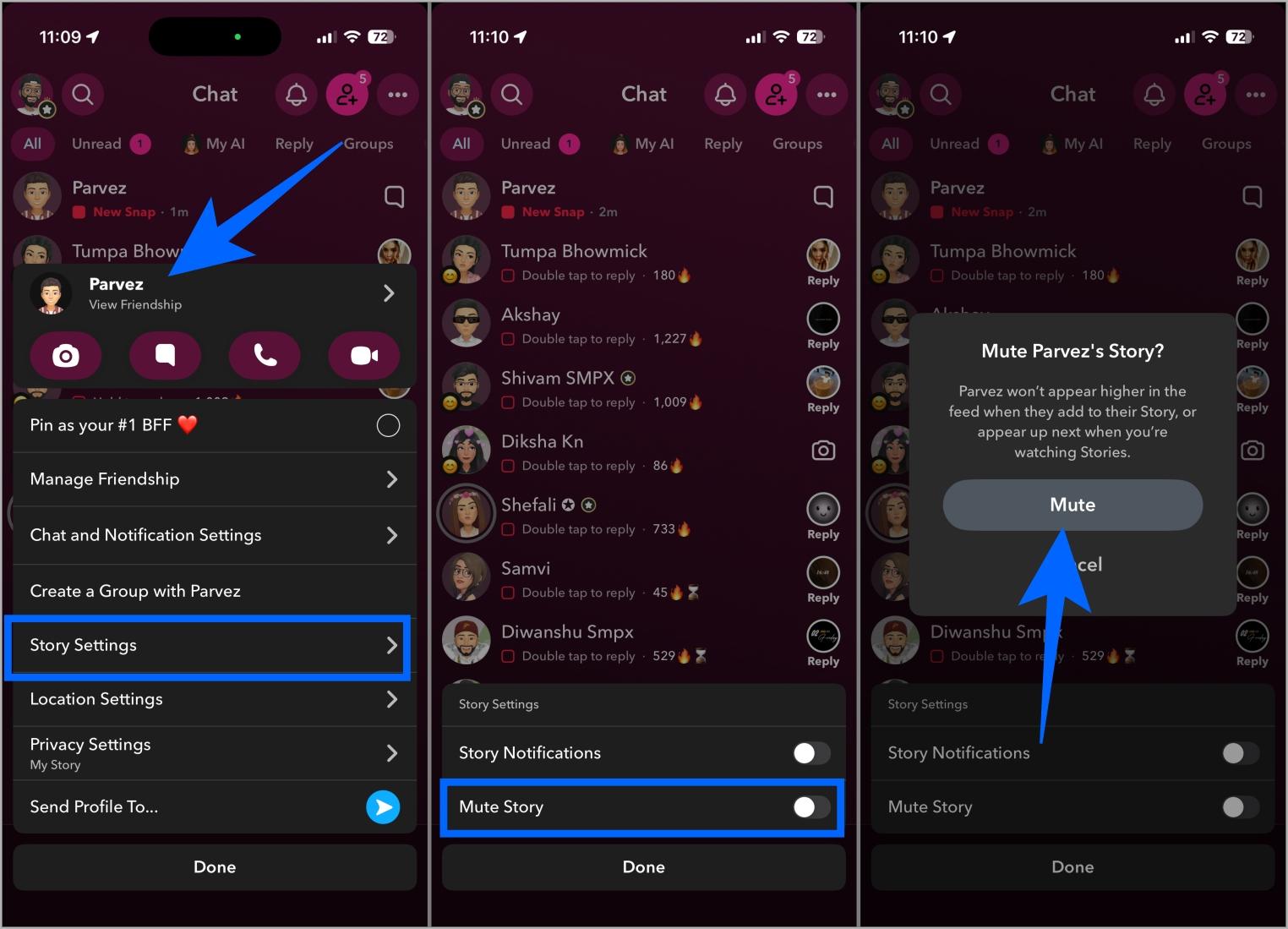
- Open Snapchat and swipe left on the camera screen to access your Chat list.
- Here, tap and hold the chat with the friend you want to mute story notifications for.
- Select “Story Settings” in the pop-up menu that appears.
- Next, toggle on Mute Story and tap Mute.
How to Manage Snapchat Notifications for Subscriptions & Discover Stories
Besides friends’ stories, Snapchat also sends alerts for new content from Subscriptions (creators you follow) and Discover Stories (publisher updates, trending content, etc.). If you want fewer notifications from these sources but don’t wish to silence story notifications from friends, here’s how you can manage them:
- Open Snapchat → Profile → Settings.
- Tap Notifications under My Account.
- Here, toggle off “From Creators You’ve Added,” “From Your Contacts,” and “From Suggested Creators” under Public Content.
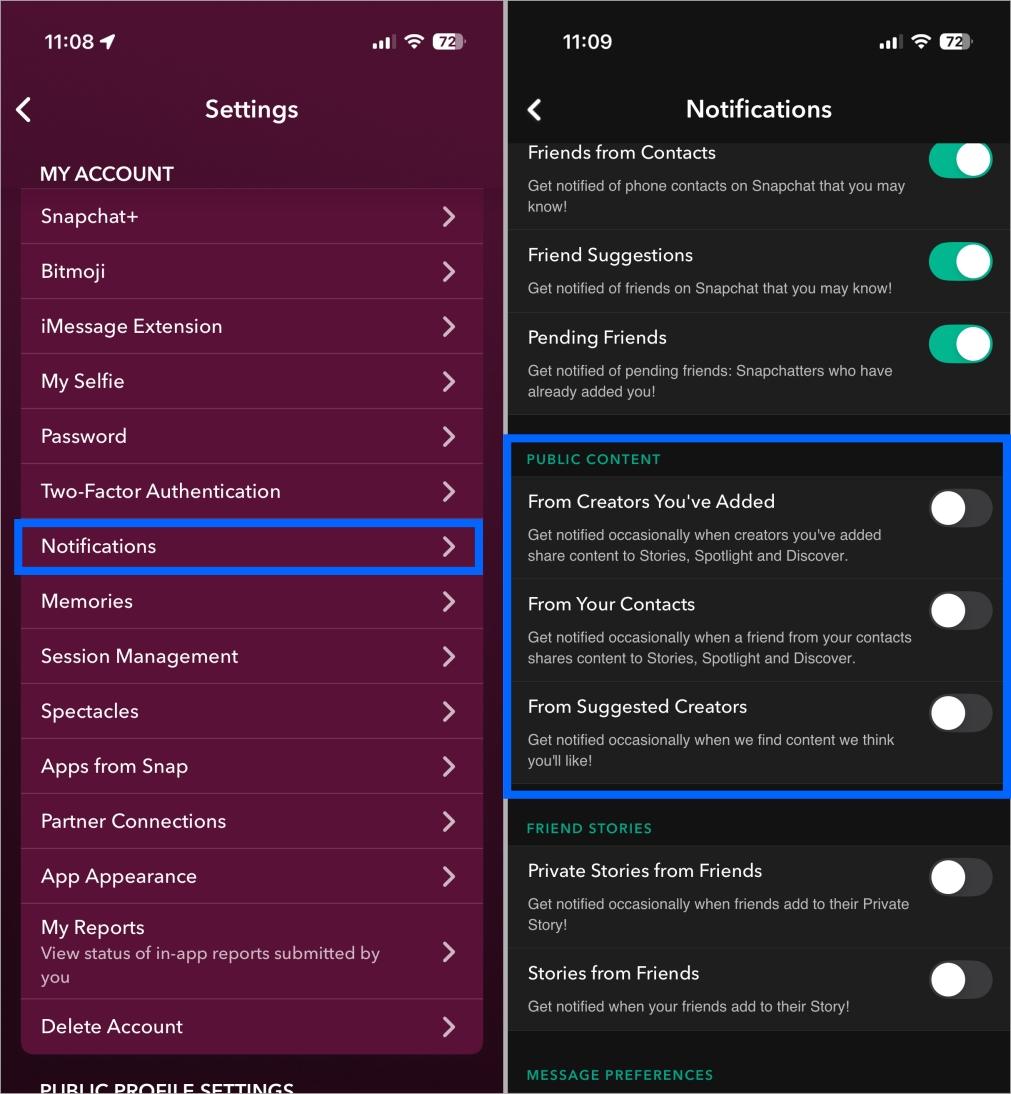
Once done, Snapchat will stop sending you alerts whenever creators or publishers post new content, keeping your notification feed less cluttered.
Troubleshooting: Still Getting Story Snapchat Notifications?
Sometimes, due to an app glitch or bugs, you might still receive Snapchat story notifications even after you’ve turned them off. In some cases, it could also be because of Time Sensitive Notifications. If that’s happening with you, try these fixes:
- Check for App Updates: Make sure Snapchat is updated to the latest version. Old versions may not apply notification changes properly.
- Restart the Snapchat App and Device: Some settings may not take effect until the app or device is restarted.
- Double-Check Notification Settings: Ensure you turned off notifications for both Friend Stories and Subscriptions/Discover Stories.
- Reinstall Snapchat: Uninstalling and reinstalling can resolve persistent notification issues.
Tame Your Story Notifications
And that’s all there is to it! As you can see, silencing the noise on Snapchat is straightforward, whether you’re muting everyone or just a few over-posters. While Snapchat sends these alerts to keep you tapping, turning them off ensures you engage with the app on your own terms not every time your phone buzzes.
Now you can enjoy your snaps without the constant distraction of a cluttered lock screen.