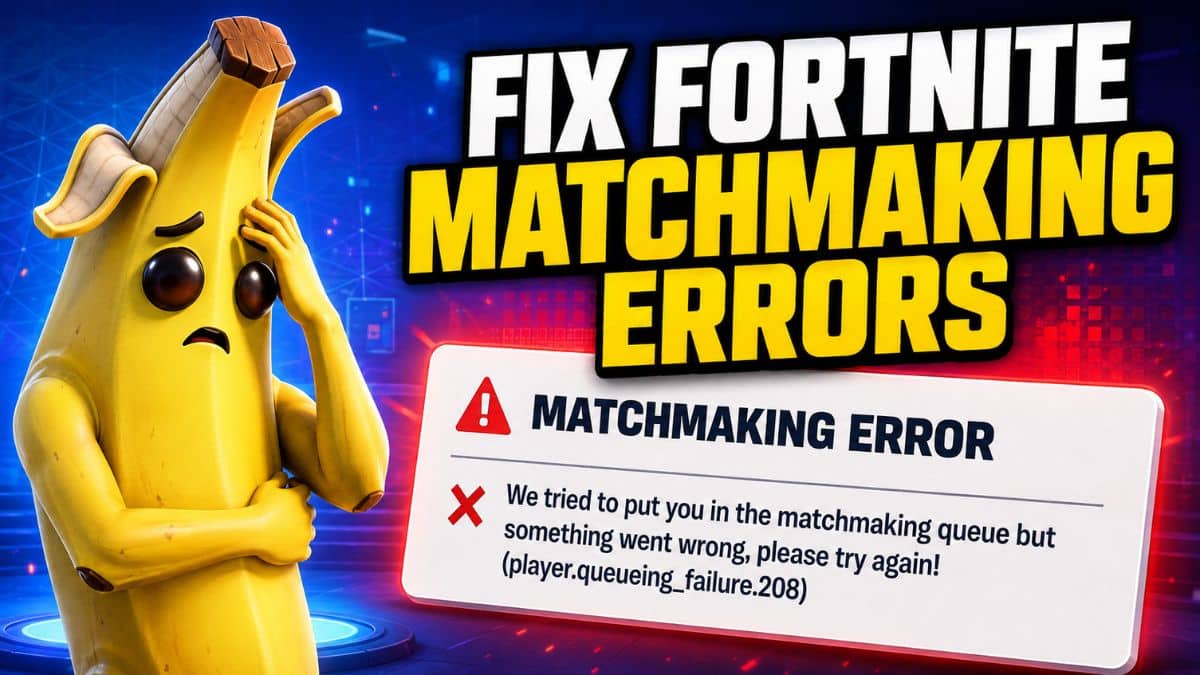
Fortnite Chapter 7 Season 4, titled Override, went live on August 20, 2026, and some players have been running into matchmaking errors while trying to get into a game. The problem is that not every matchmaking error means the same thing. Error codes #1, #2, #3, #5, #7, and -91 can point to different issues, including server problems, tournament eligibility, network configuration, or party-joining failures. Trying the same fix for every error can waste time.
Below, we’ll explain what each Fortnite matchmaking error means, how to fix it, and what network troubleshooting steps are worth trying if the problem continues.
Why Fortnite Matchmaking Errors Happen
Most Fortnite matchmaking problems come down to a few common causes:
- Epic’s servers are having problems. New seasons, major updates, and live events can put extra pressure on matchmaking services.
- Your network connection is preventing Fortnite from reaching Epic’s servers. DNS problems, restrictive NAT types, VPNs, proxies, and router issues can all interfere.
- Your account isn’t eligible for certain content. Competitive events can have rank, age, region, or other eligibility requirements.
- The Fortnite client gets stuck after switching modes or parties. Moving between custom games, Ranked, and standard matchmaking can occasionally cause connection problems.
The right fix depends on which error you’re seeing, so start with the code displayed on your screen.
Fortnite Matchmaking Error Codes and How to Fix Them
1. Matchmaking Error #1: “Weird. We Couldn’t Connect to the Match”
Error #1 generally appears when Fortnite can’t establish a connection with the match server. Server maintenance or temporary connection problems can trigger it. Some players also encounter the error after leaving a custom game and immediately trying to queue for another mode.
How to fix Matchmaking Error #1:
- Check Epic Games’ server status to make sure matchmaking is operational.
- Close Fortnite completely and reopen it.
- If you recently played a custom game, remove the custom matchmaking code before queuing again.
- Try changing your party’s Fill setting and queue again.
- Make sure your device’s date and time are set automatically.
- Disable any VPN or proxy you’re using.
- On Windows, open Command Prompt and run:
ipconfig /flushdns
If Epic is reporting a matchmaking outage, wait until the service is restored rather than changing your network settings.
2. Matchmaking Error #2: Content Beacon or Permission Error
Error #2 can appear in more than one situation. You may see a message indicating Fortnite is having trouble connecting to its content services. Alternatively, you might see a message saying you’re not permitted to play this content, particularly when attempting to enter a tournament.
For connection-related Error #2 messages, try:
- Restarting Fortnite.
- Checking Fortnite’s server status.
- Restarting your router.
- Disabling VPN or proxy connections.
- Switching to a public DNS service such as Google DNS or Cloudflare DNS.
- Checking that your firewall isn’t blocking Fortnite or the Epic Games Launcher.
If the error appears while entering a tournament, check the event’s eligibility requirements instead. Your account may need to meet specific rank, age, region, or other requirements before you can participate.
3. Matchmaking Error #3: “All the Battle Buses Headed Out Are Full”
This is one of the simpler matchmaking errors. It generally means Fortnite’s matchmaking queue is experiencing heavy demand and couldn’t immediately place you into a match.
How to fix Error #3:
Wait a few minutes and queue again. If you continue seeing the error for 10 to 15 minutes, check Fortnite’s server status. Persistent Error #3 messages can indicate a broader matchmaking or queue problem rather than anything wrong with your PC or console.
Avoid resetting network settings immediately for this error. If the servers are overloaded, changing your DNS or router configuration won’t make the queue move faster.
4. Matchmaking Error #5 and Error #7
Errors #5 and #7 generally indicate Fortnite couldn’t connect you to a match because of either a server-side problem or an issue with your connection. Start by checking whether Epic is reporting an incident. If everything looks normal, completely close Fortnite and launch it again.
If that doesn’t work, try:
- Restarting your PC or console.
- Power cycling your router.
- Disabling your VPN or proxy.
- Checking your NAT type.
- Flushing your DNS cache on Windows.
- Trying a different DNS provider.
If multiple players suddenly start reporting the same error, there’s a good chance the problem is on Epic’s side.
5. Matchmaking Error -91: Unable to Join a Party
Error -91 is slightly different because it usually appears when you’re trying to join another player’s party rather than when Fortnite is finding a match. Start with the simple fixes:
- Restart Fortnite.
- Ask your friend to resend the party invitation.
- Check your Party Joinability settings.
- Make sure cross-platform play is enabled when playing with friends on another platform.
- Run your console’s built-in network test.
Pay particular attention to your NAT type.
A restrictive NAT configuration can interfere with multiplayer connections and party features. If your console reports Strict, Type 3, Double NAT, or another restrictive configuration, restart your router and make sure UPnP is enabled.
If the problem continues, you may need to investigate your router configuration or contact your ISP.
Network Fixes for Fortnite Matchmaking Errors
If Epic’s servers are online but Fortnite still won’t connect, work through these troubleshooting steps in order.
1. Restart Fortnite
Don’t just return to the lobby. Completely close Fortnite and launch it again. This forces the game to establish a fresh connection with Epic’s services and can clear temporary matchmaking problems.
2. Restart Your Router and PC or Console
Turn off your router for around 30 seconds before powering it back on. Restart your gaming device as well. This can clear stale network sessions and temporary connection problems that restarting Fortnite alone won’t fix.
3. Flush Your DNS Cache
On Windows, search for Command Prompt, open it, and enter:ipconfig /flushdns
Press Enter.
Windows will clear its cached DNS records and retrieve fresh information the next time Fortnite connects.
4. Try a Different DNS Server
Your ISP’s DNS server can occasionally cause connection or routing problems.
Common alternatives include:
- Cloudflare: 1.1.1.1 and 1.0.0.1
- Google: 8.8.8.8 and 8.8.4.4
After changing DNS servers, restart Fortnite and try matchmaking again.
5. Disable Your VPN or Proxy
VPNs can route Fortnite traffic through another country or server, increasing latency and occasionally interfering with Epic’s services. Turn off any VPN or proxy temporarily and test matchmaking again.
6. Check Your NAT Type
Console players should run the built-in network test on PlayStation, Xbox, or Nintendo Switch. A restrictive NAT type can make it difficult to join parties and, in some cases, multiplayer sessions. Restarting your router or enabling UPnP may improve the NAT configuration.
Avoid changing router ports unless you’ve confirmed that your network configuration is actually causing the problem.
7. Set Date and Time Automatically
Incorrect system time can interfere with authentication and other online services. On your PC or console, make sure the date, time, and time zone are configured automatically. Restart Fortnite afterward.
8. Enable Crossplay
If you’re trying to join friends on another platform, make sure cross-platform play hasn’t been disabled. Crossplay also gives Fortnite access to a larger matchmaking pool, which can help when queues are smaller in your region or selected mode.
Check Fortnite Server Status Before Troubleshooting
Before changing DNS servers, router settings, or anything else on your device, check whether Fortnite itself is experiencing problems.
Epic Games’ official status page reports incidents affecting matchmaking, login services, parties, the Epic Games Store, and other Fortnite-related systems. The Fortnite Status account on X also posts updates during active outages and maintenance.
This is especially important after major updates such as Chapter 7 Season 4 Override, when matchmaking demand can increase significantly.
If Epic confirms an outage, there is usually nothing you need to change. Wait for the incident to be resolved and try again.
Final Thoughts
Fortnite matchmaking errors can look similar, but they don’t always have the same cause. Error #3 may simply mean the matchmaking service is busy, while Error -91 is more likely to involve your party or network configuration.
Start by checking Epic’s server status. If Fortnite’s services are working normally, restart the game and your network before moving on to DNS, NAT, or other advanced troubleshooting.
And during the opening weeks of a major season like Override, occasional matchmaking problems aren’t unusual. If an error suddenly appears for thousands of players at once, the fastest fix is often simply waiting for Epic to resolve it.
Matchmaking Error #1 generally appears when Fortnite can’t connect to the match server. Server maintenance, connection problems, or switching from a custom match to another mode can trigger it.
Several matchmaking errors can appear, but commonly reported ones include #1, #2, #3, #5, #7, and -91. Their causes range from server capacity and network problems to tournament permissions and party-joining issues.
It can help in some cases, particularly when the matchmaking request itself is getting stuck. However, it isn’t a guaranteed fix. Restarting Fortnite and checking Epic’s server status should come first.
Error -91 usually affects joining a party rather than finding a match. Party permissions, crossplay settings, or a restrictive NAT configuration are common causes.
Level Up Your Gaming: