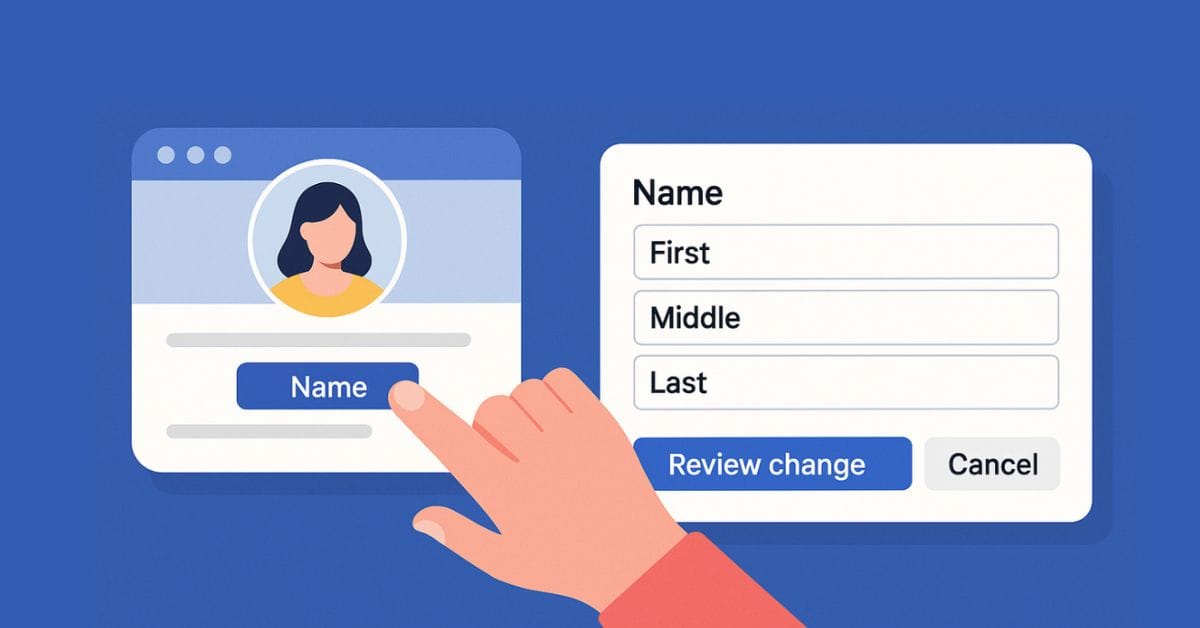
Whether you just got married, started using a nickname, or noticed a typo on your profile, Facebook lets you change your name with a few taps if you follow the rules. The steps are almost the same on desktop and mobile, but there are important policies and limits to keep in mind. This guide explains Facebook’s name rules, walks you through the exact steps on iPhone, Android, and desktop, shows how to change your username, and helps you fix common issues.
Facebook Name Change Rules: What to Know Before You Update Your Name
Before making any changes, review these rules and limitations to avoid rejection or delays.
1. Facebook Name Policy
Facebook requires you to use the name you go by in everyday life. This policy dates back to its early days when real identities were encouraged.
Your name must not include:
- Numbers, symbols, or unusual capitalization
- Titles like Dr. or Prof. unless they are part of your legal name
- Offensive, misleading, or promotional words
Nicknames, maiden names, and alternative spellings are allowed if they follow Facebook’s guidelines. You can review the full policy under Facebook Name Standards.
2. Name Change Limit
You can only change your Facebook name once every 60 days. If you updated it recently, you must wait until the limit resets.
3. Supporting Documents
If your new name is very different from your current one, Facebook may ask for ID verification. The name should reasonably match a document from Facebook’s approved list.
4. Username vs. Display Name
- Display name: The name shown on your profile
- Username: The unique URL for your profile (facebook.com/username)
These are separate and can be changed independently.
How to Change Your Name on Facebook Using a Web Browser
Follow these steps on a computer:
- Log in to your Facebook account.
- Click your profile picture in the top-right corner.
- Select Settings & privacy.
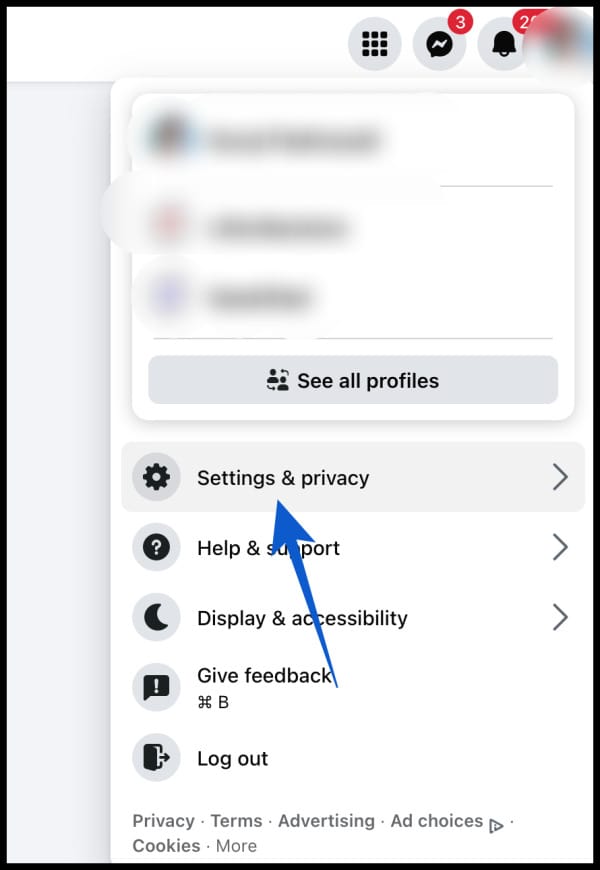
- Click Settings
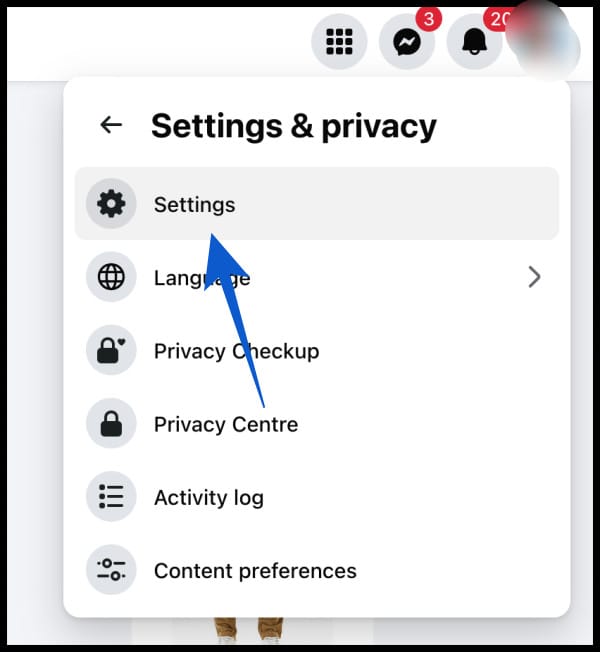
- Go to Accounts Center or Personal and account information.
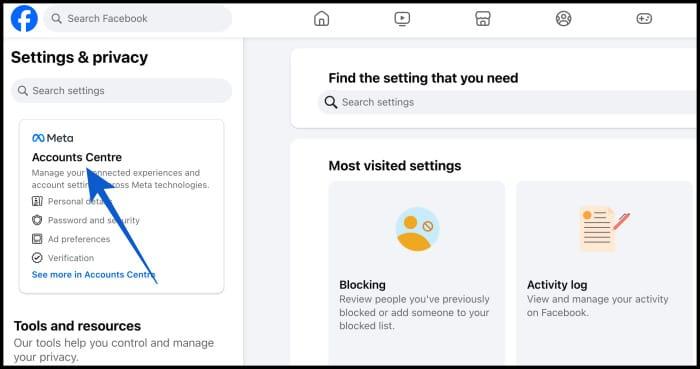
- Click Profiles, then select your Facebook account.
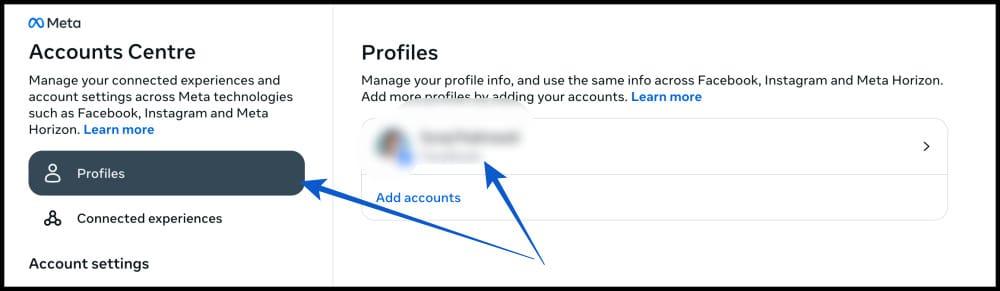
- Click Name.
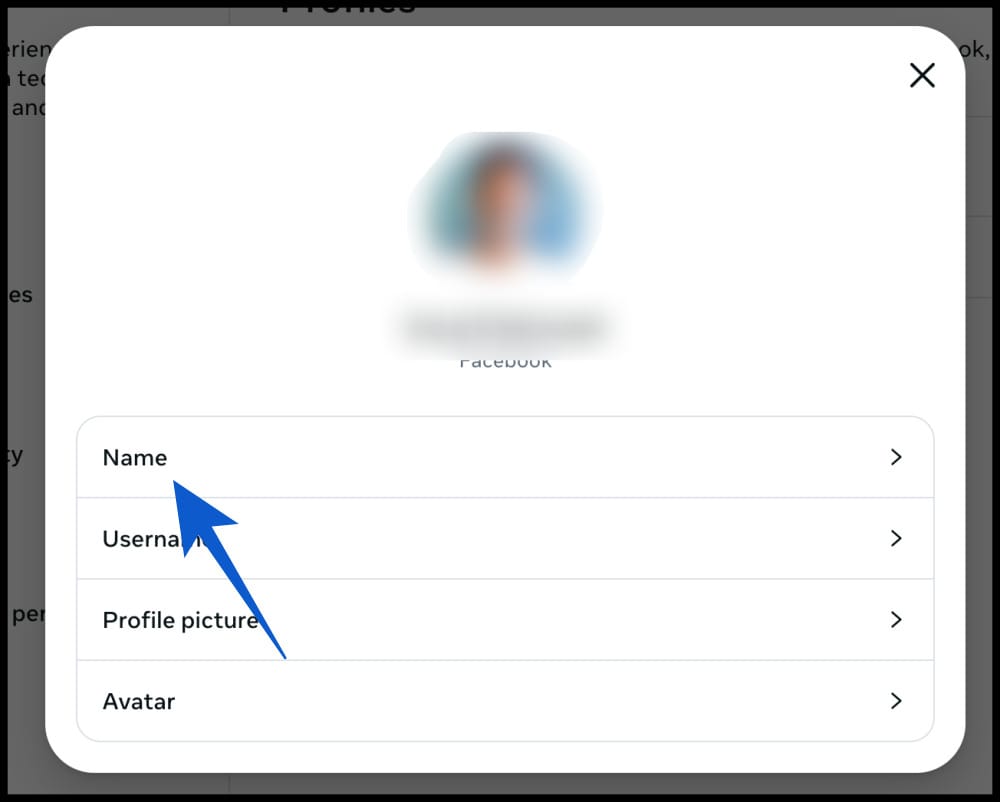
- Enter your new first, middle, and last name.
- Review your changes and click Review change.
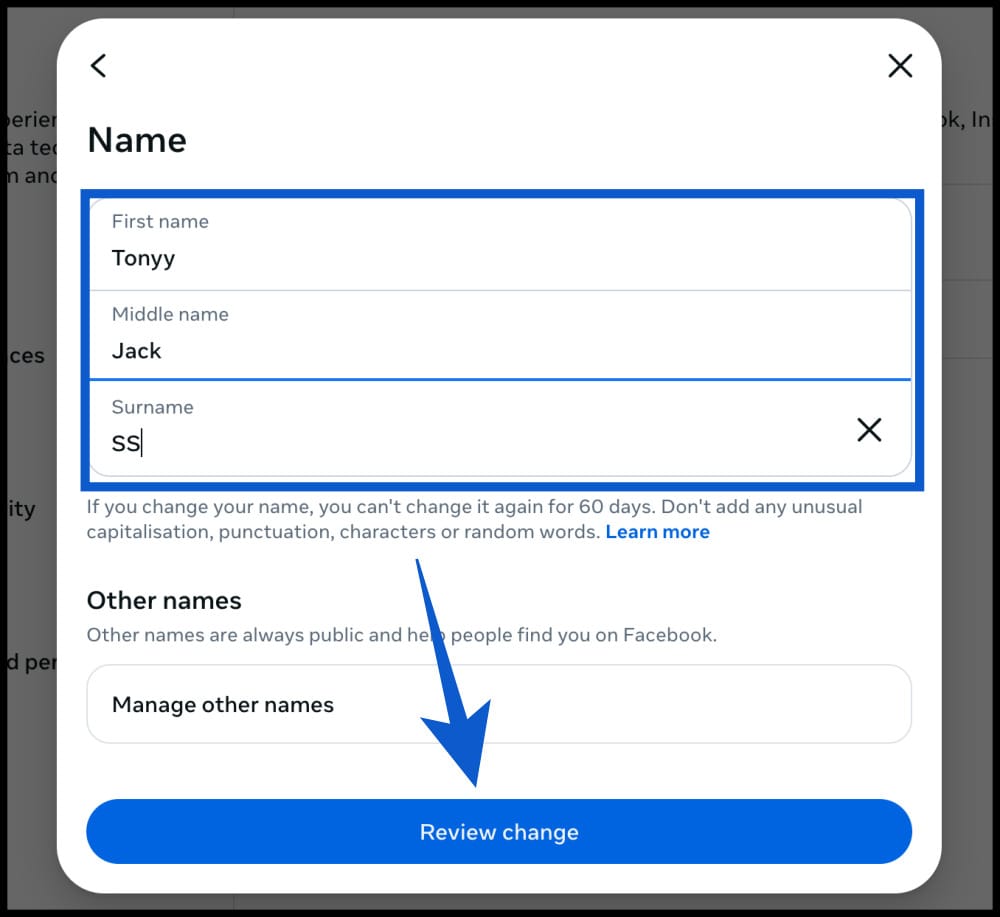
- Select how you want your name to be displayed.
- Click on Done to save changes.
Make sure your name follows Facebook’s rules to avoid rejection.
How to Change Your Facebook Name on iPhone and Android
The steps are similar on mobile, with a slightly different menu layout.
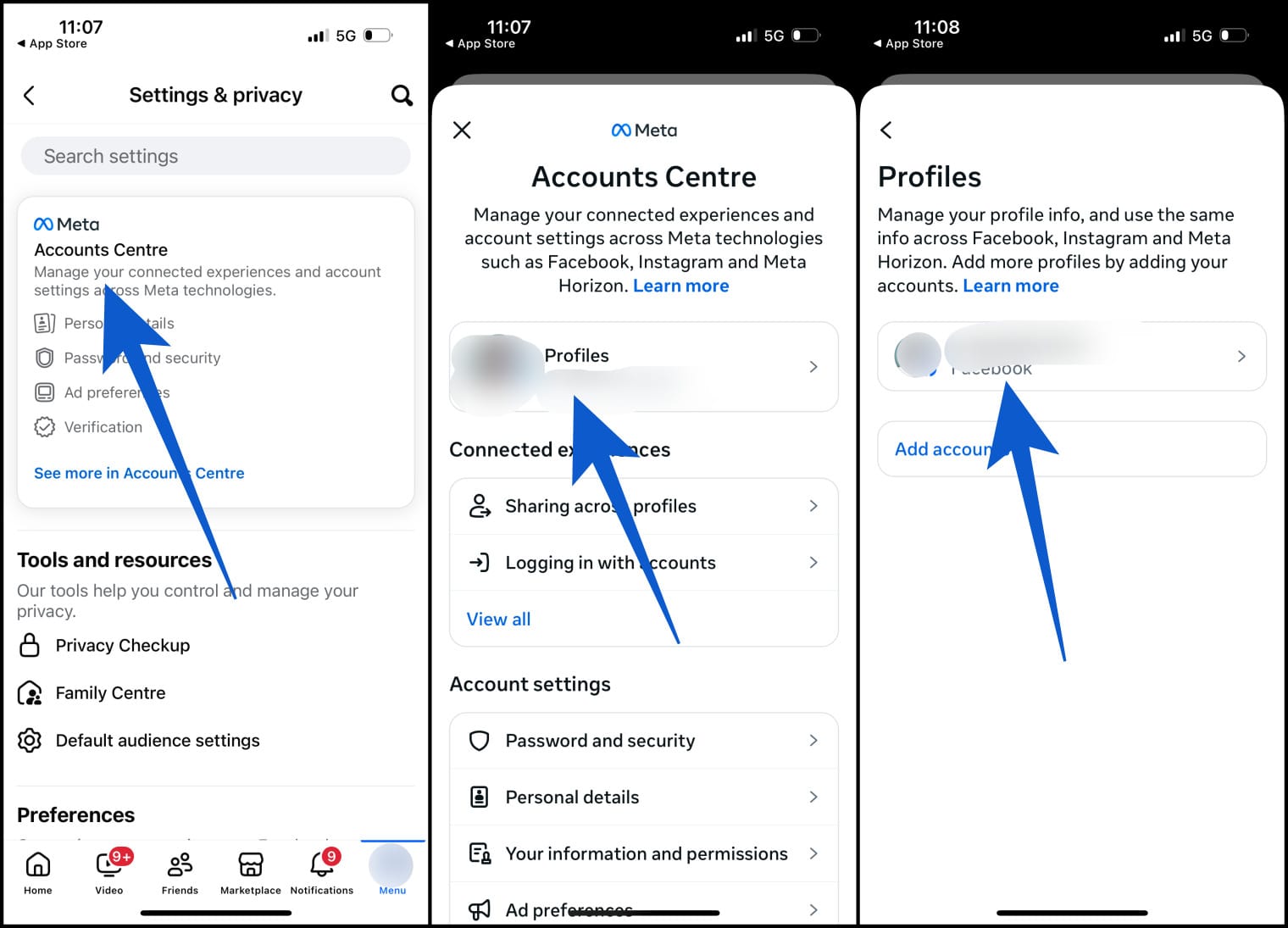
- Open the Facebook app.
- Tap the menu icon (☰). Bottom-right on iPhone, top-right on Android.
- Go to Settings & Privacy → Settings.
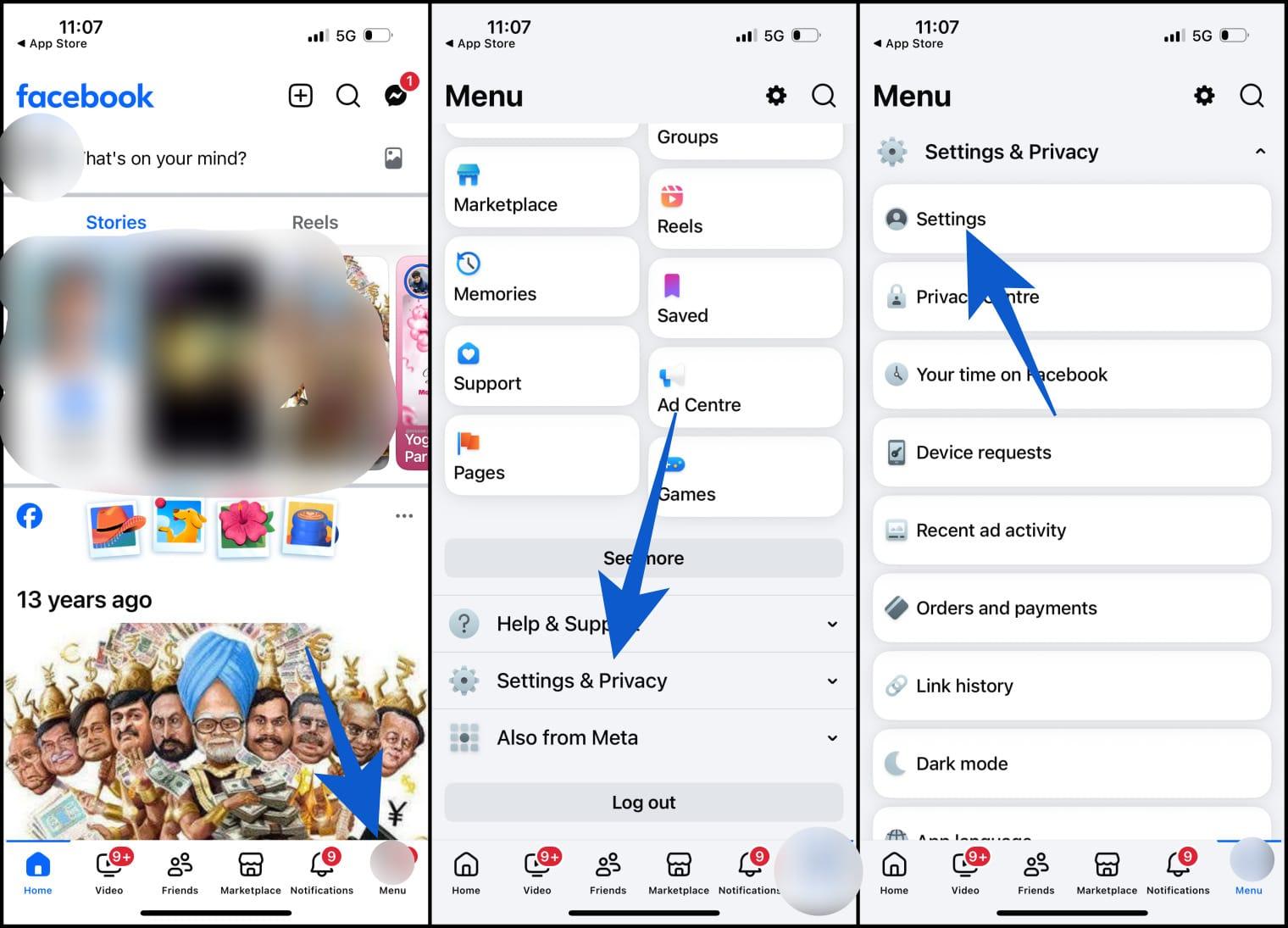
- Go to Accounts Center → Profiles.
- Select your Facebook account.
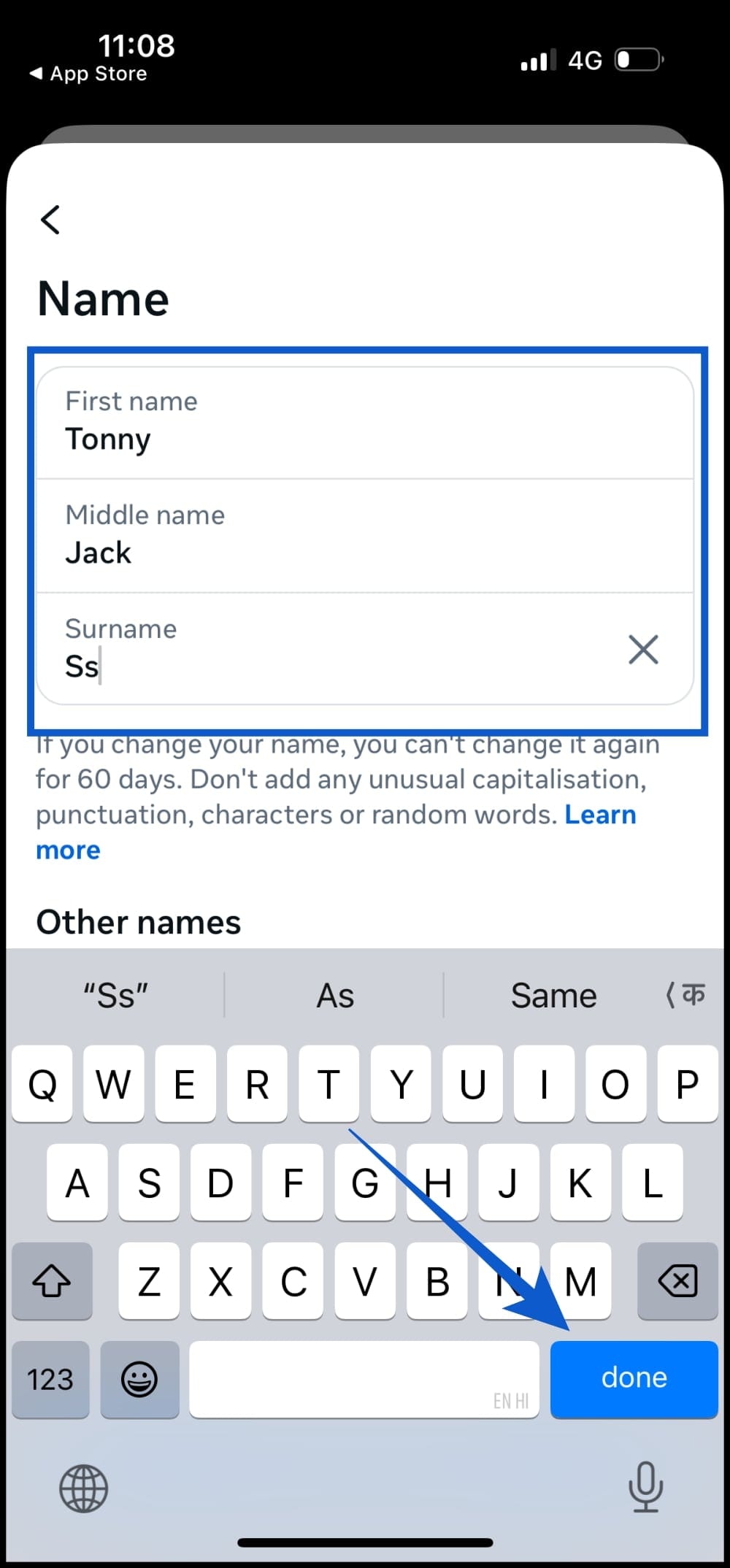
- Tap Name.
- Edit your first, middle, and last name.
- Tap Review change.
- Choose the display format and tap Done.
It can take a few hours for the new name to appear everywhere on Facebook.
How to Change Your Facebook Username (Profile URL)
Your username is part of your profile link and can be updated separately.
On Web
- Log in to Facebook and click your profile picture.
- Go to Settings & privacy → Settings.
- Open Accounts Center/Personal info → Profiles → Your Facebook account → Username.
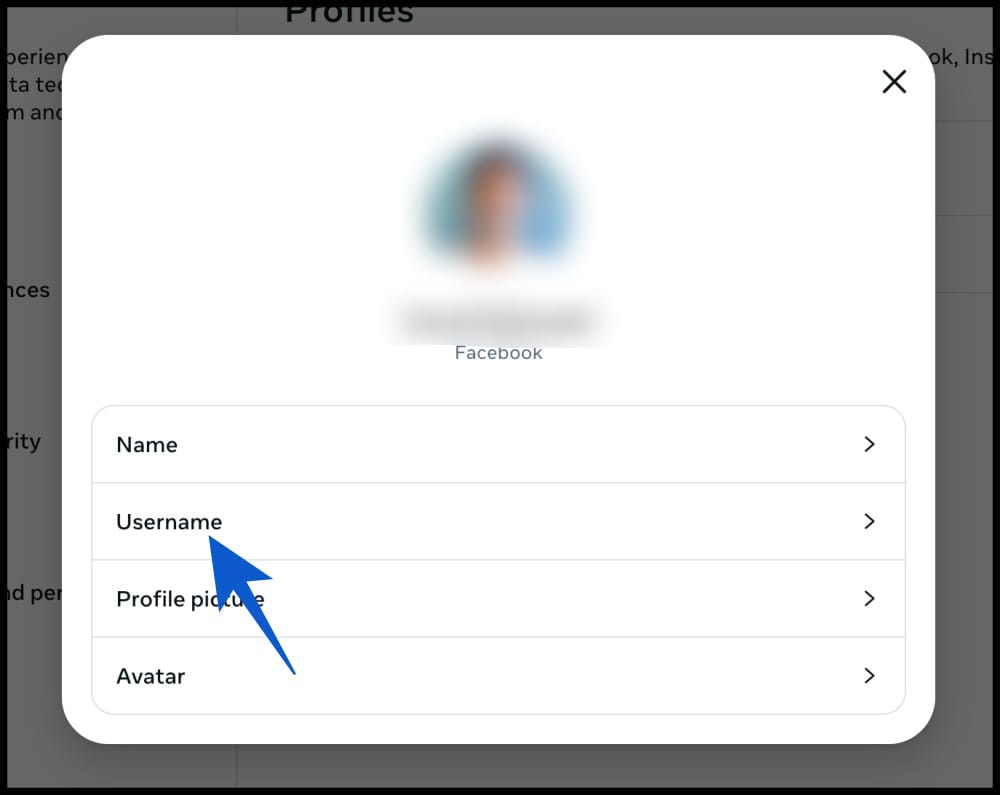
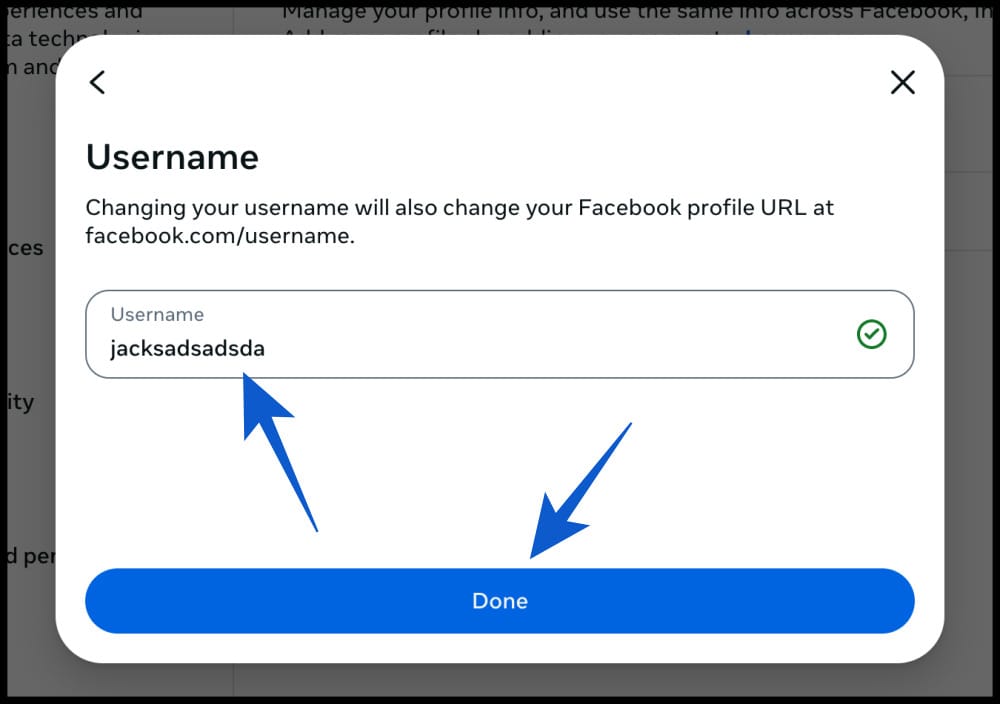
- Enter a new and unique username.
- Save changes.
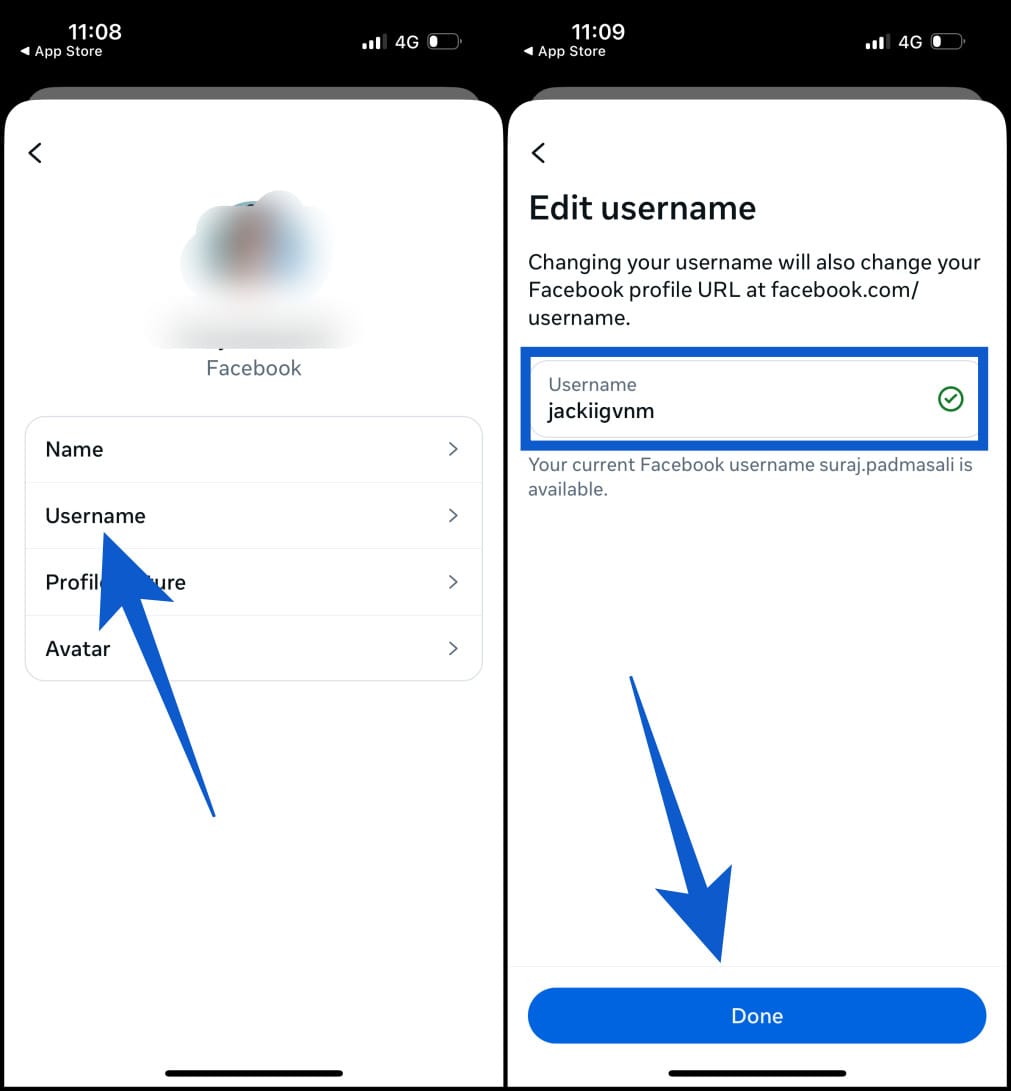
On iPhone or Android
- Open the Facebook app and tap the menu icon (☰).
- Go to Settings & Privacy → Settings → Accounts Center → Profiles.
- Select your Facebook account → Username.
- Edit and save.
How to Change Your Facebook Page or Business Name
If you manage a Facebook Page, you can also update its name.
- Log in and open the Page you manage.
- Click Settings from the left menu and select Page setup option.
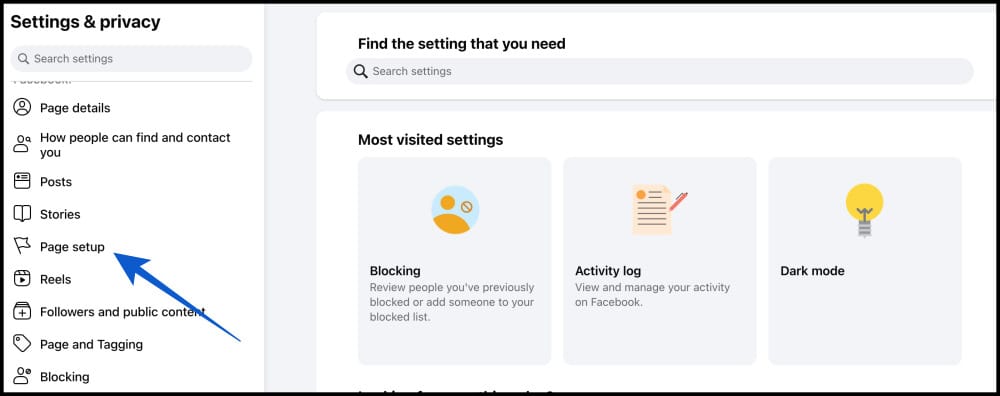
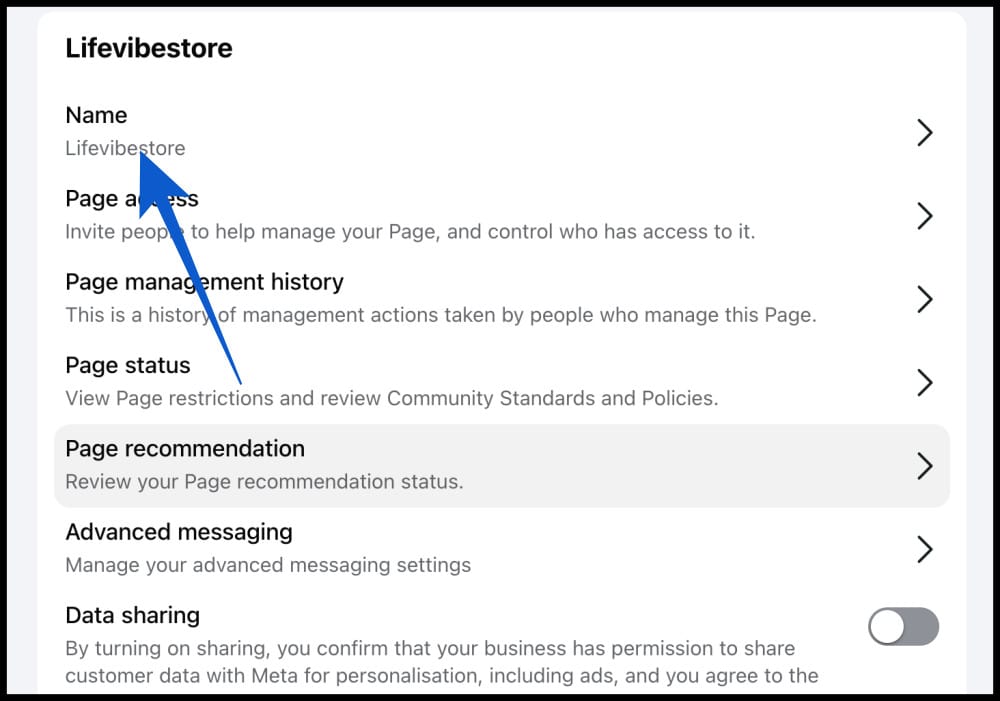
- After that, click Name.
- Click Edit next to the Name.
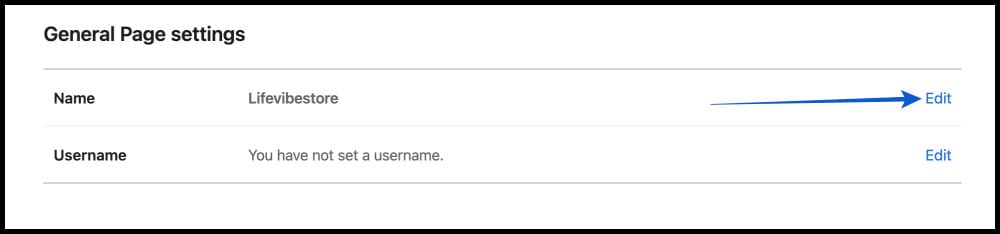
- Now, you can enter your new name and click Review Changes.
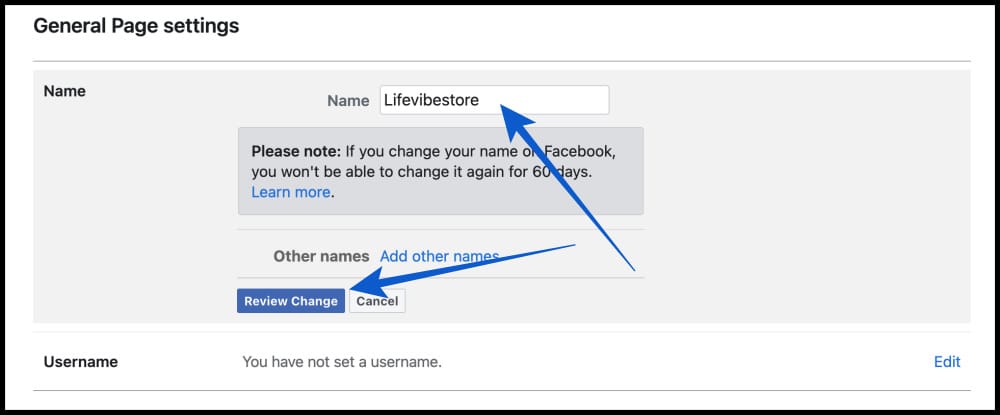
Facebook may review your request, and approval can take up to three days.
Why You Can’t Change Your Name on Facebook (Common Issues & Fixes)
If you cannot change your name, one of these reasons is usually the cause.
- Name not updating: Name changes can take up to 24 hours to show across Facebook. Wait a day and check again.
- Unable to change your name: You can only change your name once every 60 days. If you see a message saying you must wait, the limit has not reset yet.
- Name rejected by Facebook: If your name does not meet Facebook’s standards, the system will reject it. Remove symbols, titles, or unusual formatting and try again.
- ID verification request: If your new name is very different, Facebook may request a government-issued ID or another approved document. Upload the requested proof to continue.
Tips for Choosing a Facebook Name That Gets Approved
Use these best practices to avoid issues and look professional.
- Use the name people know you by: Stick to your real name or a commonly used variation so friends can recognize you easily.
- Avoid numbers and special characters: These often trigger rejections and can make your profile look spammy.
- Keep it consistent across platforms: Using the same name on other social networks helps with recognition and personal branding.
- Public figure or business owner: Consider creating a Facebook Page instead of using a personal profile for professional use.
Conclusion
Changing your name on Facebook is straightforward once you know where to look and what rules to follow. Complete the steps for your device, stay within Facebook’s name policies, and remember the 60-day limit.
If you are updating your name for privacy or personal branding, you should also consider making your Facebook profile private. This limits who can see your posts, friends list, and personal details, giving you better control over your visibility on the platform.
You may also want to hide likes on Facebook if you prefer to keep your activity low profile or reduce public engagement signals on your posts.
Yes. Facebook allows one name change every 60 days, so you can change it multiple times per year.
No major changes. Facebook lets you preview how your name will appear before you confirm it.
Yes. Facebook allows additional names like nicknames or maiden names if they follow policy.
Your Facebook name does not have to match your ID exactly. However, if it differs significantly, Facebook may request verification, so choose a name that can reasonably match an accepted document.
You may like to read: