Want to turn off joins in Roblox so strangers stop dropping into your server?
The fix takes less than a minute. Roblox has spent much of 2026 strengthening its privacy controls, rolling out Trusted Connections, age estimation checks, and more granular options for managing who can interact with you across the platform. One setting that still trips people up, however, is the one that controls who can follow you directly into the experience you’re currently playing. If a stranger, or even a friend you’d rather not team up with at the moment, keeps appearing in your server, the solution lives in your privacy settings, not inside the experience itself.
This matters more than it might seem. Allowing anyone to join you exposes your current activity to your friends list, your followers, or, depending on your privacy settings, anyone on Roblox. For younger players especially, an open join setting is one of the most common ways unwanted interactions begin. Turning it off takes only a few seconds, and it doesn’t stop you from inviting people yourself. You can still send direct invites or share a private server link with anyone you actually want to play with.
Below, you’ll find the exact steps for PC, iPhone, and Android, along with a breakdown of what each Who can join me option actually does.
What Does Turning Off Joins Mean in Roblox?
“Joins” refers to other users’ ability to follow you directly into an experience by selecting Join Experience from your profile or search results. As long as this setting is enabled, anyone who falls within your selected visibility settings can see what you’re playing and join your server with a single click.
Turning it off doesn’t log you out, restrict your account, or limit which experiences you can play. It simply removes that one-click entry point into your session for everyone except the audience you choose, including No One, if you want complete privacy.
How to Turn Off Joins in Roblox on PC
The setting lives under your account’s Privacy menu, and any changes apply instantly across every device linked to your account.
- Log in to Roblox in your web browser.
- Click the gear icon in the top-right corner and select Settings.
- Open the Privacy tab from the left sidebar.
- Scroll to Visibility & Private Servers (the name may vary slightly).
- Under Visibility, locate Show Current Experience (or Who can join me in experiences?).
- Set it to No One.
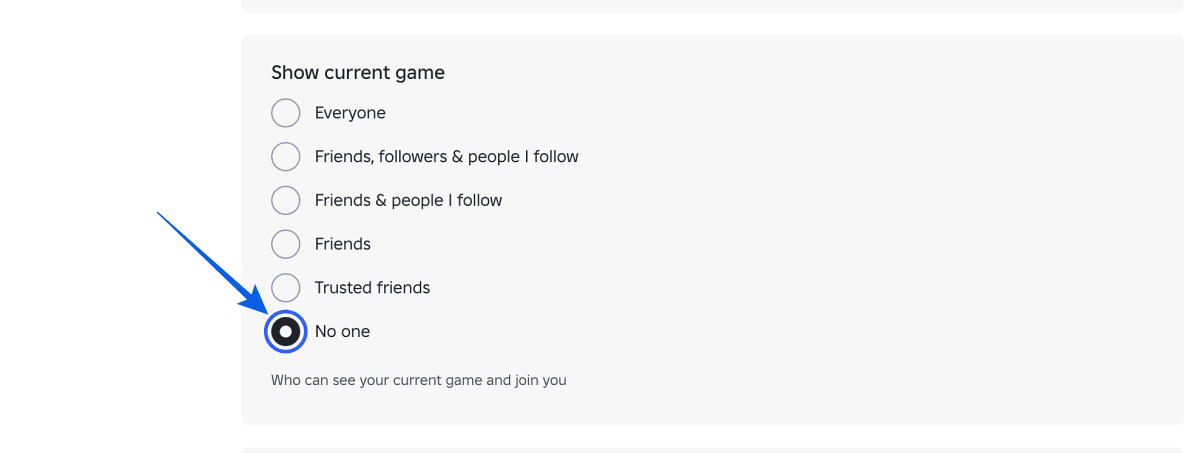
The setting saves automatically. For even more privacy, you can also disable Share Activity Updates.
How to Turn Off Joins in Roblox on iPhone and Android
The Roblox mobile app uses the same setting, although it’s tucked a little deeper into the menu.
- Open the Roblox app.
- Tap More (the three-dot menu) in the bottom-right corner.
- Go to Settings > Privacy.
- Scroll to Visibility & Private Servers.
- Tap Visibility.
- Set Show current experience to No one.
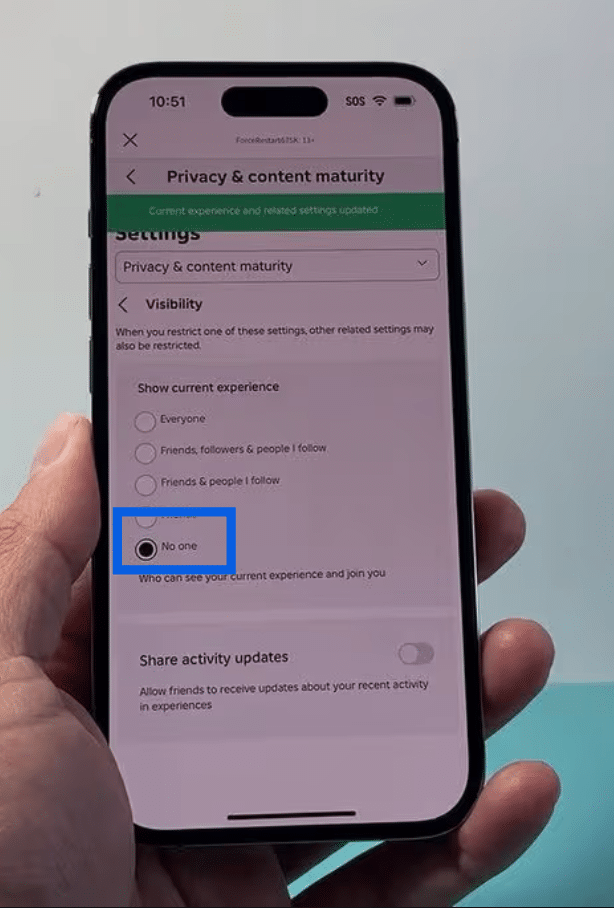
The change syncs instantly across your account, so if you check the setting later on your PC, it’ll already be updated.
How to Disable Joins in Your Own Roblox Experience (For Developers)
If you’re a Roblox developer and want to control how players join your own experience, you have a couple of options:
- Use Reserved Servers through TeleportService for invite-only sessions.
- Adjust Audience > Access Settings in your experience’s configuration through the Creator Dashboard to limit direct access to specific places.
Who Can Join Me in Roblox? Explained
The options available under Who can join me can vary depending on your account’s age, region, and safety settings. Younger accounts typically see fewer options, while older accounts may have broader visibility choices.
| Option | Who can join you |
|---|---|
| Everyone | Any Roblox user, whether they’re your friend or not |
| Friends of Friends / Following | Extended social circles, such as friends of friends or accounts you follow (availability varies) |
| Friends | Only users on your friends list |
| No One | Nobody can join your experience directly |
If you don’t see every option listed above, it’s usually because your account’s age restrictions or regional safety settings limit what’s available. That’s intentional, not a bug.
How to Turn Off Party Invites in Roblox
Joins and Party are separate systems, so disabling one doesn’t affect the other.
Party allows up to six friends to move between experiences together while sharing a group chat. It has its own privacy controls that many players overlook.
To change Party permissions: Settings > Privacy > Communication > Party.
(On some devices, this section appears under Privacy & Content Restrictions.)
From there, you can choose who can add you to one-on-one or group Parties. Both settings default to Friends, but you can switch them to No One if you’d rather disable Party invitations entirely.
Keep in mind that setting Party to No One also disables Party Chat, so only use this option if you don’t plan to use Roblox Parties at all.
Use Private Servers Instead of Public Joins
Turning off joins doesn’t mean isolating yourself from friends.
Private servers let you invite exactly who you want through a shared invite link without exposing your activity to everyone else. It’s the ideal middle ground for players who want stronger privacy while still enjoying multiplayer sessions with friends.
Wrapping Up
Roblox has spent much of 2026 making its privacy controls more accessible, and the Who can join me setting remains one of the simplest, most effective ways to control who can interact with you while you’re playing. With features like Trusted Connections already rolling out, it’s likely Roblox will continue adding more granular audience controls over time, making it worth revisiting your privacy settings every so often.
Have you turned off joins, or do the settings look different on your device? Let us know in the comments below.
It removes the Join Experience button from your profile and search results for anyone outside your selected audience, preventing them from joining your current session with a single click.
They most likely joined through Roblox’s regular matchmaking. If you’re both entering the same public experience, Roblox may place you in the same server by chance. That’s normal matchmaking, not someone joining through your profile.
No. Party invitations have their own privacy settings under Settings > Privacy > Communication, so you’ll need to disable them separately if you don’t want Party invites.
Generally, no. Younger accounts are usually limited to more restrictive options, such as Friends or No One, while broader visibility options are reserved for older accounts.
Not completely. Friends can still view your profile and contact you based on your other privacy settings. Turning off joins only removes the direct one-click option to enter your current experience.
Absolutely. You can invite friends directly or share a private server link without reopening your public join settings.
Don’t miss these related reads: