If you’re anything like us, you’ve been using Roblox on all your platforms to game away for years. However, all those years of cache buildup can suddenly or gradually start causing problems, resulting in game crashes, PC errors, and or simply the Roblox platform failing. Even newbies can run straight into a corrupted Roblox cache. So if you’re someone suffering from gaming issues, learn how to clear Roblox cache on Windows, Mac, Android, and iPhone here.
How to Clear Roblox Cache on PC
Thankfully, clearing your Roblox cache on Windows is quite easy. It just involves deleting a single folder. Follow the steps below to do so:
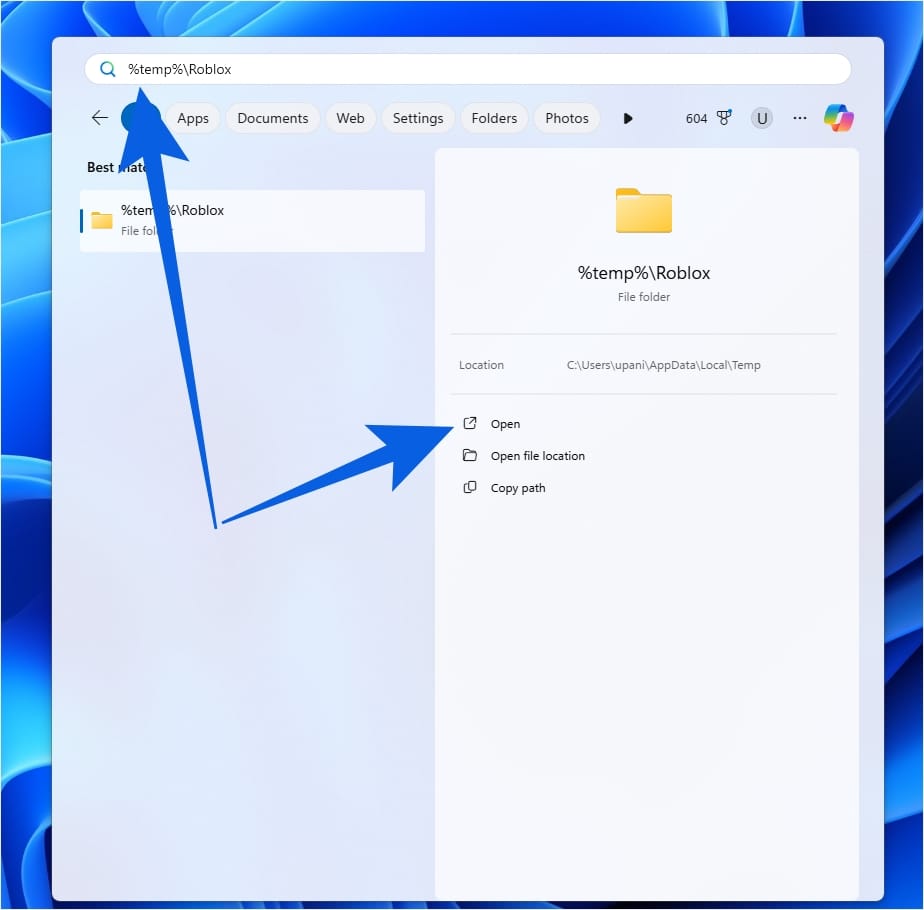
- Go to the Start Menu and type “%temp%\Roblox”
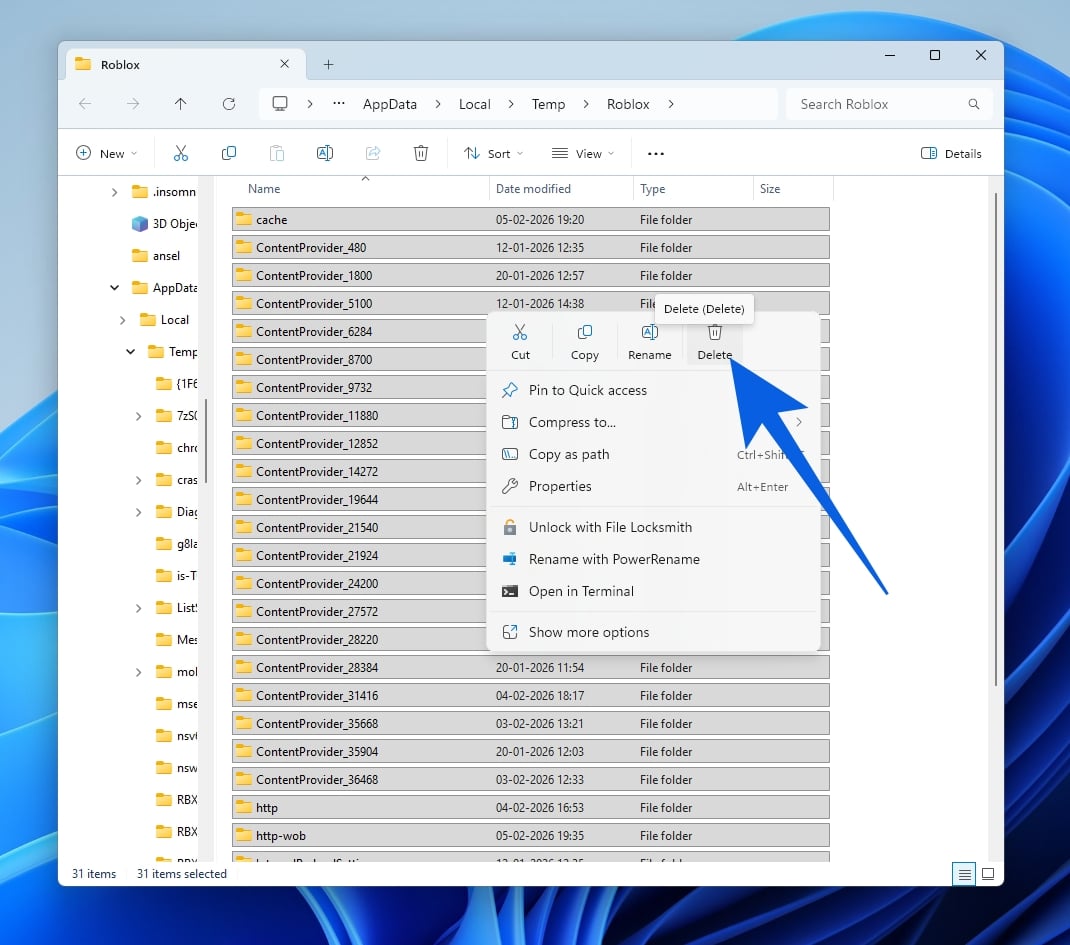
- These are all the folders Roblox is storing as cache. Proceed to delete everything here.
- Now, go back to the start menu and type “%localappdata%\Roblox”
- As before, delete all the folders here.
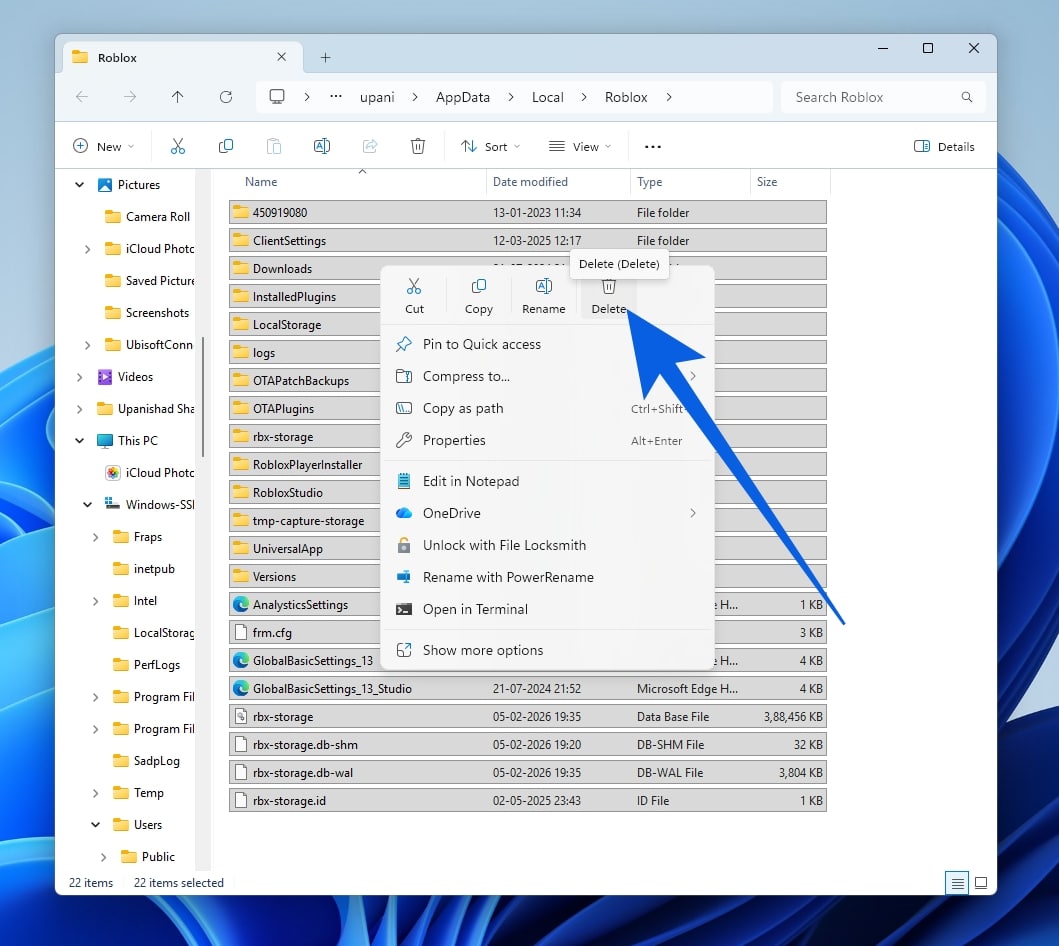
Deleting the folders above will force the platform to do a refresh and clear all Roblox cache.
How to Clear Roblox Cache on Mac
Clearing your Roblox cache on Mac is even easier. Follow the steps below:
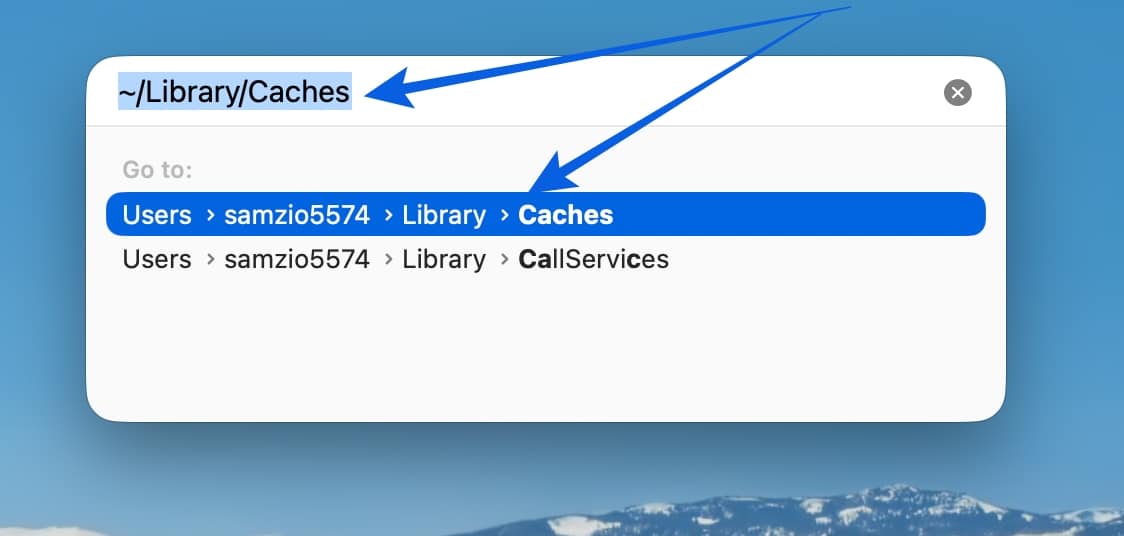
- Open up the run menu by clicking “Shift + Command + G.”
- On the menu that opens up, type “~/Library/Caches”
- Look for a folder called “com.roblox.RobloxPlayer”
- Select it and choose the Move to Bin option to delete.
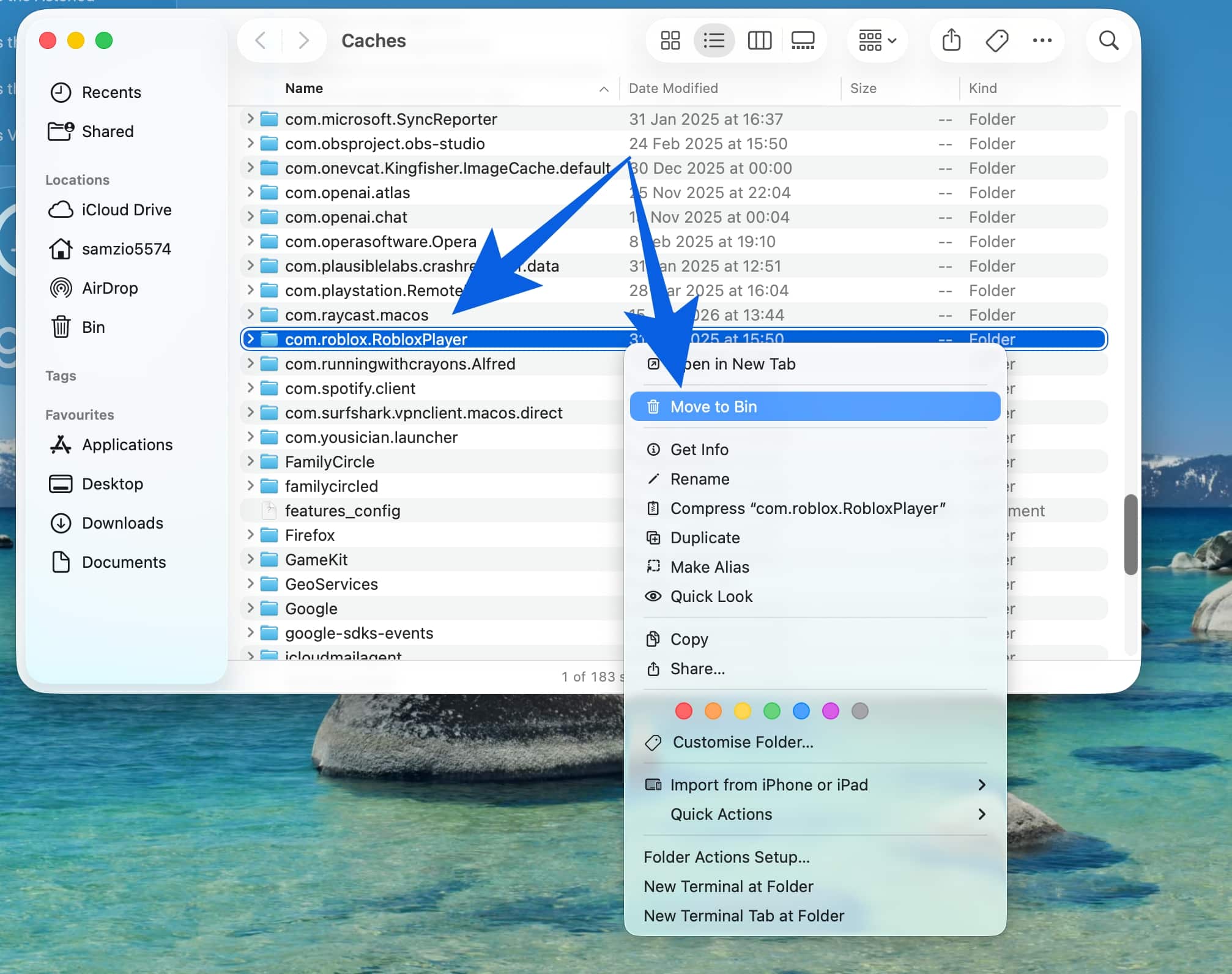
This will easily clear up the Roblox cache on Mac and will ensure your game starts up faster.
How to Clear Roblox Cache on Mobile
A lot of mobile users are on Roblox and might be suffering from the same issue. Follow the steps below to clear that pesky cache on both Android and iOS:
Clear Roblox Cache on Android
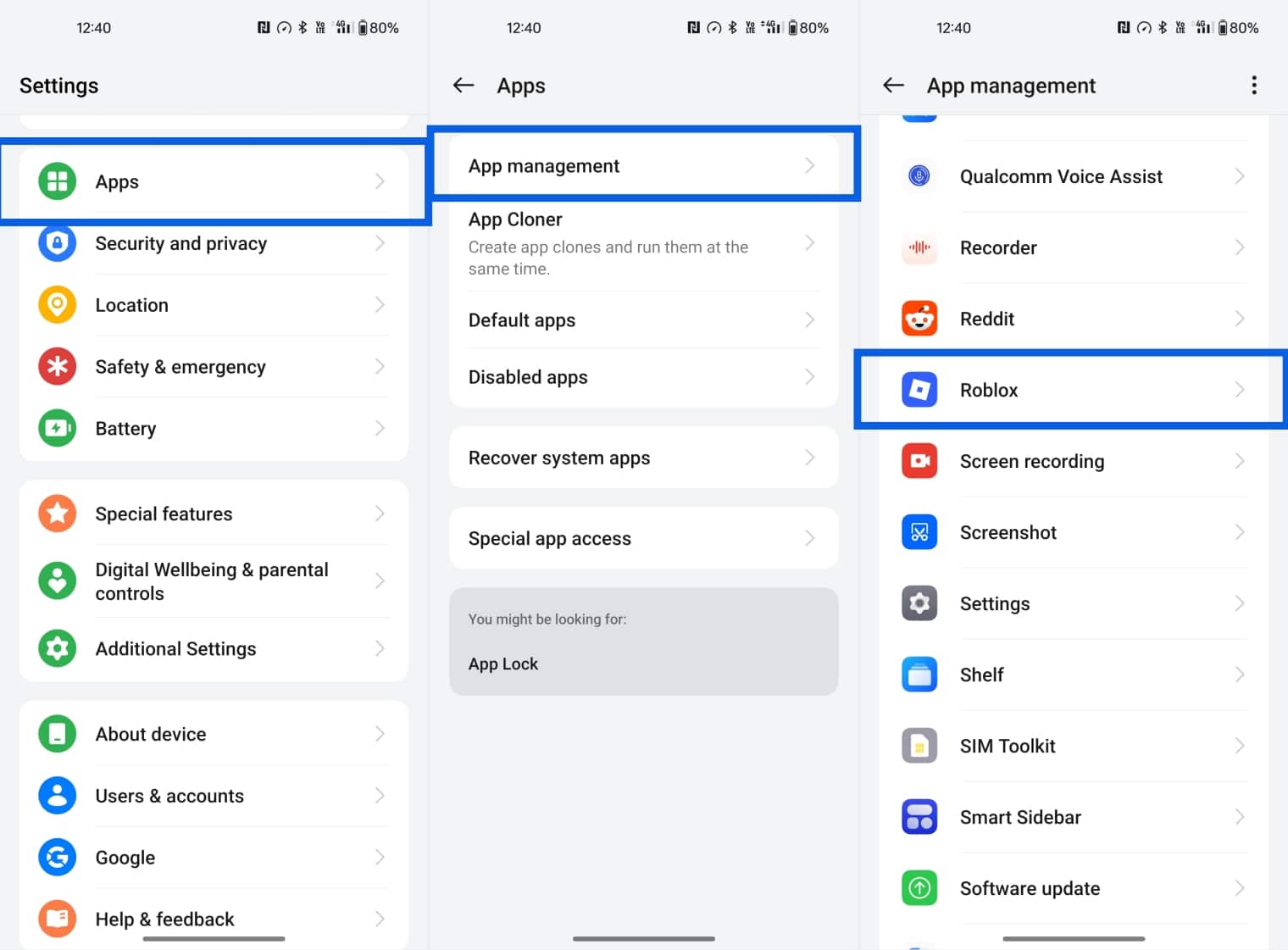
- Navigate to Settings > Apps > App Management.
- Find Roblox and tap on it.
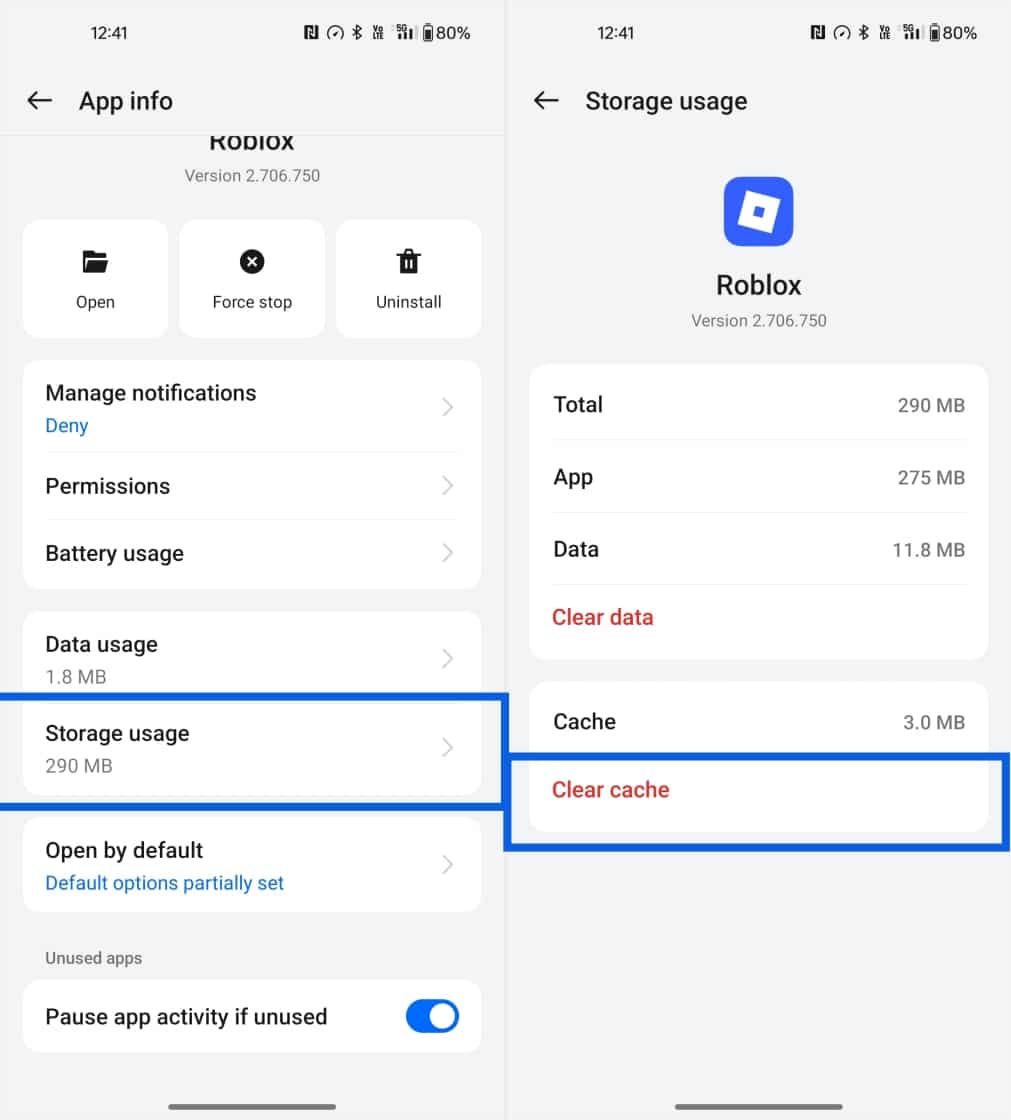
- Now tap Storage Usage.
- Finally, tap Clear Cache, and you’re done.
Clear Roblox Cache on iOS
Unfortunately, clearing the Roblox cache on iOS isn’t directly possible. However, you can offload or delete the app to clear up space and refresh it. Follow the steps below to do so:
- Open Settings and head over to General > iPhone Storage.
- Find Roblox and tap on it.
- Now tap Offload app and confirm to clear the Roblox cache on iOS.
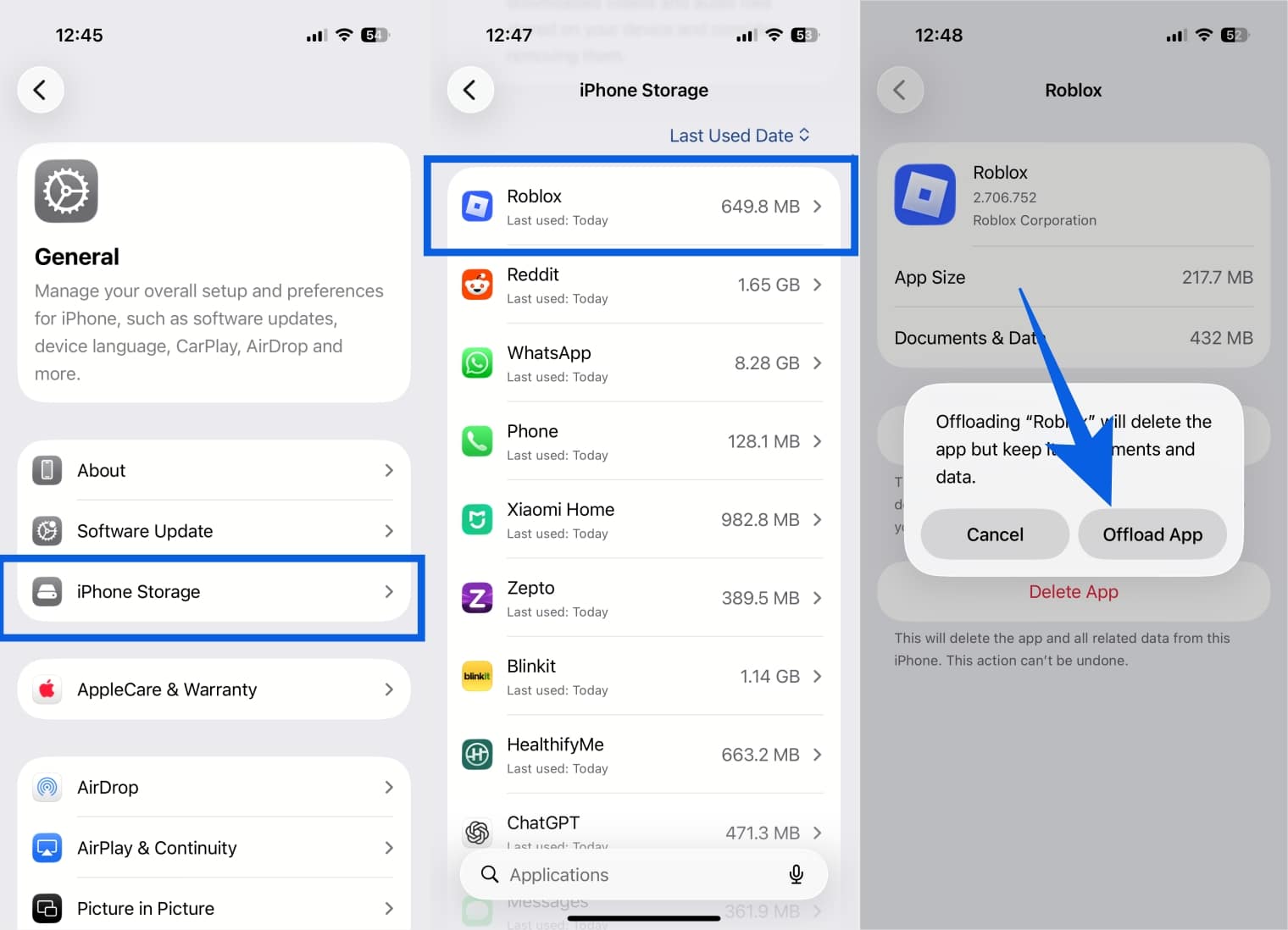
Once you’re done, you can click reinstall the app and get back to it with a fresh cache anytime.
Final Thoughts
And that is how you clear the Roblox cache on Windows, Mac, Android, and iPhone. We hope our detailed guide above helped you understand how to go about it. If you’re still having trouble, then drop your questions in the comments below!
No, clearing the cache will not interfere with your account in any way whatsoever.
Generally speaking, you only need to clear the Roblox cache whenever you run into any issues.
Clearing the cache will remove any bugs and issues. However, the general performance of games, including FPS, will largely remain the same.
You may like to read: