Do you know your account’s country setting controls what you see and how you shop on Amazon? If you’ve moved abroad, are traveling, or simply want to browse another marketplace, changing your Amazon account country ensures correct currency, shipping availability, and content access.
But it’s not as simple as updating the delivery address. Switching your country affects your Prime Video library, Kindle books, payment methods, and even gift card balance. Here’s a quick guide to help you transfer your Amazon account to a different country or region the right way. You’ll also learn what happens to your Prime membership and digital content.
Before You Change Your Amazon Account Country: Important Things to Know
Before diving in, here are some essential pointers you must know about:
- Your Amazon country is your marketplace: Each country has its own Amazon store with different products and services. For example, Amazon US, Amazon UK, Amazon India, and more.
- Prime benefits won’t transfer: Prime Video and shipping perks vary by region. When I moved from India to the U.S., I had to re-subscribe because my Prime perks didn’t carry over.
- Digital content may be temporarily unavailable: Kindle books, Amazon Music, and Audible titles may not appear in your new region if it’s not available in the new marketplace.
- Local address and payment method are required: You must have a local shipping address and a valid payment method for the new country.
- Switching limits apply: Amazon does not let you change countries too often. In most cases, you can only switch once every few months.
- Certain regions cannot be switched: Accounts created on Amazon Japan or Amazon China cannot be transferred to other countries.
Tip: If you are just traveling short-term, you don’t have to go all-in. Amazon’s International Shopping feature is way less hassle. I will explain later
What Transfers and What Doesn’t When You Change Your Amazon Account Country
When you transfer your account to a new region on Amazon, not everything moves with you.
| Transfers to the New Country | Does NOT Transfer |
|---|---|
| Kindle books and purchased digital reading content | Amazon Prime membership (must re-subscribe in the new country) |
| Audible audiobooks | Amazon Music Unlimited, Kindle Unlimited, Kids, Kids+, Luna subscriptions (cancelled on transfer) |
| Amazon Music library and purchased tracks | Amazon Family and Family Library profiles (deleted) |
| Prime Video access and compatible purchases (if supported locally) | Billing details and 1-Click payment settings |
| Apps, games, and in-app purchases from the Amazon Appstore | Rented or purchased Prime Video titles and books borrowed through Prime Reading |
| Amazon Drive files and stored digital data | Amazon gift card and promotional balances (only available in the original marketplace) |
How to Change Country in Amazon App on iPhone
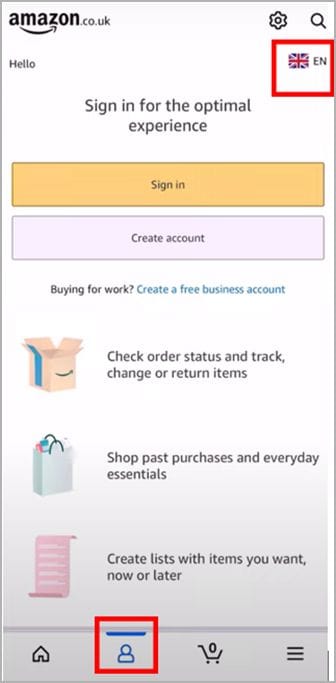
- Open the Amazon Shopping app and log in.
- Tap the You icon at the bottom.
- Tap the Flag icon on the top right side.
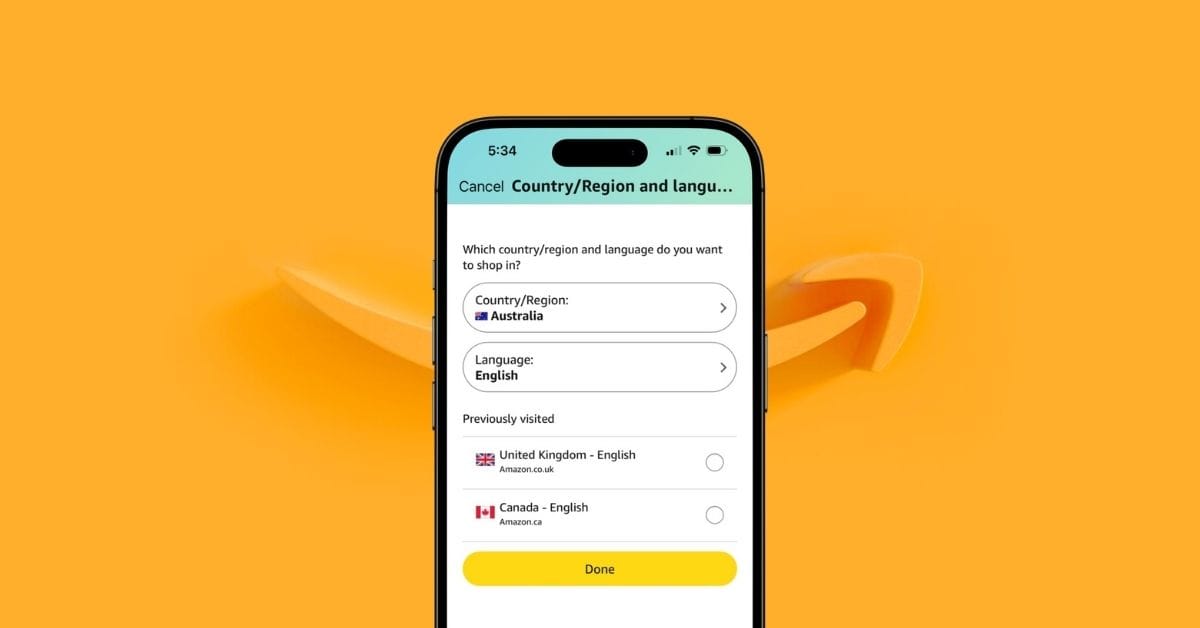
- Select Country/Region.
- Now, pick any country you want.
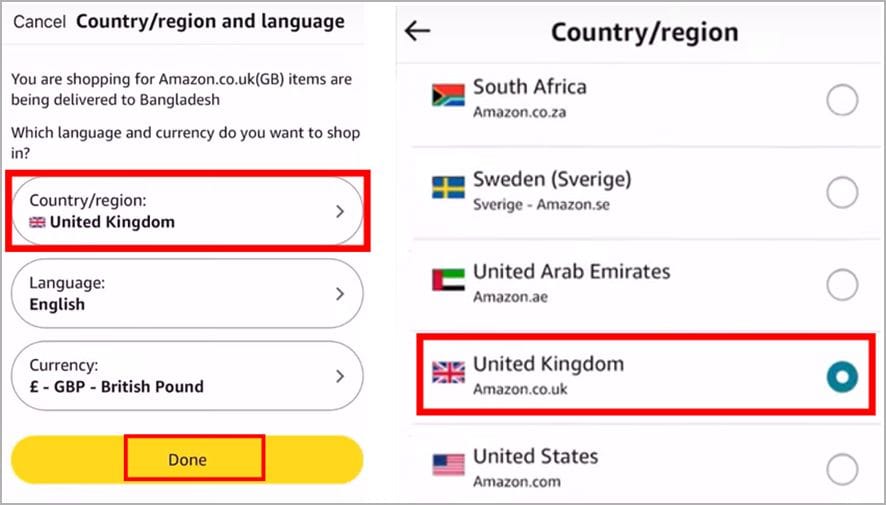
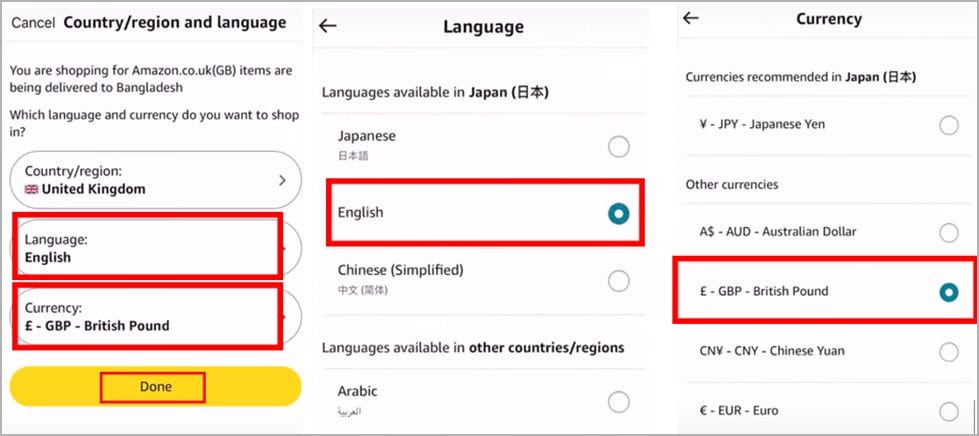
- You can also change the language and currency from the Language and Currency options.
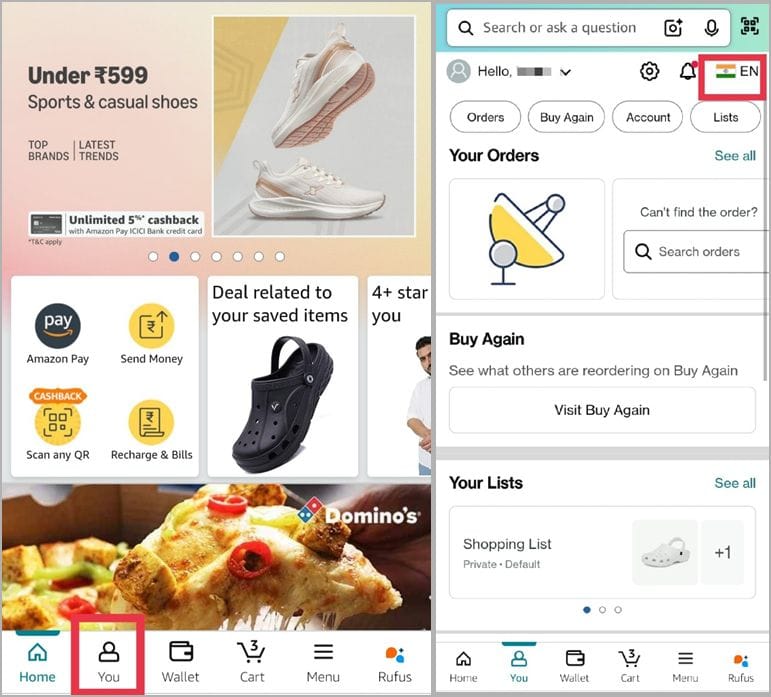
How to Change Country in Amazon App on Android
- Open the Amazon Shopping app and log in.
- Tap the You tab.
- Tap the Flag icon.
- Now, select any country from the options and tap Continue.
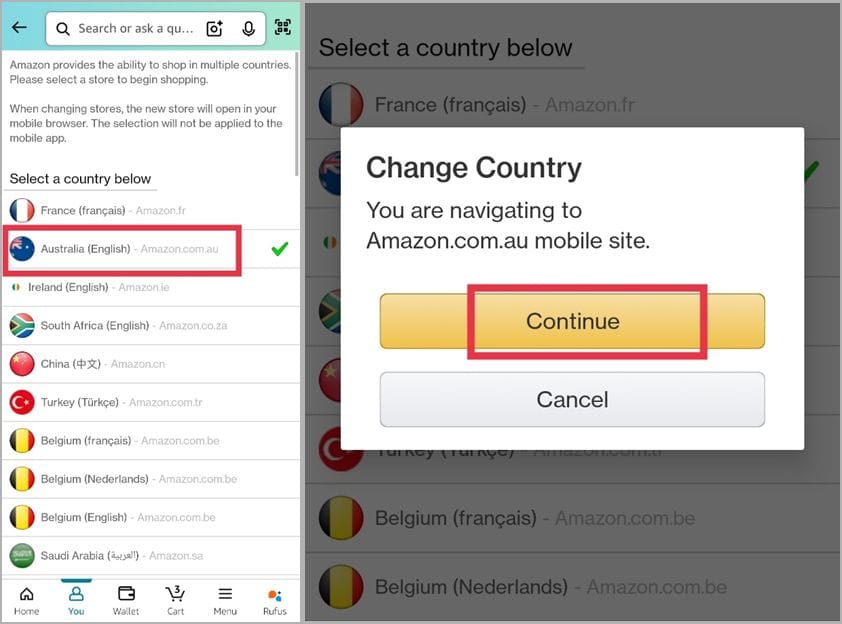
That is it, you have officially switched regions.
What I noticed right away:
- The product catalog and prices have completely changed.
- My Prime shipping perks updated instantly.
- My recommendations reset, which was annoying at first but also kind of refreshing.
Note: If you use Prime Video on your phone, expect your library to appear differently. Shows and movies are licensed by region, so don’t be surprised when your favorite series disappears from your region.
How to Change Country in Amazon Desktop Site
If you prefer shopping on your laptop like I do for bigger hauls, here is how it works:
- Open Amazon.com or your local Amazon site.
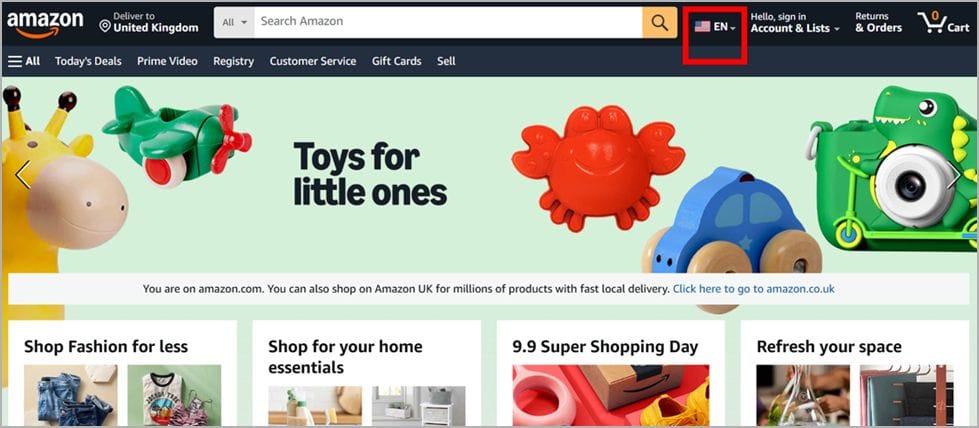
- Hover your mouse over the flag icon near the search bar.
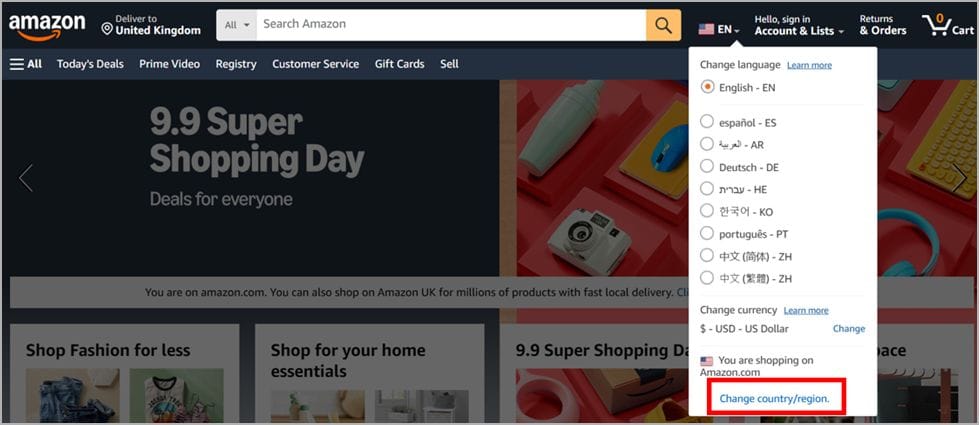
- From the drop-down menu, click Change country/region.
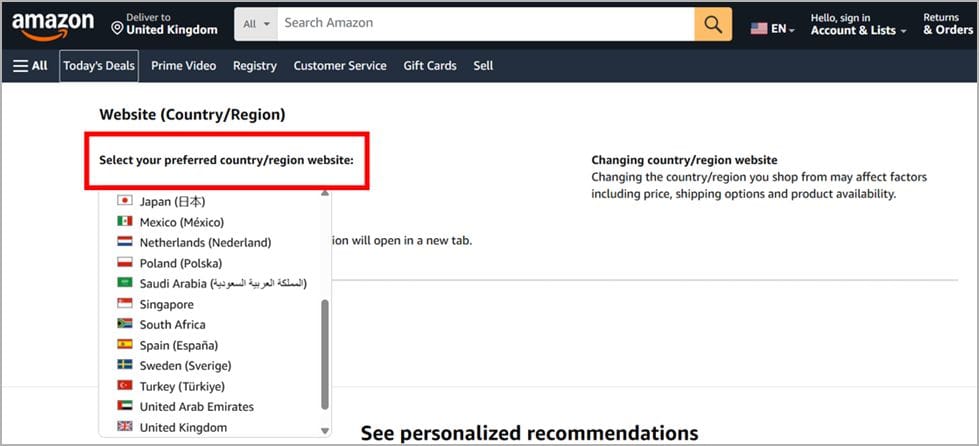
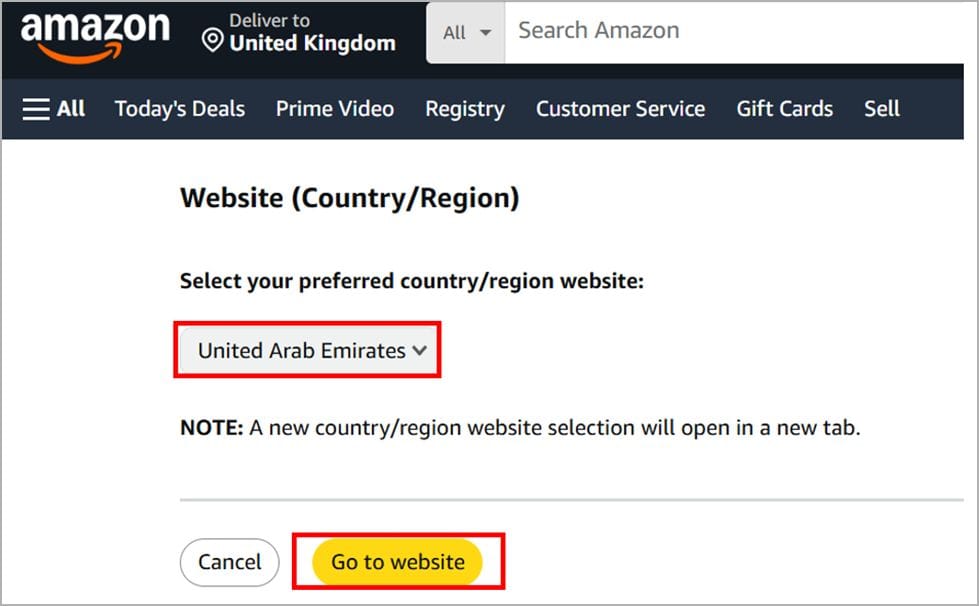
- Select your new country from the list and click Go to Website. A new tab will open with the Amazon store for that country.
Related: How to Cancel Your Amazon Prime Membership on Mobile or Desktop
How to Permanently Switch Your Amazon Account to Another Country
If you are moving to a new country and want to officially transfer your Amazon account, follow these steps:
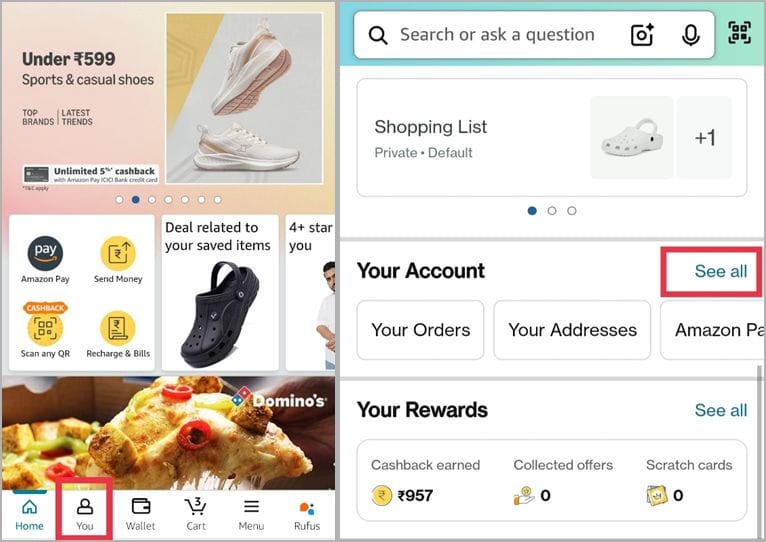
- Go to the You tab, then scroll down and click See all under Your Account.
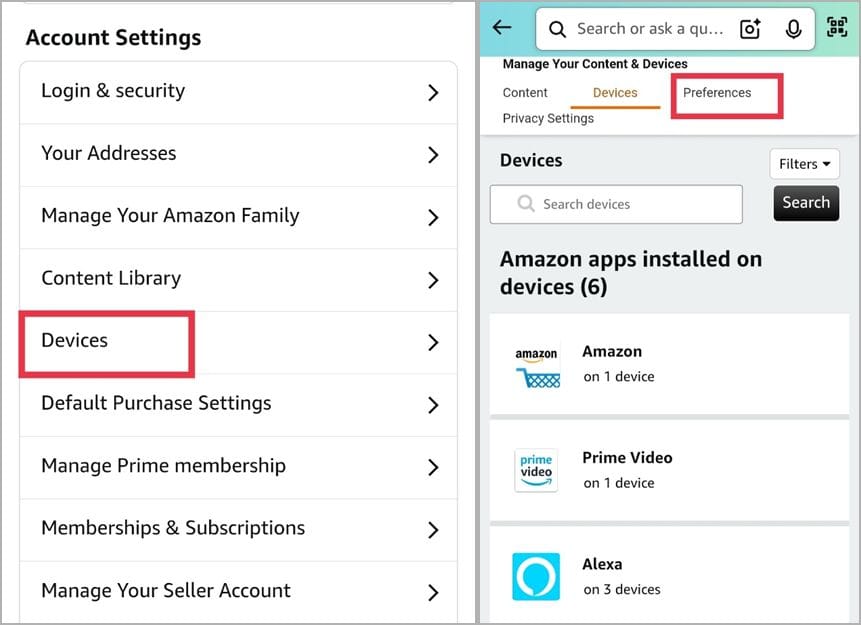
- In Account Settings, choose Devices.
- Open the Preferences tab.
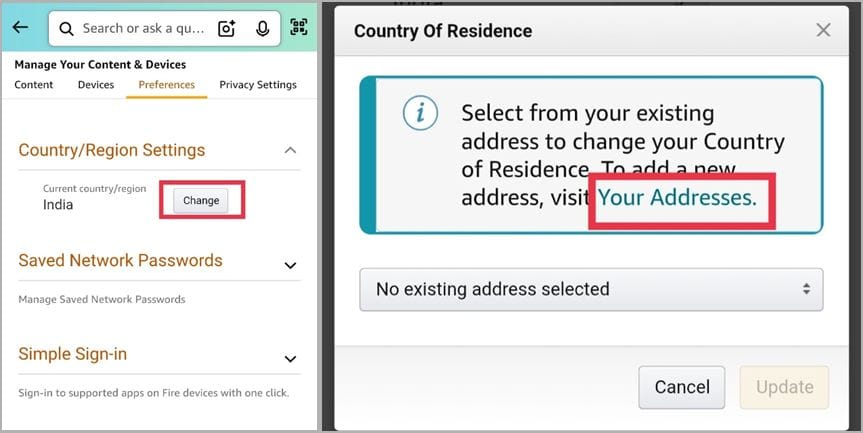
- Find Country/Region Settings and select Change > Click Your Addresses.
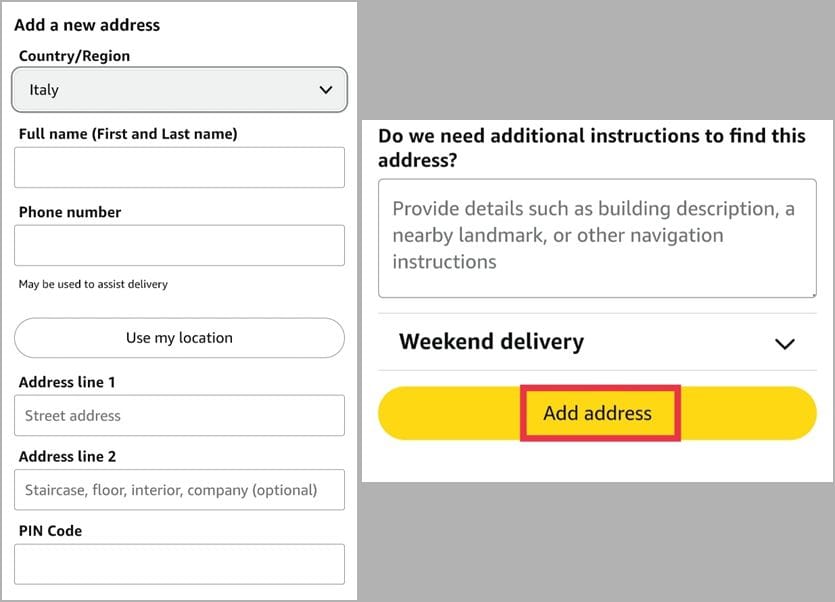
- Enter your new country and a valid billing address.
- Tap Add address to confirm and complete the transfer.
Why Amazon Requires a Local Address When Changing Country
Amazon asks for a valid local address because it affects three things.
- Taxes: Your country’s tax rules decide what you pay.
- Shipping: Only certain items can be shipped to your location.
- Digital rights: Access to music and movies often depends on your region.
Switch to a Different Amazon Digital Services Marketplace
This is where things get messy. Amazon’s digital services are more tied to geography than its physical products.
1. Kindle and eBooks
Your Kindle Store changes the moment you switch to a different country. As a result, some titles may be missing depending on the region you select. Therefore, ensure that you update your Kindle’s region. You can do it via the Manage Your Content and Devices option.
Tip from my own trial – If you switch back later, your eBooks reappear and nothing gets deleted. They’re just hidden in the wrong country.
2. Amazon Prime Video
When you change your location, your Amazon Prime library changes drastically. For example, downloaded shows can vanish without warning. If you want to keep watching abroad, you may need to use a VPN. But remember that Amazon doesn’t officially allow it.
3. Amazon Music and Audible
Your playlists can reset, and some tracks can even disappear when you change countries. Also, Audible credits don’t move across regions, so use them up first. I learned this the hard way when I lost two credits during my switch.
Common Problems When Changing Your Amazon Account Country (and How to Fix Them)
When I switched my region, Amazon threw a few curveballs. Here are the biggest issues and how I solved them.
1. “Unable to Switch Country” Error
This usually happens if you have a gift card balance. You will get the error when you try changing the region. However, you can easily fix it by spending or transferring the funds before switching.
2. Prime Membership Conflict
If you already have Prime, it can block the switch. In fact, many people face this problem. One easy solution is to simply cancel your membership or let it expire. You can retry after that.
3. Payment Method Issues
Old cards often don’t work in a new region. So, you need to change the payment option. You can simply add a local payment card or use an international Visa/MasterCard.
4. Missing Digital Content
Kindle books or shows might not appear when you change regions. Refresh your content and devices under Manage Your Content and Devices to resolve this issue.
Final Thoughts
Changing your Amazon country helps if you’ve moved or want access to regional pricing and services, but you may lose some digital content and need a local payment method. When I moved, switching was the only way to get fair pricing and proper delivery. If you just want to browse products from other regions, try International Shopping instead. It’s easier and doesn’t require changing your whole account.