You receive a DM on Instagram and open it out of habit, only to realize you do not have the time or energy to reply. By then, the message already shows “Seen.” While read receipts are meant to be helpful by showing when a message is read, that small label often creates unnecessary pressure. Pressure to reply immediately. Pressure to avoid appearing rude or uninterested.
Because of this, many users want better control over their Instagram DM privacy. Thankfully, Instagram now offers built-in settings to turn off read receipts. In this guide, you will learn how to disable read receipts on Instagram, whether for all chats or a single conversation. You will also understand the difference between read receipts and Instagram’s activity status.
What Are Read Receipts on Instagram?
Read receipts on Instagram are indicators that show when someone has viewed your direct messages. Once the recipient opens the chat, Instagram marks the message as “Seen” below the message.
Read receipts behave differently depending on the chat type:
- Regular DMs: A “Seen” status appears once the message is opened.
- Group chats: Instagram shows which members have seen the message, often with small profile icons next to the “Seen” label.
- Disappearing messages: In vanish mode or for disappearing photos and videos, Instagram notifies the sender when the media is viewed again or if a screenshot is taken.
Instagram allows you to turn read receipts on or off, either for all chats or for individual conversations. However, disabling them also means you will not be able to see when others read your messages.
There are a few situations where you may not see a read receipt:
- The recipient has turned off read receipts
- The message was received but not opened
- The chat is restricted or moved to message requests
Can You Turn Off Read Receipts on Instagram?
Yes. Instagram allows you to turn read receipts off in two ways:
- For all chats at once
- For a specific conversation only
Note
When you disable read receipts, the setting works both ways. You will not be able to see when others read your messages.
This setting does not affect your activity status or whether people can see when you are online.
How to Turn Off Read Receipts for All Instagram Chats
You can turn read receipts off on Instagram using an iPhone, iPad, or Android device.
Follow these steps:
- Open Instagram and go to your profile.
- Tap the three-line menu in the top-right corner.
- Scroll down and select Messages and story replies under How others can interact with you.
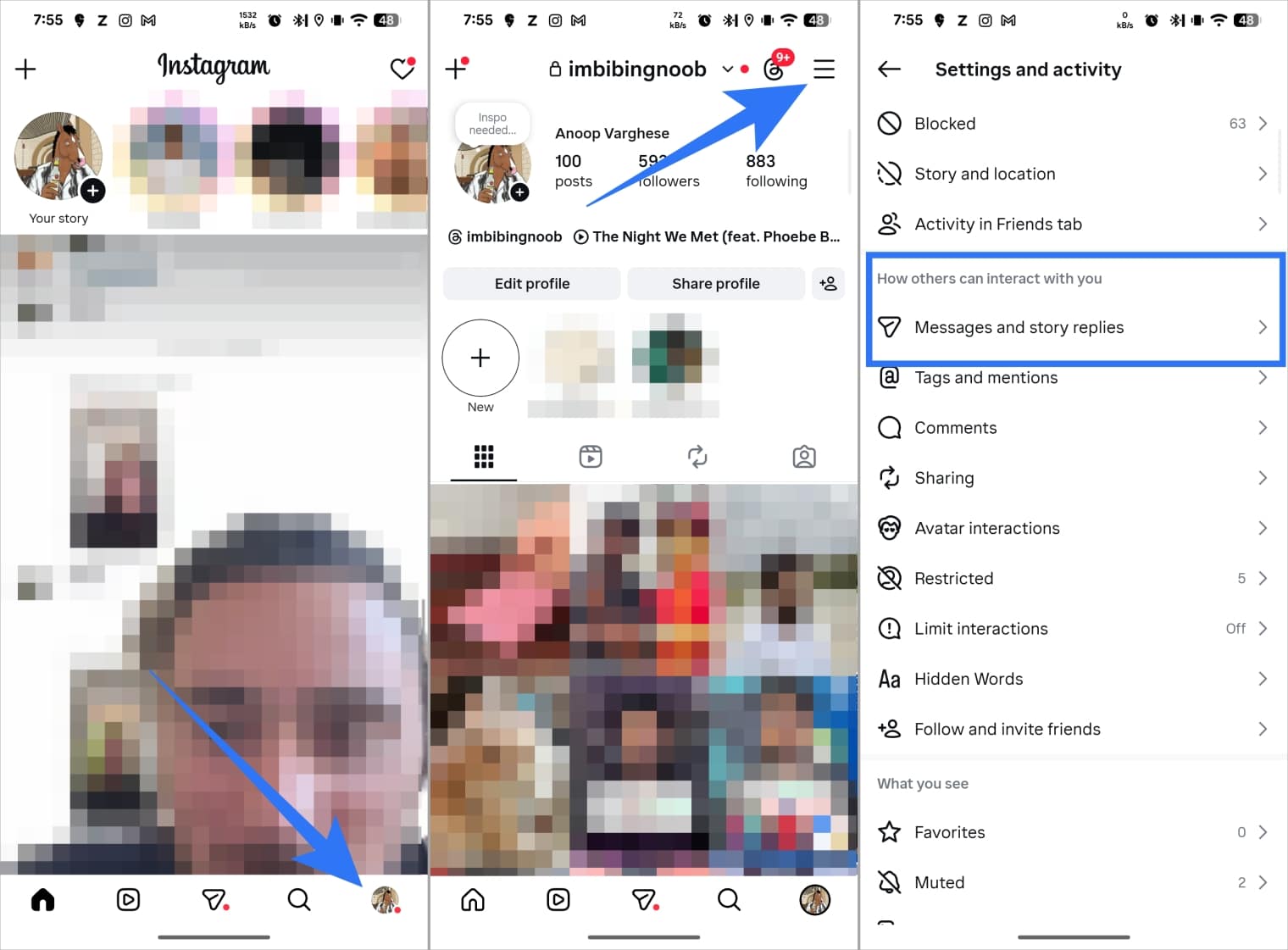
- Tap Show read receipts.
- Toggle off Read receipts.
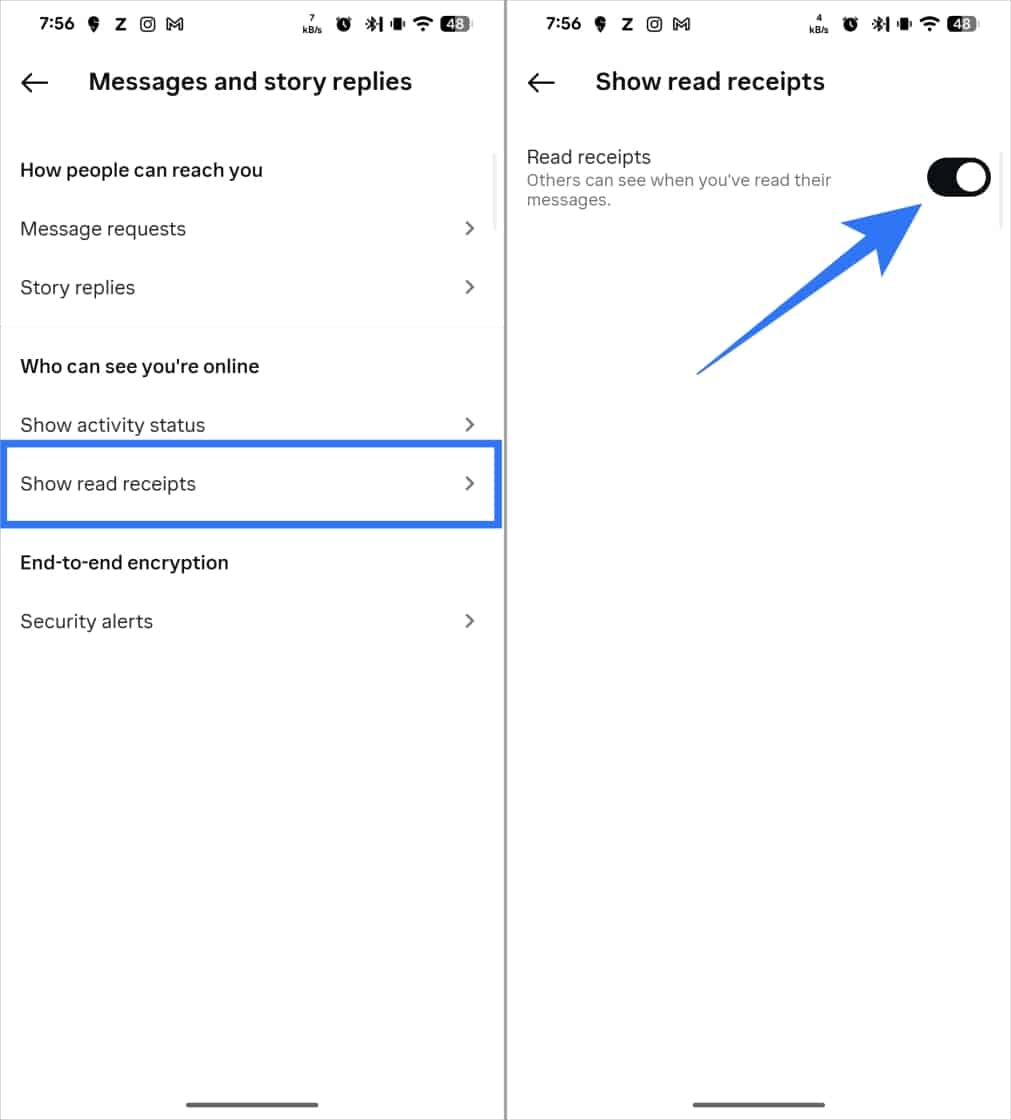
Once disabled, Instagram will stop showing when you have seen messages across all chats.
Keep in mind that this applies account-wide, and you will no longer be able to see when others read your messages.
How to Turn Off Read Receipts for a Single Instagram Chat
If you do not want to disable read receipts for your entire inbox, Instagram also lets you turn them off for individual conversations.
Here is how:
- Open Instagram and tap the Messages icon.
- Open the chat for which you want to turn read receipts off.
- Tap the person’s name or profile icon at the top of the chat.
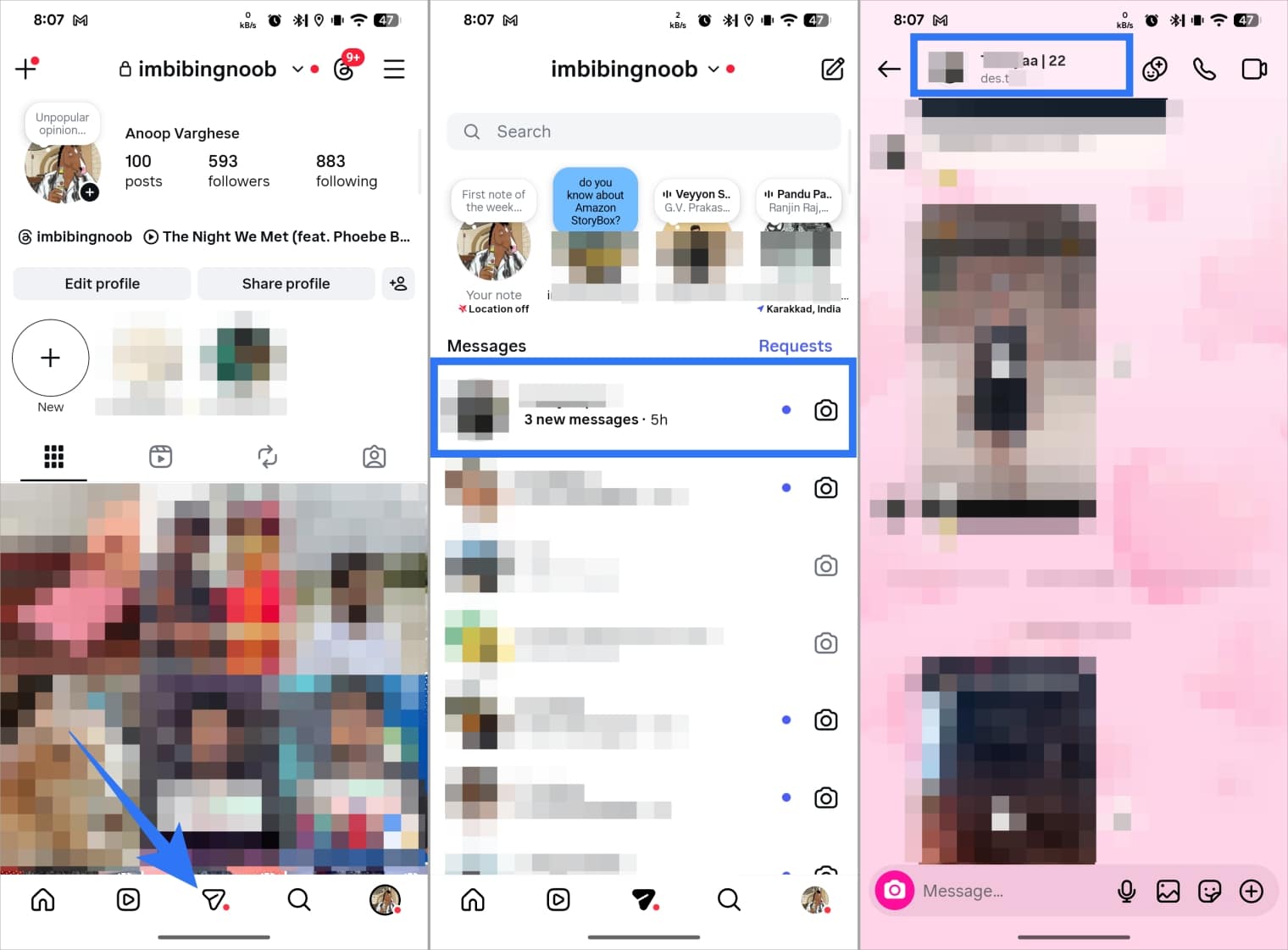
- Select Privacy and safety.
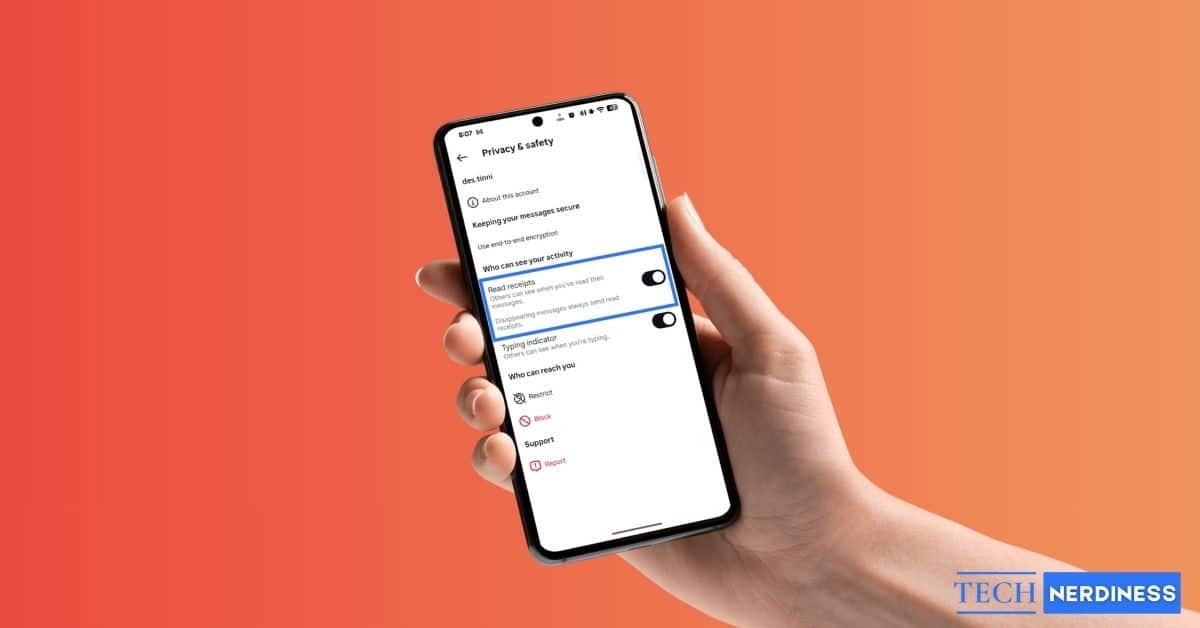
- Toggle off Read receipts.
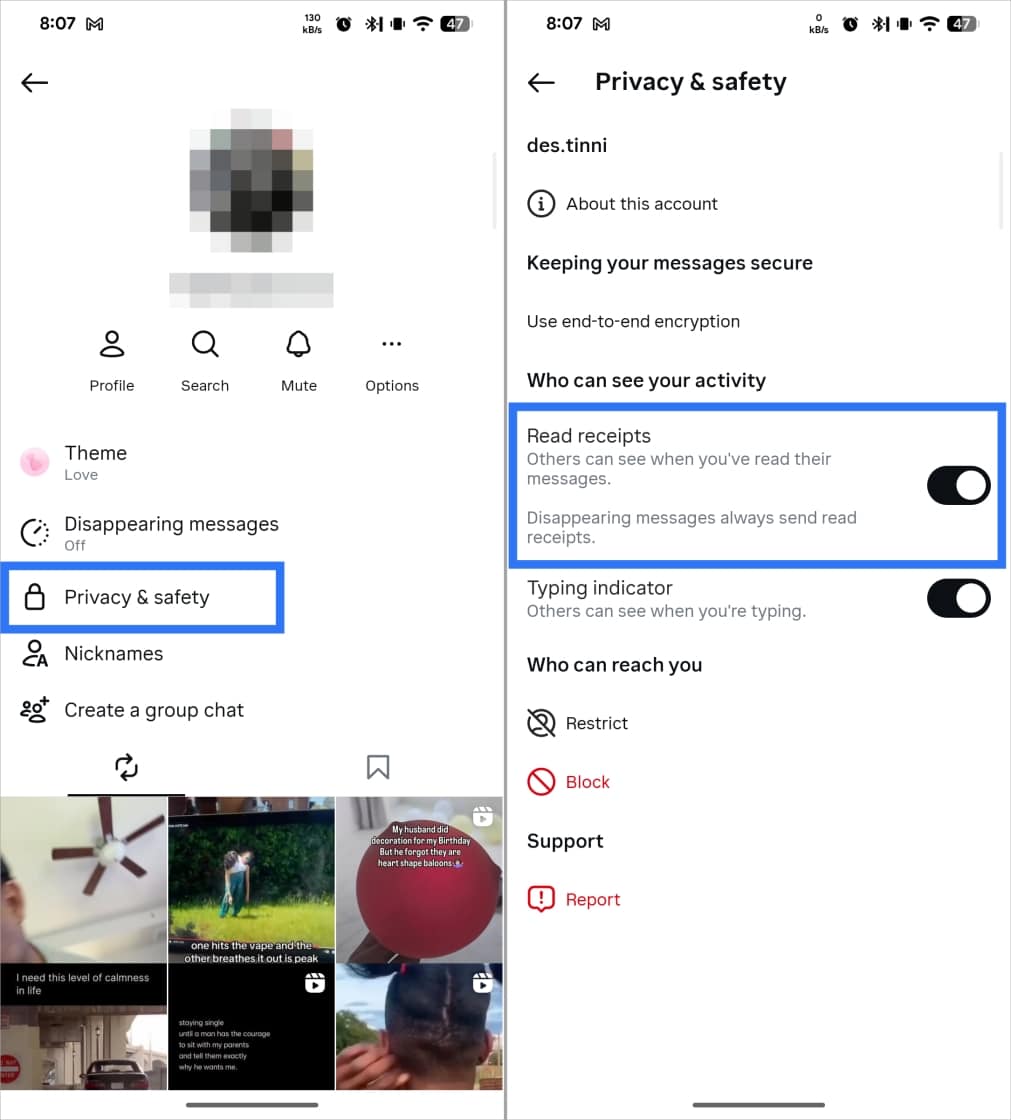
Once disabled, the other person will no longer see when you have read their messages in that chat. As with the global setting, this works both ways, and you will not see when they read your messages either.
What Happens After You Disable Read Receipts?
Here is what changes after you disable read receipts on Instagram:
- Others will no longer see when you have read their messages
- Your activity status remains unchanged unless you turn it off separately
- Message reactions, replies, and typing indicators continue to work normally
- Message delivery, notifications, and chat functionality are not affected
Instagram Read Receipts vs Seen Status: What’s the Difference?
Many users confuse Instagram read receipts with the “Seen” status, but they are not the same.
Read receipts are a setting that controls whether Instagram shows message read confirmations to you and to others. When this setting is enabled, Instagram can display a “Seen” label under messages once they are opened.
The “Seen” status or “Seen today” is the actual indicator that appears under a message after someone views it. Think of read receipts as the switch in settings, and the “Seen” label as the result of that switch. If read receipts are turned off, the “Seen” label will not appear.
However, you may still know someone read your message if they reply or react to it.
Activity status is separate from both. It shows when you are currently active or when you were last active on Instagram, displayed as “Active now” or “Active X minutes ago.” Turning off read receipts only hides message read confirmations and does not hide your online presence. These settings must be managed separately.
Workarounds If Read Receipts Are Still Showing
In some cases, read receipts may still appear even after you turn them off. This usually happens due to app behavior, syncing delays, or account-specific issues.
Common reasons and fixes include:
- App not updated: If you are using an older version of Instagram, the setting may not sync properly. Update the app and check again.
- Settings not applied properly: Sometimes the toggle does not save on the first attempt. Turn read receipts on, close the app, reopen it, and then turn the setting off again.
- Per-chat settings overriding global settings: If you previously changed read receipts for a specific chat, that setting may override your global preference. Open the chat and review its privacy settings.
- Multiple devices logged in: Being logged into Instagram on multiple devices can cause syncing issues. Log out of unused devices and try again.
- Account-specific limitations: Instagram rolls out features gradually, so some accounts may not have full control over read receipts yet.
If none of these steps work, logging out and back into your account and repeating the process usually resolves the issue.
Managing Your Instagram DM Privacy
Read receipts can be useful, but they are not for everyone. For some users, the “Seen” label creates unnecessary pressure and expectations, especially when they are not ready to respond right away.
Instagram’s built-in controls make it easier to manage this. You can turn read receipts off for all chats or limit them to specific conversations. Just remember that disabling read receipts also removes your ability to see when others read your messages.
There is no single right setting. The best option depends on how you communicate and who you interact with on Instagram. Choose the settings that help you stay comfortable and in control of your DM privacy.
You can turn off read receipts from Instagram’s message settings. Once disabled, others will not see the “Seen” label when you open their messages.
Yes. Disabling read receipts prevents the sender from knowing when you have read their message. However, if you reply or react, they may still assume the message was read.
Turning off read receipts does not make you appear offline. To hide your online status, you must turn off your activity status separately.
Instagram does not offer a built-in option to hide story views. Once you view a story, your name appears in the viewer list.