Instagram holds a big chunk of your online life. Downloading your Instagram data is one of the easiest ways to take control of that information. This includes your DMs, photos, comments, interactions, and even your search history. Most people request their data for backups, privacy checks, content recovery, or to maintain personal and legal records. The problem is that many users are unsure how to do it properly.
This guide walks you through the official steps to request and download your data from Instagram without errors. I will also show you how to open the files and troubleshoot common issues.
What Data Does Instagram Let You Download?
Before I show you the steps to download your Instagram data, it is important to know what you get. Instagram lets you download a good chunk of your information on the platform. This includes:
- Profile Information: Your bio, phone number, and account creation date.
- Photos and Videos: Every post, story, and archived highlight you have shared.
- Direct Messages: A full log of all your chats, including shared media.
- Interactions: Every like, every comment you left, and even your saved posts.
- Follower Lists: Who follows you and everyone you follow (including blocked users).
- Ads and Activity: The ads you clicked and the topics Instagram thinks you like.
- Login History: A list of every device and location used to access your account.
- Location Data: Locations you manually tagged in your posts or stories.
Note: For precise location logs, you must enable “Precise Location” in phone settings.
What is Usually Missing or Limited in Instagram Data?
Even with all this information, there are still some things you won’t see in your data from Instagram. This includes:
- Fully deleted content
- Unsent messages
- Detailed Ad targeting data
- Original photo metadata (EXIF)
- Data from deleted accounts
Also Read: How to Recover a Disabled Instagram Account
How to Download Instagram Data (Android and iPhone)
I tested these steps on both Android and iOS devices with the latest version of Instagram installed. Right now, everything related to your Instagram account is managed through the Meta Accounts Center.
Here are the steps to follow:
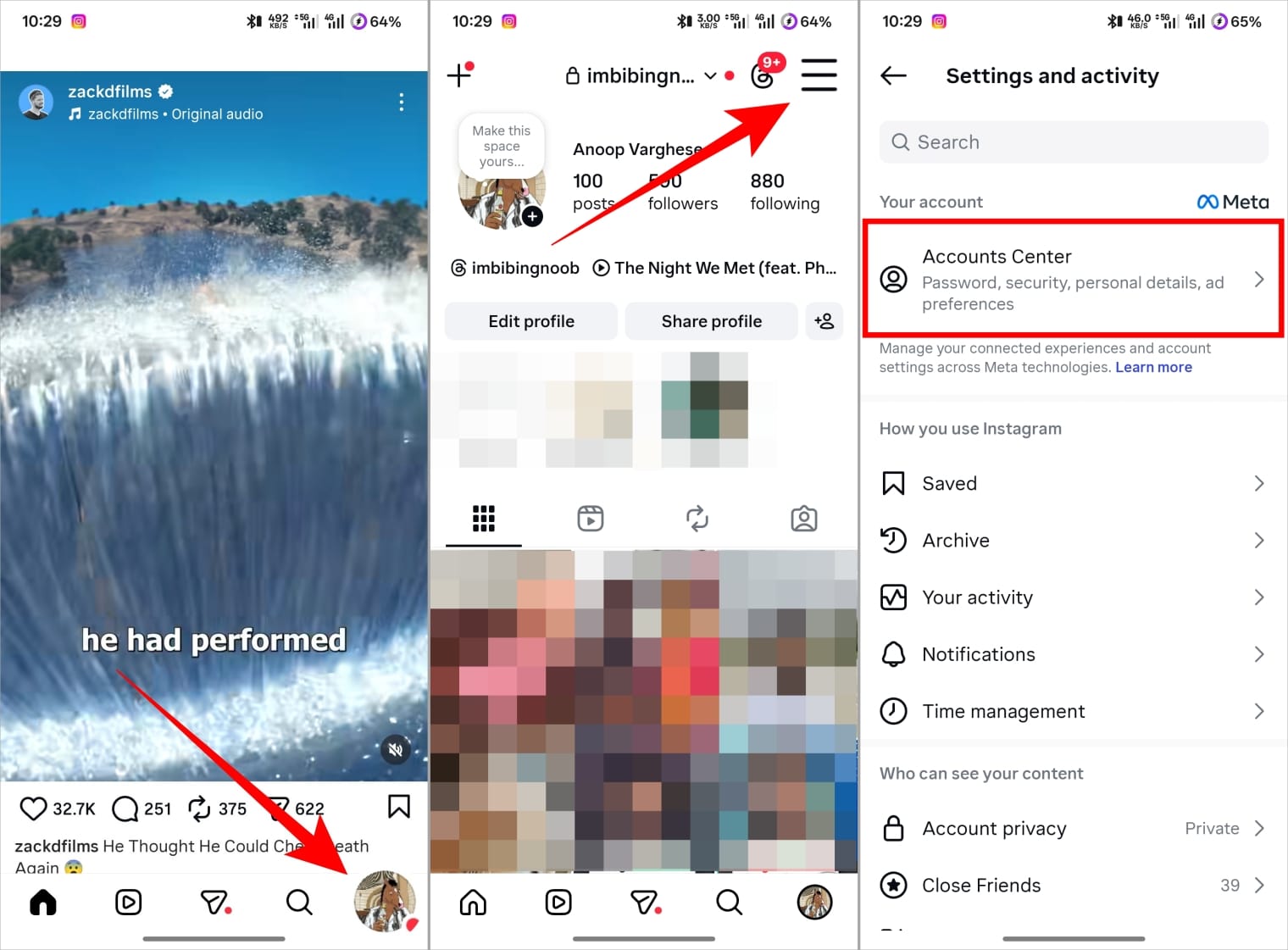
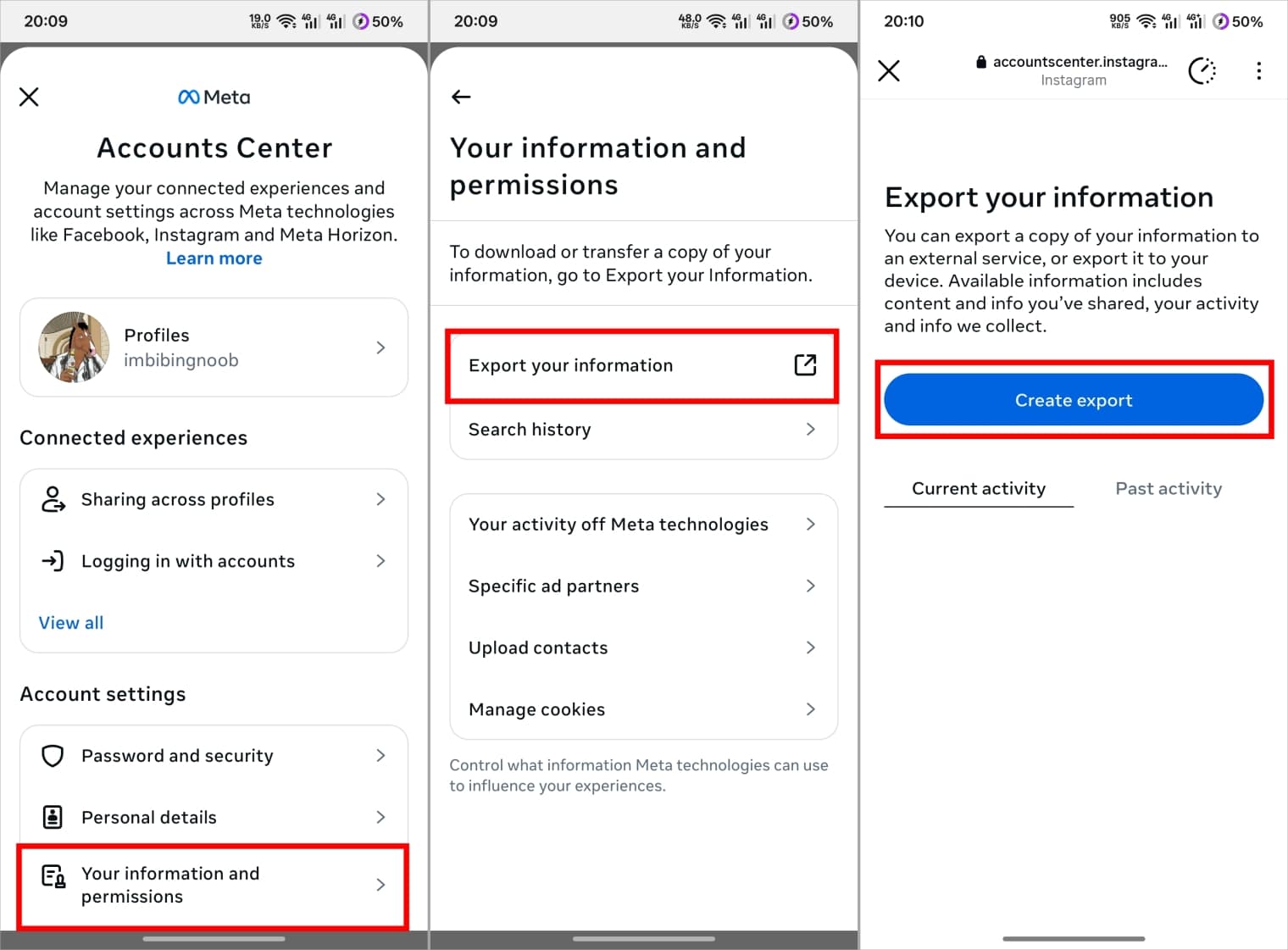
- Open Instagram and go to your profile page.
- Tap the three-line menu (hamburger icon) at the top right corner.
- Tap on Accounts Center to open your Meta settings.
- Scroll down and tap Your information and permissions.
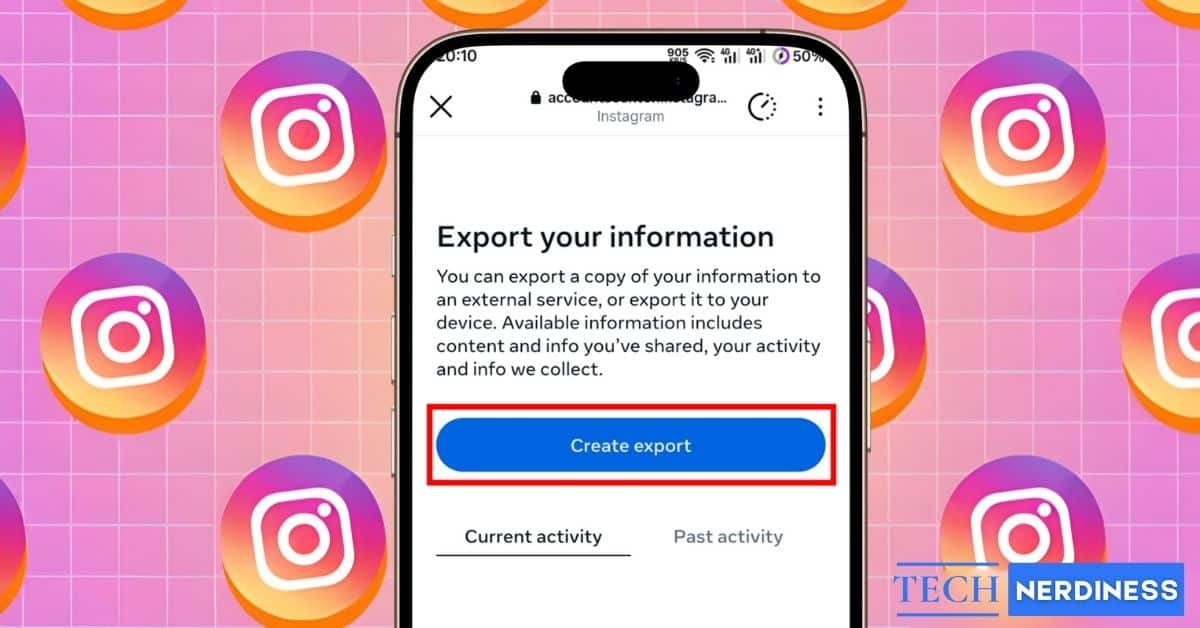
- Select Export your information.
- Tap Create export and select your Instagram profile.
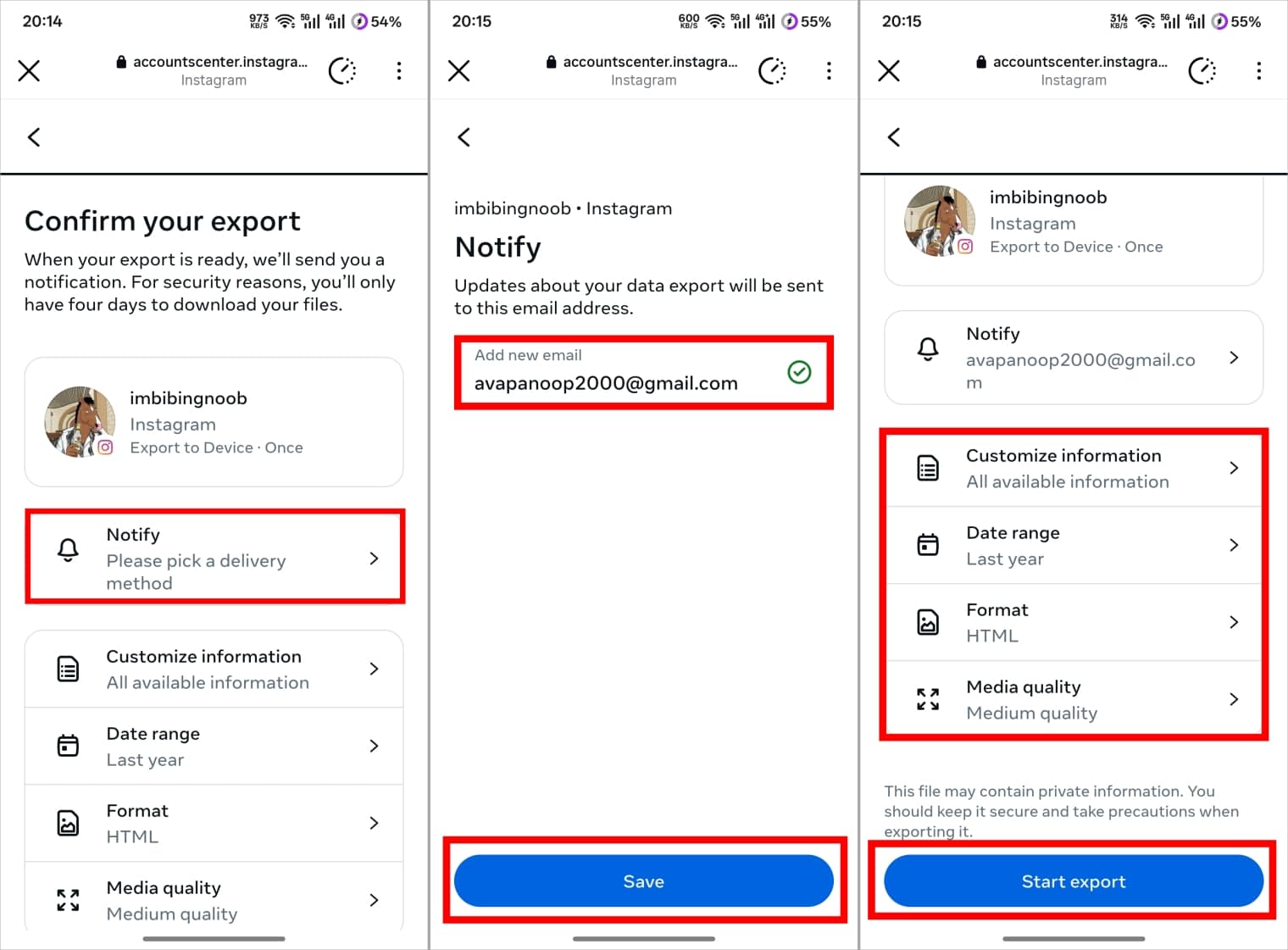
- Choose between:
- Export to device: Save the data to your device. (I’m choosing this here)
- Export to external services: To choose the service you want to export your Instagram data to.
- Tap Notify > add your email and click Save.
- You can customize the information to download from the Customize information page. By default, it will be selected for everything.
- Choose the Date Range.
- Select the format you want to see the data:
- HTML: It allows you to easily view your data offline. (I’m choosing this here)
- JSON: Use this if you want to import your data to another site or app.
- Choose Media quality.
- Once you are happy with the choices, tap Start export.
What Happens After You Request Data
Once you submit the request, Instagram will ask for your password for security.
You will get a confirmation email immediately from Meta. The processing time depends on how much media you have on your profile.
Pro Tip: If you have thousands of posts, download your data only through Wi-Fi. This prevents data overages when you finally get the download link.
How to Download Instagram Data on Desktop or Web
If your Instagram is old and has years of data, it’s best to use a computer to access it. This is because desktop browsers are more stable and powerful at handling huge Instagram data download zip. It also makes it much easier to move files to an external hard drive for safekeeping. Here are the steps to follow on your PC or Mac:
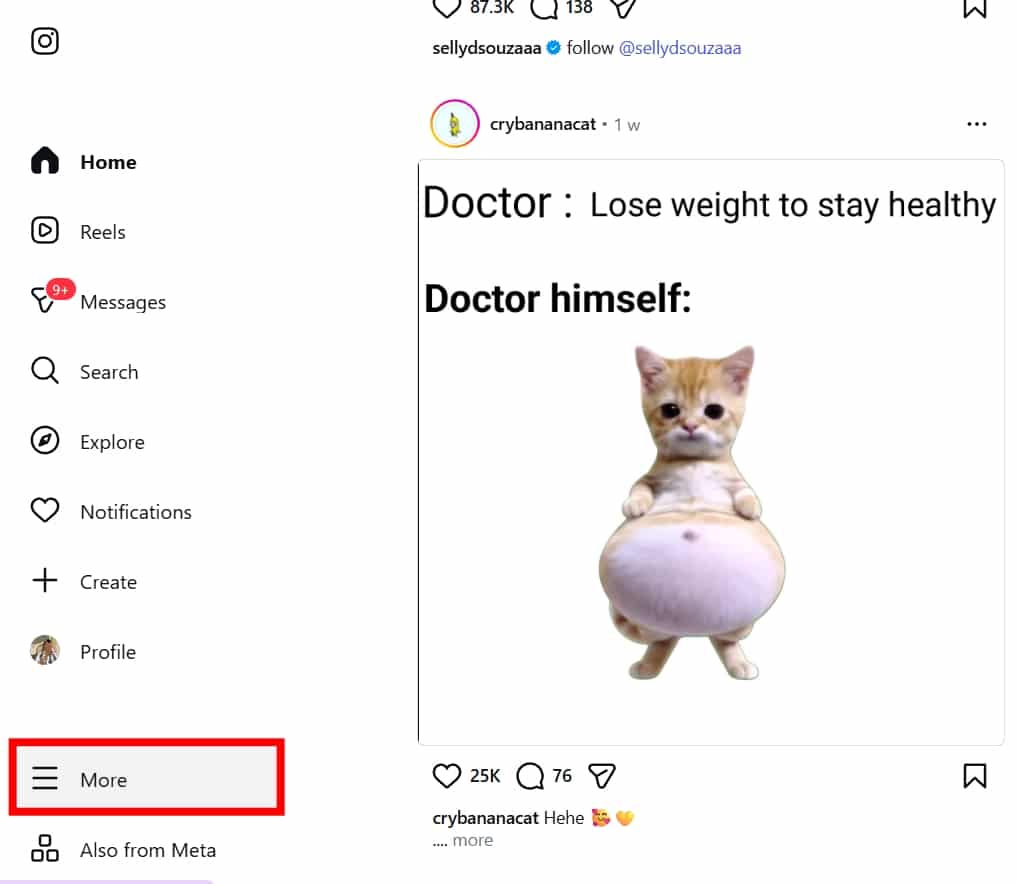
- Open your browser and log in to Instagram.
- Click More (the three lines) at the bottom left of the screen.
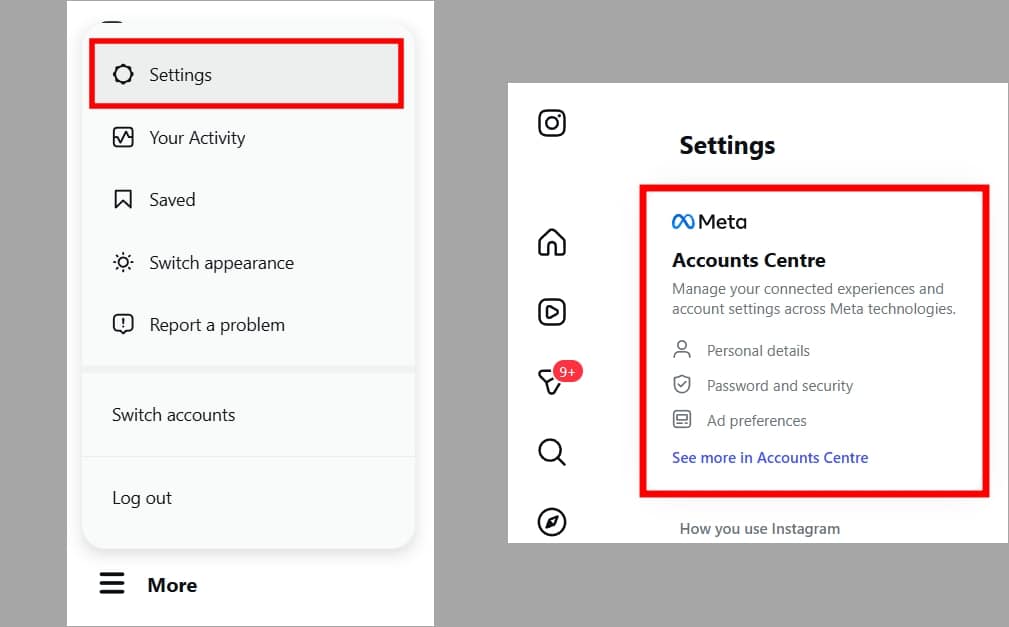
- Select Settings.
- Choose Accounts Center.
- Click Your information and permissions.
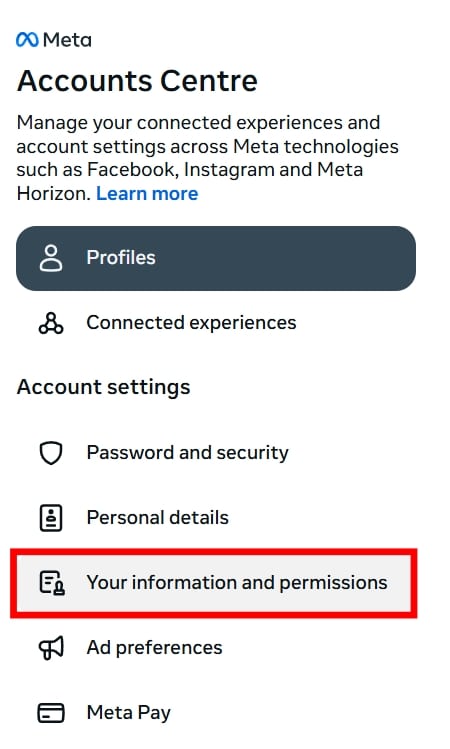
- Select Export your information.
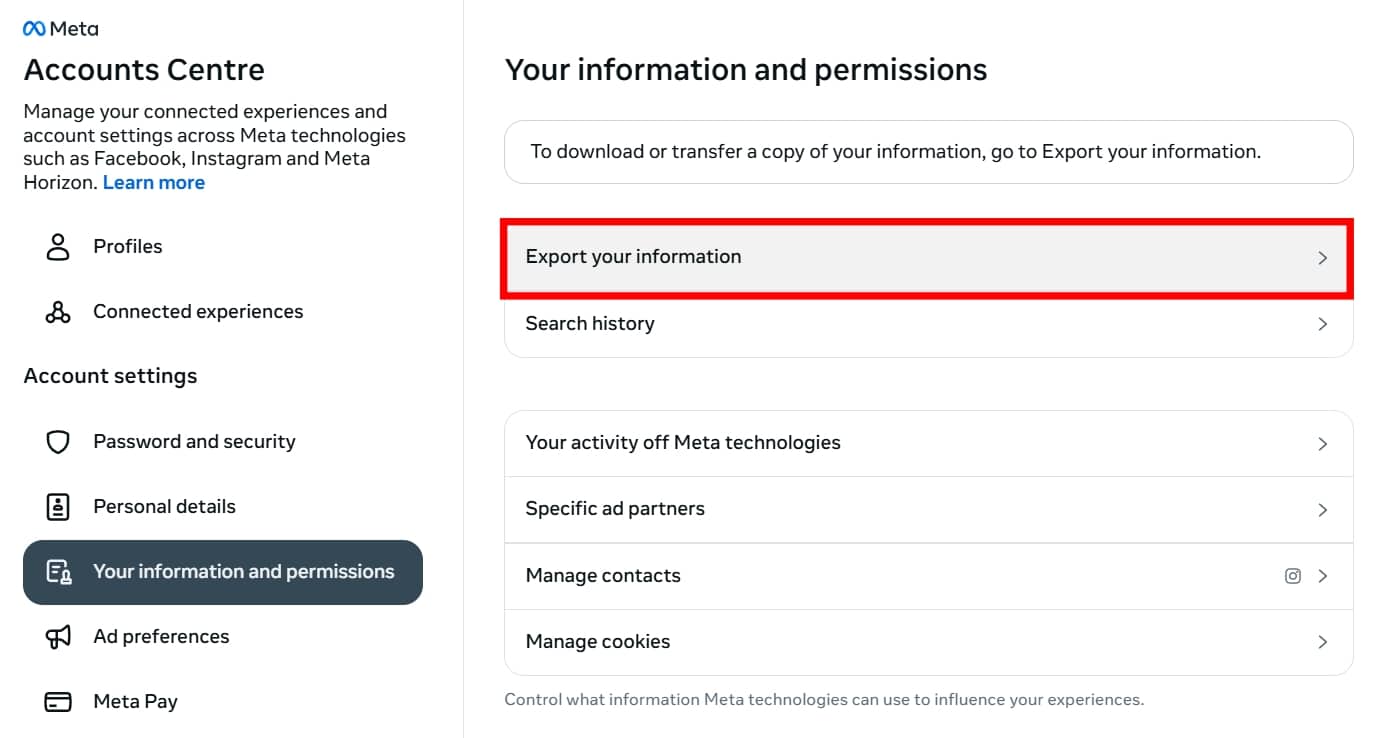
- Choose Create export.
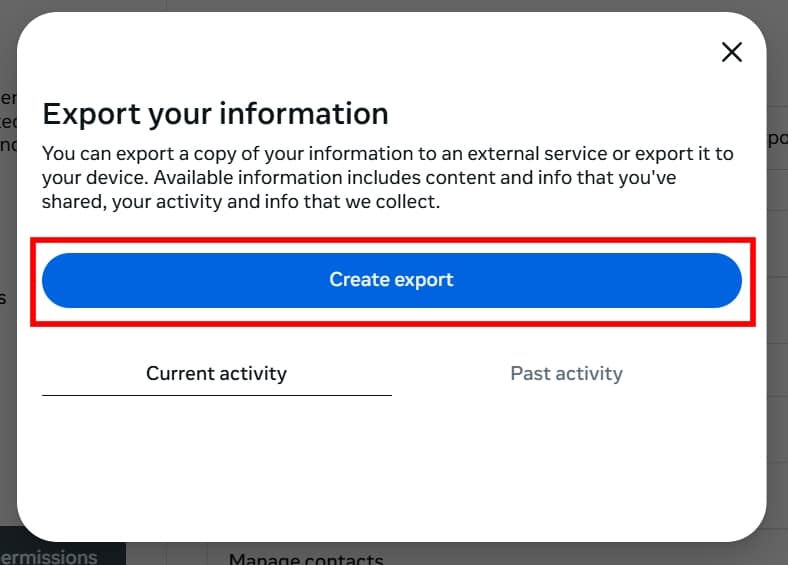
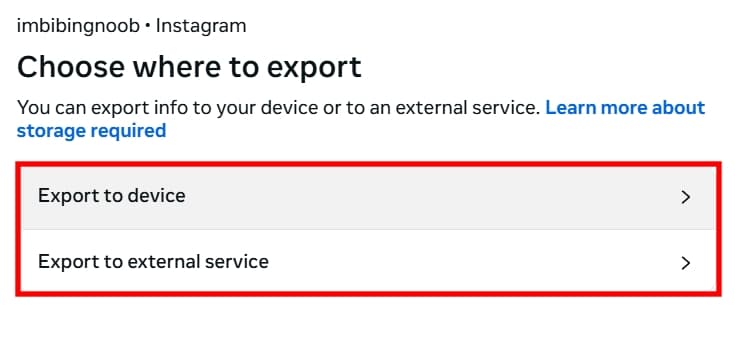
- Select between:
- Export to device (I’m choosing this)
- Export to external services
- Add the email address to get notified once the data is processed, and click Save.
- Choose the Date Range.
- Select the format between HTML and JSON.
- Choose Media quality and then hit Start export.
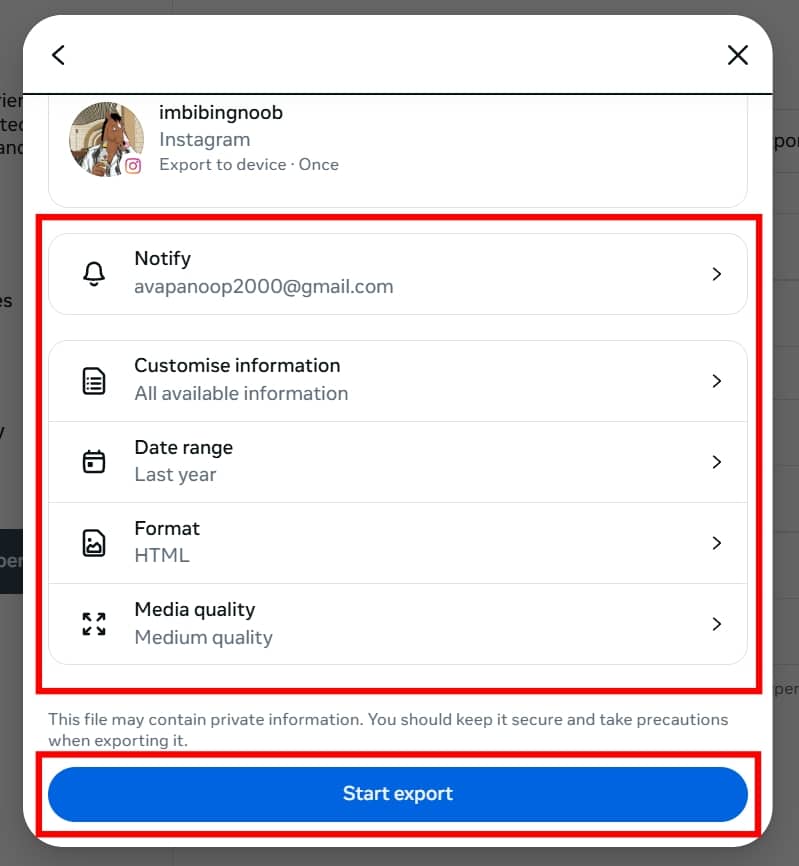
Just like on mobile, you will get an email when the file is ready. You can close your browser and wait for Meta to notify you about the Instagram data download link.
How Long Does It Takes to Download Instagram Data?
According to the official pages, Meta takes up to 30 days to process your data. But in our testing, we were able to get results of:
- Small accounts: Usually arrive within 1 to 5 hours.
- Average accounts: You will likely get it within 24 to 48 hours.
- Large accounts: If you have 10+ years of data, it might take 4 days.
However, there might be a delay in delivering your Instagram information if:
- You just changed your account type on Instagram.
- Have a massive amount of high-resolution video files.
- Meta’s servers are experiencing a high volume of requests.
If the file does not arrive after a week, check your spam folder first. And if it is not there, then you might need to follow the steps again to download your data from Instagram.
How to Download Specific Instagram Data Only (Advanced Options)
If you don’t want to download your entire Instagram history and only want a specific section of the data, there’s an option for that.
Select the Customize information page once you follow the export data steps.
From here, choose the data you want to download.
Partial downloads are much faster to process and take up less storage space.
How to Open and Use Your Instagram Data File
Once you receive the link to download data, here’s what you need to do:
- For JSON: Since this is raw code for developers and apps, you will see a dedicated option to upload the specific file.
- For HTML: It is the common way used by almost everyone to access their Instagram data.
Once the download is complete, follow these steps to access your file and then:
- Right-click the zip file and select Extract All.
- Open the new folder and find the file named index.html.
- Double-click it to open your Instagram history in your web browser.
You don’t have to use any special tools for this, as it’s HTML data, and can be opened by any browser, including Chrome.
Common Problems When Downloading Instagram Data and How to Fix Them
Sometimes things don’t go as planned. Here are the most common issues.
- Link Expired: The link only works for 4 days. You must request a new one.
- Email Not Received: Check your Social and Promotions tabs in Gmail.
- File Will Not Open: Ensure you have enough storage space on your device.
- Missing Media: Instagram only gives you what is currently on their servers.
- Security Checks: Ensure your two-factor authentication (2FA) is working.
If you are stuck, you can try contacting Instagram support through the app. Oftentimes, simply restarting the request from a different device fixes the bug.
Privacy and Security Tips After Downloading Instagram Data
Your data contains sensitive information. So make sure to:
- Store it in a safe location (preferably encrypted).
- Don’t access data in a shared PC. If you do, move or delete it immediately.
- Only share your Instagram information with trusted third-party tools.
- If you are storing the downloaded data in the cloud, make sure to enable 2FA.
Treat your Instagram data download file like a digital passport. Do not share it with anyone.
Can You Download Instagram Data Without Logging In?
No. For security, you must be logged in to your Instagram account. This is to prevent hackers from stealing your entire history.
Also, don’t use third-party tools to download your data, as they are most likely to steal your login information and hack your account.
Take Charge of Your Instagram History
Our data is not considered digital gold by companies now, as it’s a major factor in creating an advertising profile, as well as the algorithm deciding what content to show you. Based on that, you can even decide to reset your instagram algorithm.
By downloading your data, you are able to see your digital footprint on the platform. It helps you relive your memories and even know how much time you have spent on the platform. But once you download your data, make sure to store it in a safe location.
If you are sharing with other services, make sure they have strict data policies and are trustworthy. I would also suggest making it a habit to perform a periodic backup every few months. This way, you never have to worry about losing your DMs or high-res photos.
No. This is a private action. No one will know you requested your info.
No. Once you unsend a message on Instagram, it cannot be recovered, even by downloading data. This is the same for the messages you sent during vanish mode.
As of now, there is no official limit on how often you can request your Instagram data.
Yes. Accessing and downloading your own data is free and is required by privacy laws.