
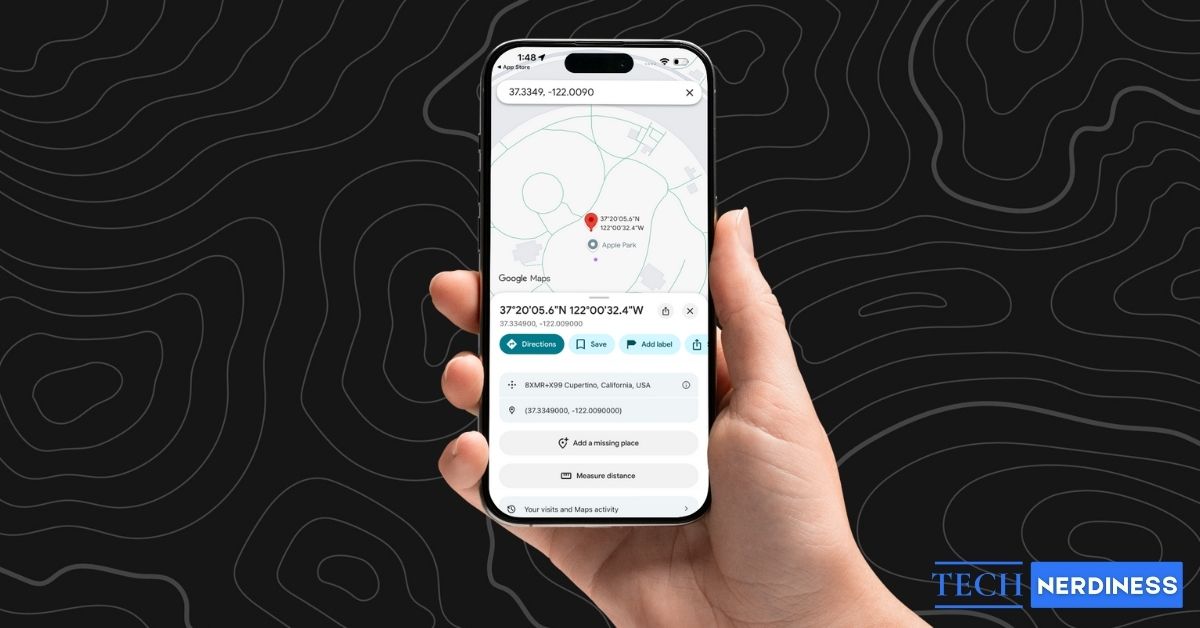


Street names don’t always point you to the exact spot. Sometimes the place you want is inside a huge campus, deep in a village road, or somewhere that doesn’t even have a proper address. That’s where GPS coordinates shine. They take you straight to the precise point on the map without guessing or wandering around.
If you want to use GPS coordinates like latitude and longitude to search for any location, or you want to grab your own exact coordinates and share them with friends, Google Maps makes it easy. Here’s how to do it without dealing with anything complicated.
What GPS Coordinates Actually Mean?
GPS coordinates can look like random numbers, but they’re simply a universal way to describe one exact point on Earth.
- Latitude tells you how far north or south you are.
- Longitude tells you how far east or west you are.
When you put those two numbers together, you get a precise location that doesn’t rely on street names, landmarks, or local address systems.
This matters because real life is messy. Not every place has a proper address. Big apartments share the same building name. Gated communities hide the exact spot. Colleges, tech parks, and event grounds are huge and confusing.
If you’re trekking, delivering something, or trying to meet a friend inside a massive venue, street names won’t help much. A pair of coordinates cuts through all that noise and takes you straight to the exact location every time.
The Different Coordinate Formats Google Maps Accepts
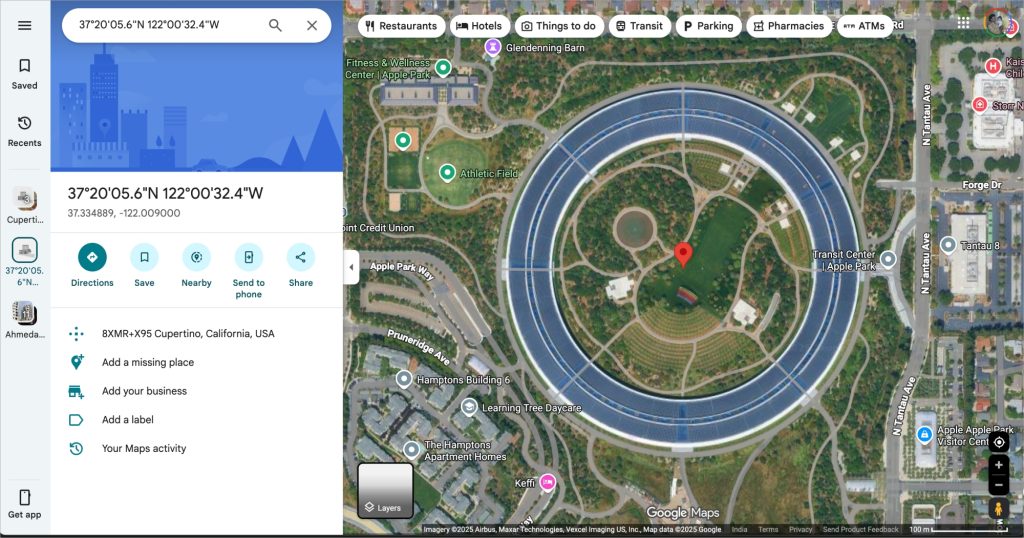
Before using coordinates, knowing the formats will save you a lot of frustration. Google Maps accepts a few different coordinate styles, and all of them can point to the exact same spot. For example, these three formats below all lead to Apple Park in Cupertino, California. They look different, but they describe the same coordinates.
- Decimal Degrees DD
- 37.3349, -122.0090
- This one is the simplest. Two numbers with decimals. No symbols. Easy to type and easy to share.
- Degrees, Minutes, Seconds DMS
- 37°20’05.6″N 122°00’32.4″W
- This format breaks each coordinate into degrees, minutes, and seconds, and includes direction letters N, S, E, or W.
- Degrees and Decimal Minutes DMM
- 37 20.093’N, 122 00.540’W
- This replaces the seconds with decimals but still uses degrees and minutes.
No matter which version you use, the rules stay the same. Latitude comes first, longitude second. Decimals use a dot, not a comma. And valid ranges stay between minus 90 to 90 for latitude and minus 180 to 180 for longitude.
Google Maps also supports Plus Codes if coordinates feel too long or complicated. A Plus Code like “8XMR+VC Cupertino, California, USA” represents the same Apple park location in a shorter, easier format, and it even works offline or in areas without exact street addresses.
How to Use GPS Coordinates in Google Maps
Searching GPS Coordinates in Google Maps is as simple as searching for any location:
On Android and iPhone
- Open the Google Maps app.
- Tap the search bar at the top.
- Type or paste your coordinates in one of the supported formats.
- Make sure the format is clean and tap on the Search button.
- Maps will drop a red pin on the exact spot and show the location card at the bottom.

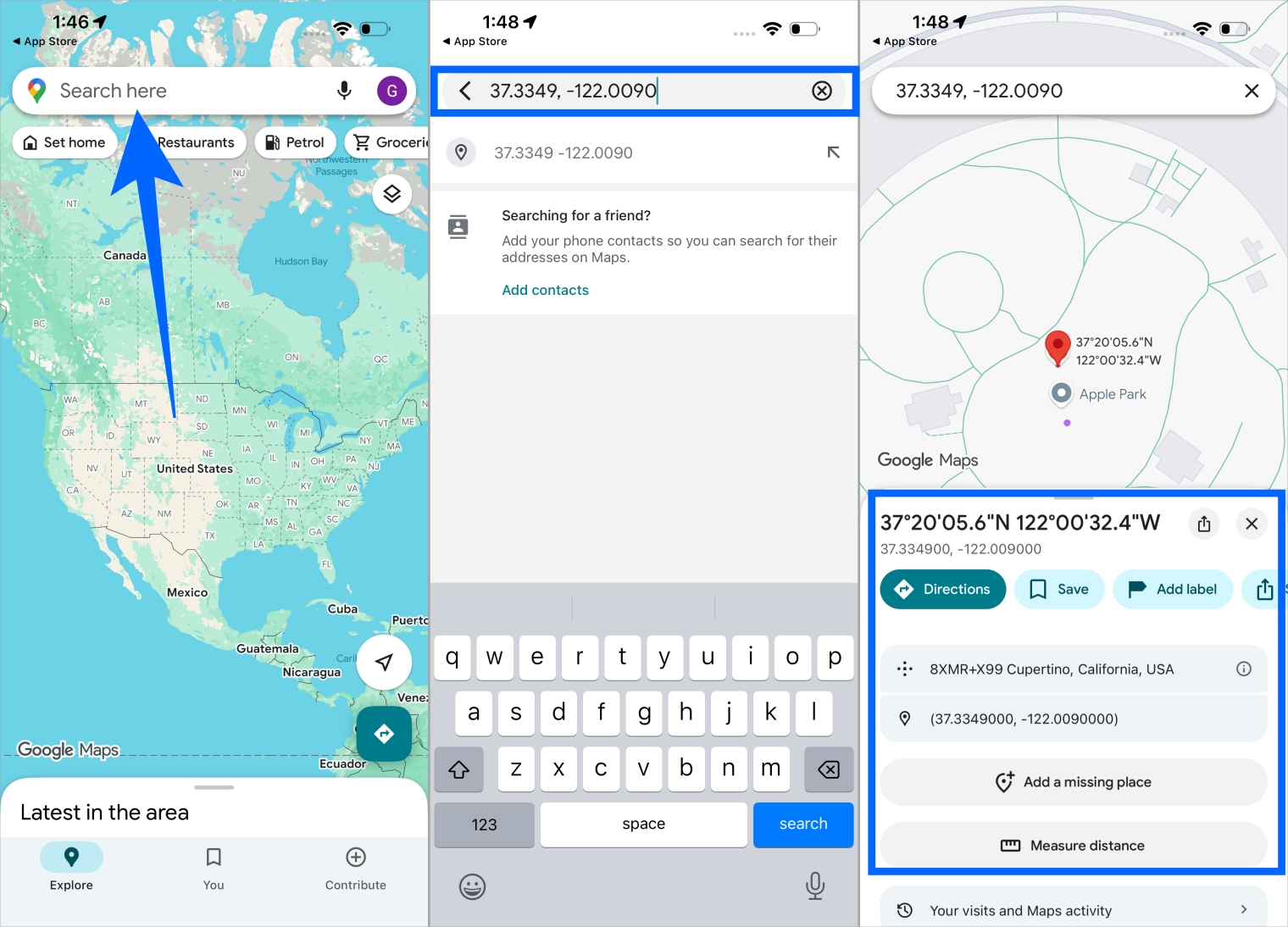
From here, you can start navigation, save the place, or share it with someone directly from the app.
On a Computer (maps.google.com)
- Go to maps.google.com in your browser.
- Click the search box at the top left.
- Type or paste your coordinates.
- Double-check the format and press Enter.
- Google Maps will zoom in and drop a pin on that precise point.

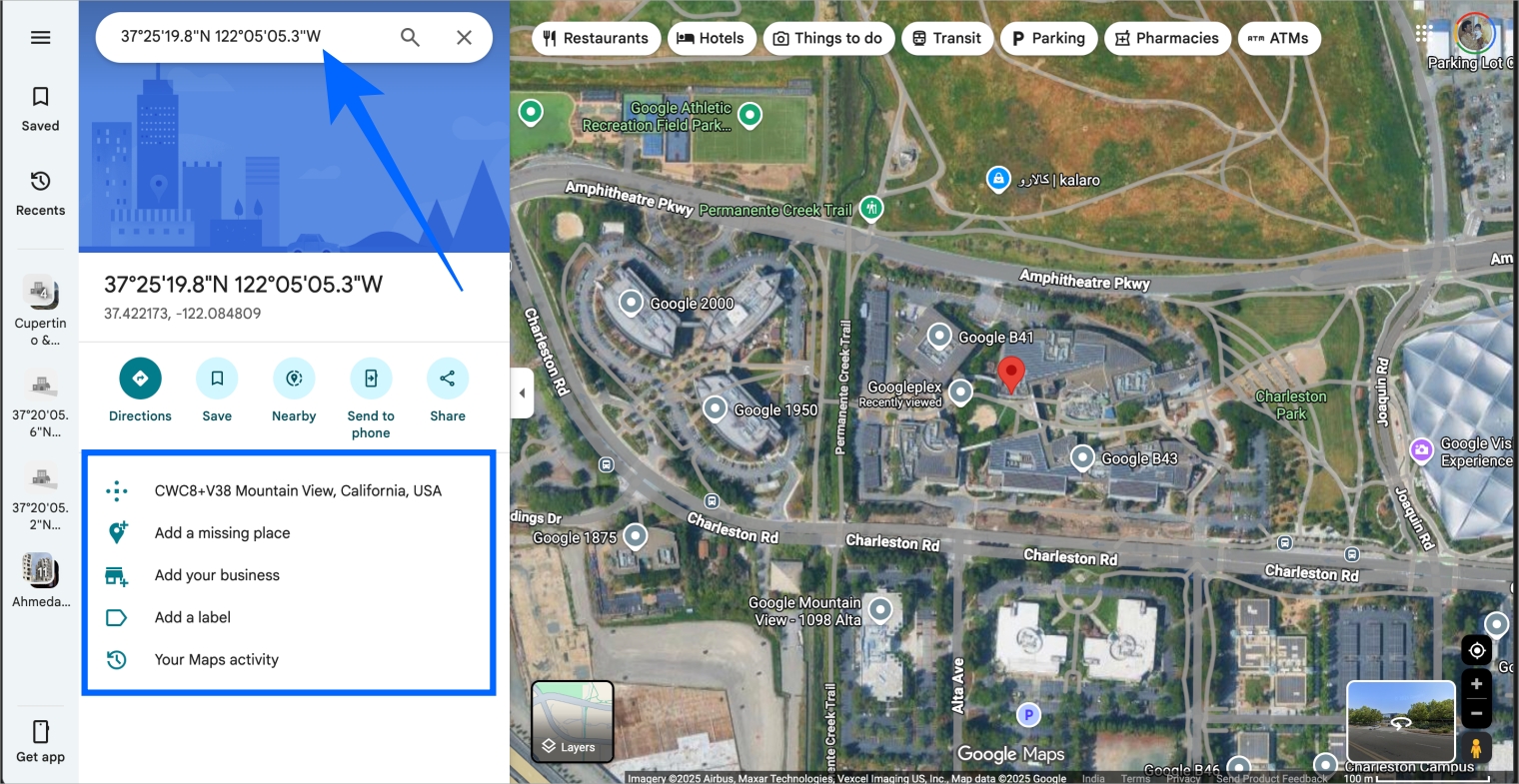
Once the pin appears, you are looking at the exact location that those GPS coordinates represent, no matter how confusing or empty the area looks on the map.
Also, check what other icons and symbols mean on Google Maps.
How to Find GPS Coordinates in Google Maps
Google Maps can show you the exact GPS coordinates of any point, whether you’re on Android, iPhone, or a computer. The steps feel natural on all three.
On Android and iPhone
- Open the Google Maps app.
- Find the spot you want.
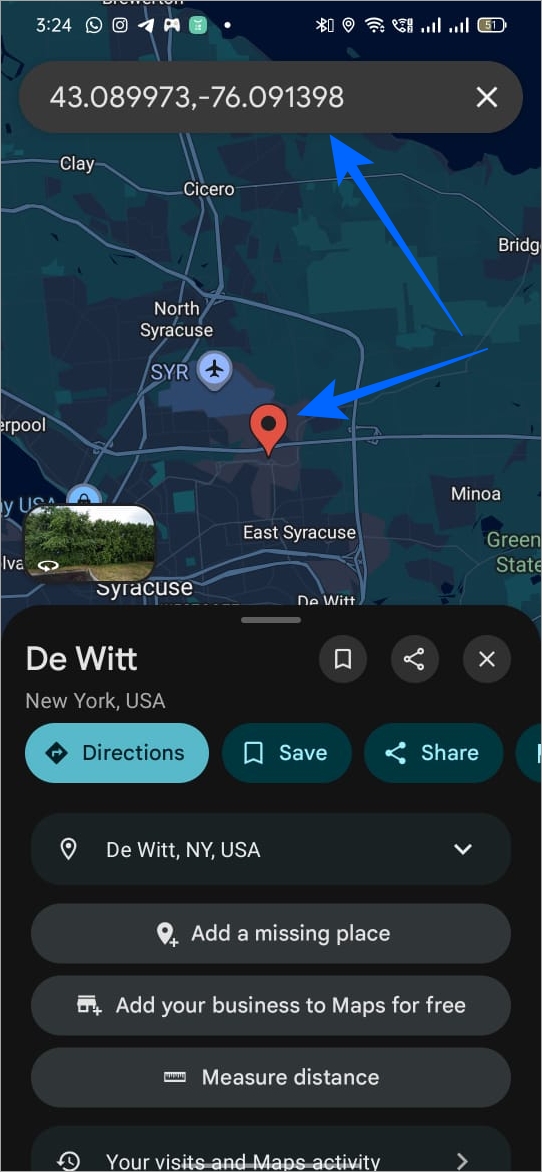
- Tap and hold on any point that isn’t already labeled.
- A red pin drops on that exact location.
- The coordinates appear in the search bar at the top.
- Swipe up on the location card to view and copy them.

On a Computer (maps.google.com)
- Go to maps.google.com.
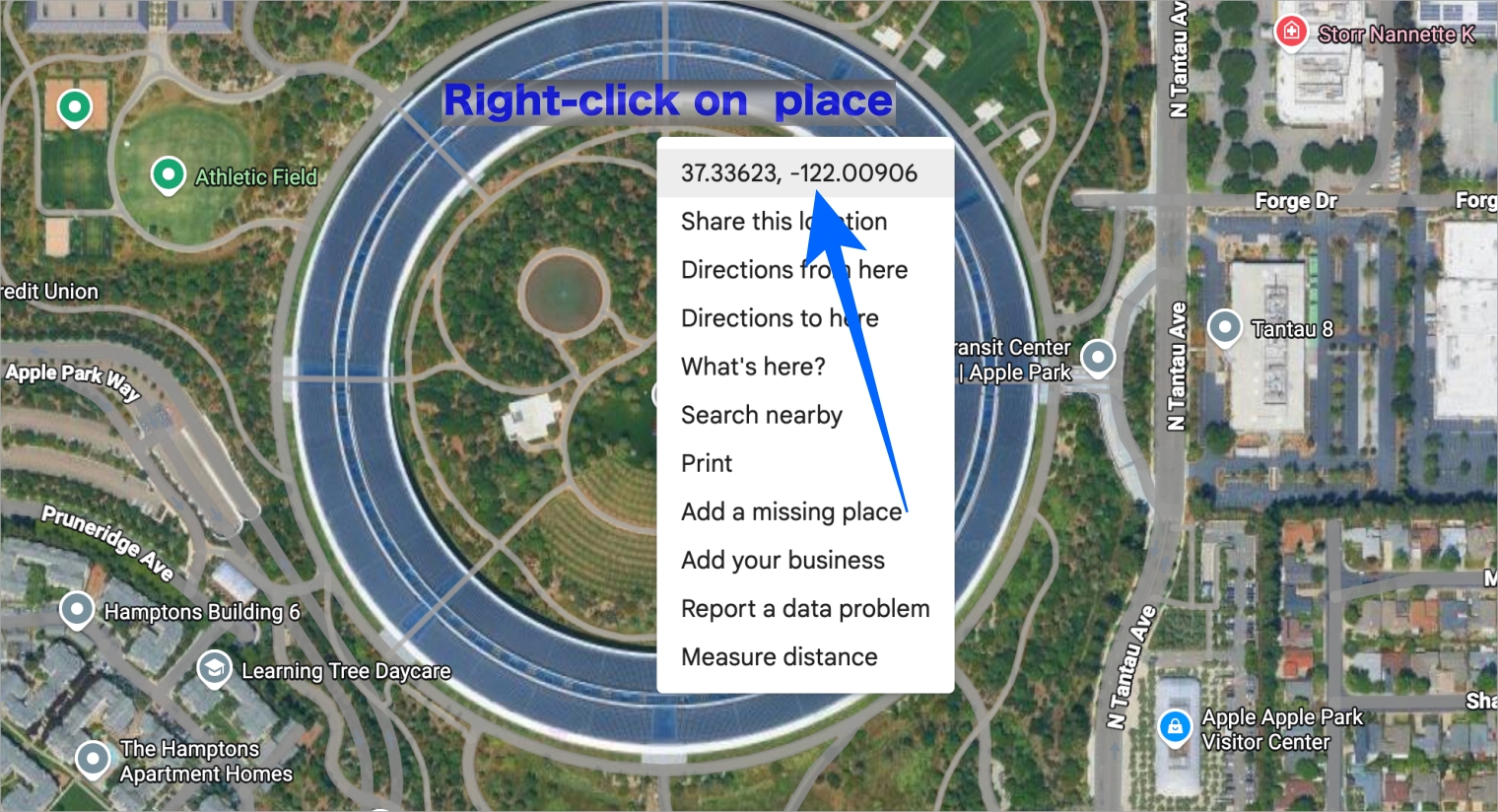
- Right-click on the place you want.
- You should see the coordinates right at the top.

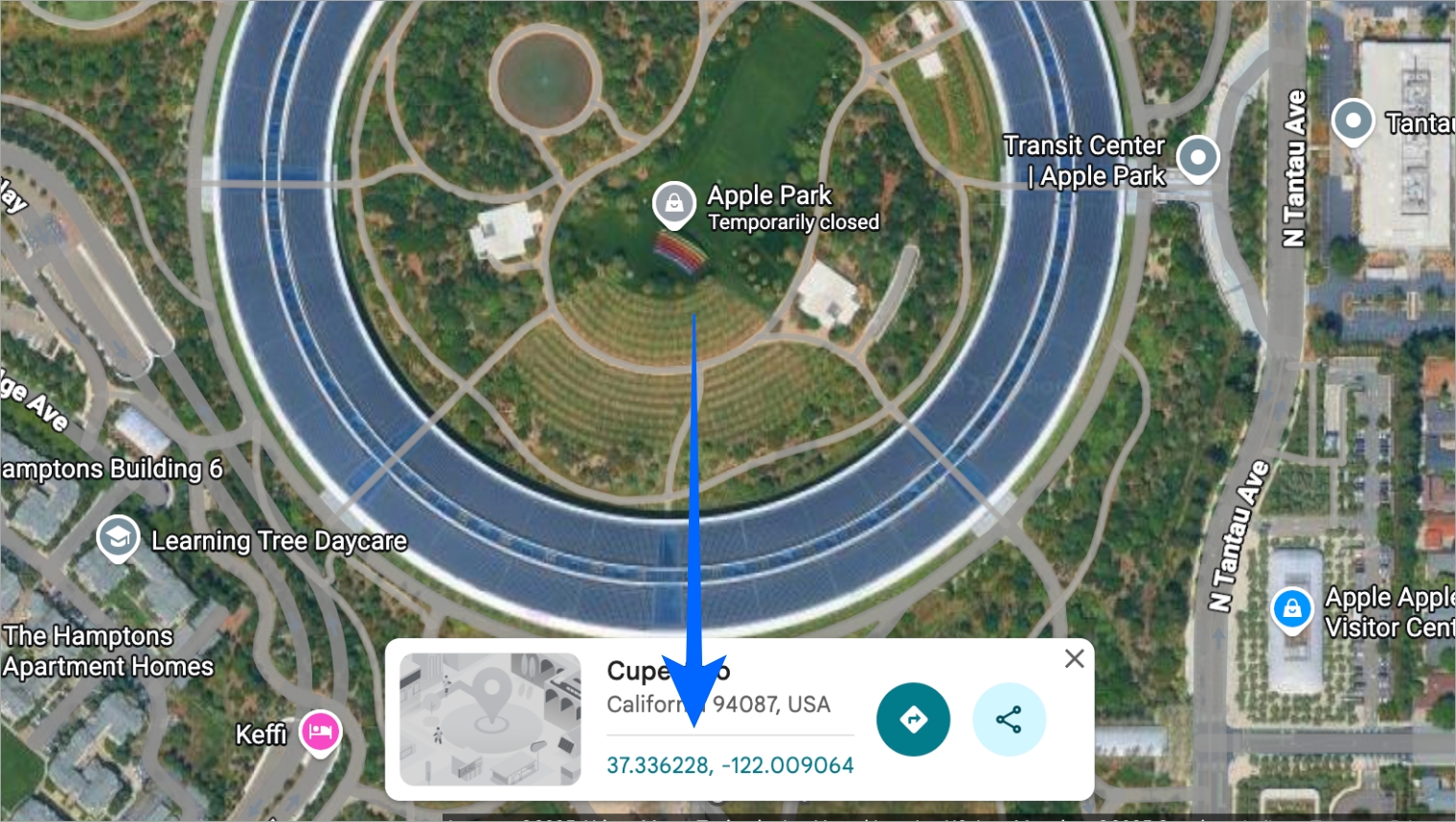
- If not, you can also select the option called What’s here.
- A small card appears at the bottom with the coordinates.
- Click the numbers to copy them instantly.

When to Use Coordinates Instead of Addresses
Coordinates shine in situations where:
- There is no proper address
- You want to specify a location to the exact meter
- You’re outdoors hiking, camping, or exploring
- You’re reporting incidents to emergency teams
- You’re marking project or research points
Final Thoughts
GPS coordinates take all the guesswork out of finding places. Whether you’re exploring a new city, trying to meet someone in a crowded area, or dealing with locations that don’t have proper addresses, coordinates give you exact precision every time. Google Maps handles all the formats you’ll ever need and makes it easy to search, share, and save any point on Earth. Once you get used to using latitude and longitude, you’ll realize it’s one of the simplest tricks that makes navigation smoother in any situation.
Google Maps by default saves all the locations you visited and your travel history. If you prefer to keep that data, here’s how you can delete all that activity history on Google Maps.