

Is your iPhone battery or mobile data draining significantly even when you’re not actively using apps? That’s often because of Background App Refresh. This feature lets apps update content in the background so they’re ready the moment you open them, but it can also quietly drain your battery and data. In this article, we’ll break down what Background App Refresh is, how it works on your iPhone, and how you can manage it smartly to improve battery life and reduce unnecessary data usage.
What is Background App Refresh on Your iPhone?
Background App Refresh (BAR) is an iPhone feature that lets apps update themselves even when you are not actively using them. They check for new content in the background, so when you open them, everything feels fresh and up to date.
If you turn it off, apps will only update when you open them.
What it actually does in real life
Here are some everyday examples for your better understanding:
- Dropbox or Google Drive syncs the latest files while your phone is in your pocket.
- Email and messaging apps keep your inbox up to date.
- Weather apps refresh the forecast so you see today’s temps instantly.
- Apple News loads the hottest stories before you even tap the app.
- Social media apps like Instagram or TikTok preload content so you are not staring at empty squares or spinning wheels.
So BAR keeps your phone feeling snappy, but there is a trade-off. However, turning this off does not stop notifications. You will still receive messages, calls, and alerts as usual.
Should I Keep Background App Refresh On or Off?
This is the big question, and honestly, the answer depends on how you use your phone.
Why you might want it ON
- Faster loading: Apps feel like they are waiting on you, not the other way around.
- More up-to-date content: Great for apps you rely on daily.
- Better personalization: Streaming apps, music services, and social media apps use this to improve suggestions and recommendations.
Why you should turn it OFF
- Battery drain: Constant background activity uses energy, even if you never open the app.
- Higher data usage: Some apps quietly pull 3 to 5MB per hour, which can add up if you are on a limited data plan.
- Unnecessary refresh: If you rarely use that app, why should it run behind the scenes?
If you are curious how worn out your battery might already be, you can quickly check the battery cycle count on your iPhone to see if performance issues are hardware-related.
Overall, a smart middle ground is to keep Background App Refresh on, but only for the apps you truly need. This way, essential apps stay updated, while less important ones don’t waste power or data behind the scenes.
How to Turn Off or Manage Background App Refresh on iPhone
Managing Background App Refresh on your iPhone is quick and easy. You can turn it off completely or control which apps are allowed to refresh in the background.
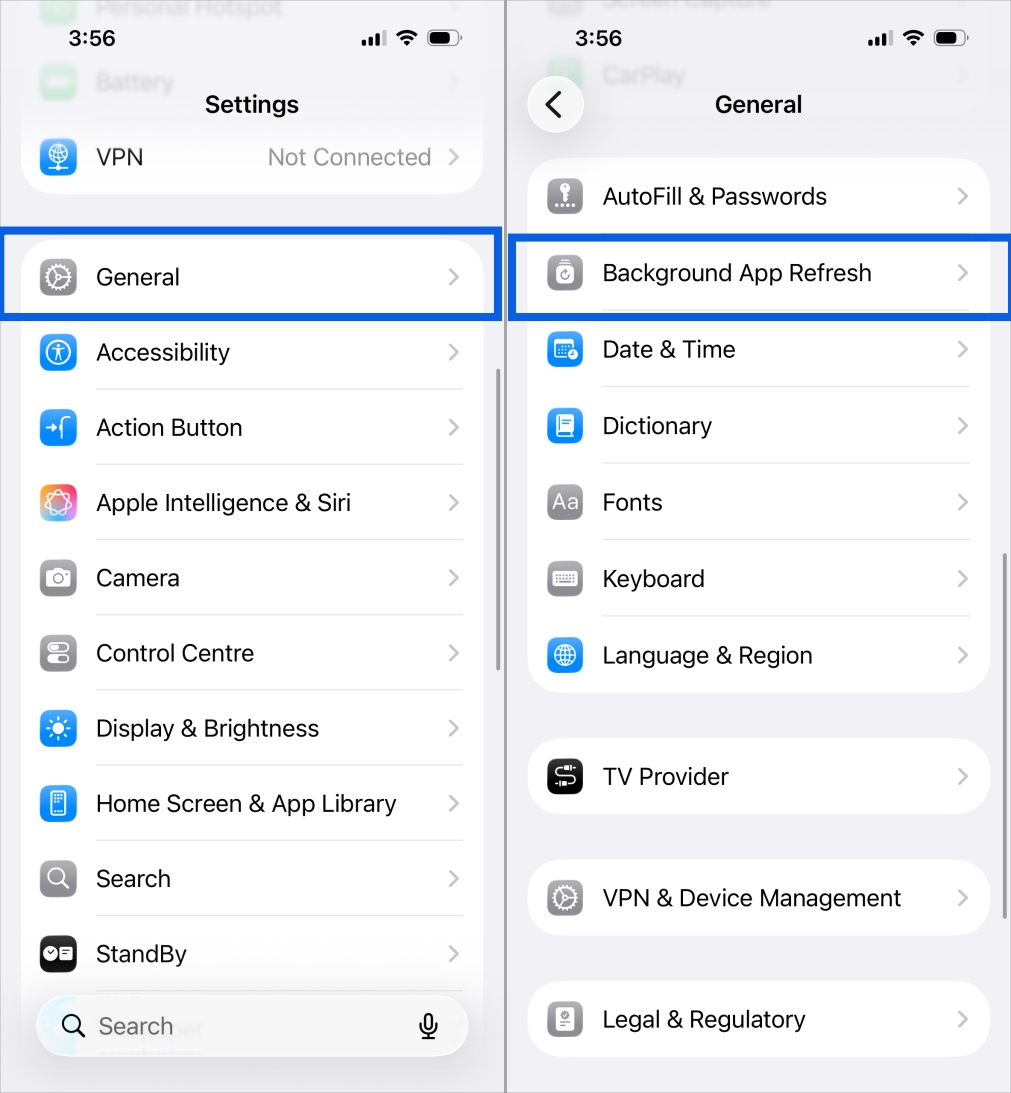
- Open Settings on your iPhone.
- Tap General.
- Select Background App Refresh.

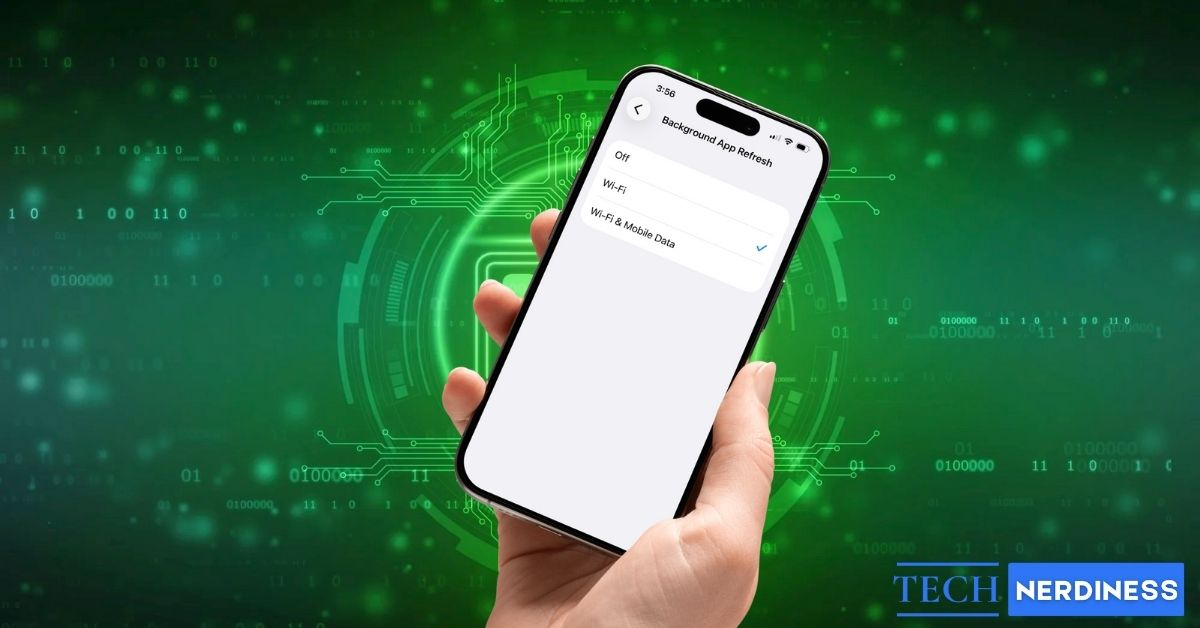
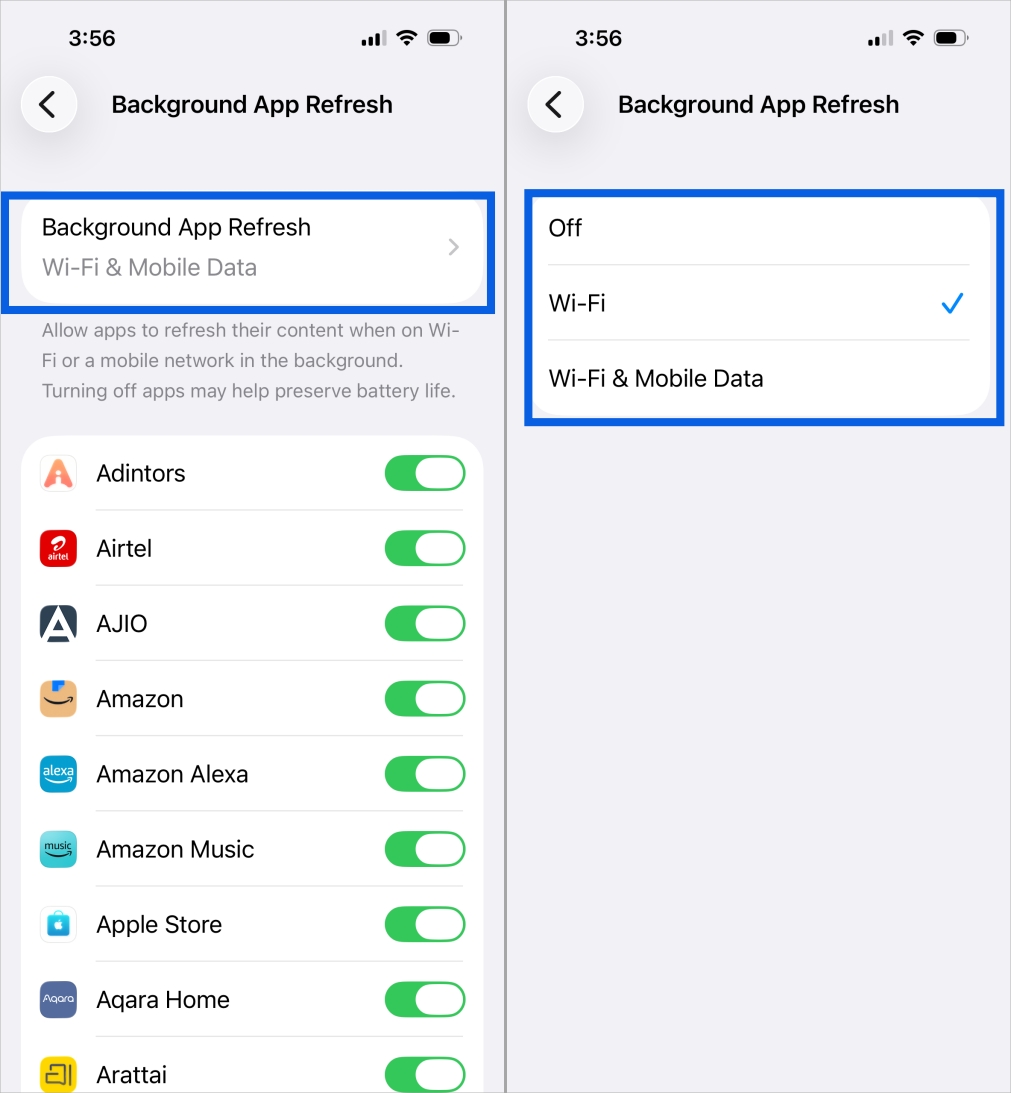
- You will now see the global settings and a list of apps. Tap Background App Refresh at the top and choose:
- Wi-Fi & Cellular Data: Best if you have unlimited data and prioritize convenience.
- Wi-Fi: Smart choice if you want to save data but still want apps to auto-refresh at home or work.
- Off: This stops all apps from updating in the background, which can help save battery and mobile data.
Control Background App Refresh for Individual Apps
For more control:
- Open Settings > General > Background App Refresh.
- Scroll down the app list.
- Switch off the toggle for apps that don’t require background updates.


This selective approach is often the best option. You will still be using critical apps, while cutting out battery and data consumption by apps you only open occasionally. Do not forget that you can turn it back on if something seems wonky.
Maximizing Control With Use Low Power Mode and Data Restrictions
Want to take things further? These settings help too.
Low Power Mode
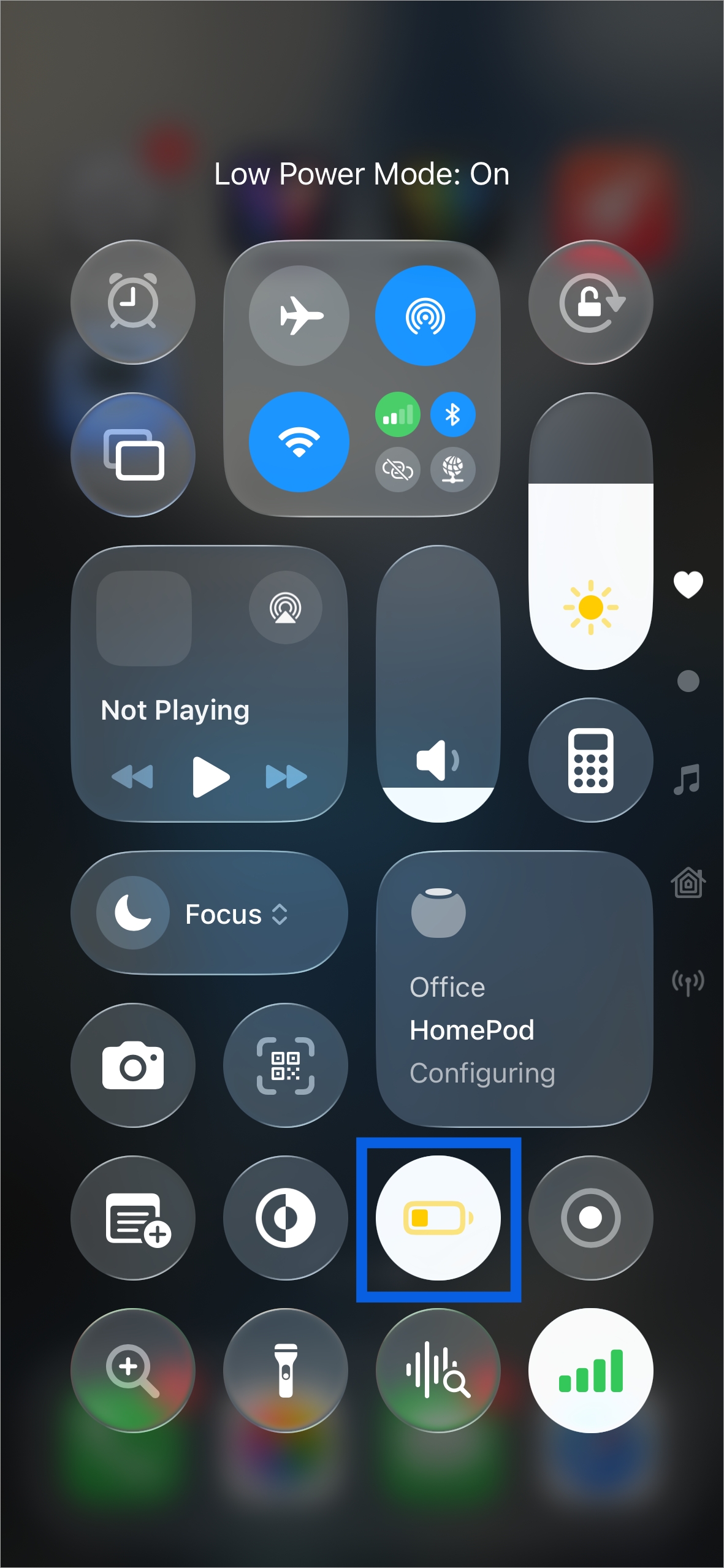
This setting automatically disables Background App Refresh to extend battery life. Perfect if your phone is below 20 percent and you are nowhere near a charger.
How to turn it on:
- From Control Center, tap the battery icon.

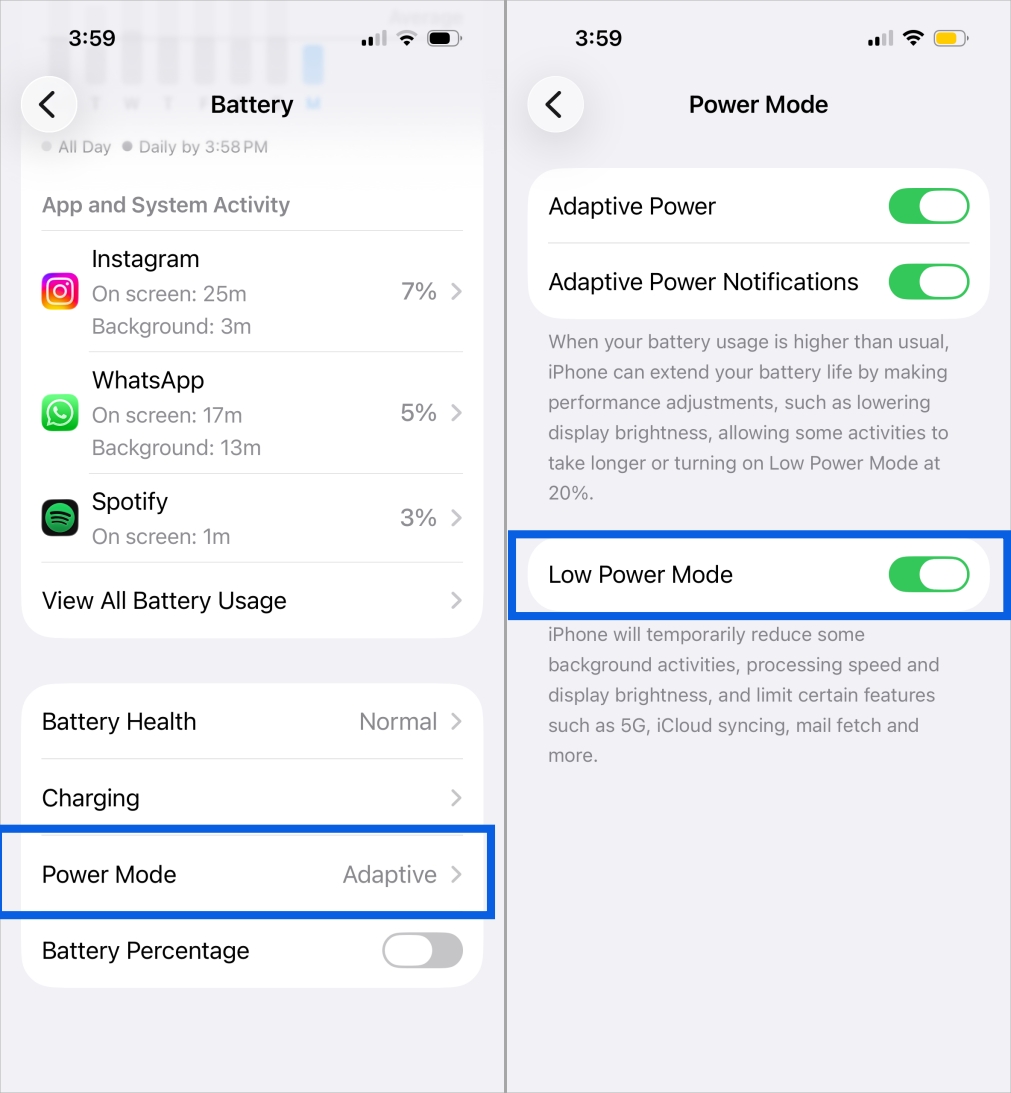
- Or go to Settings > Battery > Power Mode and switch on Low Power Mode.
Restrict Cellular Data Per App
If one app is being greedy with data:
- Go to Settings > Cellular (or Mobile Data).
- Scroll down and toggle off the apps you don’t want using mobile data.

They will still work on Wi-Fi, so BAR will be limited to Wi-Fi for those apps.
Background App Refresh is just one piece of the puzzle. There are many hidden iOS 26 features Apple didn’t talk about that can help you customize performance and battery behavior even further.
Final Thoughts
Background App Refresh is one of those iPhone features that is very useful, but only when set up just right. Making the right choices about which apps need background updates is important for better managing your battery life and data usage without sacrificing convenience.
Take a minute to review your Background App Refresh settings, and you might be surprised by how much smoother and longer-lasting your iPhone feels afterward. If you found this helpful and want more iPhone tips, check out the following guides as well.