Few things are more exasperating than meticulously organizing your desktop icons only to find them scattered across your screen after a restart. If you’ve ever connected an external monitor, changed your display resolution, or simply installed a few apps, you’ve likely encountered this maddening phenomenon. Windows has a peculiar habit of rearranging desktop icons whenever display settings change, leaving you to manually rebuild your carefully curated layouts.
Fortunately, a lightweight freeware app called DesktopOK offers a solution to this perpetual frustration. This program, weighing in at just over 600 KB, lets you preserve and restore your icon arrangements, keeping your desktop exactly as you left it, regardless of system changes.
How to Manage Desktop Icons With Native Windows Options
Before we deploy the heavy artillery, it is worth exploring the native fortifications Windows provides. Most “my icons won’t stay put” complaints come down to a misunderstood toggle or just a lack of desktop discipline that Windows tries to fix in the clumsiest way imaginable.
To access these controls, right-click anywhere on your desktop and hover over View. Here you will find the two primary suspects in the Case of the Moving Icons: Auto arrange icons and Align icons to grid.
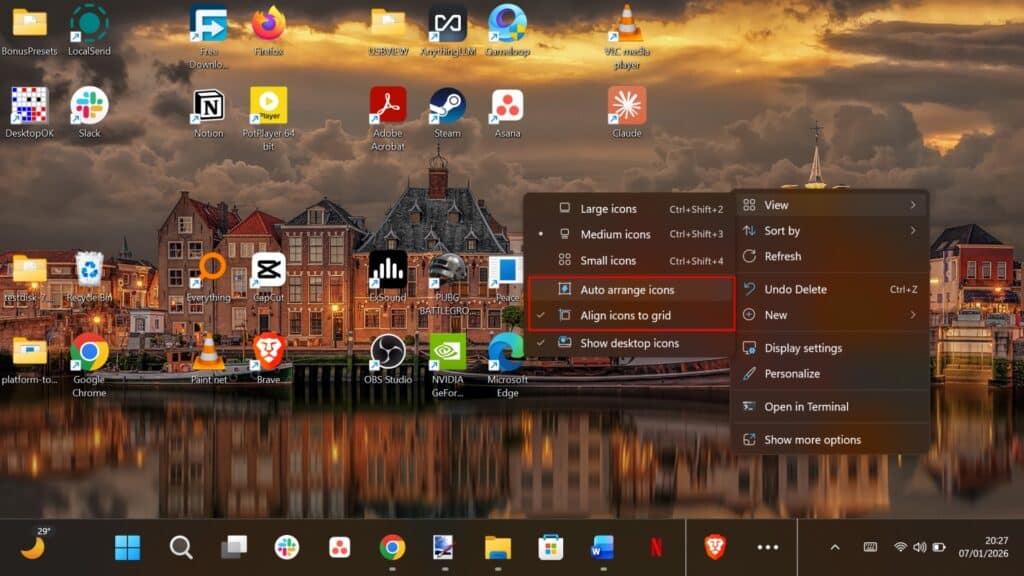
- Auto arrange icons: This is the strict hall monitor of the bunch. If this is checked, Windows will forcefully snap every icon into neat, sequential rows starting from the top-left corner. You cannot drag an icon to the center of the screen; it will boomerang back to the next available slot in the grid. If your icons are “moving” because you drag them and they snap back, this is the culprit. Disable it to regain your freedom.
- Align icons to grid: This is the softer, more benevolent option. It allows you to place icons roughly where you want them, but nudges them into an invisible grid so they line up pleasingly. It does not force them into a specific order, but it prevents the “messy desk” look where icons overlap or sit slightly askew.
However, the native “lock” ends there. Windows has no built-in memory for where your icons were before a resolution shift. It dynamically recalculates positions based on the current pixel count. If the resolution drops, the grid shrinks, and icons are evicted from their spots. When the resolution returns, Windows does not apologize, nor does it put things back. It leaves them where they landed.
How to Lock Desktop Icon Layouts in Windows With DesktopOK
Developed by SoftwareOK, this lightweight, portable tool does exactly what Windows refuses to do: it memorizes the X/Y coordinates of every shortcut on your screen and restores them with a double click.
Visit the SoftwareOK website and download the correct version for your system (usually the 64-bit version). Then unzip the folder and move the .exe file to a safe location, like your Documents folder, then double-click to launch it.
1. Choose Your Installation Mode:
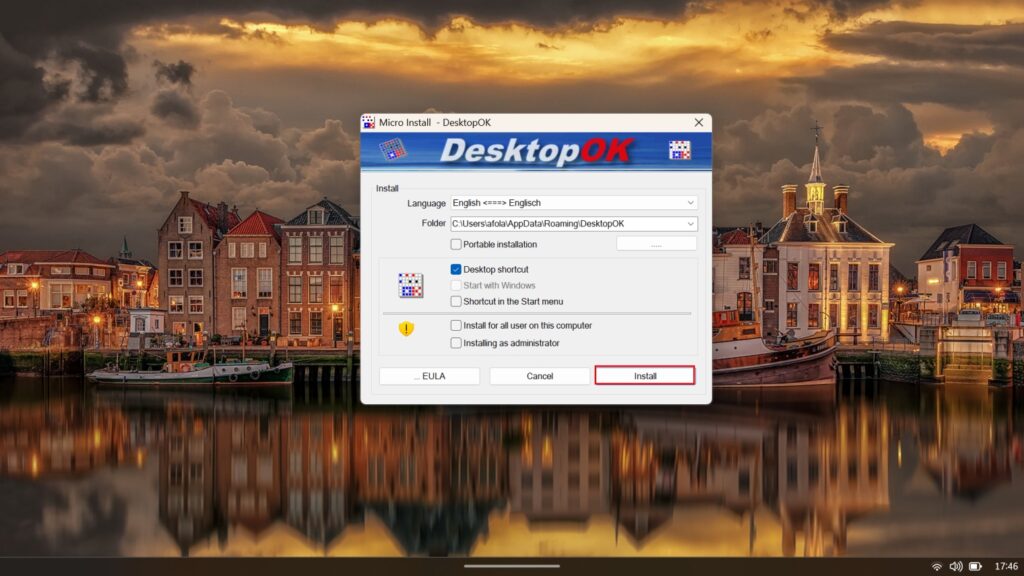
When you first launch the application, you aren’t forced into a heavy installation. The Micro Install window appears, giving you a choice: you can proceed with a standard Install (which saves to your AppData folder), or check the Portable installation box to run it directly without leaving a footprint.
2. Create Your First “Save State”:
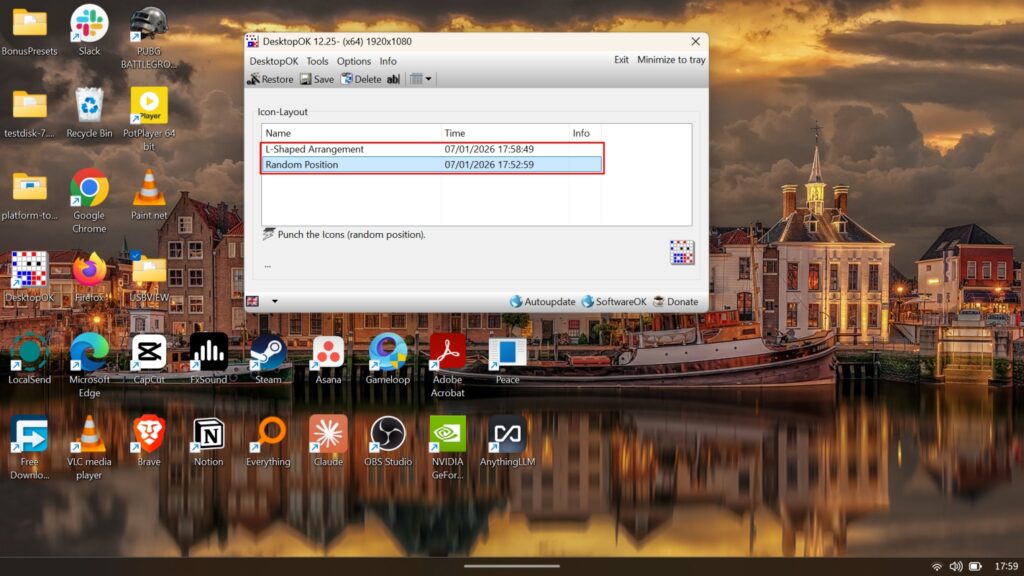
Arrange your icons exactly how you want them—perhaps clustering work tools on the left and games on the right. In the DesktopOK interface, click the Save button. A new entry will appear in the Icon-Layout list with a timestamp. You can click on this entry to rename it to something descriptive, such as “L-Shaped Arrangement” or “Work Mode,” to easily identify it later.
3. Simulate Chaos (Optional):
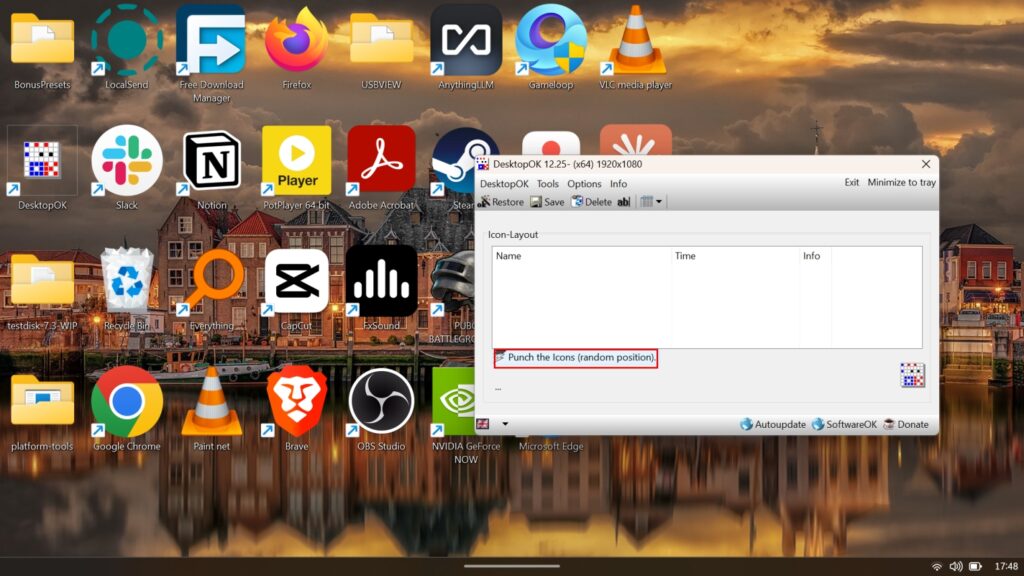
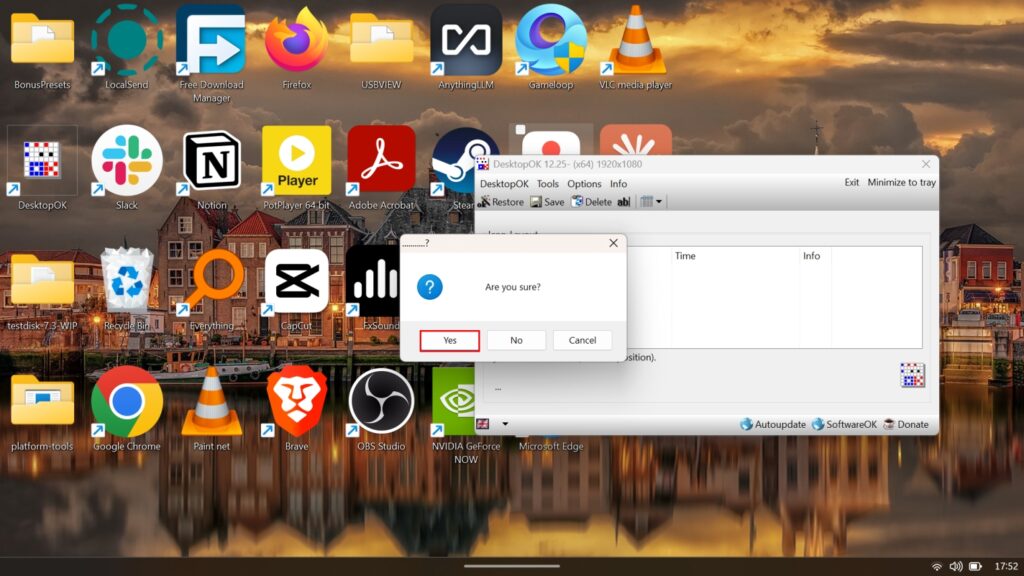
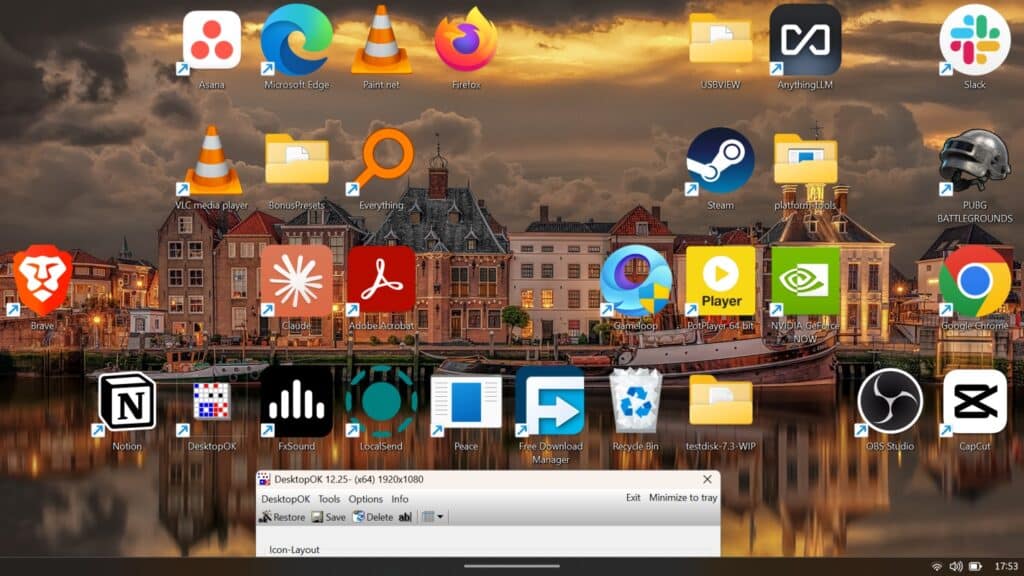
If you want to verify that the tool is working without manually messing up your own desk, look for the Punch the Icons feature at the bottom left of the window. Clicking this—and confirming Yes on the prompt—will randomly scatter your icons across the screen, simulating a resolution glitch or a “bomb” effect.
4. Restore Order:
With your icons now scattered (either by the Punch tool or a system glitch), highlight your saved layout in the list (e.g., “L-Shaped Arrangement”) and click Restore or double-click on it. Your icons will immediately snap back to their original positions.
5. Automate Your Protection:
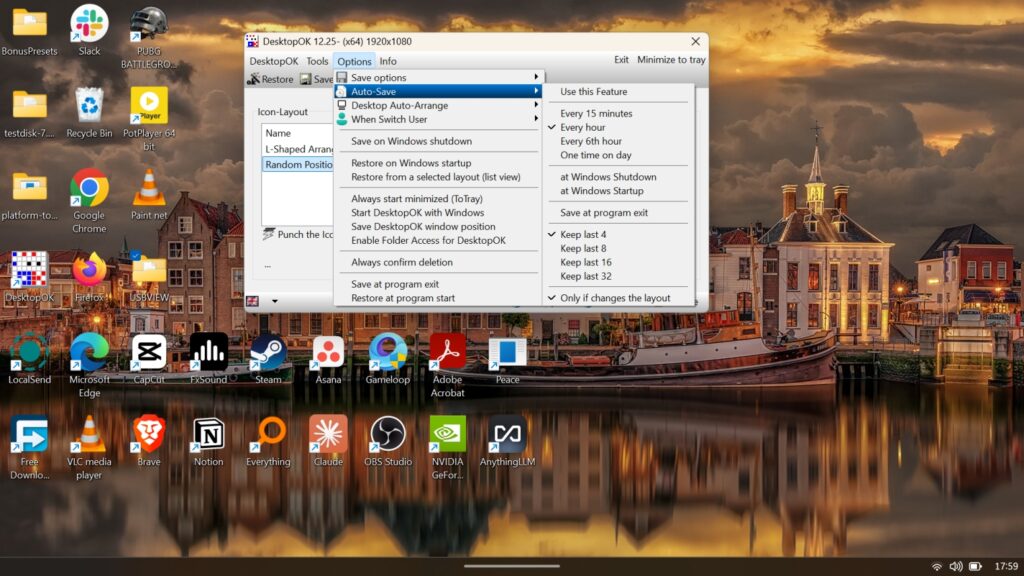
To ensure you never lose a layout, open the Options menu and hover over Auto Save. Here, you can configure the tool to save your icon positions automatically—every hour, every 6 hours, or even at Windows shutdown. This creates a rolling history of backups, so if your desktop is rearranged while you are away, you can always roll back to a version from earlier in the day.
Conclusion
Instead of rebuilding your icon layout every time Windows so much as sneezes at your display settings, you can offload that thankless chore to this tiny app and win back a few minutes of your life. It gives you a healthy mix of manual control and automated safety nets, so your carefully curated desktop stays intact the way you like it to be.