Instagram is filled with icons and often without any text to clearly state the option. Whether it’s liking a post, sharing a Reel, muting a video, replying to a Story, or switching accounts, it all happens through symbols. If you ever wondered what’s the meaning of any particular icon or a symbol on Instagram, this guide will help you.
We’ll go through Instagram the same way you use it: the home screen, posts, Stories, Reels, messages, profiles, Live videos, and content creation tools. Here are all the Instagram icons and symbols that you need to know and what they mean.
Note
Instagram changes icon placement often. The icons may move, but their meaning stays the same. We keep updating this article to include all the latest icons.
Instagram Home Screen Icons
The home screen is Instagram’s control center. These icons help you navigate the app quickly without thinking twice.
Icons at the Top
At the top of your feed, Instagram gives you quick access to how you view content and how you stay connected.
- Plus (+) on top left: Opens the creation menu to make a post, Story, Reel, or go Live.
- Down arrow next to Instagram logo: Switch between Following (posts only from people you follow) and Favorites (posts only from selected favorite accounts).
- Heart with or without a red dot: Opens your activity and notifications. A red dot means there’s a new notification: likes, comments, follows, or mentions waiting for you.

Icons at the Bottom
These icons stay visible almost everywhere so you can move around the app instantly.
- Home (house): Opens your main feed. If you’re already there, tapping it again jumps straight to the top.
- Reels (Square play icon): Takes you to Instagram’s short‑video feed. Swipe up to keep watching. Previously, this used to be a clapper board icon.
- Paper Plane icon: Takes you to Direct Messages. A red badge with a number shows how many unread messages you have.
- Search (magnifying glass): Opens Explore, where Instagram shows trending posts, Reels, and content based on your interests. You can also search for people, hashtags, places, and posts.
- Profile picture: Opens your profile. Long‑press it to switch between multiple accounts. A red dot means another account has notifications.

Icons on Instagram Posts
Posts are where most interaction happens on Instagram. Whether you’re scrolling casually or analyzing content closely, these icons control how you like, comment, share, save, or learn more about a post. Understanding them helps you interact faster and avoid accidental taps.
Icons Above a Post
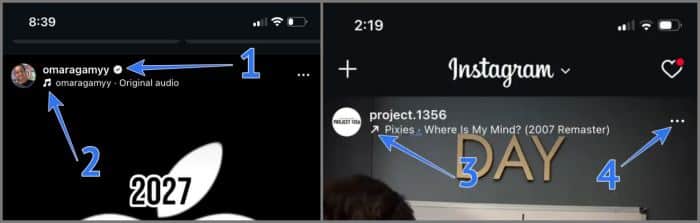
These icons appear near the username and give you context about the account, the content, or the audio used.
- Checkmark badge: Shows the account is verified by Instagram, meaning it belongs to a confirmed public figure, brand, or creator.
- Music note (🎵): Takes you to the audio page for the song used in the post, where you can see other posts using the same track or save the audio.
- Arrow pointing top‑right: Replaces the music note when the audio is trending, signaling that the sound is currently popular on Instagram.
- Three dots: Opens a menu with additional actions such as saving the post, hiding it from your feed, reporting it, remixing it (if allowed), or managing how you see content from that account.
Icons on the Post
These icons appear directly on the image or video and relate to what you’re seeing.
- Person icon: Indicates that people are tagged in the post. Tap it to view tagged accounts.
- Speaker / muted speaker: Shows whether the video’s sound is on or muted. Tap once to toggle audio.
- Slide numbers (1/5, 2/8, etc.): Appears on carousel posts and shows exactly which photo or video you’re viewing out of the total.

Icons Below a Post
These icons let you interact with the post in different ways.
- Heart: Likes the post and turns red once selected. Double‑tapping the post does the same thing.
- Chat bubble: Opens the comments section where you can read or add comments. The number shows total comments.
- Two arrows in a square: Reposts the post to your profile, making it visible to your followers.
- Paper plane: Shares the post via Direct Messages, other apps, copies the link, or adds it to your Story.
- Bookmark: Saves the post to your private collections, which you can organize into folders.

Instagram Story Icons
Stories are temporary posts that disappear after 24 hours, and Instagram uses subtle visual cues to show what’s new, what’s private, and how you can interact.
Story Rings on the Home Screen
The colored ring around a profile picture tells you the status of a Story before you even tap it.
- Your profile with a plus: Tap to create and share a new Story.
- Green ring: A Close Friends Story shared only with selected people.
- Gray ring: A Story you’ve already seen.
- Pink and yellow ring: A new Story you haven’t viewed yet.
- Timer icon: This newly introduced icon indicates that story is reaching the 24 hours mark and will be expired soon.

Icons While Viewing a Story
These icons appear while a Story is playing and let you react, respond, or manage it.
- Heart: Like the Story privately without sending a message.
- Paper plane: Share the Story with friends via DM or external apps.
- Three dots: Opens options such as muting the account, reporting the Story, or copying its link.
- Cross (X): Closes the Story and returns you to the previous screen.
- Two arrows in a square: Indicates the Story was reposted from another account.
- Star in green bubble: Confirms the Story is shared only with Close Friends.

Instagram Reels Icons
Reels are designed for fast discovery and nonstop scrolling. Unlike posts or Stories, Reel icons stay visible on the screen so you can like, comment, or share without interrupting playback. Each icon is placed to encourage quick interaction.
- White heart: Likes the Reel. It turns red once liked. The number below shows how many likes the Reel has received.
- Chat bubble: Opens the comments section where you can read or add comments. The number shows total comments.
- Two arrows in a square: Reposts the Reel to your profile, making it visible to your followers.
- Paper plane: Shares the Reel via Direct Messages, other apps, copies its link, or adds it to your Story.
- Three dots: Opens extra options such as remixing the Reel, saving it, reporting it, or adjusting content preferences.

- Profiles with pink heart: Shows profile pictures of friends who liked the same Reel, helping you spot shared interests.
- Play icon: Appears only when the Reel is paused. Tap it to resume playback.
- Speaker icon: Instantly mute or unmute the Reel’s audio.
Instagram Direct Message (DM) Icons
Direct Messages are where private conversations, shared posts, and quick reactions live. Instagram uses small but very deliberate icons here to show who’s active, which chats need attention, and what actions you can take, often without even opening the conversation. Once you understand these symbols, managing DMs becomes much faster and less cluttered.
Icons in the Chat List
These icons appear on the inbox screen and help you scan and manage conversations at a glance.
- Pencil: Starts a new personal or group chat.
- Map: Instagram’s new Map feature where you can check your friend’s posts according to their posted location.
- Green dot on profile picture: Shows the person is currently active on Instagram.
- Blue dot: Indicates an unread message so you can spot new conversations instantly.
- Camera: Sends a disappearing photo or video directly from the chat list without opening the conversation.
- Meta AI gradient circle: Opens Meta AI so you can ask questions, generate images, or get quick help inside Instagram.

Icons Inside a Chat
Once you open a conversation, these icons help you communicate in different formats without leaving the chat.
- smiley and plus blended together icon: Instagram’s new Blend feature where you can and your friend gets a blending reels feed.
- Phone: Start an audio call with the person or group.
- Video camera: Start a video call directly from the chat.
- Paper plane: Forward a message, photo, or video to another chat.
- Bookmark: Save shared posts, Reels, or media to collections for easy access later.
- Emoji with plus: React to messages using emojis.

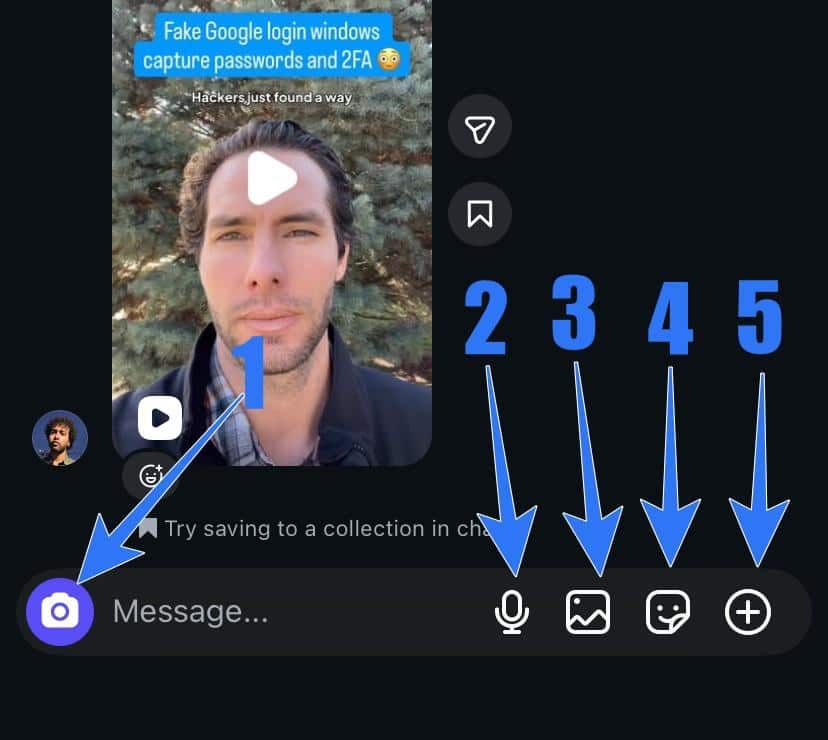
- Camera: Take and send a photo or video instantly.
- Microphone: Record and send a voice note.
- Gallery: Share photos or videos from your device.
- Sticker / smiley: Send stickers, GIFs, or avatars to make chats more expressive.
- Plus in a circle: Share your location, generate AI images, or start a Meta AI interaction.
Your inbox uses these icons to quietly show activity, availability, and shortcuts without overwhelming you with text.
Icons on Map View
On the Instagram’s new Map page, you find these new icons
- Cog with blue arrow icon: You will be able to set who can see your location and location on your posts in Map view.
- Circle pointer icon:Moves you back to your live location when you tap it.
- Person with arrow icon: It lets you request your friends to share their live location.

Instagram Profile Page Icons
Profile icons change depending on whose profile you’re viewing. On your own profile, they focus on creation and account management. On someone else’s profile, they focus on how you follow, interact, and control what you see from that account.
On Your Profile
These icons help you manage your account, publish content, and access settings.
- Three bars: Opens Settings, Saved posts, Insights, and other account tools.
- @ icon: Opens your profile on Threads or redirects you to install the app.
- Arrow next to username: Switch between multiple Instagram accounts without logging out.
- Profile picture with plus: Add a new Story that stays visible for 24 hours.
- Plus icon: Create a post, Reel, Story, Highlight, or go Live from one menu.

Profile Tabs
These tabs organize all the content on a profile so it’s easy to browse.
- 9-grid: Shows all regular posts in a grid layout. This includes your posts and reels.
- Pin icon: Shows posts or Reels pinned to the top of the profile. You can pin any post by opening it and clicking on three-dot menu.
- Reel icon: Shows all of your published Reels.
- Two arrows in a square: Shows posts or Reels that you have reposted.
- Person icon: Shows posts of other’s users and your friends where your account has been tagged.

On Someone Else’s Profile
These icons control how you interact with and receive updates from another account. These icons control how you follow and interact with another account.
- Arrow next to Following: Gives you the option to mute, unfollow, restrict, or add the account to Close Friends.
- Person with plus: View similar account suggestions.
- Three dots: Block, restrict, report, or copy the profile link.
- Bell: Manage notifications for their posts, Stories, Reels, or Live videos.
- Broadcast channel icon: This will only appear if the user has a broadcast channel and it will let you join their broadcast channel for updates.

Instagram Live Video Icons
Instagram Live is built around real-time interaction. The icons you see during a Live video are designed to help you participate instantly—whether that means reacting, asking questions, or even joining the broadcast.
- Viewer count: Shows how many people are currently watching the Live video.
- Plus inside video camera: Sends a request to join the Live as a guest or co-host.
- Question mark in chat bubble: View audience questions or submit your own for the host to answer.
- Paper plane: Share the Live video with friends through Direct Messages while it’s still ongoing.
- Heart: Send floating heart reactions in real time to show appreciation for the host.
Content Creation and Editing Icons
When you create a post, Story, Reel, or go Live, Instagram gives you a set of tools to control how your content looks, sounds, and behaves. Most of these icons stay consistent across formats, which makes learning them once extremely useful.
While Creating Content
These icons appear while recording or selecting media and control how your content is captured.
- Gallery: Add photos or videos from your device.
- Flash: Turn the flash on, off, or auto based on lighting conditions.
- Speed icons (1x, 2x, 1/2, etc.): Control how fast or slow Reels are recorded.
- Clock: Set a countdown timer so recording starts automatically.
- Gear icon: Open camera, privacy, and reply settings.
- Flip camera: Switch between front-facing and rear cameras.

While Editing Content
These icons appear after media is captured and help you enhance it.
- Three dots: Open extra options like saving content or labeling it as AI-generated.
- Squiggly line: Draw freely on photos or videos.
- Three stars: Apply visual effects, filters, or AR overlays.
- Paint brush with star: Use Meta AI tools to add, remove, or change elements in images.
- Music: Add background music from Instagram’s library.
- Smiley: Add stickers, polls, GIFs, location tags, and interactive elements.
- Aa: Add and customize text overlays.

Text Editing Tools
These tools appear when editing text and help improve readability and style.
- Text size slider: Increase or decrease text size precisely.
- Eyedropper: Pick colors directly from the image or video.
- Font (Aa): Switch between different font styles.
- Color palette: Choose solid colors or gradients.
- Text effects icon: Apply shadows, outlines, or highlights.
- Background icon: Add a background behind text for better visibility.
- Animation text icon: Add motion or entrance effects to text.
- Align text icon: Align text left, center, or right.

Final Thoughts
Once you understand Instagram’s icons, the app stops feeling confusing and starts feeling intuitive. Every symbol is a shortcut—saving time, reducing taps, and helping you focus on what matters most: sharing moments, discovering content, and staying connected.
Now that you can read Instagram’s visual language, you won’t hesitate before tapping an icon. You’ll know exactly what it does—and use Instagram with confidence.