
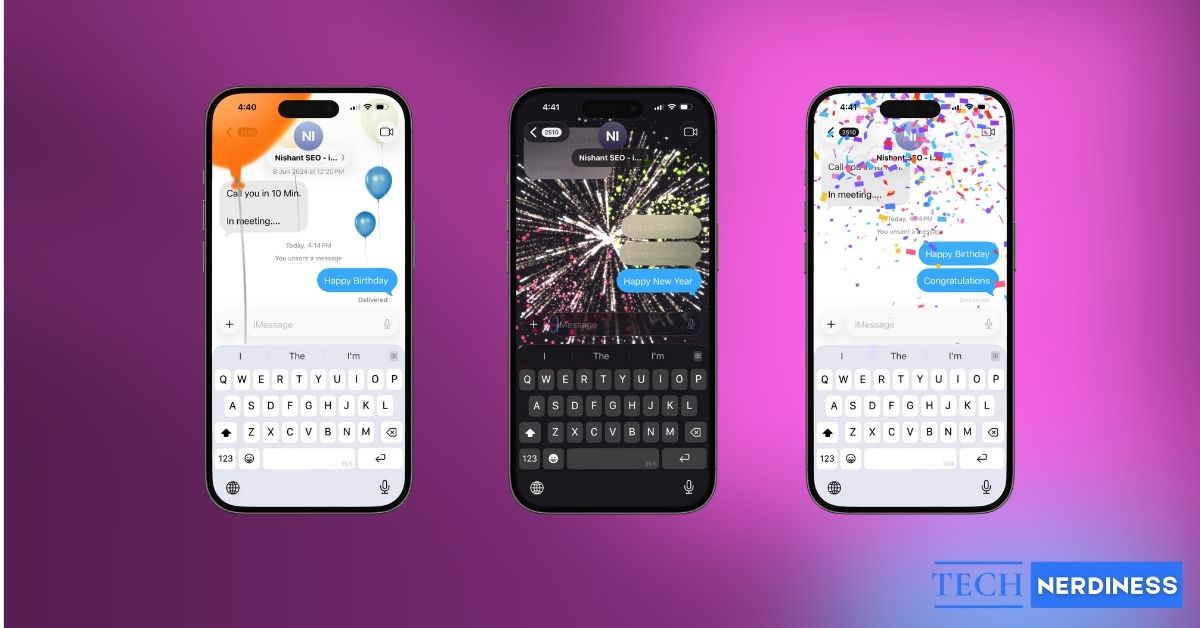


You might have seen balloons, confetti, or fireworks suddenly fill your iPhone screen after sending a message and wondered how it happened. iMessage includes hidden screen effects that activate when you send certain words or phrases. This make everyday iMessages more expressive and fun. This guide explains which words trigger iMessage screen effects, what each effect does, and how to use or disable them when you want more control over your messages.
What Are iMessage Screen Effects?
iMessage screen effects are full-screen animations that take over the entire chat temporarily when you send a message. They’re designed for different celebrations. For example, you can see fireworks exploding across a dark screen, confetti raining from the top, or balloons floating upward behind the conversation.
These animations look great with customized iMessage backgrounds. From my testing, screen effects trigger in two ways. Some play automatically when you send specific words or phrases. Others can be applied manually by long-pressing the send button and choosing an effect.
Note: This differs from iMessage bubble effects, which animate only the message bubble itself and don’t require specific trigger words. For more context, check out our guide on iMessage symbols and icons.
Before You Use iMessage Effects, Check This
Screen effects work on iPhone, iPad, and Mac, as long as:
- iMessage is enabled.
- Both sender and recipient are using Apple devices running a supported version of iOS, iPadOS, or macOS.
- Motion effects are configured in Accessibility settings. Go to Settings > Accessibility > Motion, then toggle off Reduce Motion and enable Auto-Play Message Effects.

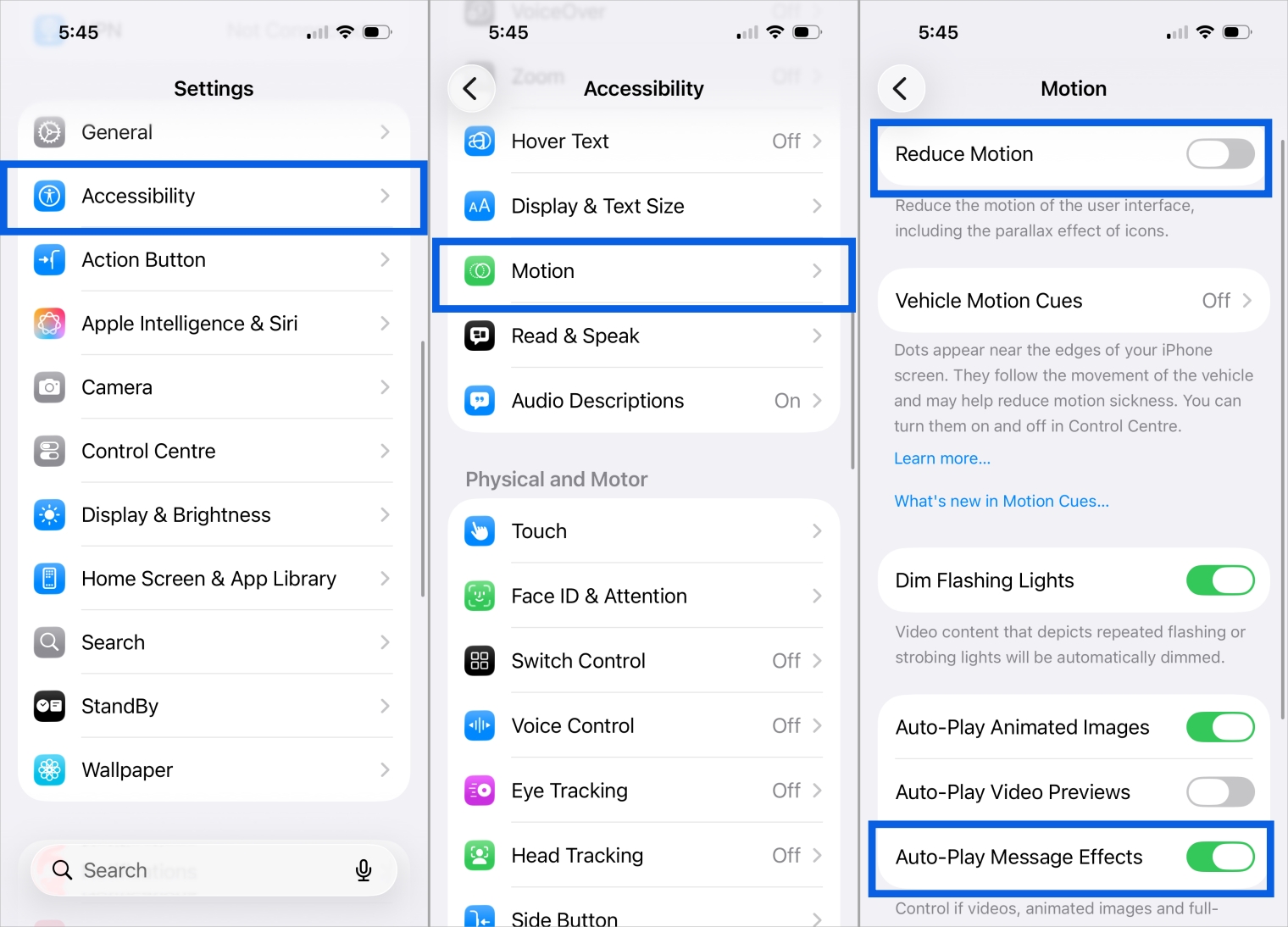
If either device has effects disabled, the animation won’t play even if the trigger word is correct.
Words That Trigger Special iMessage Text Effects on iPhone
These phrases consistently trigger screen effects on recent iOS versions, starting with iOS 17. Just type them and send.
- Happy Birthday: Triggers the Balloons effect. Colorful balloons float up the screen. Capitalization does not matter, and punctuation usually still works.
- Happy New Year: Plays the Fireworks effect. Fireworks explode against a dark background. One of the most visually dramatic effects.

- Congratulations or Congrats: Shows Confetti raining down from the top of the screen. Works well for achievements and milestones.
- Pew Pew: Triggers the Lasers effect. Colorful neon laser beams shoot across the screen, accompanied by subtle sound effects.
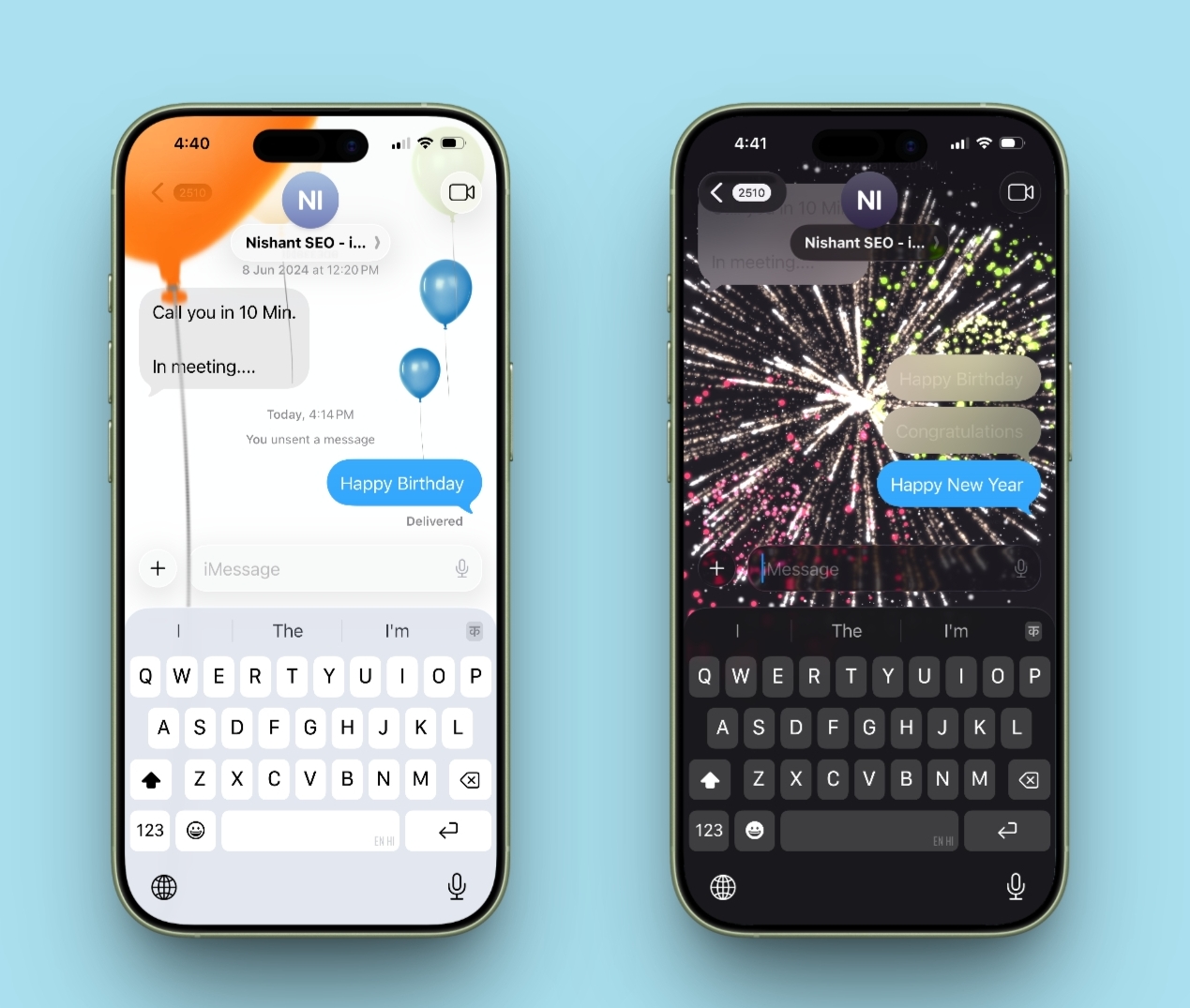
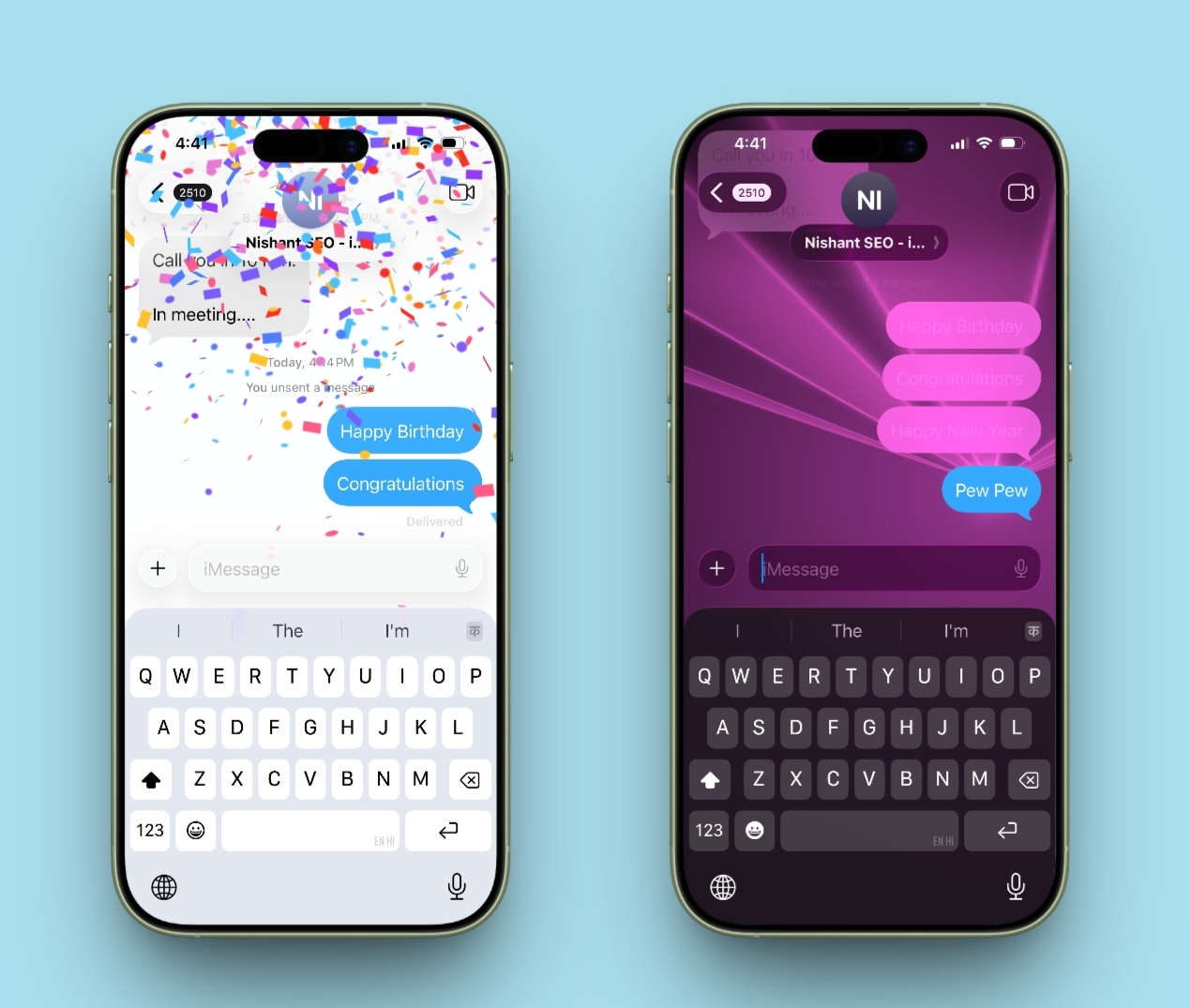
Trigger words usually stop working if you add emojis, extra symbols, line breaks, and additional words in some cases. When that happens, manual effects are more reliable.
How to Manually Send iMessage Screen Effects
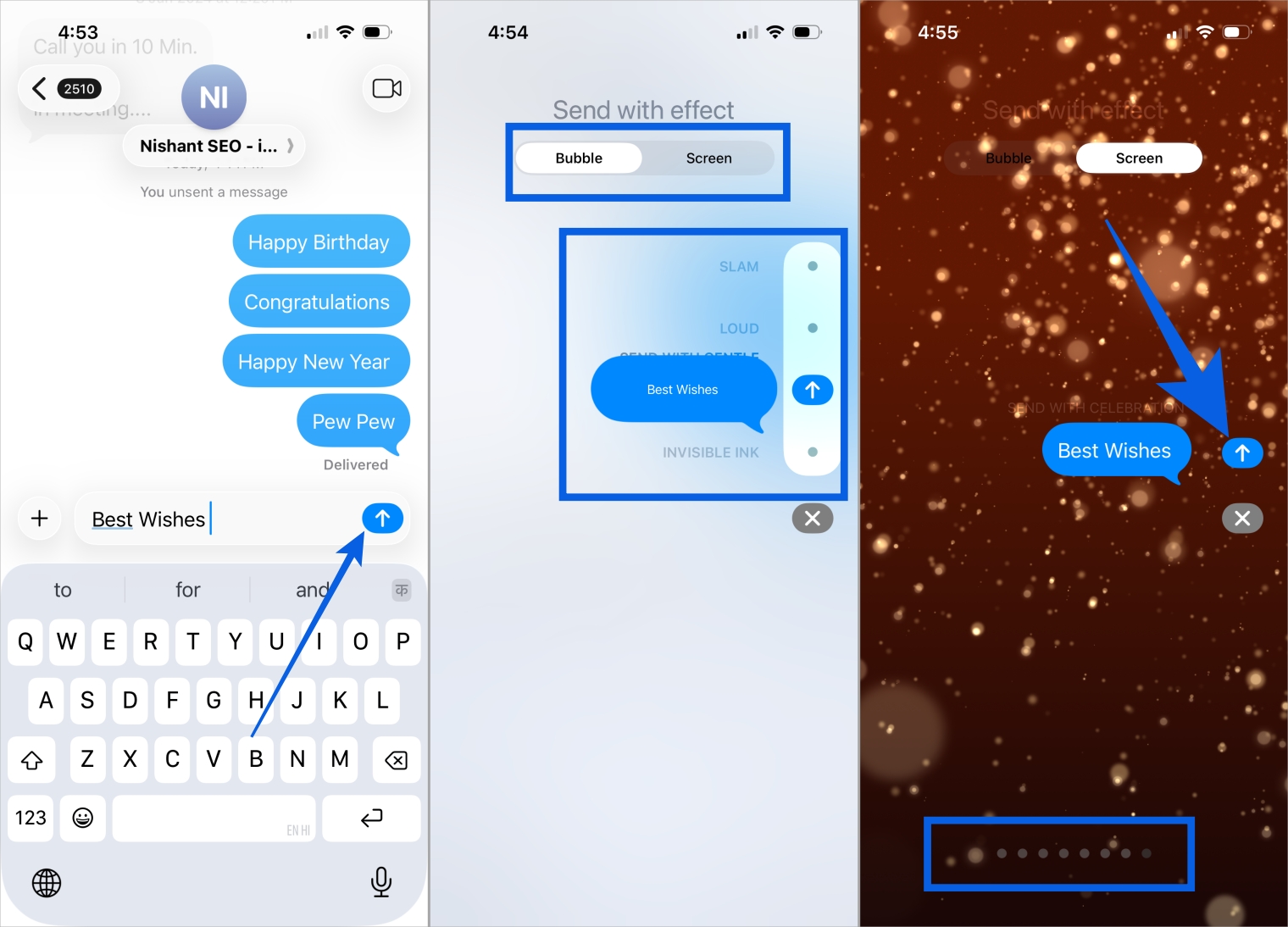
Manual sending works every time and gives you full control. I often use it when emojis or custom text stop the effect from triggering. Here’s how to do it:
- Open the Messages app and open an iMessage chat (with blue bubbles).
- Type your message in the text box.
- Long press the blue Send button.
- Tap the Screen tab at the top.
- Swipe left or right to preview effects like Balloons, Confetti, Fireworks, and Lasers.
- Tap Send to apply the effect.
iMessage Bubble Effects vs. Screen Effects
Bubble effects animate only the message bubble, not the whole screen. They’re more subtle, adding tone and emotion to your text, and are better suited to everyday conversations.
Here are all the iMessage bubble effects and what they do:
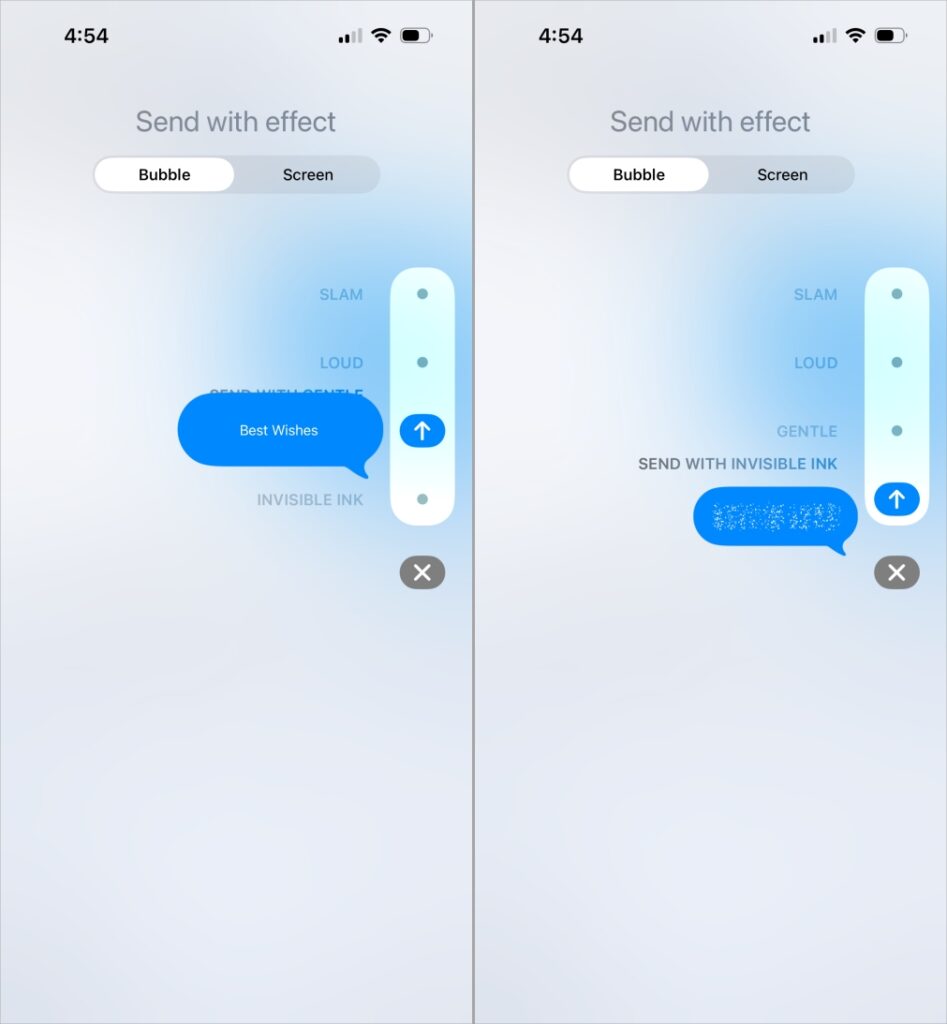
- Slam: Drops the message forcefully onto the screen with a dust effect. Best for strong reactions or dramatic statements.
- Loud: This makes the bubble expand and tremble before settling. It is like shouting, so it works for excitement or urgency, but can be a bit overkill in group chats.
- Gentle: This begins subtly and gradually resets back to the original font size. A good choice for a reassuring or calm reply.
- Invisible Ink: Hides the message in a blur effect that can be revealed only when tapped on. Good for surprise, spoilers, and secret messages.
On the other hand, screen effects fill the entire screen, not just the message bubble.
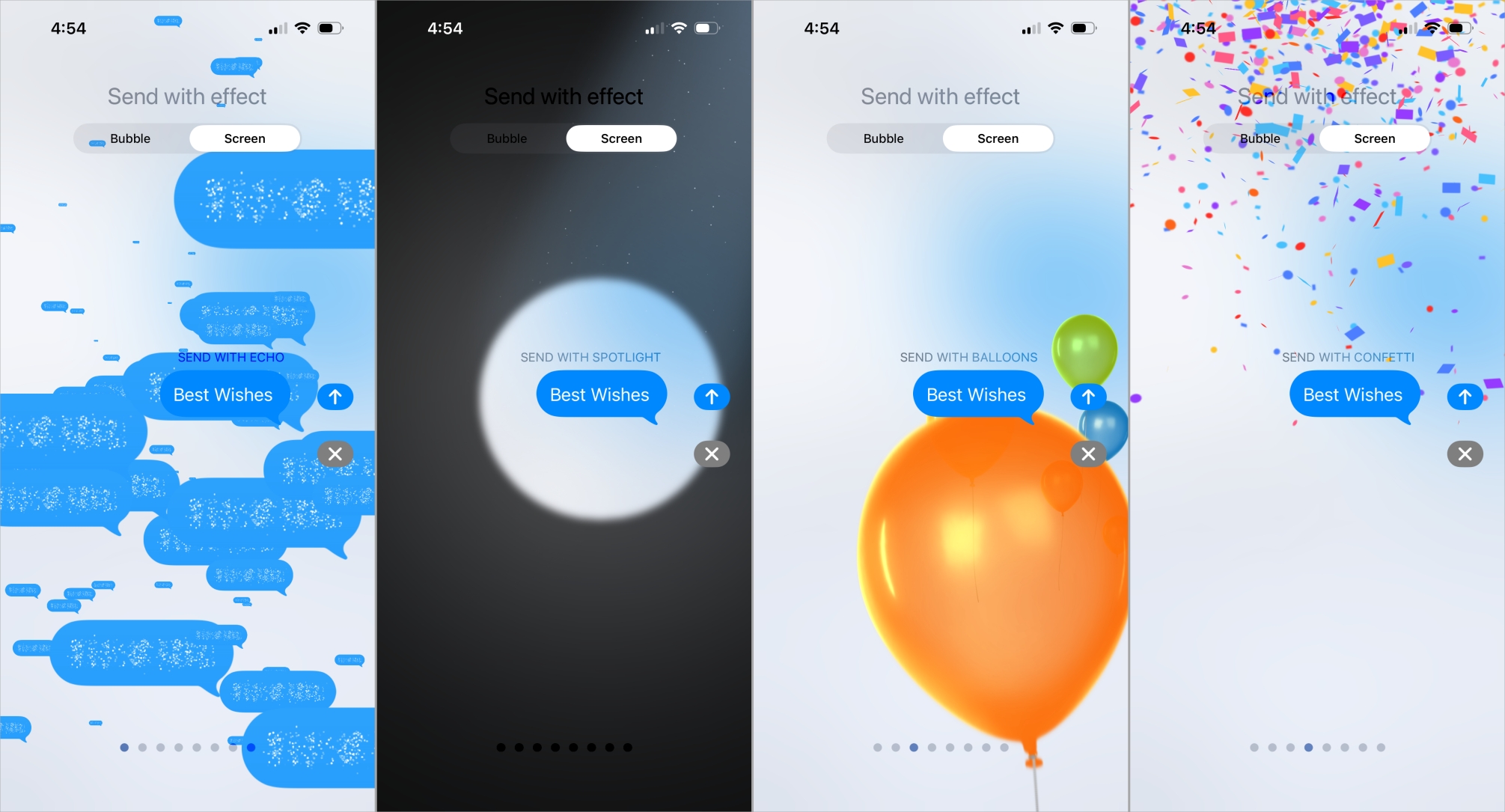
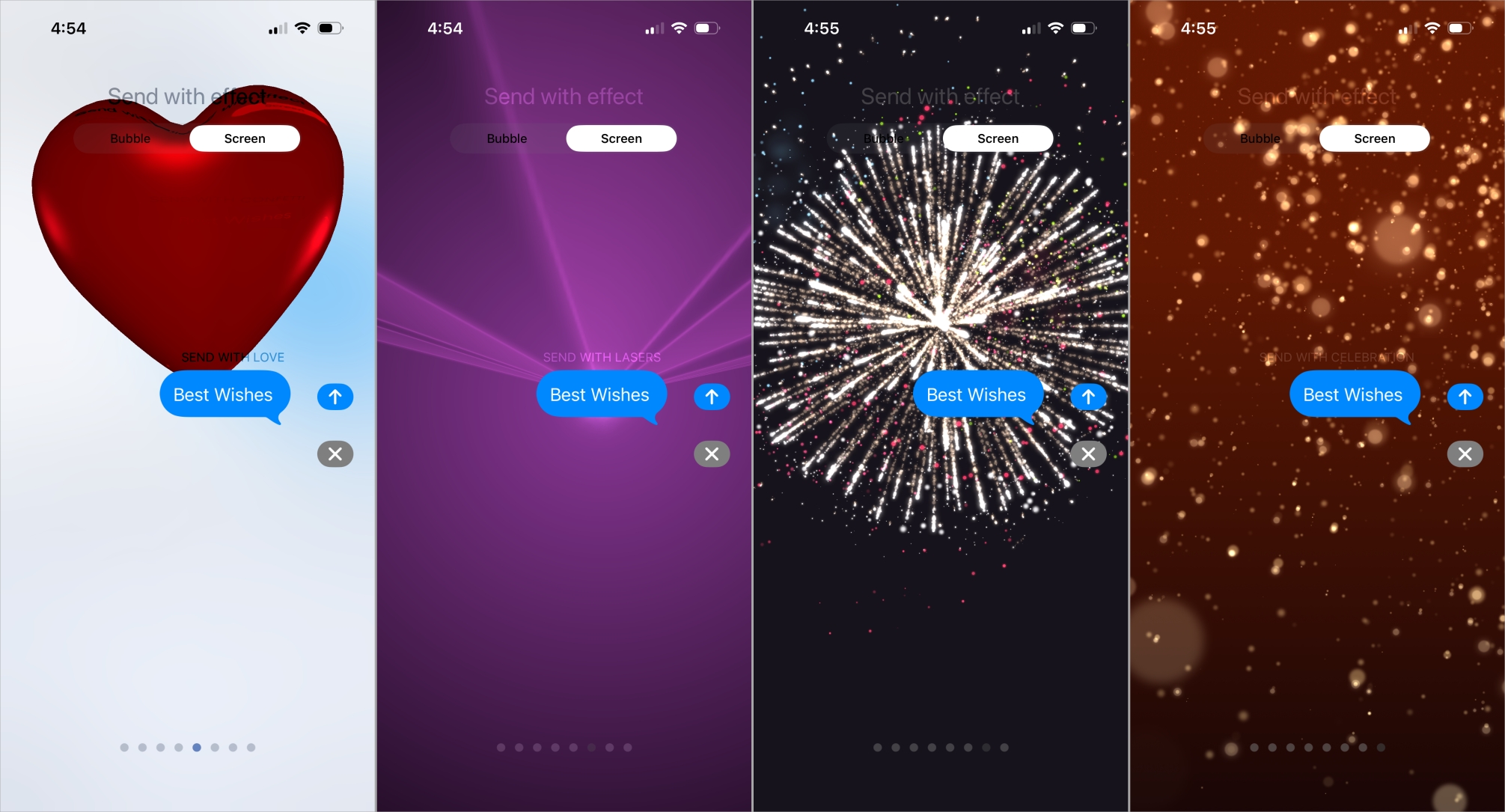
What each screen effect does:
- Echo: Copies of your message fly around the screen, creating a lively, bouncing effect.
- Spotlight: The screen dims as a light highlights the message to focus attention on a single line.
- Balloons: With vibrant colors, the balloons rise. This is mostly used in celebrations.
- Confetti: Confetti falls from the top of the screen, perfect for congratulations and milestones.

- Love: A large 3D heart protrudes from your text. You can apply it in love messages.
- Lasers: Color-changing laser beams sweep across the screen. It’s playful and attention-grabbing.
- Fireworks: The background goes dark as bright fireworks explode, great for big celebrations.
- Celebration: Subtle sparkles burst around the screen, offering a more refined festive feel than confetti.
Therefore, both effects let you control the mood and impact of your messages. Once you start using them, plain text can feel surprisingly dull.
New iPhone Text Message Effects in iOS 26
iOS 26 introduces inline text effects, distinct from bubble and screen effects. Instead of animating the whole message, these effects apply to specific words or phrases. This makes messages more expressive without going overboard.
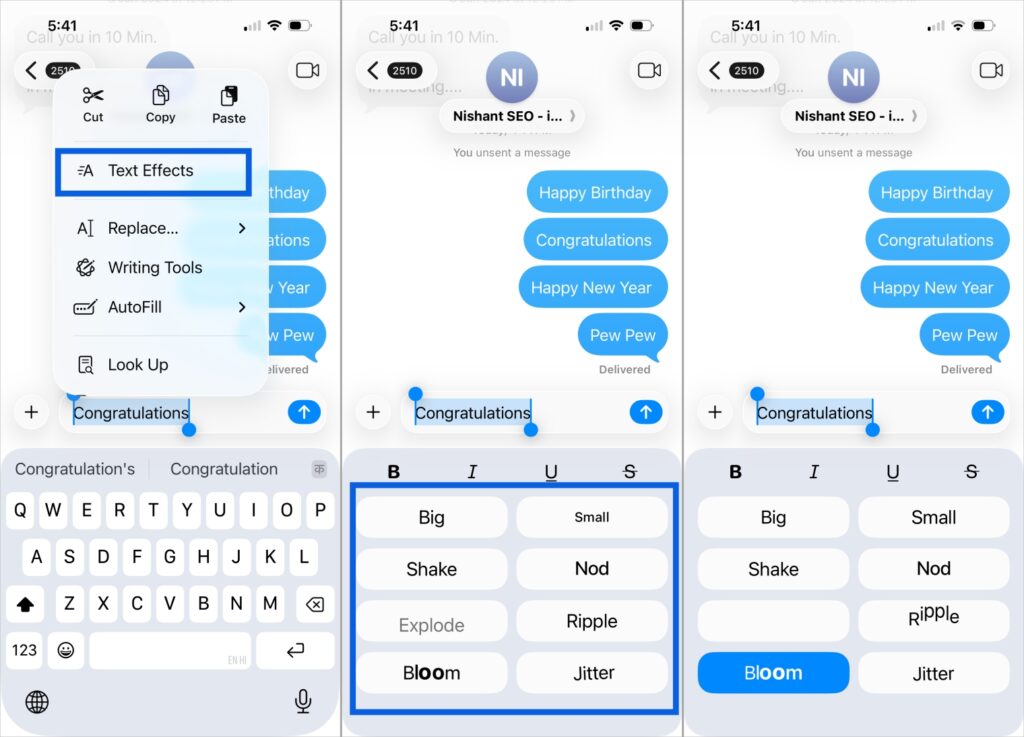
The Messages app introduces eight new text effects:
- Big makes the selected text larger, emphasizing the word or idea without using caps.
- Small reduces text size for side comments or playful tone.
- Shake wobbles text for expressing shock or disbelief.
- Nod involves moving the text up and down to signify agreement or affirmation.
- Explode scatters letters outwards to create dramatic reactions.
- Ripple provides fluid motion with a soothing wave effect.
- Bloom highlights text letter by letter, drawing attention gradually.
- Jitter adds a light shake to suggest nervousness or uncertainty.
These effects are applied manually by selecting text before sending. There are no trigger words, which prevents accidental animations and gives you more control.
How to Turn Off iMessage Screen Effects
If you find the animations distracting, you can disable them easily.
- Open Settings and go to Accessibility.
- Tap Motion.
- Toggle on Reduce Motion.
- Turn off iMessage screen effects.
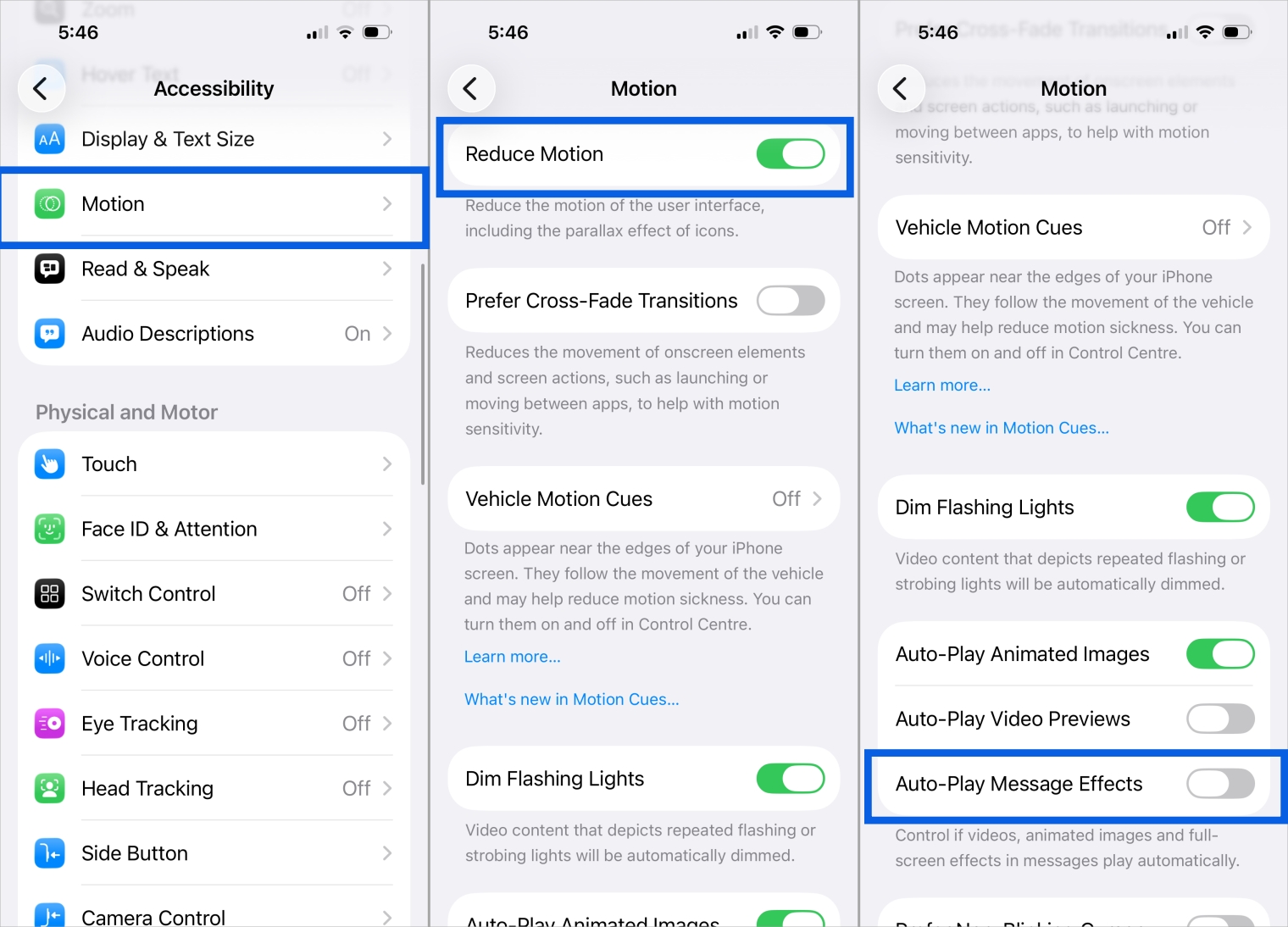
Messages will still send normally, just without animations.
Personalize Messages with Screen Effects!
iMessage screen effects add a bit of personality to everyday chats. From birthday balloons to New Year fireworks, the right trigger words make messages more fun. If auto effects do not trigger, sending them manually gives you full control. Spend a few minutes experimenting and you will unlock more playful ways to use Messages, along with other iPhone features you may have missed.
FAQs
No. These effects are exclusive to iMessage users and only work between Apple devices.
Yes. Apple has added and adjusted effects in past iOS releases, so new triggers may appear over time.
Yes, but results depend on each participant’s device and accessibility settings.