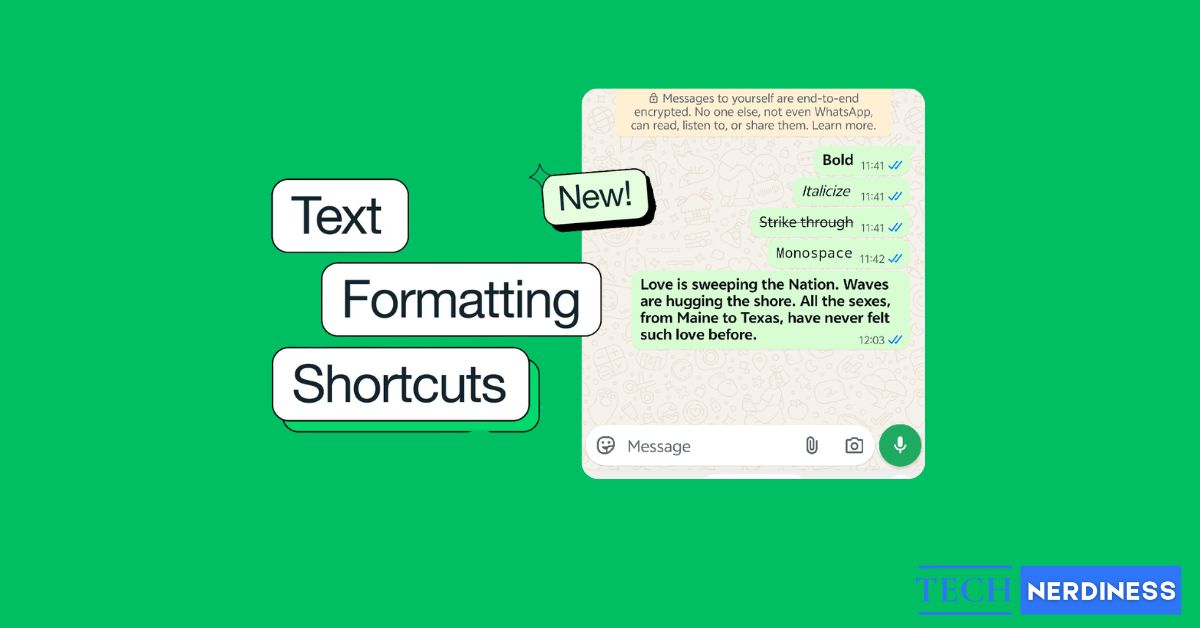
What makes your message more impactful? Formatting. It can take a boring message and make it exciting. WhatsApp baked rich text formatting to its app, and this gave it yet another advantage over its competitors. Whether you use WhatsApp for your boring business bulletins or your casual colloquial conversations, You can use formatting to style your WhatsApp messages with bold, italics, monospace, and strikethrough text. Here’s a quick guide to help you out.
What Is Rich Text Formatting and Why Is It Better Than Plain Text?
Most of the messaging apps that we use only use plain text. As its name implies, plain text is boring and unexciting. It’s just there to convey a message and nothing more. There’s nothing to emphasize your point or differentiate one word from another. In other words, there’s nothing to add emotion to your text. We usually offload the task of adding emotion to the emojis.
While web-based messaging apps like Facebook Messenger or Telegram could have adopted text formatting long ago, your standard text messaging app actually couldn’t due to technological limitations. For the longest time, your phone used the standard SMS (Standard Messaging Services) messaging protocol. This standard, established in 1992, could not support any sort of text formatting.
However, thanks to a huge push from Google, we started moving onto what’s called RCS (Rich Text Services). This is a much more advanced standard than the decades-old SMS. One of the many advantages is the ability to use rich text formatting. Unlike SMS, RCS lets people add bold, italicized, and underlined text. So, you can format your text just like a desktop word processor.
How to Format Text on WhatsApp Using Bold, Italics, and Strikethrough
Adding some pop and Panache to your WhatsApp messages is pretty easy. The app supports a few basic text formatting methods. Unfortunately, you wouldn’t know it without selecting any text.
To format your text:
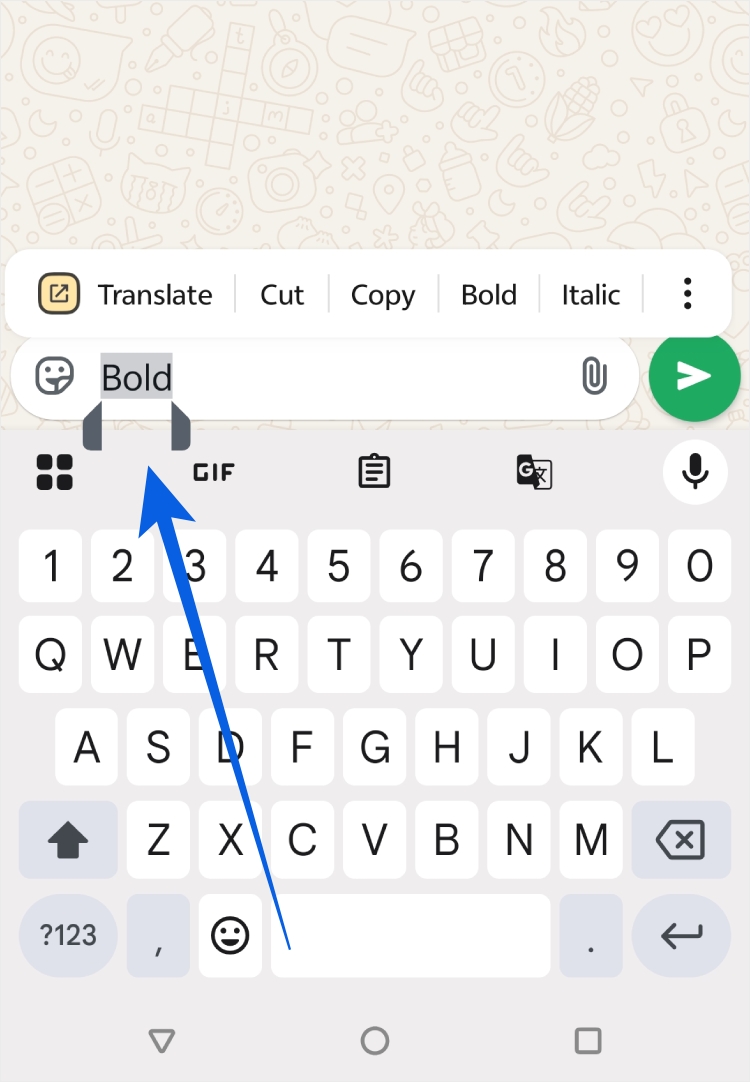
- Hold your finger down on the text you want to format. A toolbar will pop up with some options.
- Tap on the formatting option you want.
- Tap on the three-dot button at the far right end of the toolbar. This will expand the options.
Use Markdown Text In WhatsApp
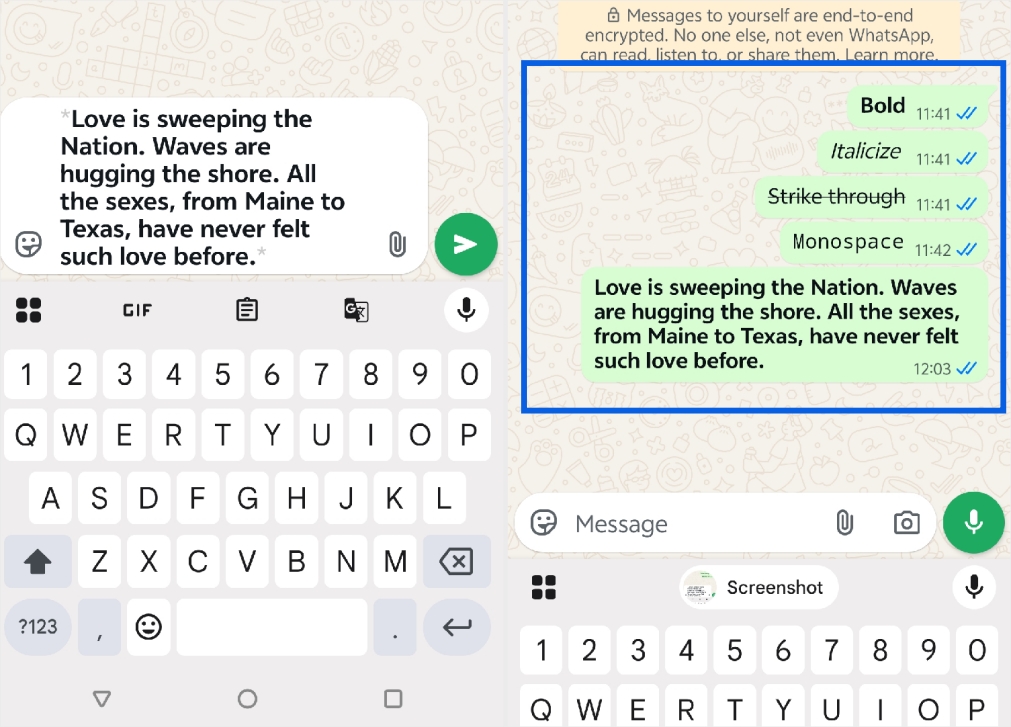
When you choose the option, you’ll notice something interesting about the text. For example, if you select the Bold option, you’ll see a pair of asterisks ( * ) around the text. This is called the Markdown language.
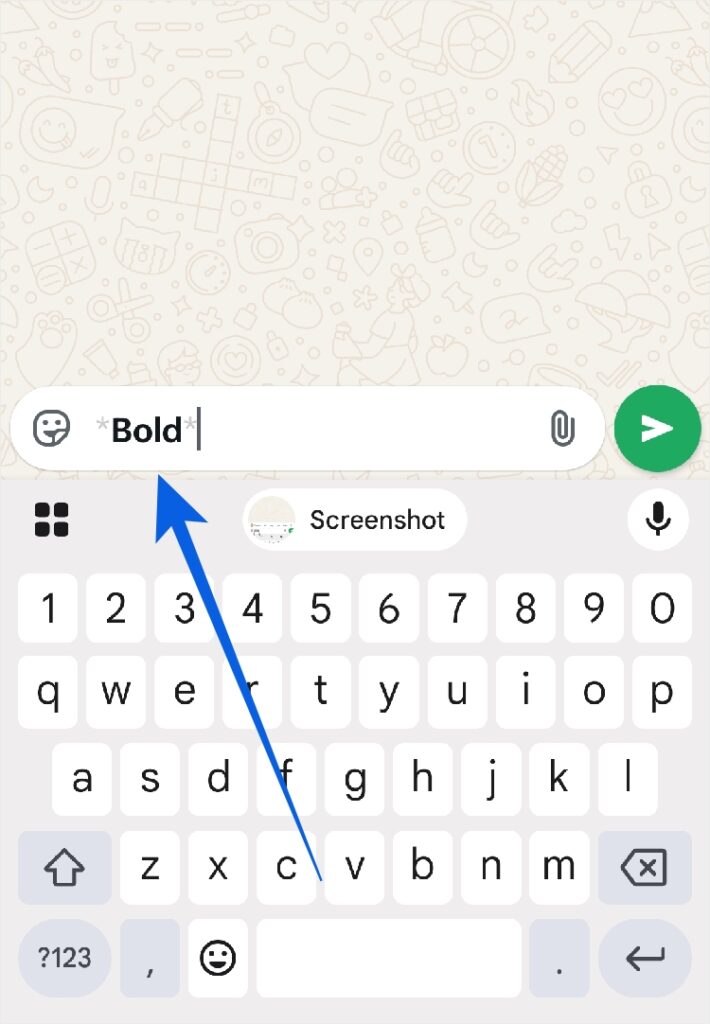
When you add the Markdown symbols around the text, WhatsApp will automatically format the text accordingly. This means that you can manually add those symbols around text to add the formatting rather than selecting the text.
Here are the markdown symbols:
- Bold = Single Asterisks (**)
- Italicize = Single Underscores (_ _)
- Strikethrough = Single Tildes (~~)
- Monospace = Triple Backticks ()
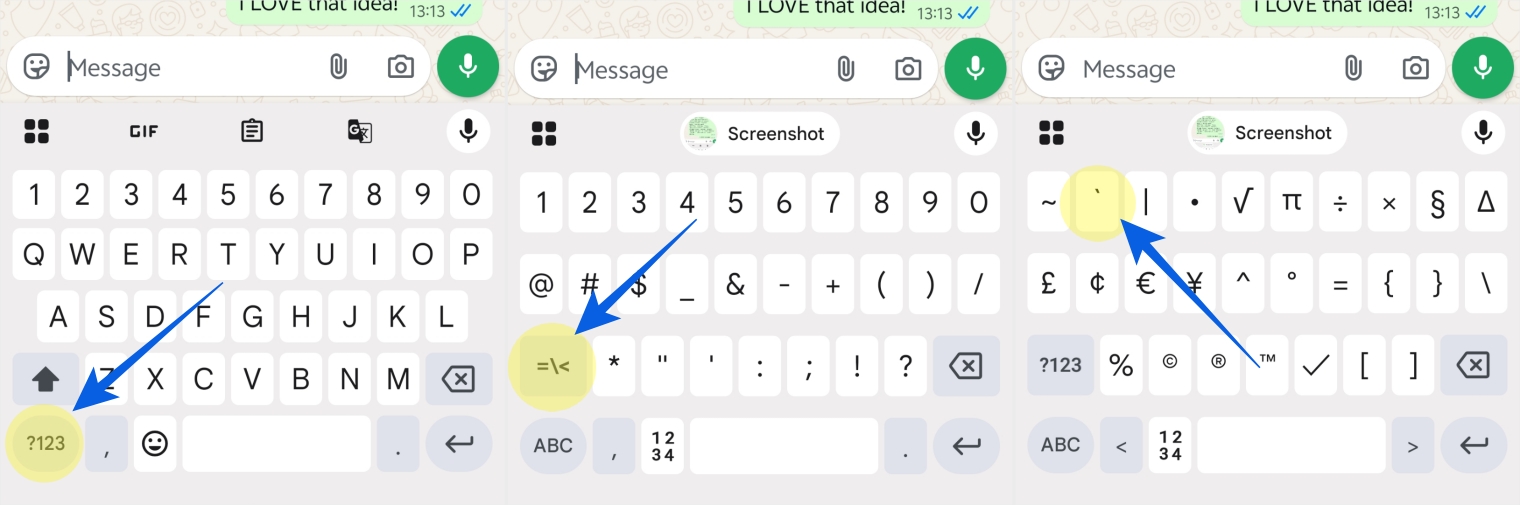
As a side note, the backtick (`) may look like an apostrophe (‘), but they’re different. To add a backtick using Gboard:
- Tap on the ?123 button to show the symbols
- Tap on the =/< button to go to the second page of symbols.
- It will be at the top right next to the tilde.
Note that this doesn’t work across paragraphs. You can’t put one pair of symbols around more than one paragraph at a time. You’ll need to add a pair around each individual paragraph.
What is Monospace Font?
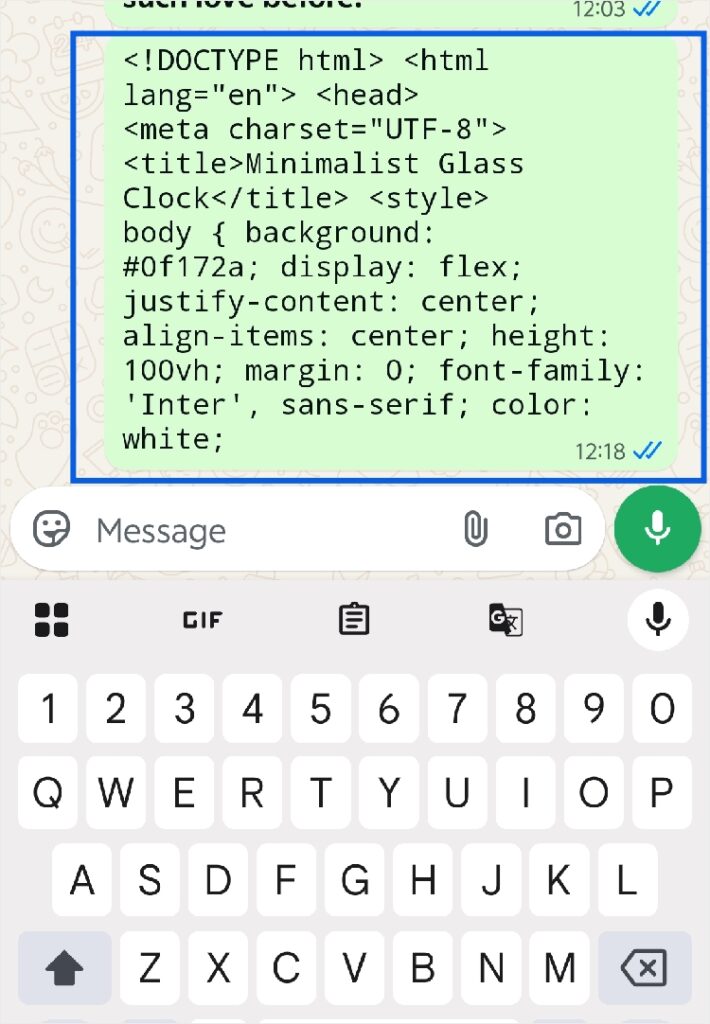
We all know bold, italicized, and strikethrough text. However, Monospace text might not be as well-known. It’s all in the name. It’s a font where all of the characters take up the same horizontal space. This increases readability, and it’s great for writing/pasting computer code. So, if you’re sending code to another person, then you would want to consider using Monospace.
What Are Other Cool Things I Can Do With WhatsApp?
WhatsApp has some other neat features that make it one of the most used platforms on the planet. For starters, users can message themselves. If you want to jot down some notes or text out the app’s text features without bothering another person, you can send a message in a private chat. Tap on the New Chat button and select yourself as a contact. Don’t worry, you won’t get notifications when you send messages to yourself.
Next, WhatsApp is a secure platform. One of its most notable features is the end-to-end encryption. This means that you don’t have to worry if you’re sending sensitive messages. The messages are locked down so tightly that not even WhatsApp can read your messages. End-to-end encryption is on by default, so you don’t need to enable anything.
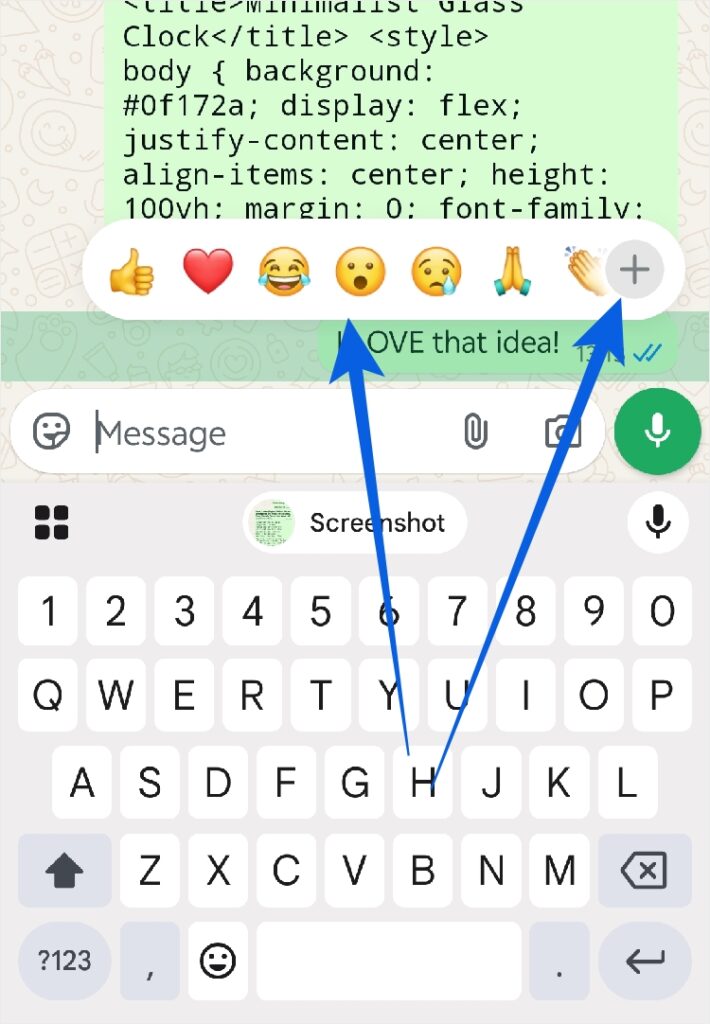
Holding your finger down on a message will bring up a toolbar full of emojis that you can use as a reaction. Swipe all the way to the right of the toolbar and tap on the “+” button. This will open up the full emoji menu.
If you want to share messages with a broad group of people but don’t want the crosstalk that you’d get with a group chat, then set up a broadcast. This lets you have a one-way conversation with a large group of people. Maybe you want to share content or updates with a group of people.
To set up a broadcast:
- Tap on the three-dot menu.
- Select the New Broadcast button.
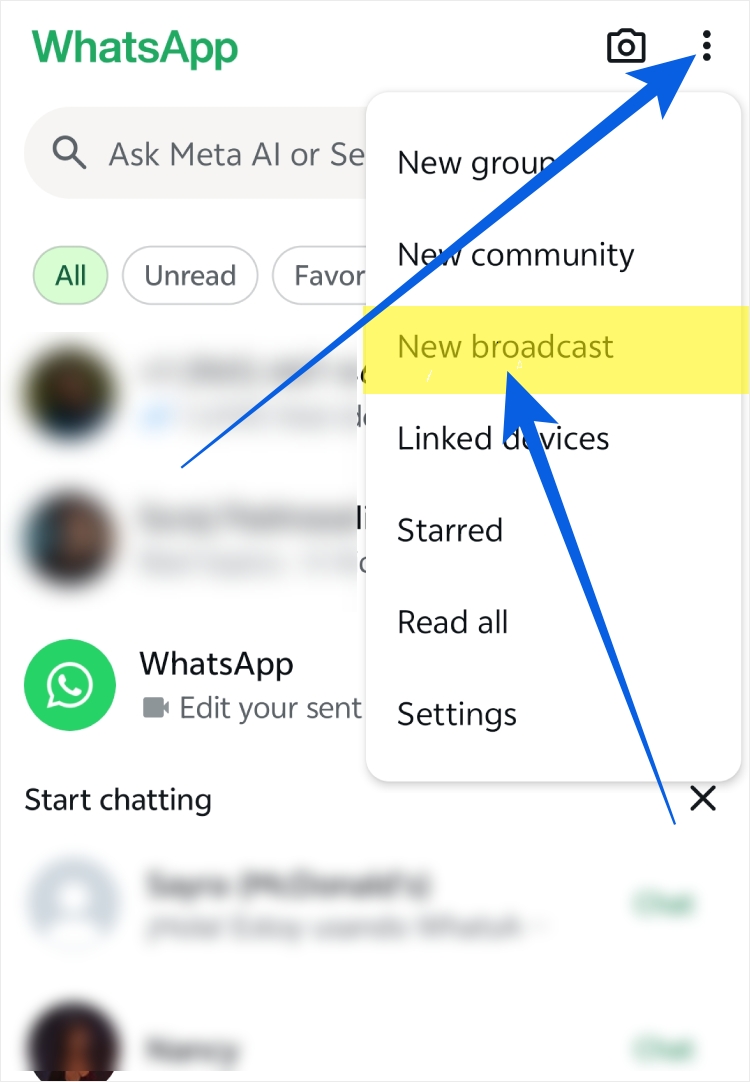
- Select the contacts that you want to add to the Broadcast.
- Tap on the Checkmark button at the bottom of the screen.
Conclusion
Why settle for a boring message when you can add some spice to it? Text formatting can really drive home the point you want to make. A simple bold word can change the mood of a message entirely. This just shows that sometimes, it’s the little things that have the biggest impact.