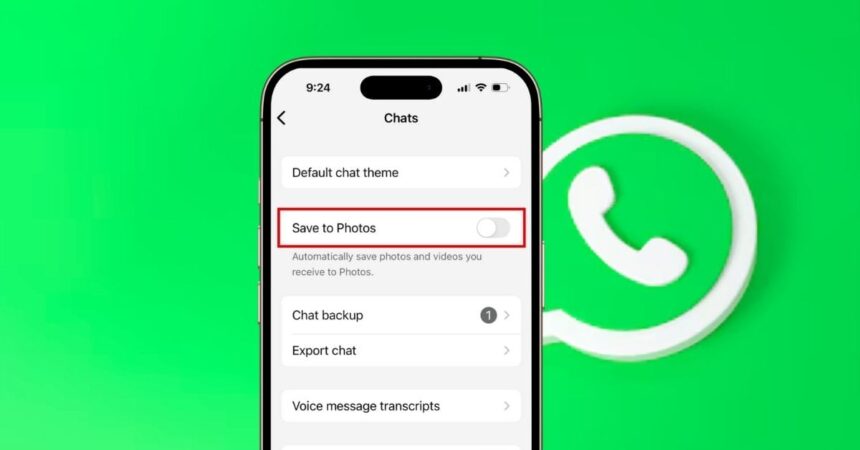
If you use WhatsApp often, you’ve probably seen your gallery fill up with memes, forwards, and random group photos. By default, WhatsApp saves every image and video you receive. It seems helpful for offline access, but it quickly clutters your storage and makes it harder to find the photos that matter.
The good news is you can stop this. WhatsApp lets you choose what gets saved and what stays inside the app. This guide shows you how to stop WhatsApp from saving photos automatically on both iPhone and Android.
Why WhatsApp Saves Photos Automatically
WhatsApp is designed for instant access. Every photo, video, or meme you receive gets downloaded by default, so you can view it even without internet. For work chats or family conversations, this can actually be helpful. But for most everyday users, it eventually becomes more of a headache than a convenience.
Your phone’s gallery fills up with low-quality forwards, duplicates, random screenshots from group chats, and endless memes. It is not just visual clutter because those files quietly consume storage space and can even slow down your phone, especially if you use WhatsApp heavily.
If you are tired of your gallery becoming a dumping ground, you are definitely not the only one. Many people prefer taking control so they can choose what deserves a spot in their photo library. This small shift helps keep your phone cleaner, lighter, and easier to manage.
How to Restrict WhatsApp from Saving Photos into Your Phone
iPhones include simple toggles that immediately stop WhatsApp from adding photos and videos to your Photos app.
Turn Off Save to Camera Roll
- Open WhatsApp on your iPhone
- Tap Settings on the bottom right.
- Go to Chats.
- Toggle off Save to Photos.
![Disable Auto-Save for All Chats in WhatsApp on iPhone]()
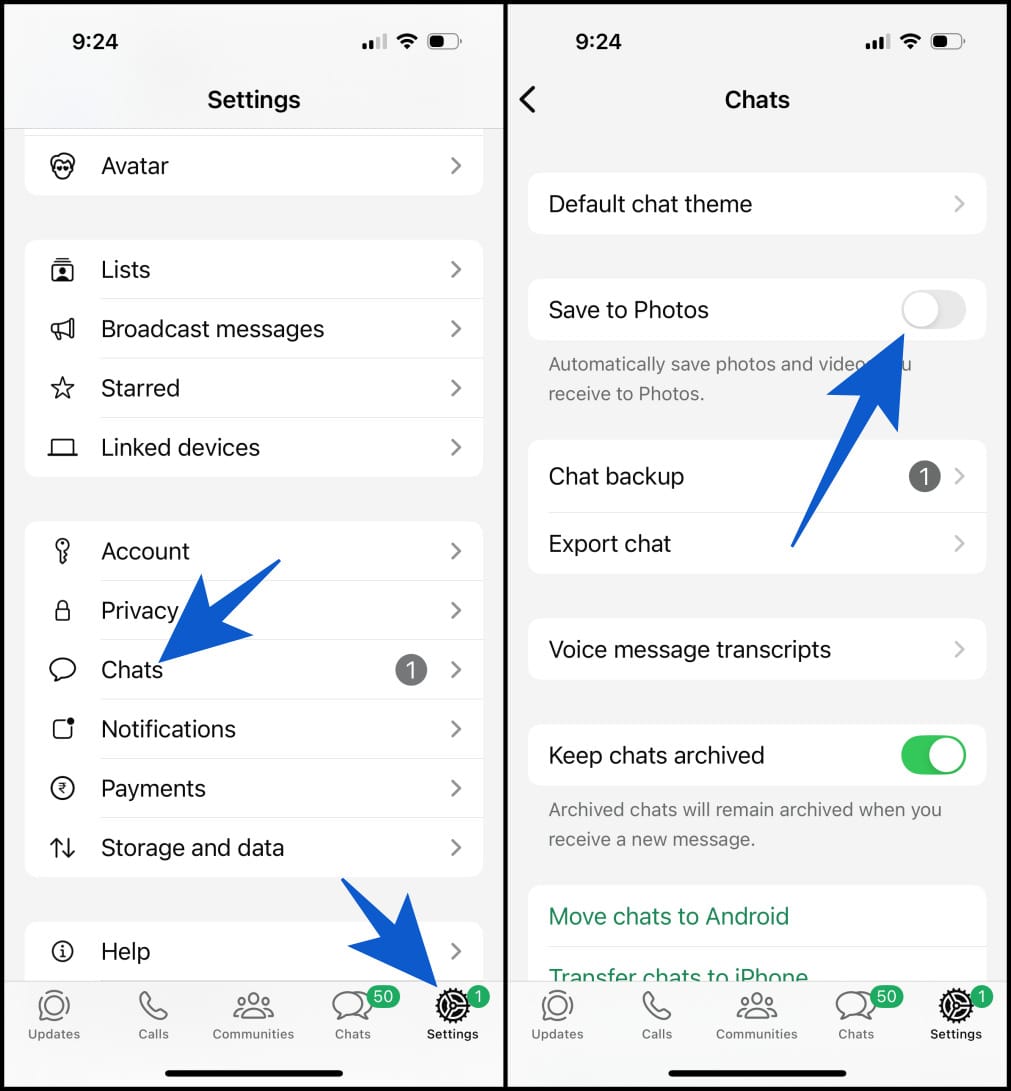
This ensures no more automatic photo or video dumping into your Photos app.
Stop Media Save for Individual Chats
If just one person or group is flooding you with memes, you can block auto-save for that chat only.
- Open a specific chat in WhatsApp.
- Tap the contact or group name at the top.
- Choose Save to Photos.
- Select Never.
![Stop Auto-Save for Specific Chats in WhatsApp on iPhone]()
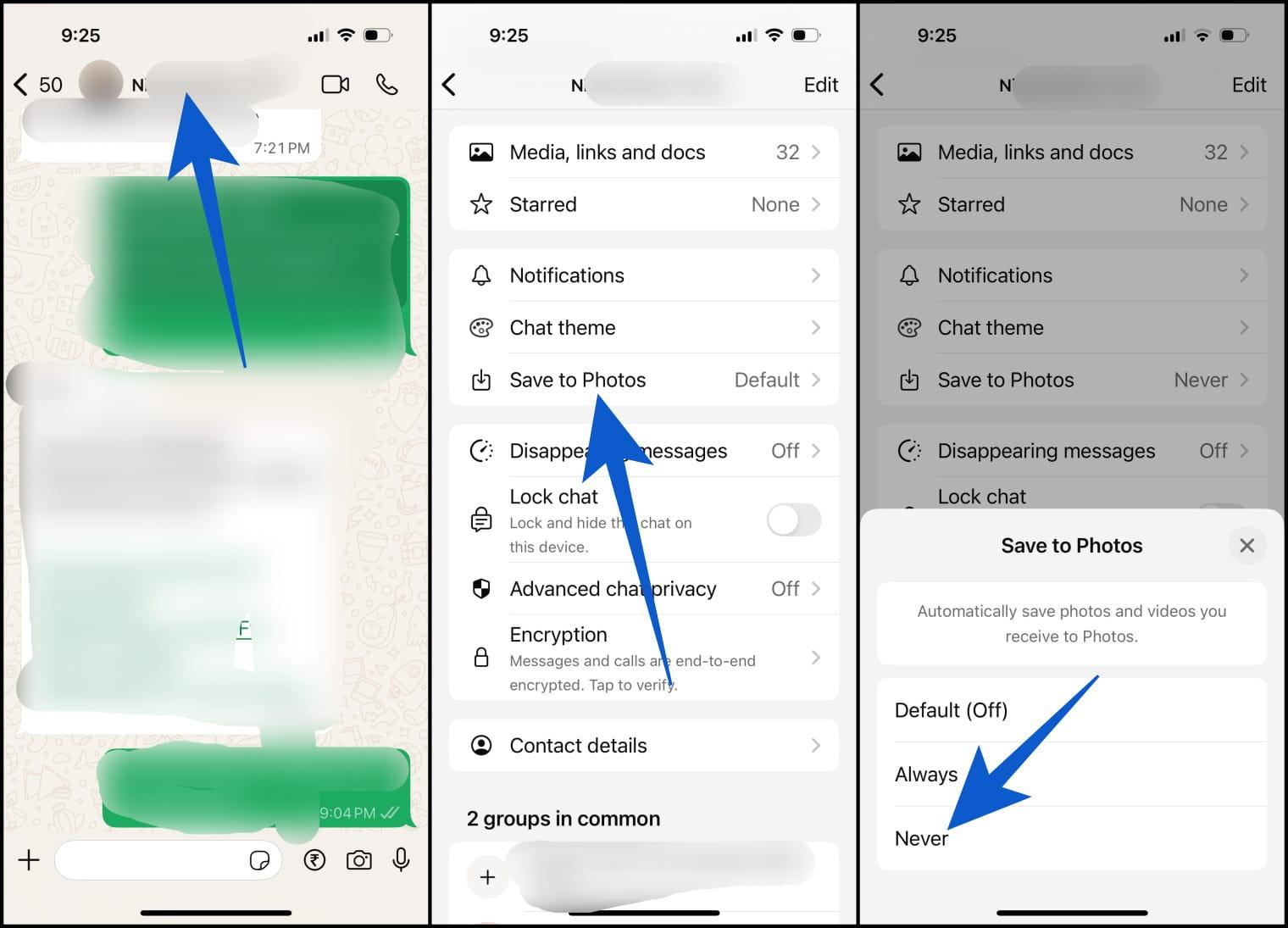
This blocks auto-save only for that specific chat. Everything else works as usual.
Good news: Turning this off won’t remove files already saved in your Photos app. You will need to clean those up manually.
Related:
- How to Download Someone’s WhatsApp Profile Picture
- How to Download WhatsApp Status Photos and Videos on iPhone & Android
- How to See Who Viewed Your WhatsApp Profile Picture
How to Stop WhatsApp from Saving Photos on Android
Android phones offer similar controls with slightly different labels.
Turn Off Media Visibility for All Chats
- Open WhatsApp.
- Tap the three dots on the top right → Settings.
- Go to Chats
- Toggle off Media Visibility.
This prevents new media from appearing in your Gallery app.
Stop Media Visibility for Individual Chats
You can also stop only certain chats from saving media.
- Open the chat.
- Tap the contact or group name.
- Select Media Visibility → No.
This blocks gallery visibility only for that conversation.
Hide WhatsApp Photos with a .nomedia File on Android
If you want a deeper layer of control, Android lets you hide WhatsApp images entirely with a .nomedia file.
- Download a file explorer app from the Google Play Store.
- Go to WhatsApp > Media > WhatsApp Images.
- Create a file called .nomedia inside the folder.
This hides all WhatsApp images from your gallery instantly. If you want them to reappear later, simply delete the file.
Keep in mind that files still download inside WhatsApp. And if your Google Photos backup is enabled, you might still see some items unless you hide or delete them from the backup separately.
Interesting note: Android users spend an average of 1 hour and 1 minute per day on WhatsApp, so small settings like these can make a big difference over time.
How to Stop WhatsApp from Auto-Downloading Media
If you want even more control, you can stop WhatsApp from downloading files in the background at all. This prevents unwanted media from piling up before you even see them.
- Open WhatsApp > Tap Settings.
- Go to Storage and data.
- Under Media Auto-Download, you will see three categories:
- Nover
- Wi-Fi
- Wi-Fi and cellular
- For each category, uncheck Photos, Video, Audio, and Documents as you prefer.
![Stop WhatsApp from Auto-Downloading Photos and Videos]()
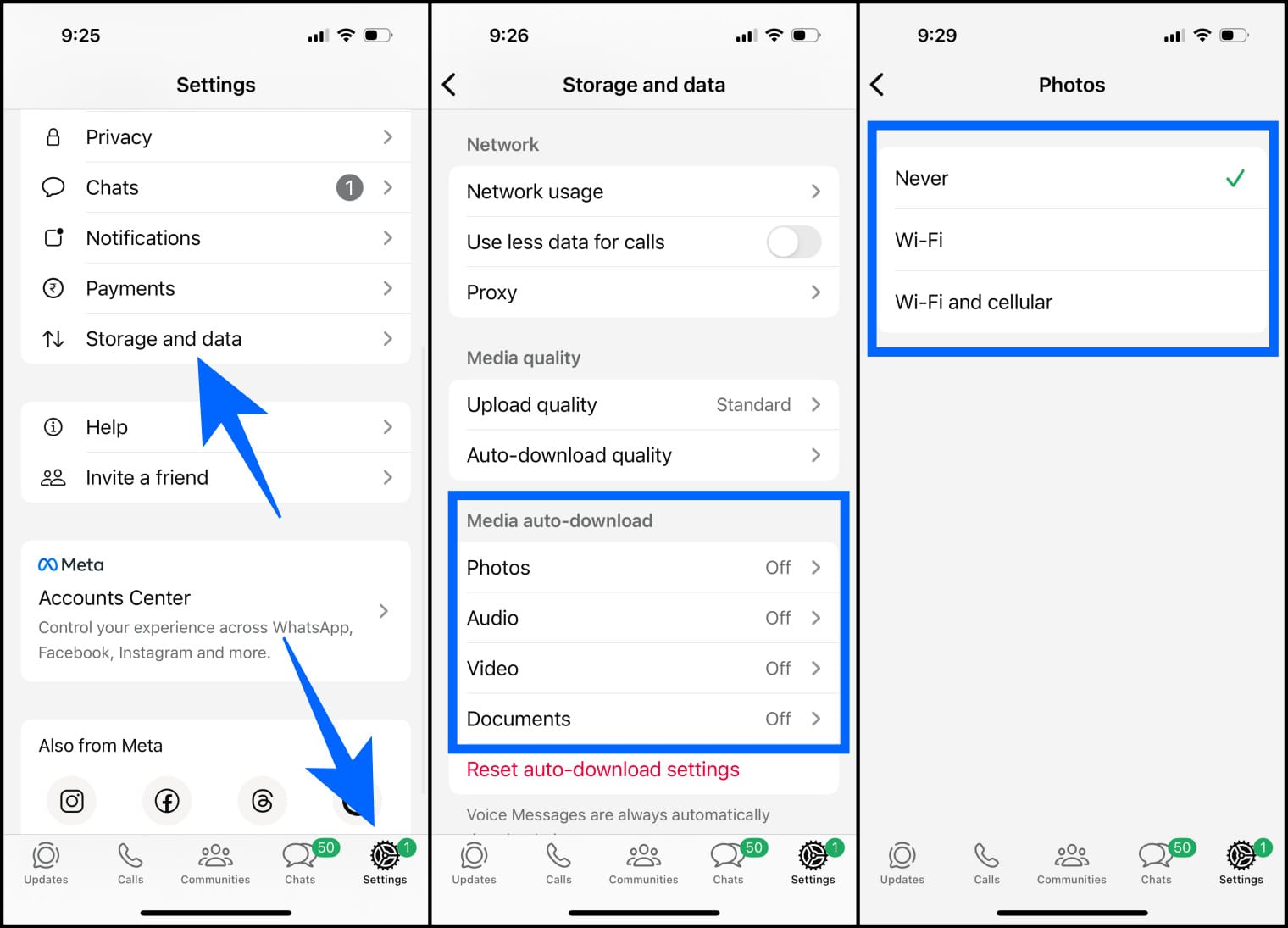
Some people allow only photos on Wi-Fi to save data. Others completely block videos because they take up too much space. Once you customize this, WhatsApp only downloads the things you intentionally want.
Free Up Space by Deleting WhatsApp Photos and Videos
Even after you disable auto-save, your phone may already be carrying years of unnecessary media. Thankfully, WhatsApp includes a clean-up tool.
- Open WhatsApp → Tap Settings.
- Tap Storage and data → Manage storage.
- You will see a breakdown of chats sorted by size.
- Select any chat to review and delete large files or unnecessary videos.
![Free Up Space by Deleting WhatsApp Photos and Videos]()

This helps free up storage and can improve performance.
A simple habit is to repeat this clean-up every few months. Your phone stays responsive, and your gallery remains organized.
Does This Work on WhatsApp Desktop and Web?
WhatsApp Desktop and Web do not auto-save anything. You must manually download files, so you don’t have to worry about your computer filling up with media unless you choose to save them. The downloaded files simply follow your computer’s default download settings.
Final Tip: Keep Your Gallery Under Control
WhatsApp is essential for communication, but that does not mean you must accept a messy gallery. With a few small changes, you can stop automatic downloads, avoid storage bloat, and keep your photos organized. Once you get into the habit of reviewing your media occasionally, your phone stays cleaner, faster, and more enjoyable to use.
FAQs:
No. It only affects how received photos are stored. You can still send images without any problem, and others will receive them normally.
Yes. If you receive something important, simply open it and use the share or save option. It will be added to your phone’s gallery.
Yes, these settings work exactly the same in WhatsApp Business.
Absolutely. If media does not download automatically, you avoid filling your phone with junk files you never asked for.
Yes. You can turn auto-save or auto-download back on whenever you want.
No. It only affects new incoming files. Older images remain until you delete them manually.