“If you’re not paying for the product, then you’re the product.” You have probably heard this quote before, and it perfectly sums up how privacy works in the digital world. Most apps and services today follow a freemium model, which means they track and collect user data, then share it with third parties like advertisers to make money.
Apple stepped in to limit this practice with the introduction of App Tracking Transparency in 2021. This feature gives you clear control over whether apps can track your activity across other apps and websites. If you want to stop app tracking on iPhone, Apple makes it surprisingly easy.
What App Tracking Actually Means on iPhone
App Tracking, officially known as App Tracking Transparency, is a privacy framework that lets you decide whether an app can track your activity outside its own ecosystem. When an app wants to track you, iOS displays a prompt asking for your permission.
You can choose to allow tracking or deny it. If you deny the request, the app cannot access your advertising identifier or track your activity across other apps and websites.
How to Turn Off App Tracking on iPhone
There are three effective ways to disable iPhone apps from tracking you, depending on how much control you want.
Method 1: Stop All Apps From Asking to Track
This method disables all tracking requests system-wide. If you want to permanently disable app activity tracking on iPhone, this is the best option.
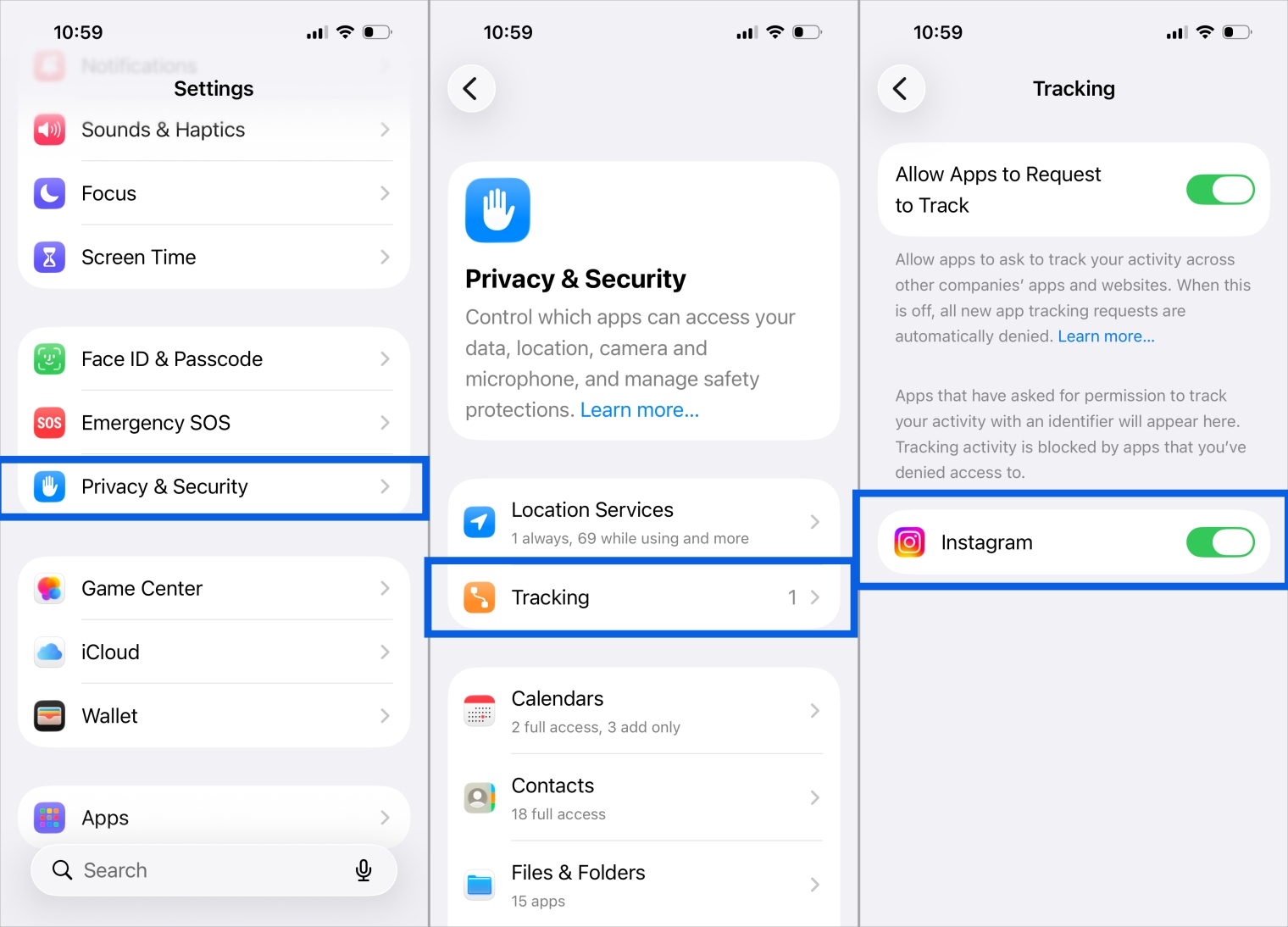
- Open the Settings app.
- Scroll down and tap Privacy & Security.
- Tap Tracking.
- Tap and turn off the toggle that says ‘Allow Apps to Request to Track’.
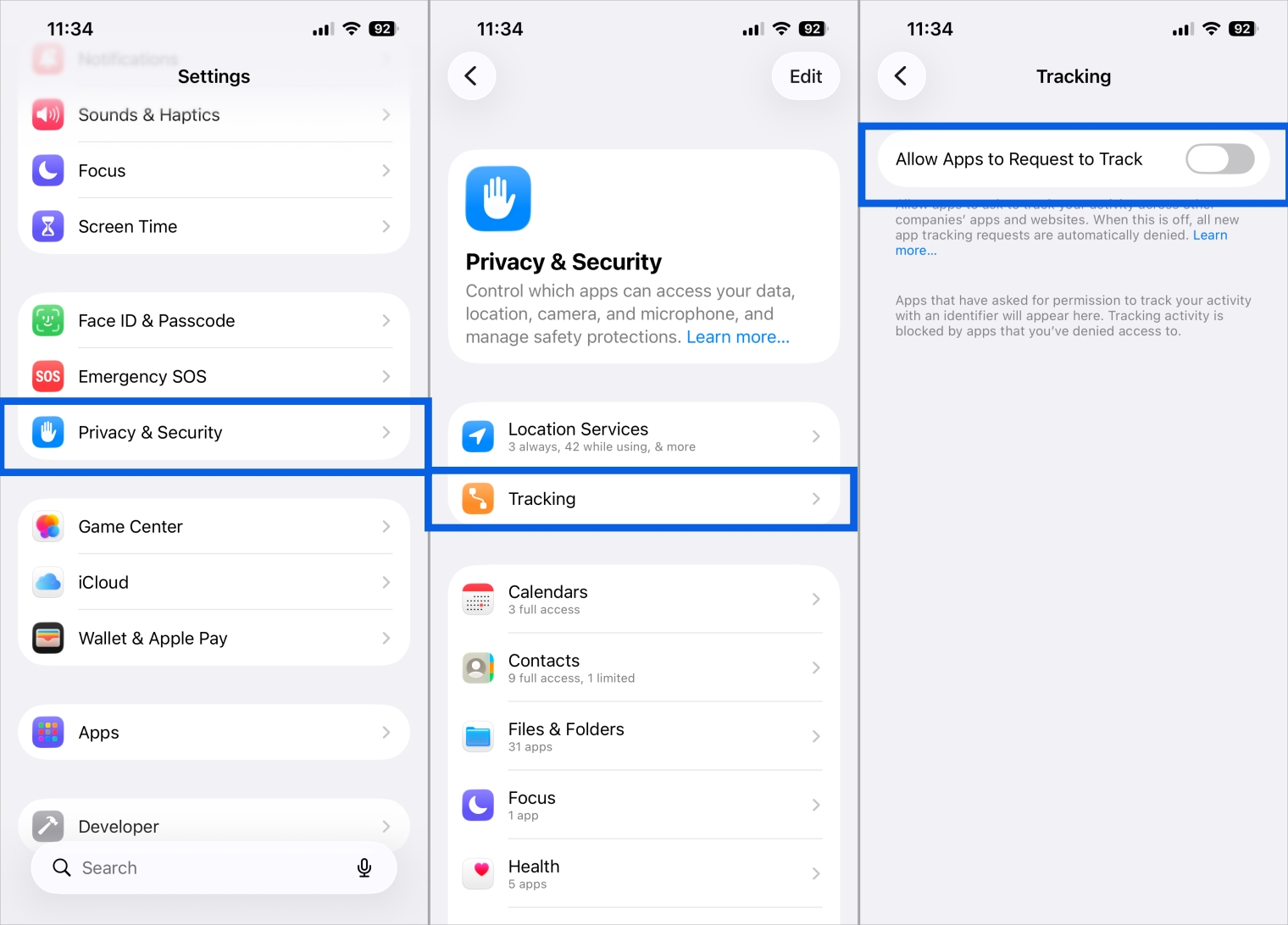
Once this toggle is off, apps can no longer ask for permission to track you, and tracking is blocked automatically.
Method 2: Turn Off App Tracking for Specific Apps You’ve Already Installed
If you prefer more control, you can stop app tracking on iPhone for individual apps instead of disabling it completely.
- Open Settings.
- Tap Privacy & Security.
- Select Tracking.
- Turn off the toggle next to any app you do not want tracking you.
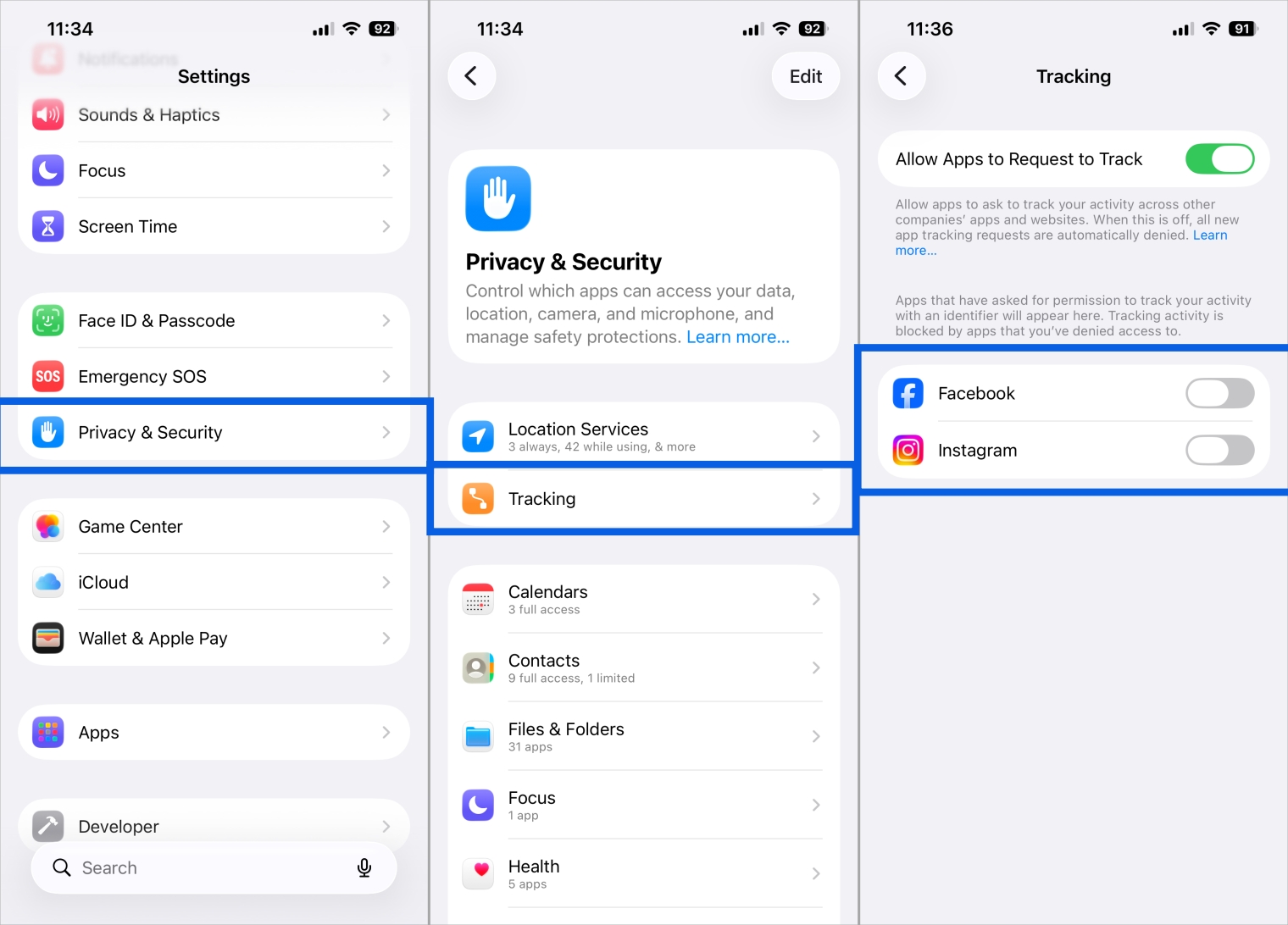
This is useful if you trust certain apps but want to limit others.
Method 3: Stop App Tracking for New Apps You Download
When App Tracking is enabled, apps may ask for permission the first time you open them. Below is an example using the Instagram and Facebook apps.
- Launch an app that requests tracking.
- When the pop-up appears, tap Ask App Not to Track.
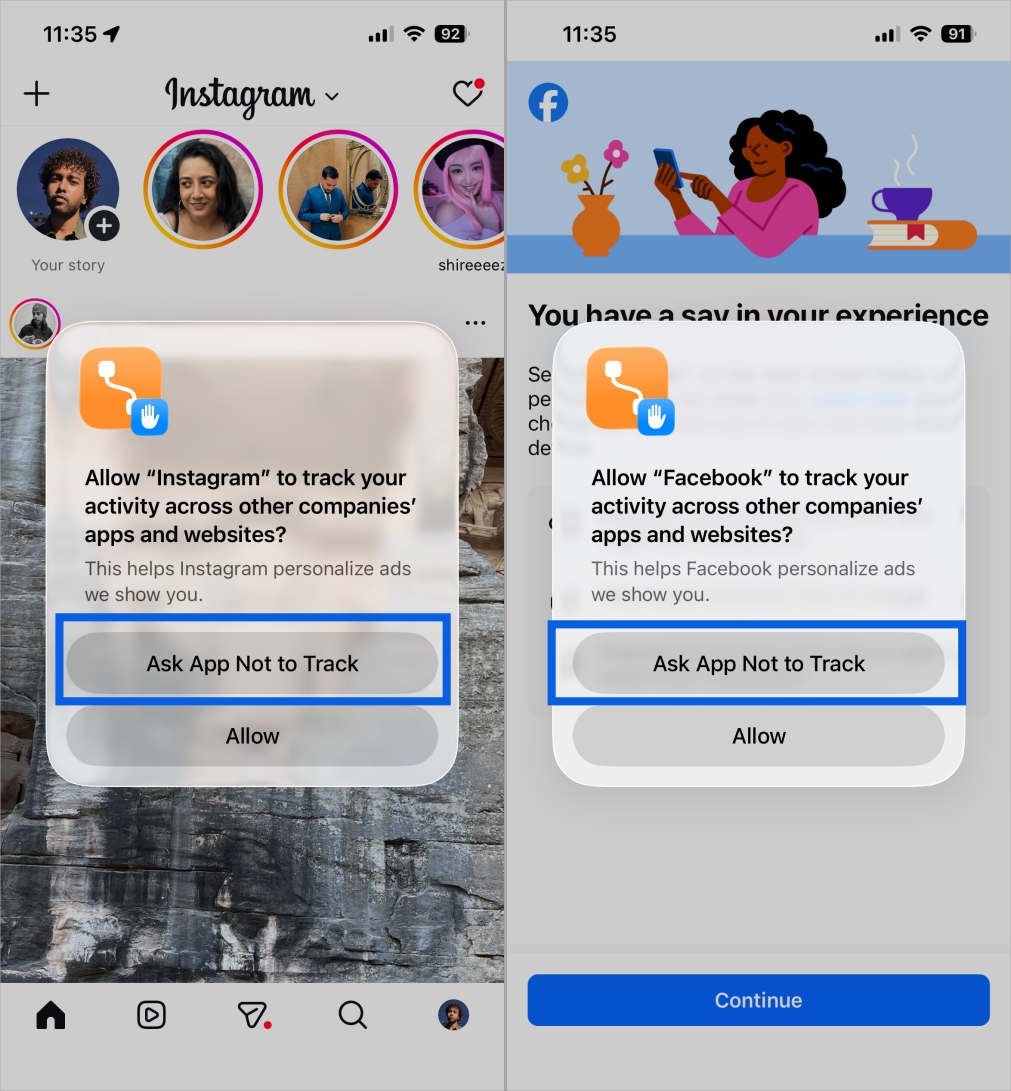
This immediately blocks tracking for that app.
See Which Apps Have Requested Tracking on Your iPhone
Your iPhone keeps a list of apps that have requested permission to track your activity.
- Open Settings.
- Tap Privacy & Security.
- Select Tracking.
- Here, you can see all apps that have requested tracking access and manage them individually.
Additional iPhone Privacy Settings You Should Disable
If you are serious about privacy, turning off app tracking alone is not enough. These extra settings help reduce data collection even further.
Turn Off Location Services for Apps
Many apps use location data to deliver targeted ads. Limiting location access can significantly improve privacy.
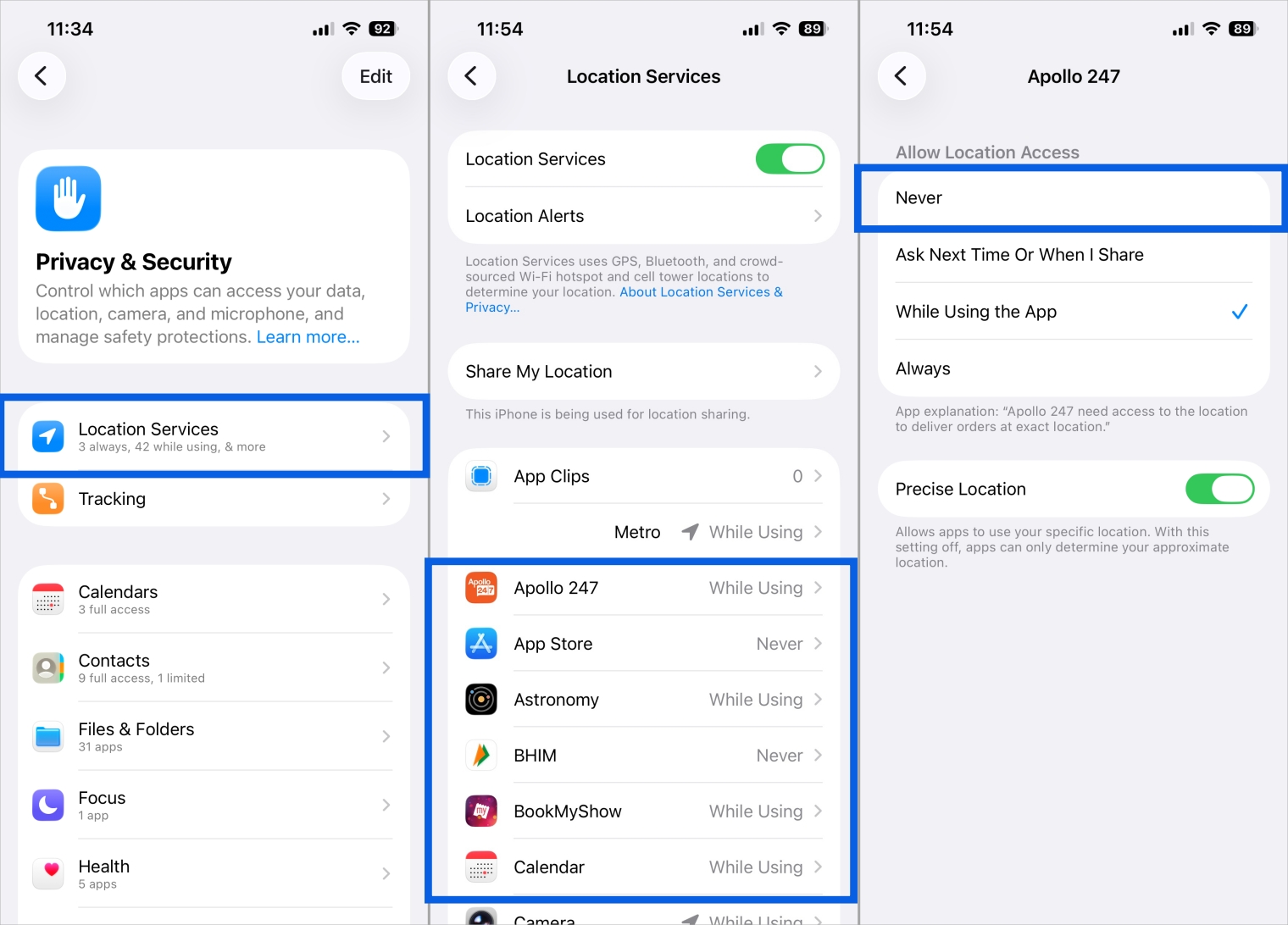
- Open Settings → Tap Privacy & Security.
- Select Location Services.
- Tap any app that does not need your location.
- Choose Never or While Using the App, depending on your preference.
Turn Off Analytics and Data Sharing
Your iPhone collects diagnostic and usage data. While this data collection cannot be stopped entirely, you can prevent it from being shared.
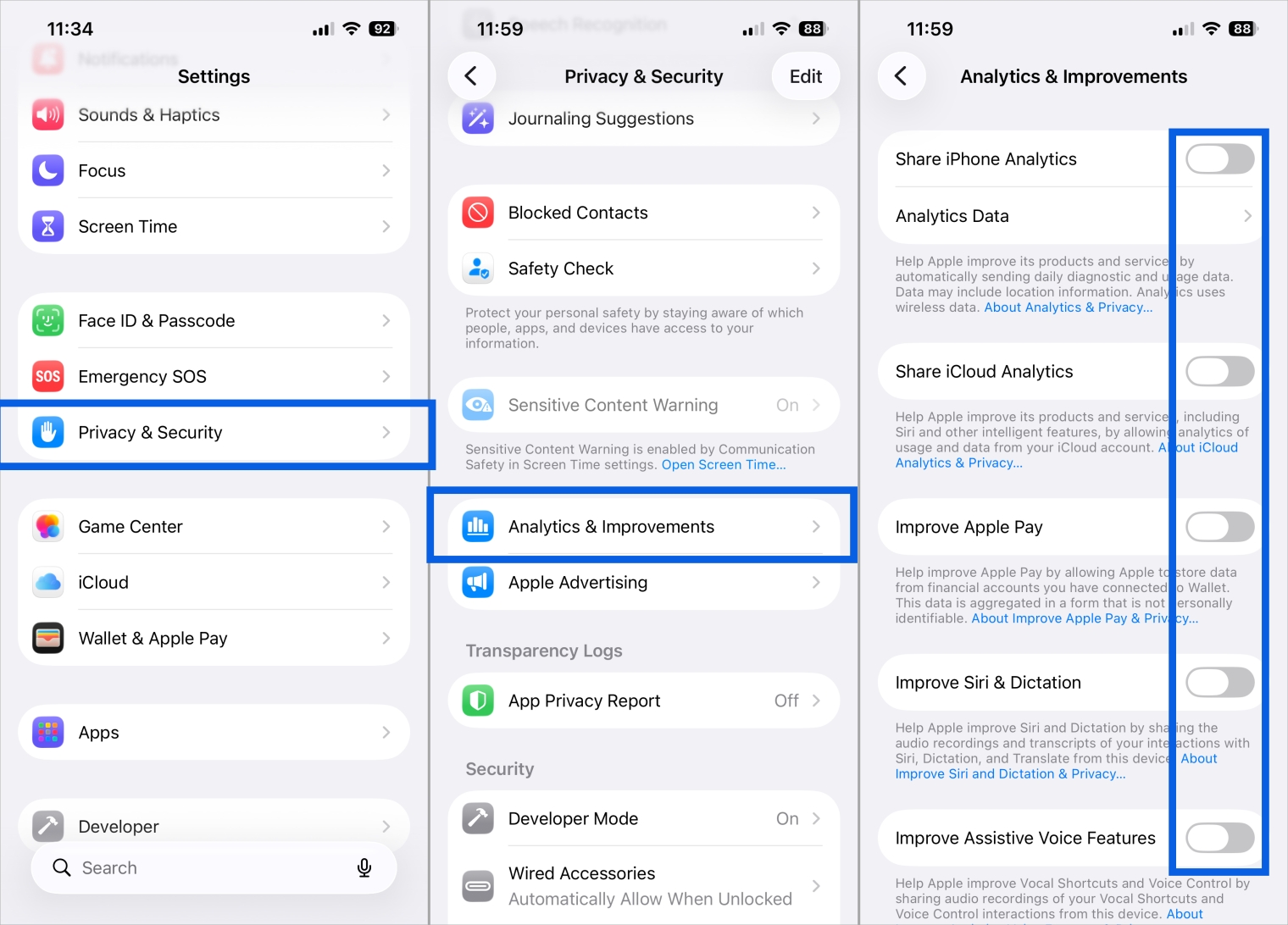
- Open Settings → Tap Privacy & Security.
- Scroll down and select Analytics & Improvements.
- Turn off all toggles here to stop the analytics from being shared. And that’s it.
Turn Off Personalized Ads From Apple
Apple may still show personalized ads based on your device usage. You can opt out easily.
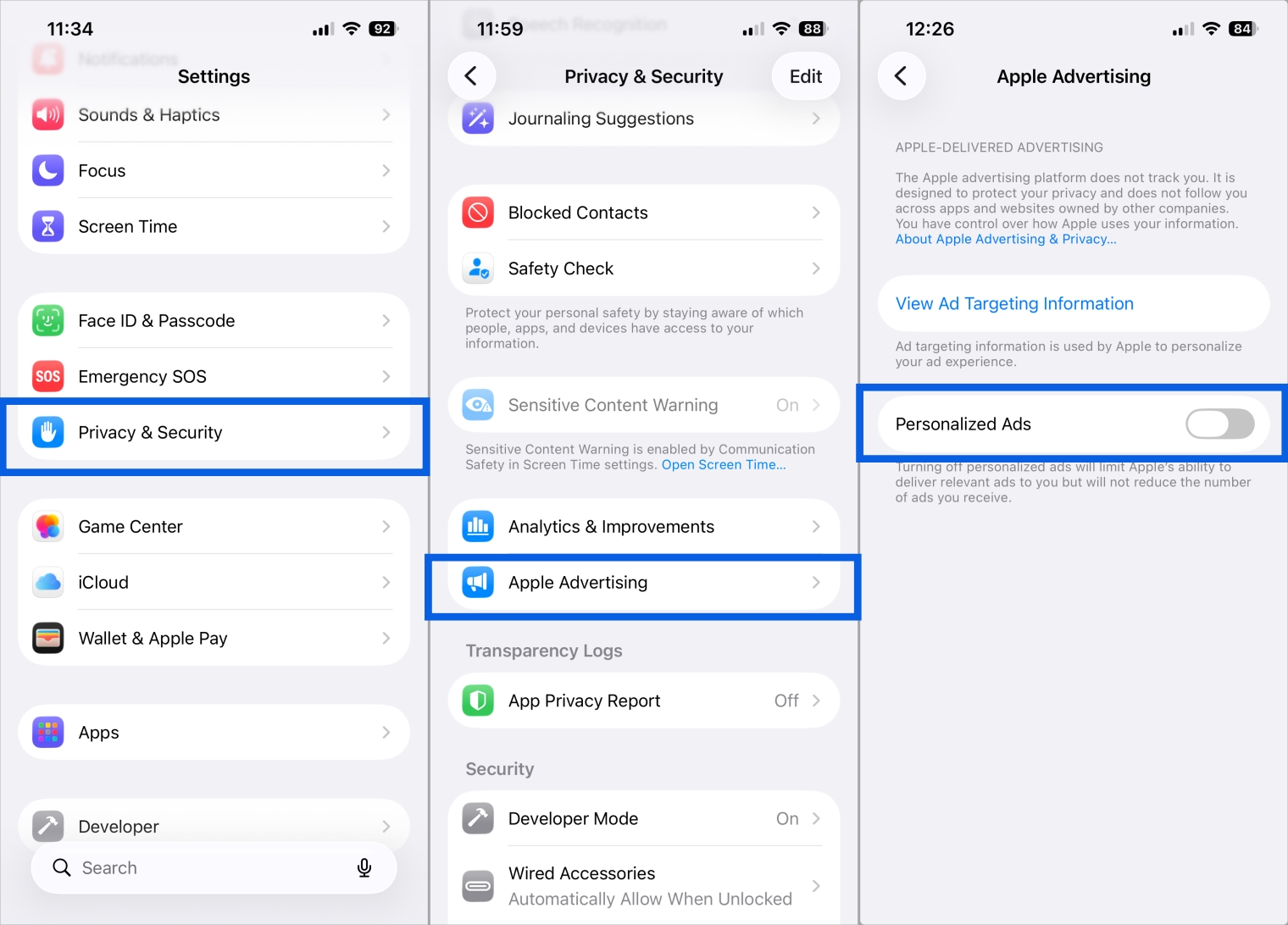
- Open Settings → Tap Privacy & Security.
- Scroll down and select Apple Advertising.
- Turn off Personalized Ads.
Conclusion
Learning how to stop app tracking on iPhone is one of the simplest ways to protect your privacy. Whether you choose to turn off app tracking completely or manage it app by app, iOS gives you full control over how your data is used.
For even better results, review your location permissions, analytics sharing, and Apple advertising settings. Your data has value, and now you know how to keep it under your control.
If you did not follow Method 1, apps are still allowed to request tracking permission. Turning off Allow Apps to Request to Track will stop these pop-ups entirely.
Apps can still track what you do inside their own environment. App Tracking Transparency mainly limits cross-app and cross-site tracking. For added privacy, consider using Apple’s Private Relay feature.
No. App Tracking Transparency focuses on limiting cross-app tracking, while VPNs and ad blockers handle network traffic and ads.
No. Apps continue to work normally, although ads may be less personalized.