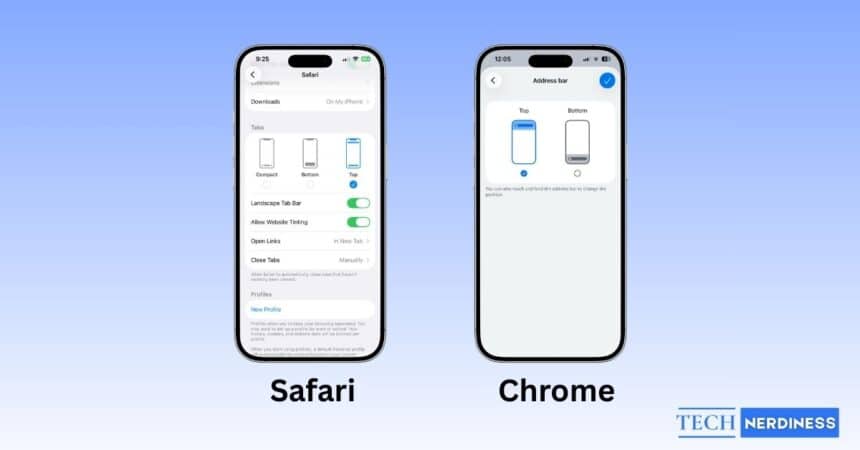
Apple has continued refining the iPhone interface over the years to make it easier to use. Sometimes those changes feel intuitive, and sometimes they do not. With the introduction of the Liquid Glass design in iOS 26, Apple made the bottom search bar even more compact. While this does free up some screen space, it can also feel awkward or inconvenient for many users.
The good news is that you still have a choice. Whether you prefer a more ergonomic bottom layout or the classic top search bar, here’s how to move the search bar to the top in both Safari and Chrome on your iPhone.
How to Move the Safari Search Bar to Top on iPhone
In earlier versions of iOS, Safari allowed you to change the search bar position directly from within the app. In iOS 26, Apple has moved this option to the main Settings app. Follow these steps:
- Open the Settings app.
- Scroll down and tap Apps.
- Scroll again and tap Safari.
- Under the tab bar options, select Top.
![Move the Safari Search Bar to the Top on iPhone]()
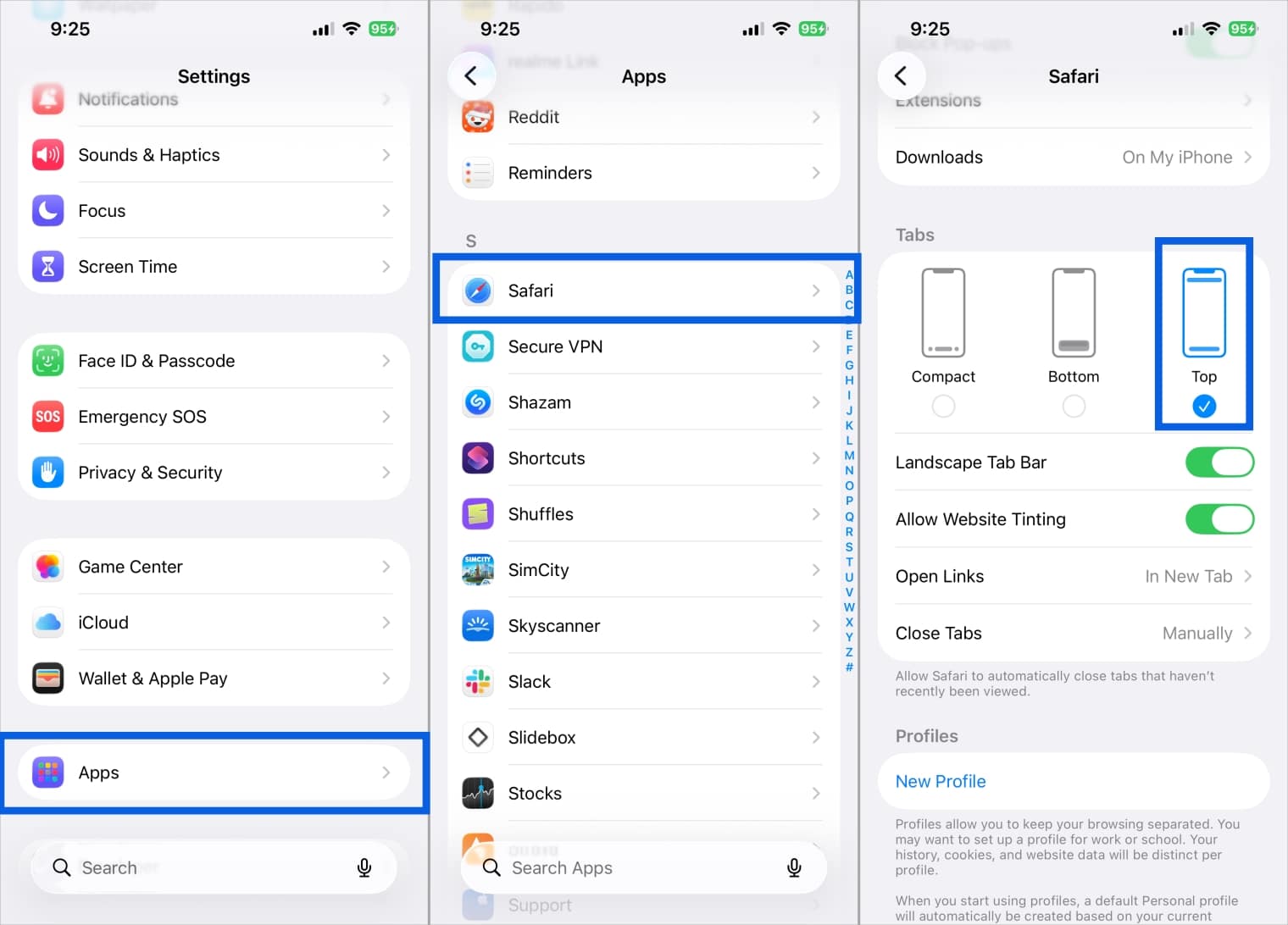
That’s it. The Safari search bar will now appear at the top.
Note
This setting applies only to the current device. If you use multiple iPhones or iPads with the same Apple ID, you will need to change this setting on each device. It does not sync through iCloud.
Quick Tip: iOS 26 also includes a Compact bottom bar option, which takes up even less space than the standard bottom search bar.
How to Move the Google Chrome’s Address Bar to Top on iPhone
Open Chrome on your iPhone and visit any website. Tap and hold the address bar at the top, then select Move address bar to top from the menu that appears.
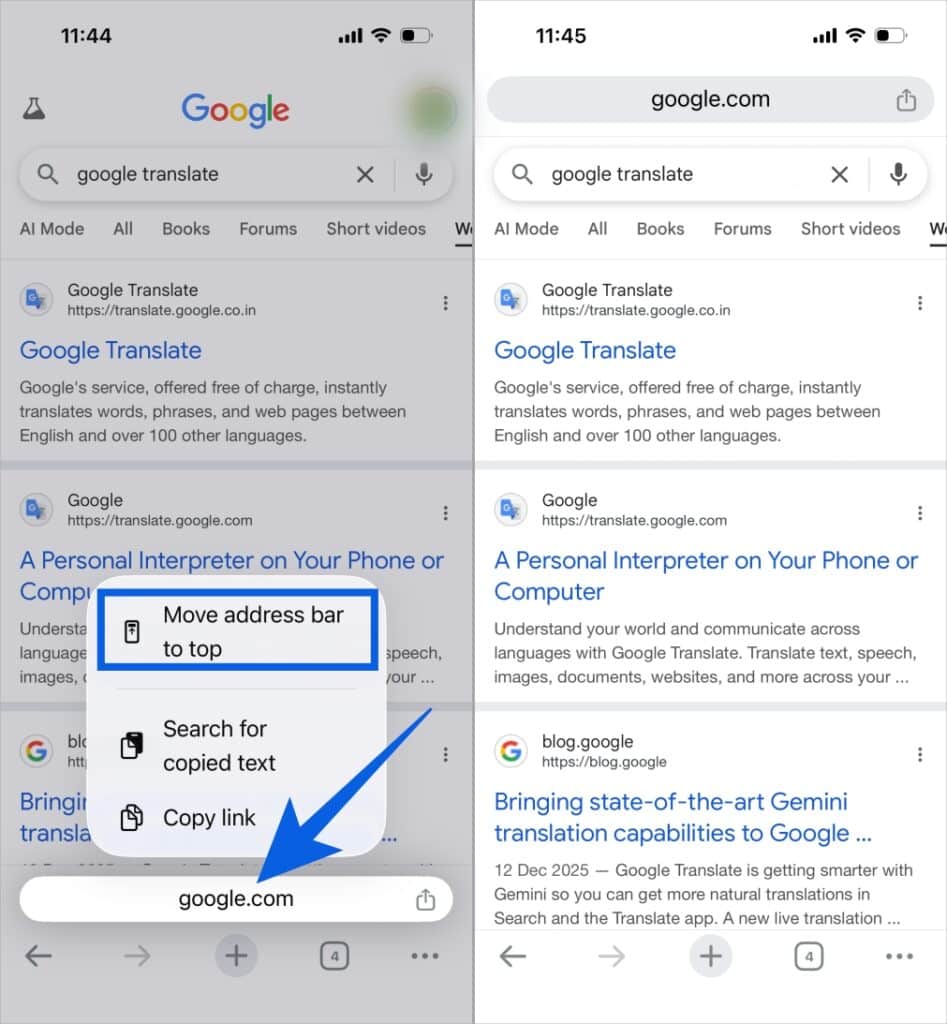
To move Chrome’s address bar back to the top, tap and hold the address bar again, then select Move address bar to bottom from the menu.
Set Your Preferred Address Bar Layout in Chrome for iPhone
You can set a fixed Omnibox position for all websites from Chrome’s Address Bar settings on your iPhone. Just choose the layout you prefer.
- Open the Chrome app.
- Tap the three dots in the bottom-right corner.
- Tap Settings.
![Open Chrome on iPhone and Tap three dot menu, Settings]()
- Select Address Bar.
- Choose Top, then tap Done.
![Move the Chrome Search Bar to the Top on iPhone]()
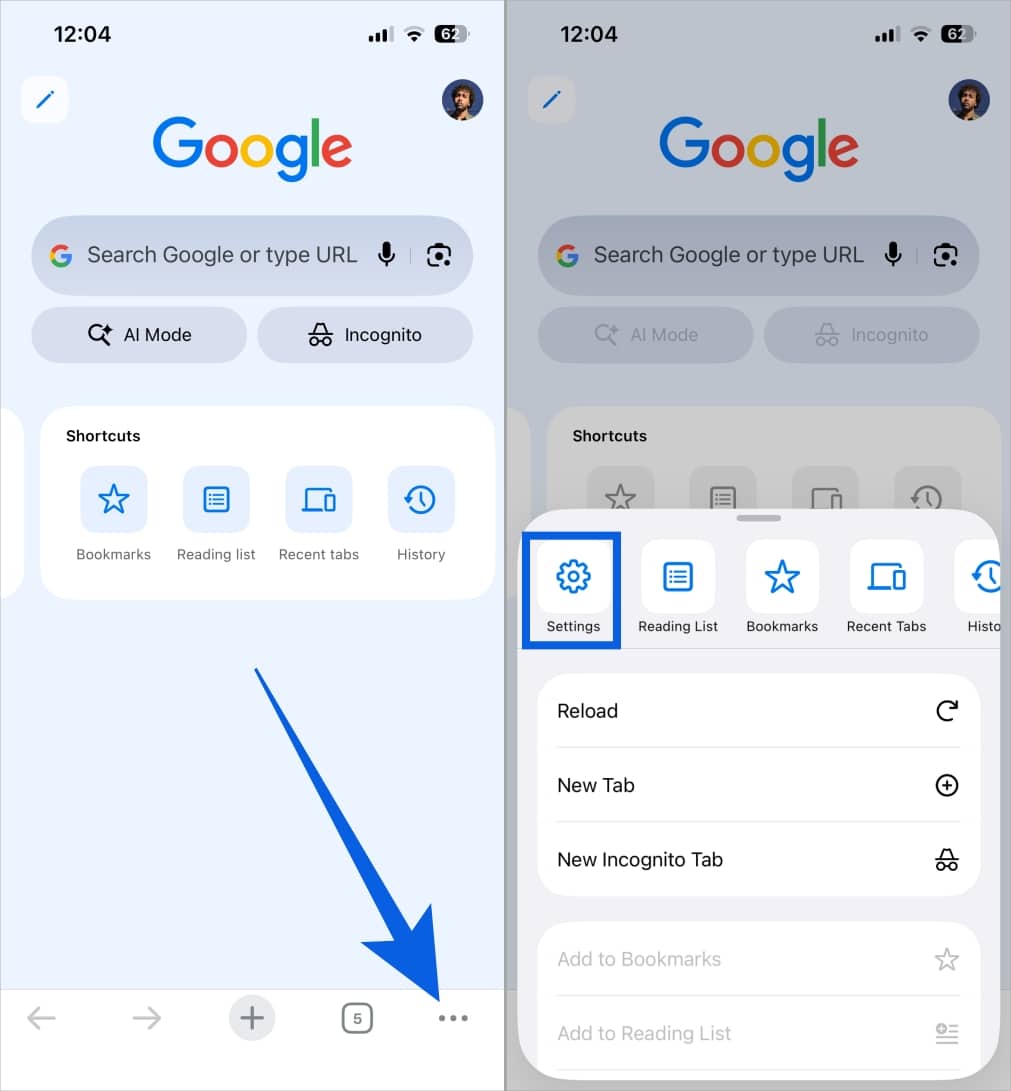
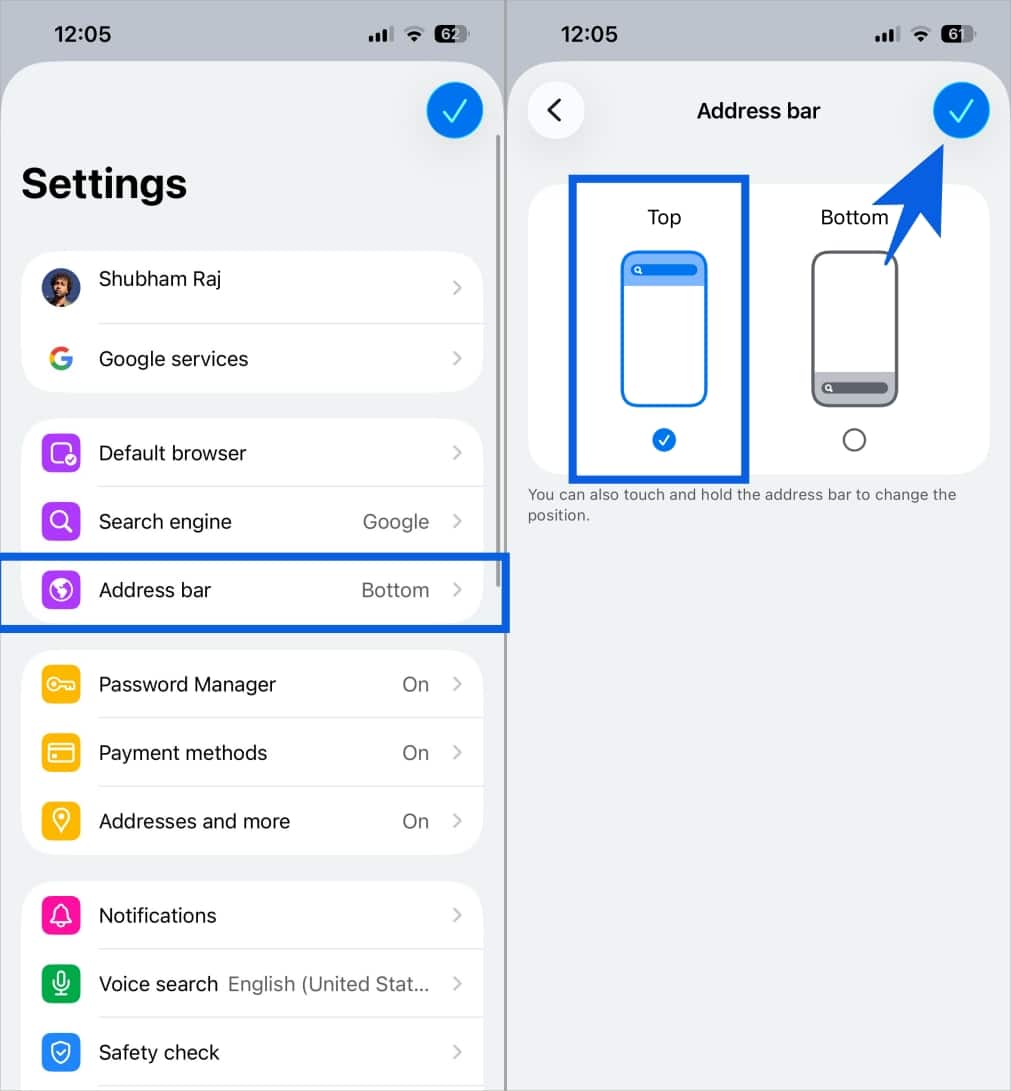
Your Chrome search bar will now move to the top of the screen.
Note
Just like Safari, Chrome automatically moves the address bar to the top when your iPhone is in landscape mode, regardless of your selected setting.
Conclusion
Moving the search bar to the top on your iPhone is a small customization that can make everyday browsing more comfortable. If you prefer the traditional top layout or want to avoid the compact bottom bar, iOS 26 gives you the flexibility to choose what feels right. And if you switch between Safari and Chrome, you can now keep both browsers consistent with your preferred layout.
FAQs: Moving the Search Bar to the Top on iPhone in iOS 26
If your iPhone is running an older version of iOS, this option may not be available. Updating to iOS 26 should resolve the issue.
No. The search bar position is a device-specific setting and does not sync through iCloud.
No. iOS does not currently offer a way to lock the search bar in a fixed position.
No. Changing the search bar position does not impact your search engine, tracking, or privacy preferences.