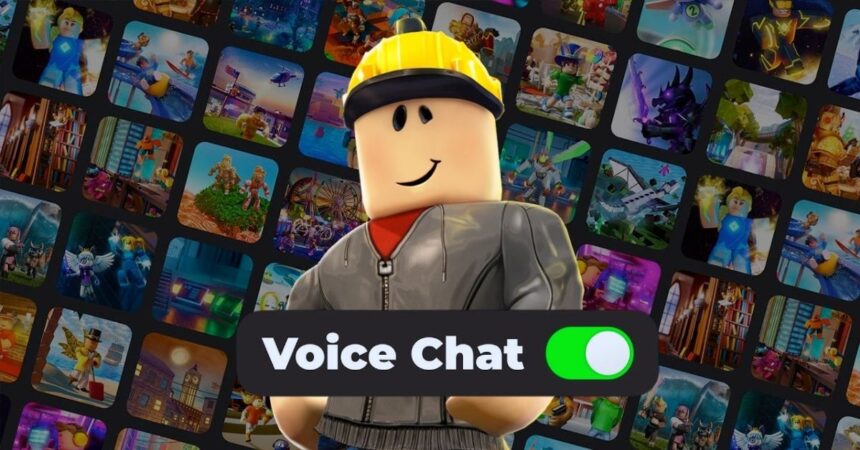
Even though Roblox has been a text-heavy game, Voice Chat has slowly but surely crept up on a lot of players. With so many experiences offering it now, dozens of players can hop on a game and talk away about anything and everything. However, getting it requires a few things and a small tinker with a setting. Learn how to do that all here with our dedicated guide on how to get voice chat on Roblox in 2026.
Requirements to Use Voice Chat on Roblox
We are not going to waste time explaining what voice chat is. But yes, there are some requirements you must fulfill in order to gain access to it. These are:
- Age Requirement: All Roblox players who want to access voice chat must be 13 years and older. If you are, then it’s time to first verify your age and ID on Roblox and come back once done.
- Account and Device Requirements: Besides being 13+, your Roblox account must be in good standing. While it goes without saying, you must also have a platform to play on alongside a working microphone and headphones.
How to Turn On Voice Chat in Roblox: Step-by-Step
With the above requirements fulfilled, it’s time to enable voice chat on Roblox. Follow the steps below to do so:
- Join any Roblox Experience: At this point, many popular Roblox games support voice chat. So go on and join your favorite game.
- Once there, click the Mic button on the top left to enable voice chat.
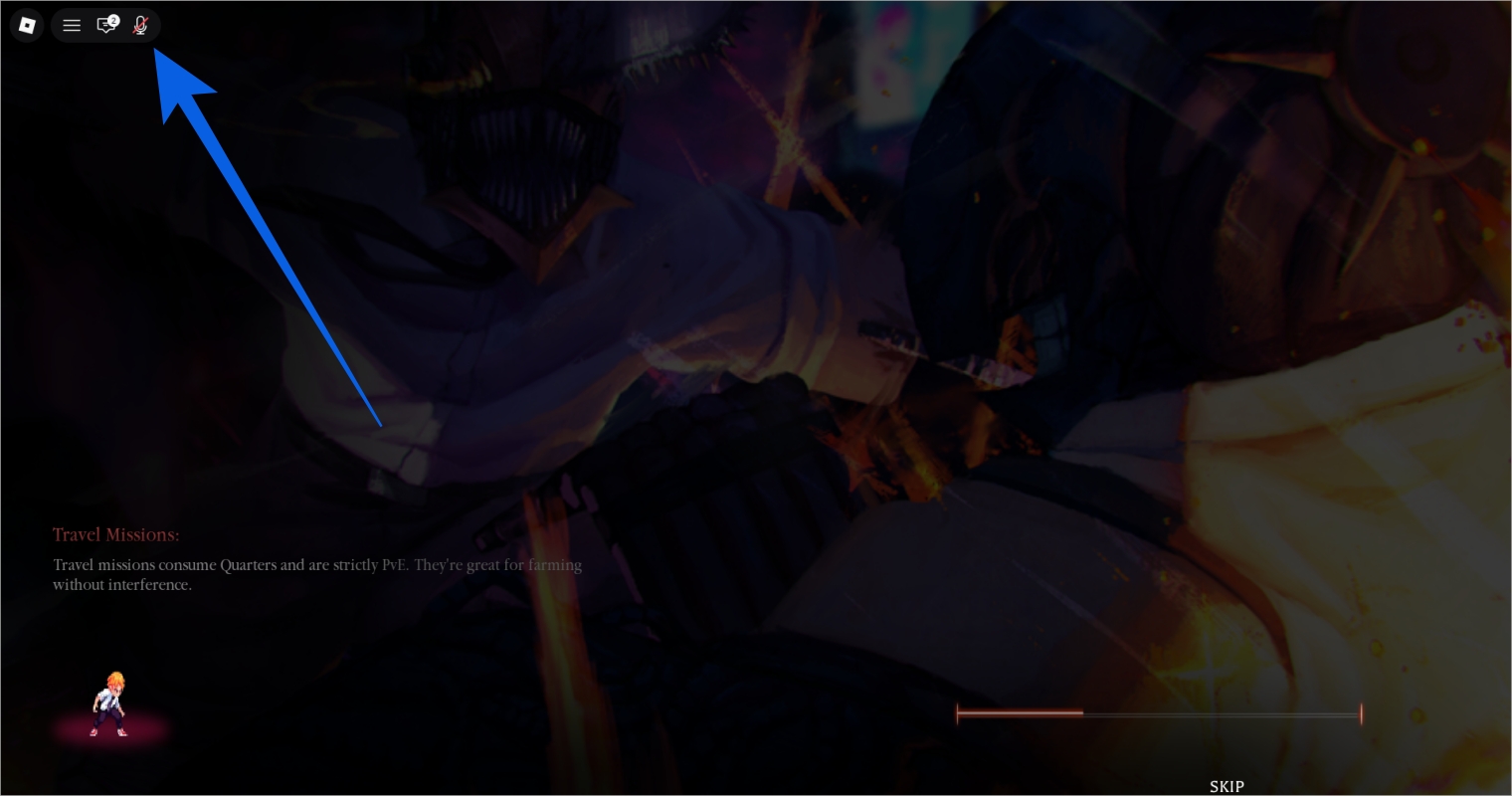
- If you can’t find that, then click the Roblox logo on the top left.
- Click Settings, then scroll down to Voice Chat.
- Toggle it to Connected, and you’re good to go.
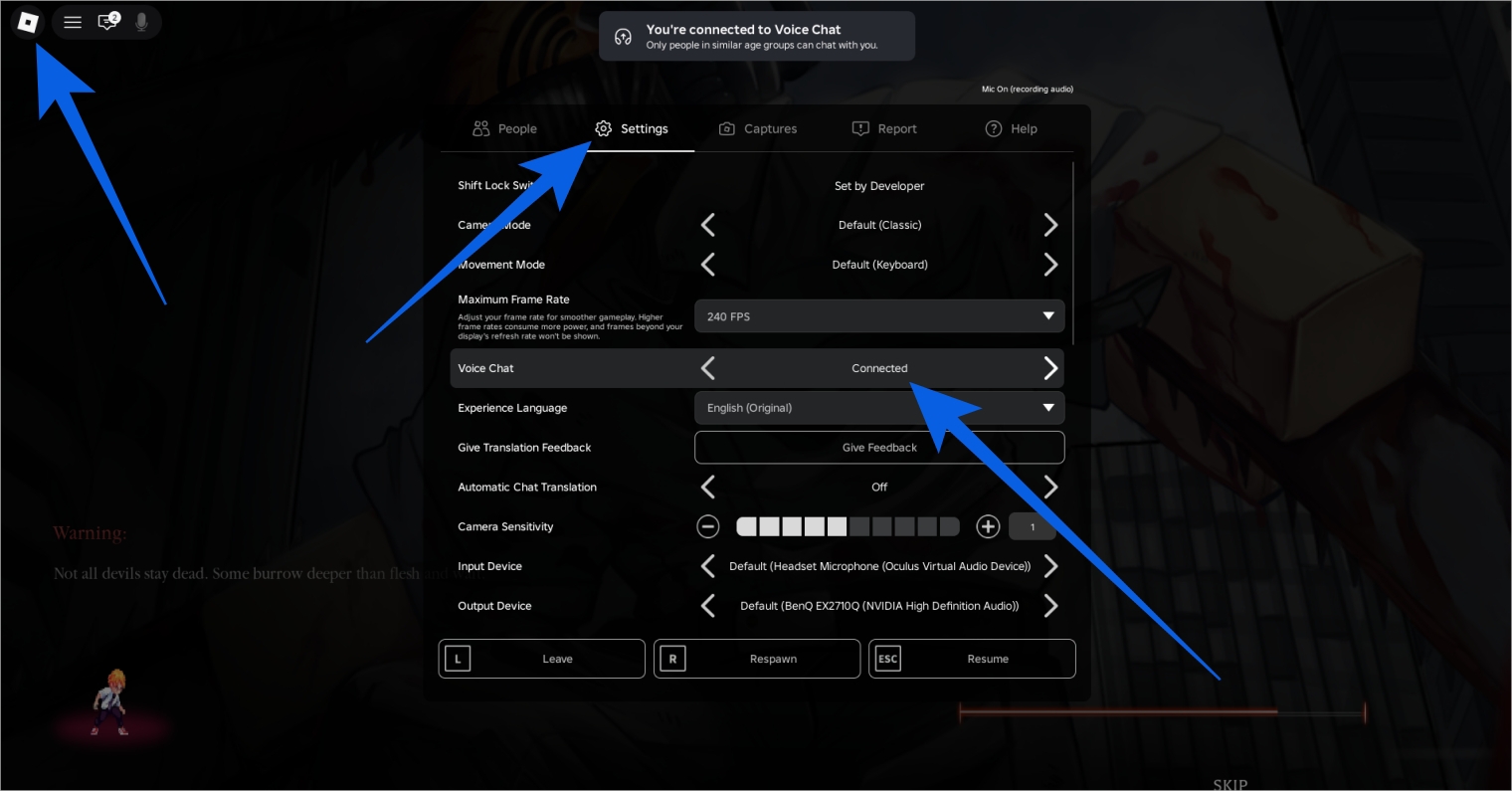
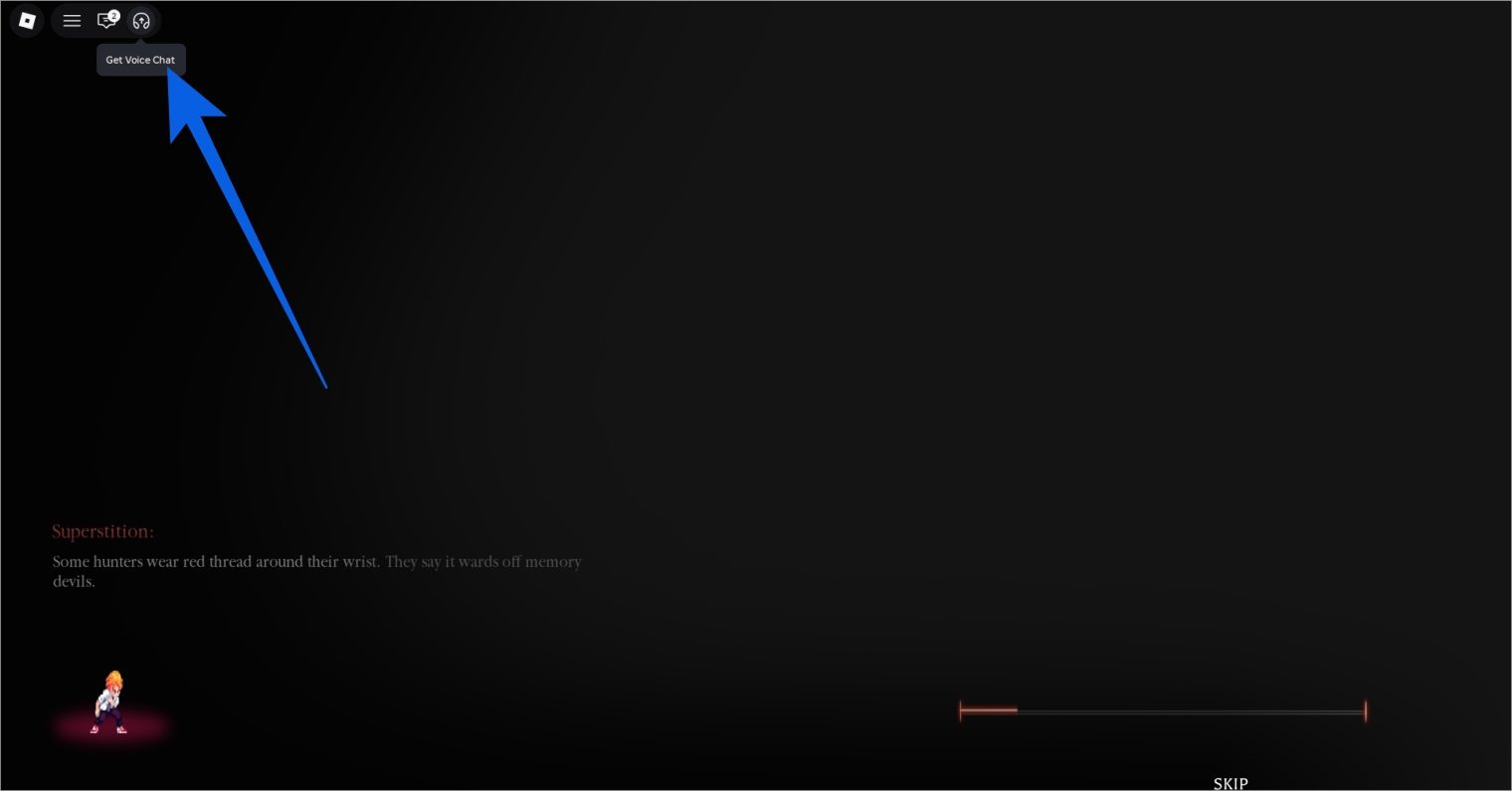
And that’s it! Provided you have a working headset, you can now easily talk and listen to your buddies or randoms.
However, they must also have this setting enabled, so make sure you refer to our article to them too! If you’re having trouble finding compatible games, then check out rewards like The Forge codes and Volleyball Legends codes, and gain rewards and voice chat at the same time.
Roblox Voice Chat Not Working: Reasons and Fixes
There are times when, even with the setting enabled, the voice chat just won’t work. Some of the most common reasons and fixes are:
- Roblox game incompatible with voice chat: While many Roblox games have voice chat now, the rollout is somewhat limited. So if you just can’t see the mic icon or the setting, it’s time to try a new game.
- Microphone or device permissions: If you’re connecting your headset for the first time to the game, Windows or Mac might ask for a few permissions. Make sure you grant them all to let the device talk to Roblox.
- Not Age Verified: We mentioned this at the outset. All Roblox players must be 13+ to access voice chat. If you haven’t verified yourself yet, then check out our linked article above to do so and come back later.
Is Roblox Voice Chat the Same As Party Chat?
While you might be confused between the two, let us clear it up. No, Roblox Voice Chat isn’t the same as Party Chat. The former is a feature that allows you to communicate with fellow in-game players of that experience.
On the other hand, Roblox Party Chat is a private voice channel you can create with players you invite. However, the one thing that is common is that you must be age-verified to use both features.
Final Thoughts: Use Roblox Voice Chat for a collaborative experience
We hope our guide above helped you easily enable voice chat on the platform. With this done, you can go ahead and talk to your buddies. If you want a more closed-off chat, then it’s best to learn how to get Trusted Connections in Roblox.
Simply click the Mic icon again, and your microphone will be muted.
Yes, Roblox Voice Chat will work on mobile devices.
Using voice chat on this platform is generally a safe experience. However, do refrain from giving out any personal details to anyone.
As of now, Roblox Voice Chat is available in limited games where developers have made it available.