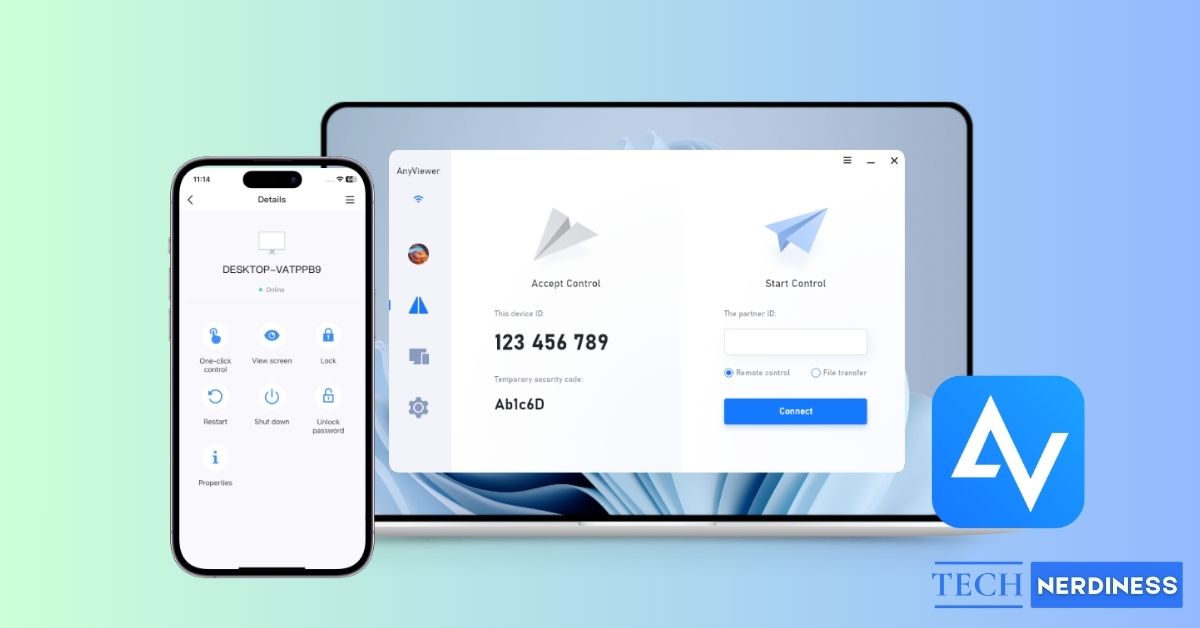
If you’ve ever needed to access your office PC from home, help your parents fix their computer over the phone, or manage multiple devices for work, you’ve probably tried multiple remote desktop software and felt intimidated. I’ve been testing AnyViewer for Remote Desktopon my devices for the past couple of months. It gives a smooth experience without the usual tech headaches.
In this review, I’ll break down how AnyViewer performs, what features stand out, and whether it’s the right choice for you or your team.
What AnyViewer Actually Is?
AnyViewer is a remote desktop app that lets you view and control another computer or phone/tablet from pretty much anywhere. It’s designed to be lightweight, easy to use, and still powerful enough.
It works on Windows (7 and newer), macOS (10.15 and up), iOS/iPadOS, and Android. Therefore, it fits smoothly into both personal and team workflows. The app focuses on fast connections, strong encryption, and a clean interface.
You can use it in two main ways:
- Attended access (someone on the other side accepts the connection. It’s best for one-time tech support)
- Unattended access (set a password once and log in anytime. Use this mode for your own machines or team workstations)
Speed and Performance: Surprisingly Snappy
AnyViewer emphasizes fast connections and low latency thanks to its optimized streaming protocols. It uses the latest screen capture technology for efficient data transfer and low CPU usage. On the other hand, efficient motion encoding and decoding techniques ensure the host can see high-quality visuals.
Moreover, intelligent network routing planning and global servers ensure a stable connection even when connecting to abroad desktops. Thus, you can enjoy high frame rates (up to 60 FPS) and strong performance on a mediocre Wi-Fi connection.
In real use, you can expect snappy control for typical office tasks (office apps, browsing, presentations, basic design work, or lightweight gaming). Heavy video editing or 3D work will still be limited by network and hardware constraints, as with any remote desktop solution.
Security: They Actually Seem to Care
AnyViewer advertises asymmetric end-to-end encryption using a 256-bit ECC algorithm and supports two-factor authentication and other security controls for unattended machines. That level of encryption is GDPR-compliant and appropriate for protecting remote sessions and file transfers in both business and personal use.
Here’s what I like:
- Two-factor authentication is built in and easy to turn on.
- Privacy mode to blacken the screen and disable remote input so people around the remote PC can’t see what you’re doing.
- Auto-lock screen.
- Interface lock so they can’t jump to other windows.
- New devices have to be approved before they can connect.
- Every session is logged with IP and time.
Compared to some older tools that have had major security incidents, AnyViewer feels modern and paranoid in a good way.
AnyViewer Key Features That Stand Out
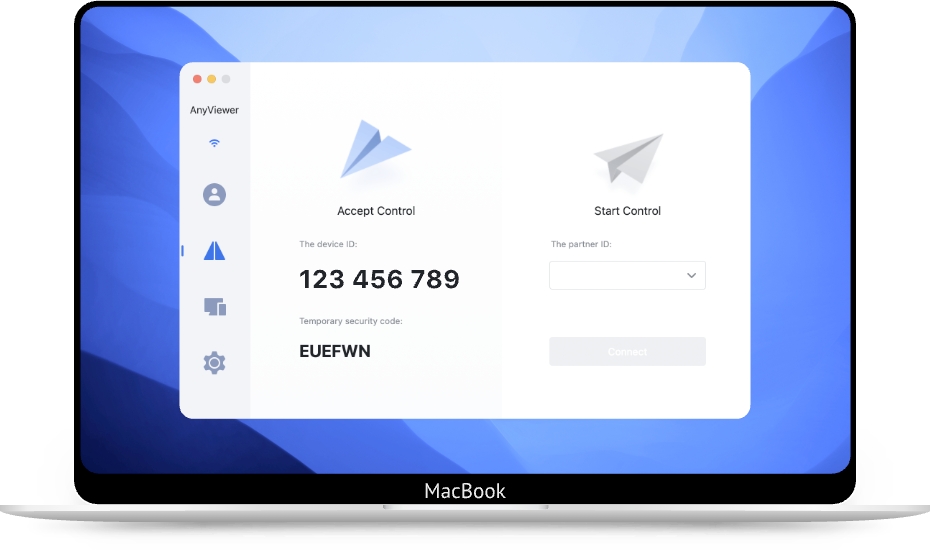
Now, let’s talk about the features that make AnyViewer a unique remote desktop solution:
1. Unattended Remote Access
This is one of AnyViewer’s strongest features. You can access a computer anytime, even if no one is sitting on the other side. It’s perfect for managing office PCs, home desktops, or client machines you maintain regularly. Once configured, connecting takes just a single click.
AnyViewer protects your privacy by allowing you to manage remote access using allowlists and blocklists based on account or device ID.
You can also control multiple computers simultaneously for one-to-many support in attended sessions. There’s a built-in chat box and quick access to CMD, Task Manager, etc.
2. Easy File Transfer
Moving files between the local and remote devices is simple. Drag-and-drop support makes it feel like you’re working on the same machine, and transfer speeds go up to 10MB/s, saving your time.
Also, you can send most file types up to 1TB in size during a session or outside of one. There is no cap on the number of file transfers. Therefore, it’s extremely handy when you forget a file on your home PC or need to share something quickly with a teammate.
3. Remote Gaming
While not a full replacement for high-end game-streaming platforms, AnyViewer’s high-frame-rate (up to 60FPS) remote sessions with instant real-time response make light or casual gaming possible.
You will also get a Game Mouse that offers 3D rotation of the first-person view, giving off a local gaming experience. Games that don’t rely heavily on ultra-low latency (strategy games, indie titles, older games) run surprisingly well. It’s a nice bonus feature for users who want.
4. Multi-Session Support
For professionals or support teams, the ability to open multiple remote sessions simultaneously is a major productivity boost. You can switch between different devices, monitor systems, or help several users without disconnecting.
AnyViewer also lets you display all remote monitors in a single window. It automatically enlarges or shrinks the screen to fit the current window size.
5. Mobile-to-PC Access
The iOS and Android apps bring a lot of convenience. You’ll be able to access your computer from anywhere, even over mobile data, to check in on tasks, restart an app, or access a file. For quick fixes or urgent support, that’s a lifesaver.
6. Team & Device Management Tools
AnyViewer adds the following features, designed for teams, in higher-tier plans:
- Shared device groups
- Role-based permissions
- Multi-user access
- Mass deployment (MSI) for large environments
These tools make it easy for supervisors or IT admins to organize multiple machines and collaborate securely.
7. Screen Mirroring
The screen-mirroring feature lets you display your device’s screen on another device in real time with minimal latency. This is useful for presentations, quick demos, training sessions, or when you just want someone to see what’s happening on your screen without giving full control.
Platforms & Compatibility
AnyViewer is built to work smoothly across the major operating systems most people and teams rely on: Windows, macOS, iOS, and Android. This cross-platform support means you’re not locked into a single ecosystem. You can mix and match devices without any extra setup trouble.
Also, once you sign in with the same account on multiple devices, AnyViewer automatically lists all linked computers. Teams get even more flexibility because multiple admins can manage and access shared devices across different operating systems.
Note: The host device should be running Windows.
Pricing
There’s a fully functional free tier aimed at personal users. You get:
- 1 Licensed user with 3 login devices and 2 simultaneous sessions
- Unlimited remote access with mobile device support
- Two-factor authentication
However, to unlock its full potential, you need to buy a paid plan. The Solo plan (starting at $2.19/month) includes higher-quality visuals, faster frame rates & file transfers, Privacy Mode, Game Mouse, and more simultaneous sessions.
There are also tailored plans for Teams and Enterprises with more collaborative features. And honestly, it’s inexpensive compared to many competitors. That makes AnyViewer attractive for freelancers and small companies who want more sessions and admin controls without a high cost.
How AnyViewer Works?
AnyViewer works by creating a secure, encrypted connection between two devices: the one you want to control and the one you’re using to control it. The process is designed to feel effortless, even if you’re not a technical user.
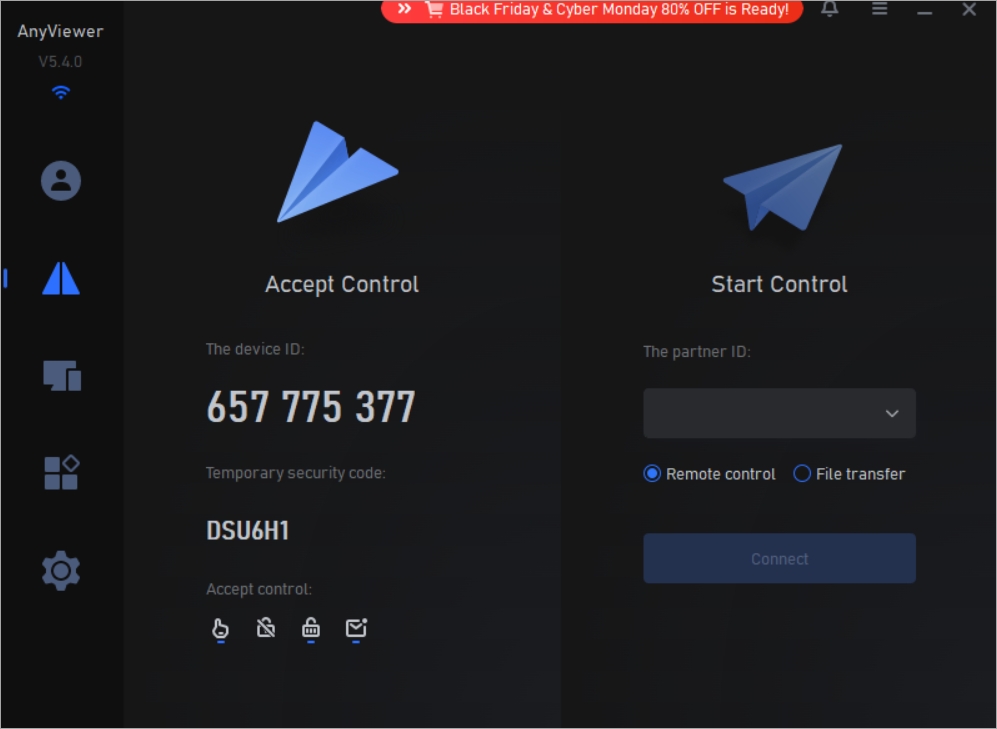
- Download the app on both devices. Once installed, it will open the home page with your device ID and security code.
- Enter the device ID of the target machine on your own device in the Partner ID box. Then choose between Remote control or File transfer.
- Select Connect to start the session. Now, it streams the remote device’s screen to you in real time.
- During the session, you can take a screenshot or record their screen. Pro users can adjust screen resolution and frame rates and enable Privacy Mode.
- Tap the red link icon in the top-right corner to end the session.
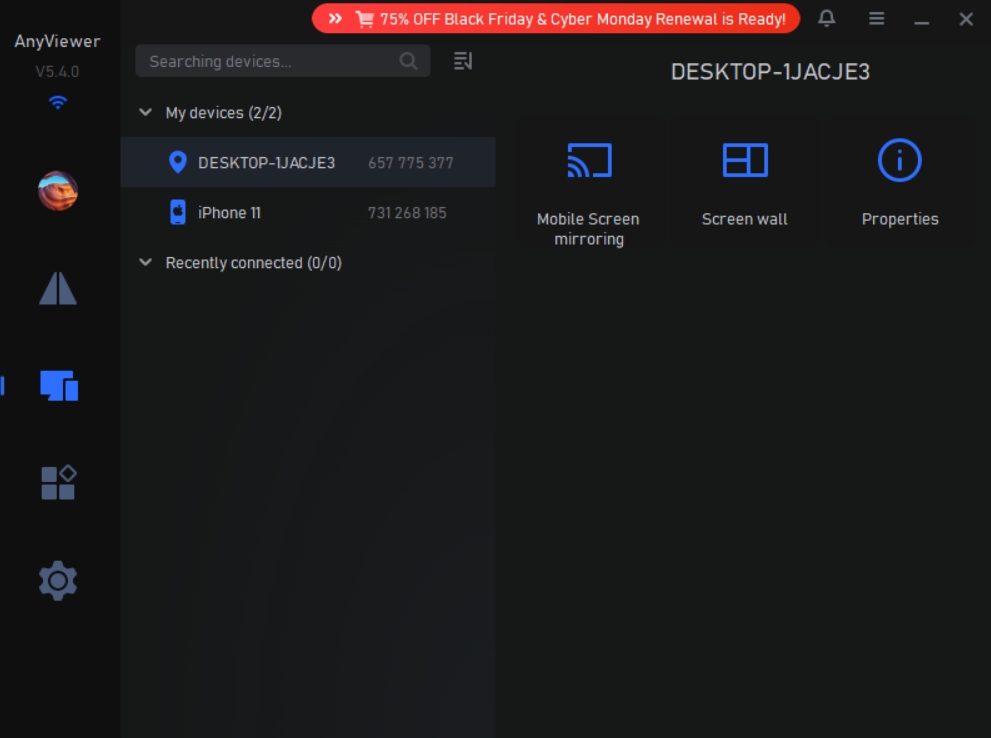
- If you want a one-click remote control to your registered devices, go to the Log in tab and sign in with your AnyViewer account.
- From the Devices tab, you can see your unattended device and synchronization history.
When you initiate a session, AnyViewer establishes a secure, encrypted tunnel between the two devices. This protects your screen data, keystrokes, files, and system information from outside access.
Who Should Get AnyViewer?
AnyViewer is built for a wide range of users, from everyday users to IT professionals, but it shines especially when you want fast, secure, and simple remote access without complex setup.
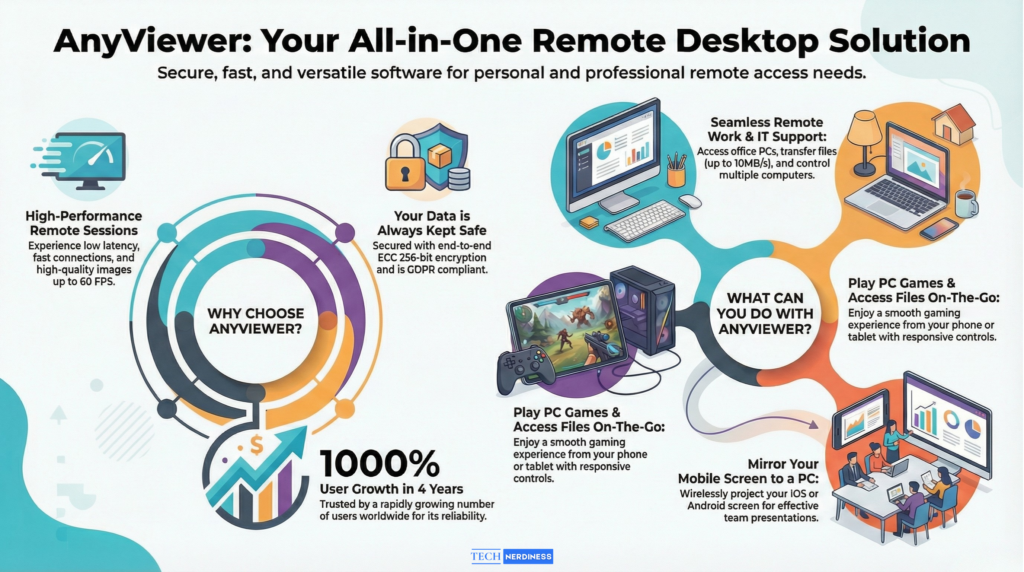
- Professionals can check files on their home computer, run apps remotely, or manage a second PC without being physically present.
- Remote workers & freelancers who work from different locations will appreciate how smoothly AnyViewer switches between devices.
- IT technicians and support teams can benefit from advanced features such as unattended access, screen wall, and multiple sessions.
- Startups that don’t want the complexity or cost of enterprise-level tools.
Moreover, if you often share your screen for demos or enjoy casual remote gaming while away from your main PC, AnyViewer’s performance is strong enough for light use.
My Experience With AnyViewer
As someone who reviews products and writes about complex tech, I always look for two things: how easy a tool is for beginners, and whether it performs well enough for professionals.
With AnyViewer, I found that:
- The setup was genuinely quick
- The interface is clean, which makes it less intimidating for new users.
- Performance was better than expected, especially for file transfers and low-latency control.
- Remote support mode is practical as sharing access via a code feels effortless.
- Mobile access was smooth, unlike other remote desktop apps.
Overall, I think AnyViewer fits that sweet spot many tools miss. It’s powerful enough for work, simple enough for casual users, and affordable enough for small teams. Also, upcoming features such as file transfer via mobile, viewing camera output from remote mobile devices, and third-party account support will improve it.
However, if you use a Linus device, you can’t use it right now.
Final Verdict: 9/10
AnyViewer isn’t the most popular name in the remote desktop space, but it’s fast, easy, and takes security & performance seriously. In general, it is worth considering for many people and small teams. If all you want is reliable remote access without drama, then buy AnyViewer.