Android is full of settings and features that ostensibly augment the overall user experience. While that’s true for some, not all of them are as user-friendly as you’d think. Some settings (even settings enabled by default) secretly drain your battery life, slow down your phone, and or even leak your sensitive data.
So, let’s look into those. Here’s a guide on some Android settings you need to either disable or keep an eye on. We’ll also explain why disabling these features is important. Don’t worry, while some of these settings seem crucial to the core Android experience, disabling them won’t harm your system.
1. Android Settings That Drain Battery in the Background
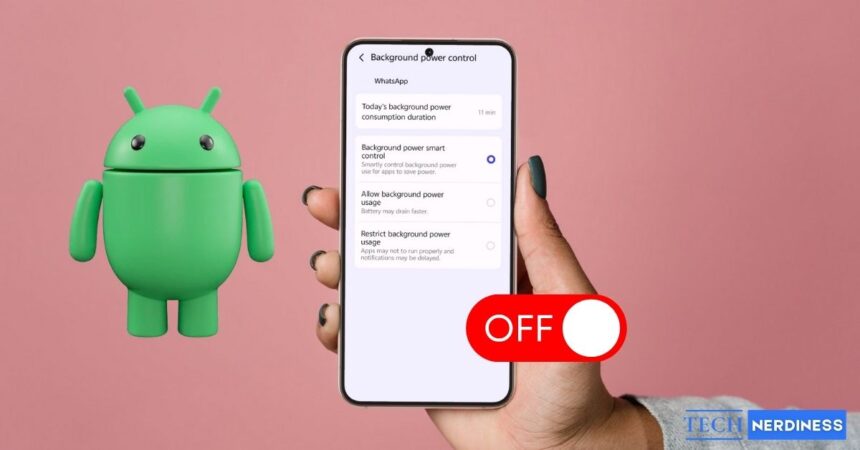
Your phone doesn’t only use battery power when awake. A fair amount of battery drain happens when your phone is just sitting on a shelf or bumping around in your pocket. This is mainly because several apps perform duties in the background, and that takes battery power. So, you’ll need to disable the unrestricted background setting.
Sure, most apps actually need to operate in the background to properly do their jobs. Health apps need to constantly communicate with your smartwatch. However, not all apps really NEED to be on in the background. Realistically, most apps shouldn’t have to operate when you’re not using them. The sad thing is that most people don’t know that apps are draining their batteries.
The best way to combat this is to go through all of your apps and see if you think they should run in the background. It makes sense that an email app should operate while closed. However, that match-3 game you downloaded, not so much.
Go to your phone’s home screen and hold your finger down on the app you want to restrict. When the menu comes up, tap on the App Info (the “i” in the circle) button. This will take you to the app’s settings page. Depending on your phone’s Android skin, the page may look different. However, all of the menus will be the same.
Look for a Battery or Battery Usage button. There, you will see three options. There are the Smart, Restricted, and Unrestricted options. Again, there will be some variation depending on the Android skin you use. However, they all mean the same thing.
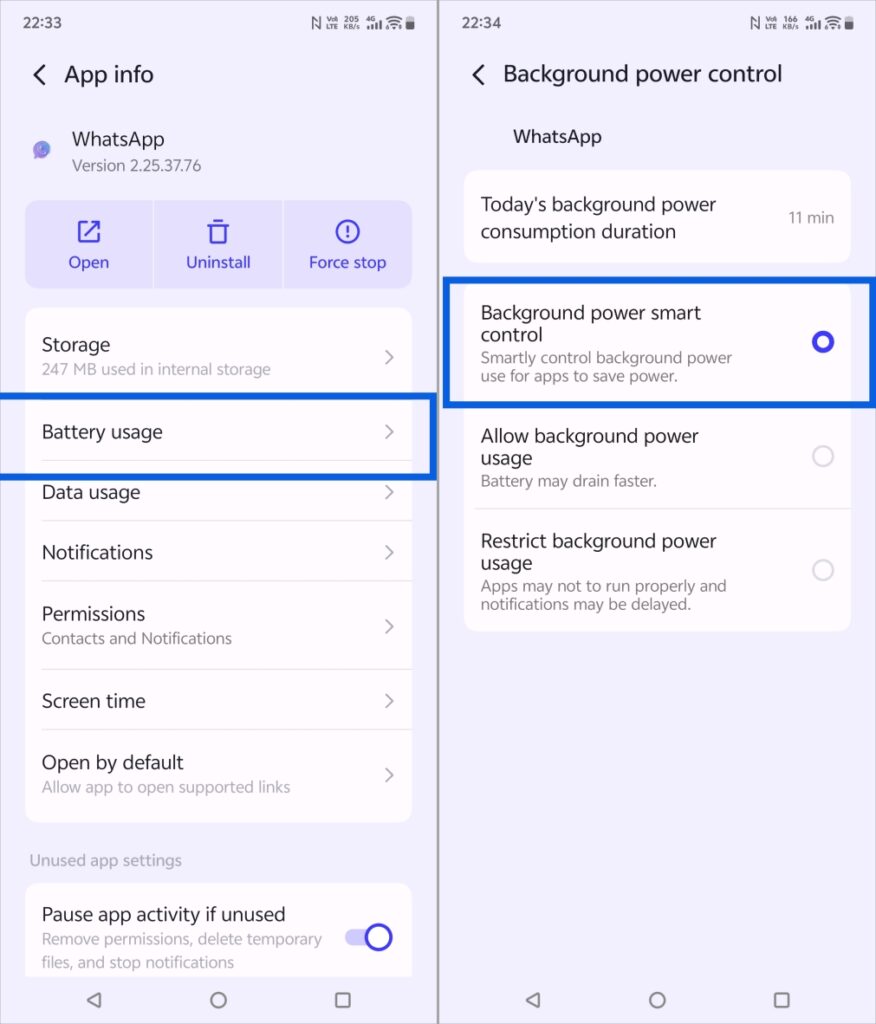
The app will automatically set the app to the Smart battery option. With it enabled, Android will optimize how much the app will run in the background based on your usage. If you use an app more often, the system will let it run more often, and vice versa.
The Restricted mode will stop the app dead in its tracks the second you close it. This means that it won’t run in the background at all. Lastly, the Unrestricted mode won’t limit the app at all. You really don’t want to grant any app this permission unless it can not perform its basic duties otherwise. A voice assistant app will likely need this permission so that it can listen for the hot word while in the background. That’s just one example.
2. How Android Location Tracking Works and Why It Matters
Imagine a person who knows exactly where you are at every moment. That’s a scary thought! The reality is that this person exists, and you carry them around in your pocket. Your smartphone beams information like your location to all sorts of companies. Social media apps access your location when you do check-ins. Weather apps access your location to give you local weather conditions.
Just like with background permissions, some apps have a good reason to know your location. Obviously, a navigation app will need to know where you are. However, not all apps should know where you are. If your calculator app wants to know your precise location, that’s a bit of a red flag.
There are two primary ways to control how your phone pinpoints your location. The best way is to go through your apps and select which ones you think should know your location. Go to the app’s settings page and look for the Permissions section. Here, you’ll see a list of the permissions the app has. If you see Location, tap on it.
On the resulting page, you’ll see some options:
- Allow all the time
- Allow only while using the app
- Ask every time
- Don’t allow
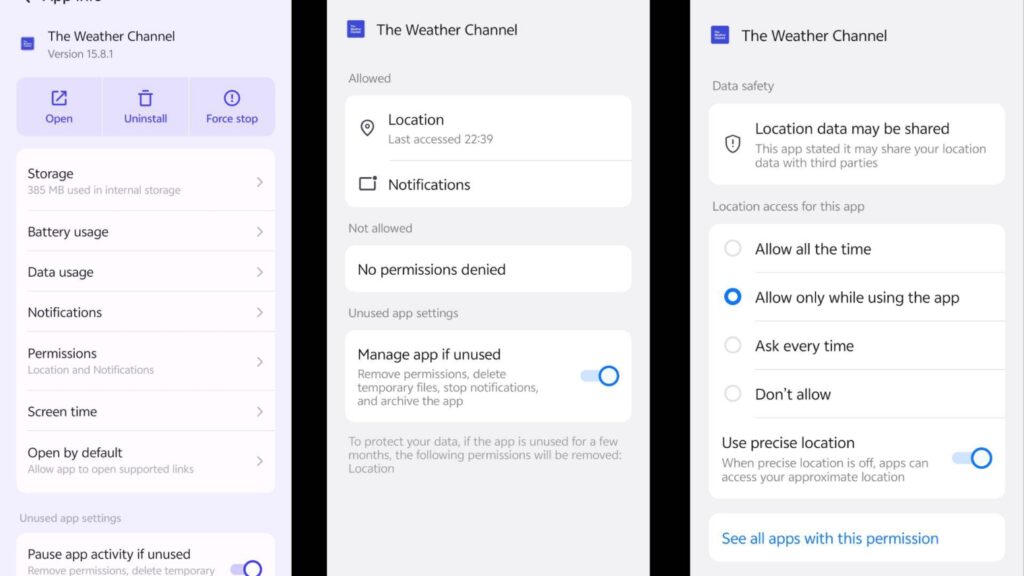
These are self-explanatory, and they let you tailor how your apps access your location. The Allow all the time option will let the app see your location even when it’s closed. Realistically, most apps shouldn’t need to access your location at all. For apps like those, you’ll choose the Don’t Allow option.
Even apps that have a good reason to view your data shouldn’t have 24/7 access. You’ll only want them to see your location when you’re using them. For example, a weather app needs this permission, but ONLY when you’re looking up the weather. So, why should it operate in the background? The same thing goes for navigation apps; Waze shouldn’t know where you are if you’re not on the road. For apps like these, choose the Allow only while using app option.
If you choose the Ask every time option, you’ll get a pop-up every time the app needs to use your location. It will let you choose whether either to grant or deny the permission during that session.
3. Turn Off Location Services on Android (And When You Shouldn’t)
This next method isn’t really recommended unless you don’t plan to do much with your phone. You can cut off location data for your entire device. This means that none of the apps or services on your phone will have access to your location. You won’t be able to use your phone for many of the things that people use theirs for.
To shut off location for your phone, go to the settings and look for the Location button. When you tap on it, you’ll see a page with a toggle. Simply flip the toggle, and your phone will be off the grid… mostly.
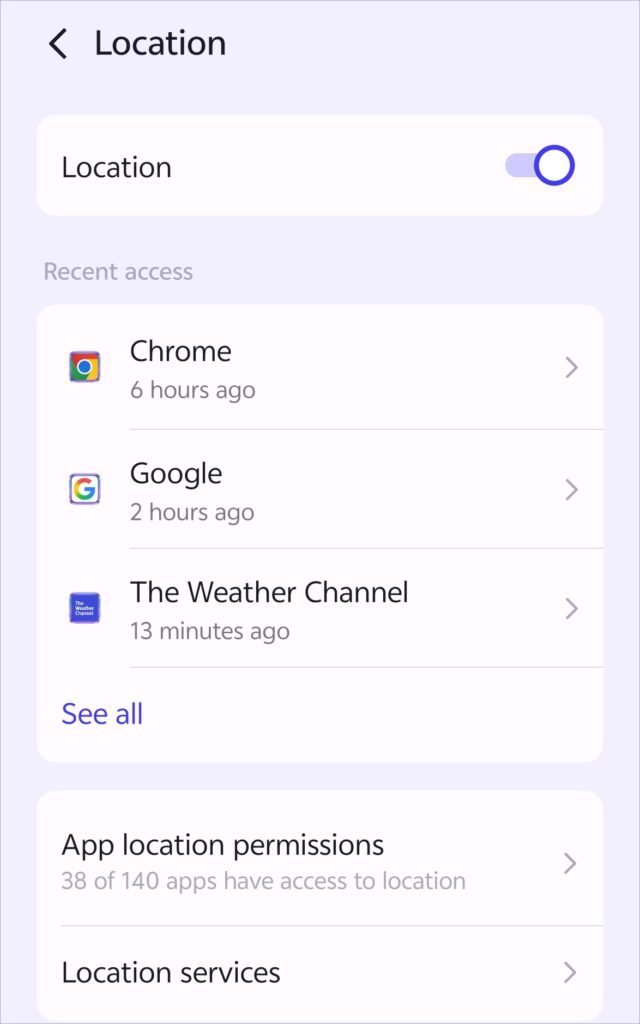
Here’s the deal: this method will cut off pretty much all of the apps you download or that come pre-installed on your phone. Games, social media apps, navigation apps, note-taking apps, streaming apps, etc.
However, it won’t completely blanket your device. It may still share your location to first responders. So, if you turn off your location and immediately drive your car off a cliff, you won’t be completely helpless. Also, Google apps that can scan for nearby devices might still be able to get an approximate location on your phone.
4. Why Wi-Fi Scanning Can Expose Your Location and Data
Wi-Fi is one of the most important technologies that your phone utilizes. It allows it to connect to other devices and keep it from being an island. Wi-Fi scanning lets your phone automatically search for available Wi-Fi connections in your area.
So, it’s extremely helpful for most people. However, most helpful features could also be harmful. In the case of Wi-Fi scanning, this setting could secretly reveal your home address. When your phone scans for available addresses, there’s a lot more at play than you think. Your phone isn’t only receiving information about what Wi-Fi connections are available, but it’s also broadcasting information.
It sends out “join requests” when it scans. While completely innocent for the most part, these join requests can share information like your phone’s MAC address and its SSID data. That last bit of information reveals what Wi-Fi connections your phone trusts.
In most cases, this doesn’t really put you in danger. However, there are people who like to harvest this information. With it, they can actually track your home address or sell it on the dark web. This is why you’ll want to disable Wi-Fi scanning in the interest of safety.

To disable it, go to your phone settings and find the Wi-Fi settings. It might be under the Device Connects section for some phones. While in the Wi-Fi settings, find the Advanced options and look for the Wi-Fi Scanning toggle. Switch it off, and you’re good to go.
5. Android Privacy Settings That Collect More Data Than You Expect
Privacy is one of the hottest subjects when it comes to smartphones. At any given moment, your phone is broadcasting a myriad of information about you, and that means that privacy is basically non-existent. This upsets many users, as no one wants someone peeking in.
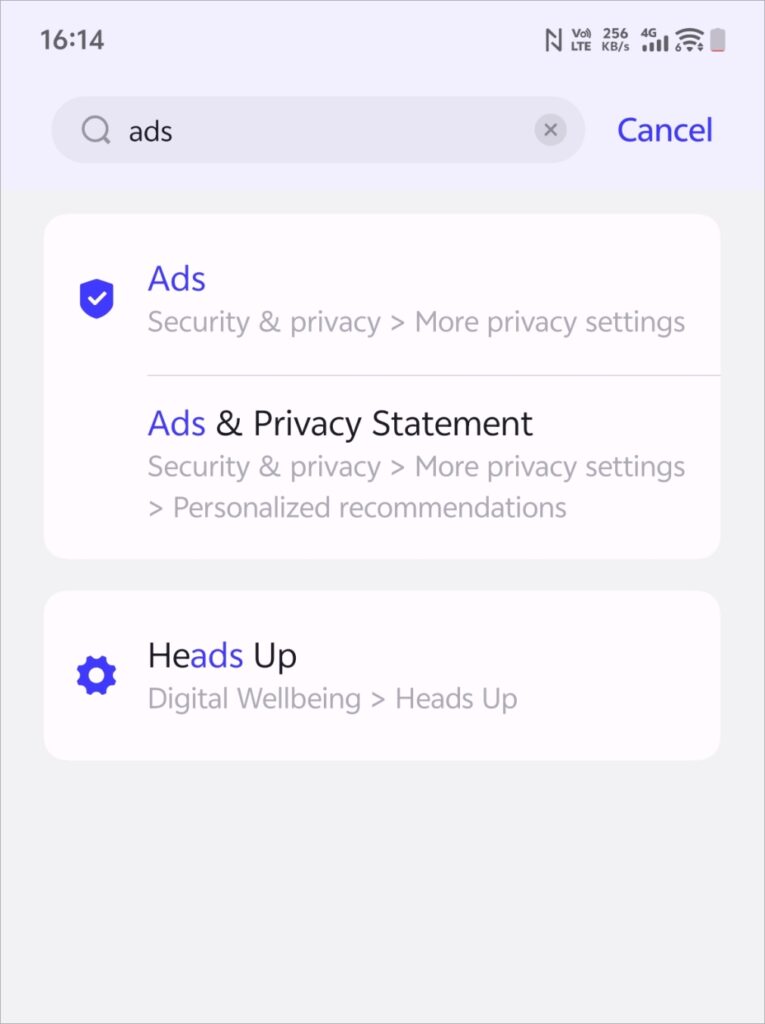
There are a handful of settings and features in Android that make privacy unattainable. For example, there are settings that collect information from your usage and use it for personalized ads. You should be able to disable personalized ads from the settings. Go to your settings and do a search for ads in the search bar. This process will vary depending on the Android version of your phone’s manufacturer. So, you’ll need to do a little digging.
It’s no little-known fact that Google is always collecting data in the background. One way that Google stores it is through Usage and Diagnostics. Basically, your phone sends information about your device usage, app usage, battery life, system/app stability, and more to Google. The company uses this information to improve the Android experience, but most people aren’t comfortable with the fact that Google is collecting this data.
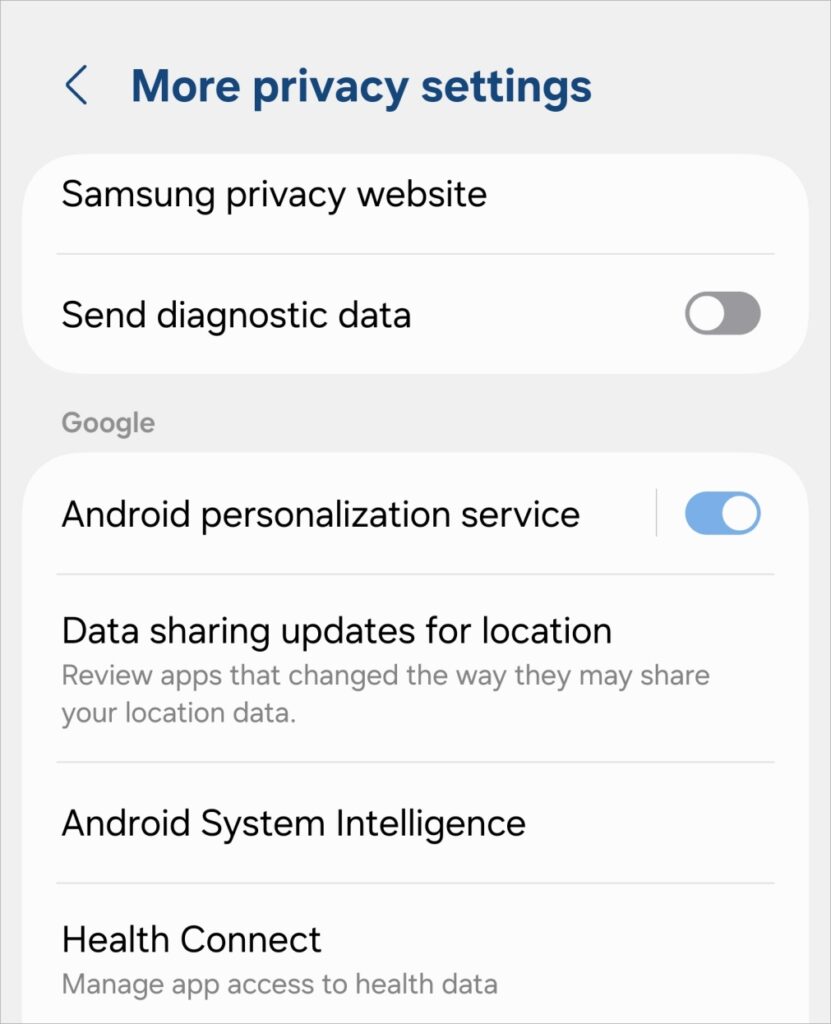
To disable it, go to your settings and search for “Usage and Diagnostics”. Tap on the section that pops up. Again, you’ll see a big toggle at the top of the screen.
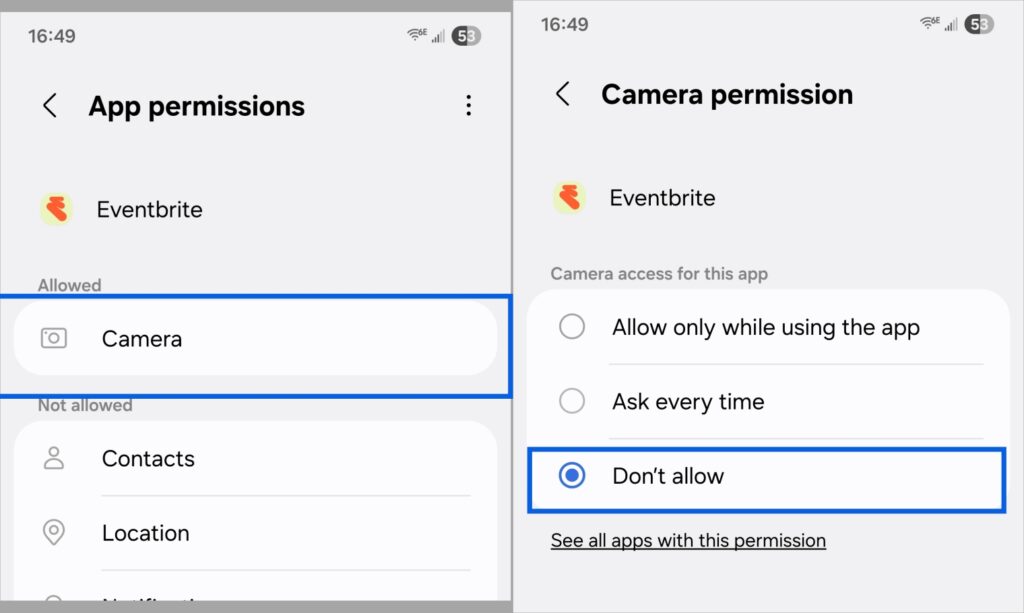
It’s extremely important to monitor which applications have access to your microphone and camera. It makes sense that social media apps would need access to them, but that’s not the case with most other apps.
Blocking an app from using your microphone and camera is as easy as disabling the unrestricted battery setting. Go to the app’s settings page and look for the Permissions button. This will list what the app has access to. If the app has access to your camera or microphone, tap on it.
On the next screen, you’ll see a list of options:
- Allow while using the app
- Ask every time
- Don’t allow
Select the “Don’t allow” option to disable it.
6. How Android Animations Affect Performance on Older Phones
Sure, it’s satisfying to see your apps smoothly slide into view when you unlock your phone. Here’s the thing, animations have been a core part of the smartphone experience. We’ve become accustomed to seeing UI elements slide in and out of menus. But, the thing is that animations add an additional load onto your processor.
It’s not much of an issue with new devices, but not everyone is using a Galaxy S25 Ultra. Many people use older devices with aging hardware. Some devices feel every frame of each animation, and that impacts the performance. Before loading an app, your phone has to process the animation of the app icon expanding to fill the screen.
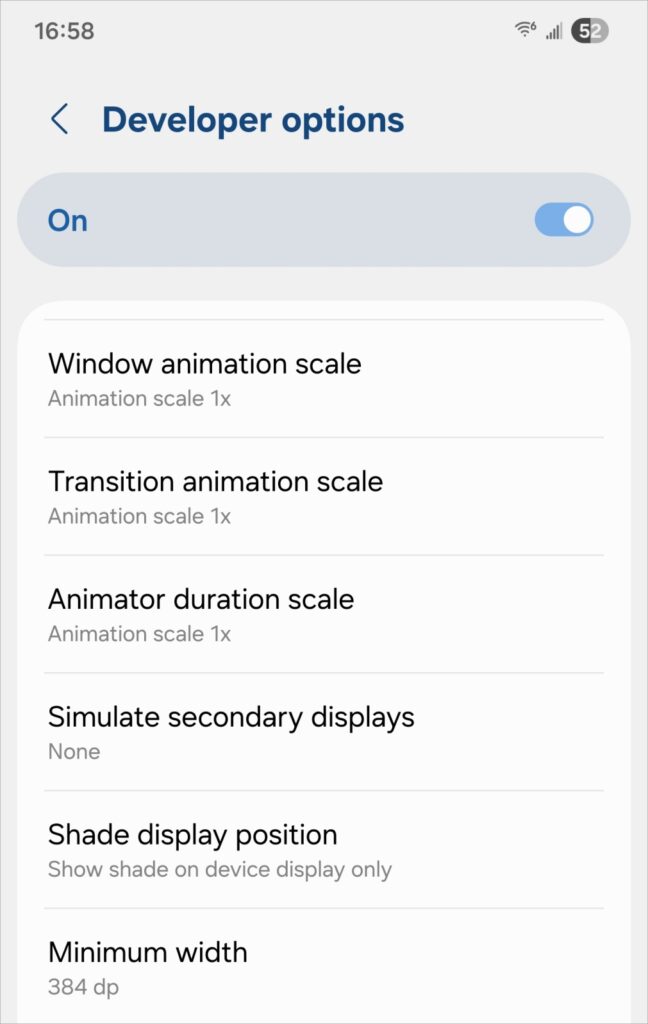
To adjust the animation, you’ll want to enable developer options. Go to your settings, and find the About Phone section. There, you should see a Software section. Tap on the Build Number button multiple times. You’ll see a message at the bottom of the screen telling you how many more times you need to tap until you enable the options.
After enabling the settings, go to the settings search bar and search for Animations. You will see some animation settings from the developer options show up. Tap on these options and select the Animation Off option.
7. Is Smart Lock on Android a Security Risk? What You Need to Know
You know the drill; your phone stays locked until you pick it up and unlock it. Some people don’t like unlocking their phone all the time, but you can’t expect them to just leave their phone unlocked all day. Android has a solution to this called Smart Lock.
Basically, if your phone detects that it’s on you, then it will remain unlocked. So, if you leave your phone on a table at work, it will stay locked. When you pick it up, it will unlock itself so you can use it right away. This also works for if your phone is at home and if it’s near certain devices.
There are risks associated with leaving your phone unlocked, however. It’s pretty obvious; if your phone is unlocked, who’s to say that someone won’t come up to you and take your phone? A person could swipe it while it’s near you or at your house.
Not all Android devices have this feature, so there’s a chance that you won’t even need to worry about it. Samsung’s devices have what’s called Extend Lock. This does basically the same thing. Go to your settings and type Extend Lock in the search bar. There, you’ll have the option to turn it on or off.
8. Is Sideloading Apps on Android Safe? Hidden Risks Explained
One of the great things about Android is the ability to install apps from more than one place. The Google Play Store holds the majority of Android apps. However, it’s not the only source. Users can download the APK files (the Android app install files) to their phones and install them manually.
If an app pushes an update that breaks the whole experience, you can download the APK of the older version and use that. Also, if your favorite app gets delisted from the Play Store, you can download the APK and still enjoy it.
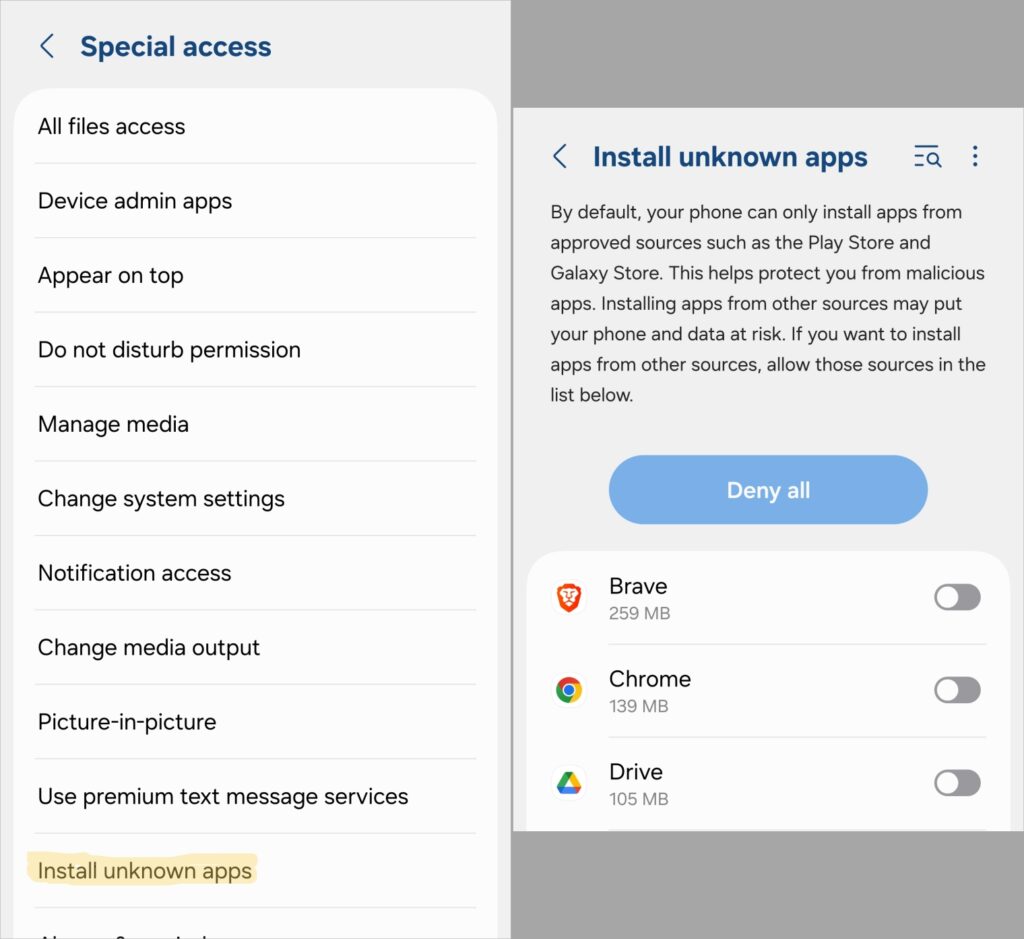
Sideloading seems like a win-win, but there’s a danger to it. While it doesn’t block ALL of them, the Google Play Store blocks millions of malicious apps each year. However, if you download an app from a website, there’s no guarantee that the app is safe. You could very well download a virus along with your favorite game.
In order to keep this from happening, you’ll want to make sure that the option to install apps from unknown sources is disabled. Go to the settings, tap on the Apps section, and look for the Special Access button. On the resulting page, look for the option to install from unknown sources. Turn off the toggle to make sure that you only install apps from the Google Play Store.
Final Thoughts: Which Android Settings Are Worth Changing
Any fun operating system needs to give you a ton of options for the best experience. However, not every option is a good one. If you stumble upon a new setting in your phone, make sure that it doesn’t secretly leak your data or drain your phone’s battery. Also, be sure to revisit settings after updates. Taking a few minutes to check your phone’s settings could mean the difference between a great experience and a bad one.